
Learning how to customize touch controls on Samsung Galaxy Buds 2 gives full command over how the earbuds respond to every tap and hold. Whether the goal is to skip tracks faster, adjust volume without reaching for a phone, or trigger the voice assistant with a single touch, the Galaxy Wearable app makes every adjustment straightforward. This guide walks through each step clearly so the setup is done right the first time.
Quick Summary
- The Galaxy Wearable app (Android) is required to customize touch controls
- Both the left and right earbud can be assigned different functions
- Touch hold actions and touch actions are configured separately
- Changes save automatically and apply immediately to the buds
- Available functions include: volume control, media controls, voice assistant, and ambient sound toggle
How to Customize Touch Controls on Samsung Galaxy Buds 2
The Samsung Galaxy Buds 2 uses a touch-sensitive panel on each earbud. Tapping or holding the earbud triggers different actions depending on how the controls are configured. The key is understanding that each side can be customized independently, which allows for a more personal and efficient setup.
What You Need Before Starting
- Samsung Galaxy Buds 2 (fully charged or with enough battery)
- An Android smartphone (Samsung or non-Samsung)
- Galaxy Wearable app installed from the Google Play Store
- Buds connected via Bluetooth to the phone
Step-by-Step: Customize Touch Controls
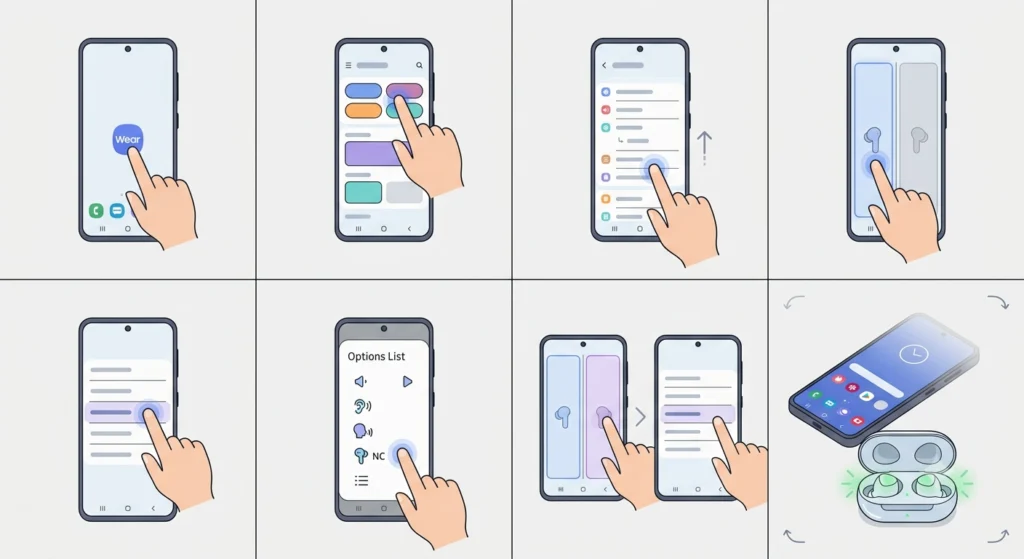
- Step 1: Open the Galaxy Wearable app on the connected Android device.
- Step 2: Tap ‘Earbuds settings’ on the main screen.
- Step 3: Scroll down and tap ‘Touch controls’.
- Step 4: Choose either ‘Left earbud’ or ‘Right earbud’ to configure that side.
- Step 5: Under ‘Touch and hold’, tap the current function to open the options list.
- Step 6: Select the desired action from the available list. Options typically include: volume up, volume down, ambient sound, voice assistant, or switch noise controls.
- Step 7: Repeat the same process for the other earbud if a different function is preferred for that side.
- Step 8: Exit the menu – changes are saved automatically and applied to the buds in real time.
Most people find that assigning volume control to one side and voice assistant to the other creates the most practical day-to-day experience. This works best when the phone stays in a pocket and hands-free control is the priority.
Pro Tip: Assign ‘Volume up’ to the right earbud and ‘Volume down’ to the left for an intuitive left-right volume balance. It mirrors how most physical volume buttons are laid out and reduces the chance of pressing the wrong side.
Available Touch Hold Functions
- Volume up – Raises the media volume incrementally while held
- Volume down – Lowers the media volume while held
- Switch noise controls – Toggles between Active Noise Cancellation, Ambient Sound, and off
- Voice assistant – Activates Bixby, Google Assistant, or the default assistant on the connected device
- Ambient sound – Activates ambient mode to let in surrounding noise
Understanding Single Tap vs Touch and Hold
On the Galaxy Buds 2, the single tap (double or triple tap) is pre-set for media controls like play, pause, skip, and call answering. These cannot be freely reassigned the way the ‘touch and hold’ function can. The touch and hold is the main customizable control, and that is where the personal setup really matters.
The key is to treat the tap controls as fixed shortcuts for media and calls, while using the hold function as the personal control assigned to whatever is accessed most often throughout the day.
Tips for Getting the Most Out of Touch Controls
- Test the setup right after saving to confirm the function triggers correctly on both sides
- If the buds are also connected to a second device, re-check the settings each time the active device switches – some functions behave differently depending on what app is playing audio
- To avoid accidental touches, keep earbuds clean and dry. Moisture can sometimes trigger phantom taps
- When using the buds with a non-Samsung Android phone, download Galaxy Wearable from the Play Store directly – it works on most Android devices, not just Samsung phones
- If Bluetooth pairing ever becomes an issue when switching between devices, this guide on re-pairing Bluetooth earbuds for stereo sound on Windows covers the connection process clearly
Pro Tip: After setting up touch controls, go to ‘Earbuds settings’ > ‘Labs’ in the Galaxy Wearable app to explore beta features like ‘Detect conversations’ or ‘Gaming mode’. These additional modes can work alongside the custom touch settings for an even more tailored experience.
Common Touch Control Problems and Fixes
Fix 1: Touch Controls Not Responding
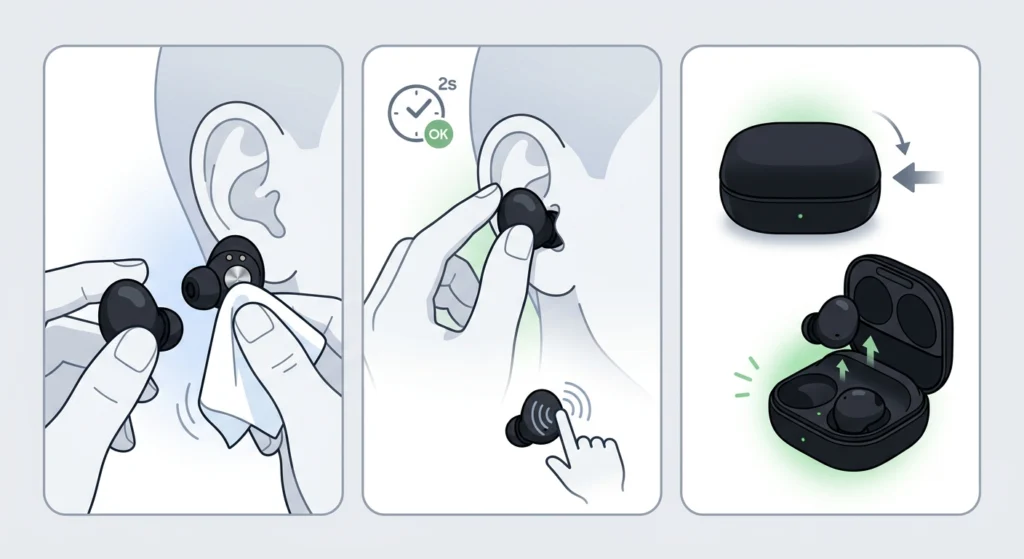
If a tap or hold is not triggering the assigned function, the most common cause is that the earbud is not properly seated in the ear. The Galaxy Buds 2 has a wear detection sensor that pauses certain functions if it does not detect skin contact. Reseat the earbud firmly and try again.
- Remove the earbud and clean the inner sensor area gently with a dry cloth
- Reinsert the earbud and wait two seconds before testing the touch control
- If the problem continues, restart the buds by placing them in the case, closing it, and taking them out again
Fix 2: Settings Not Saving in the App
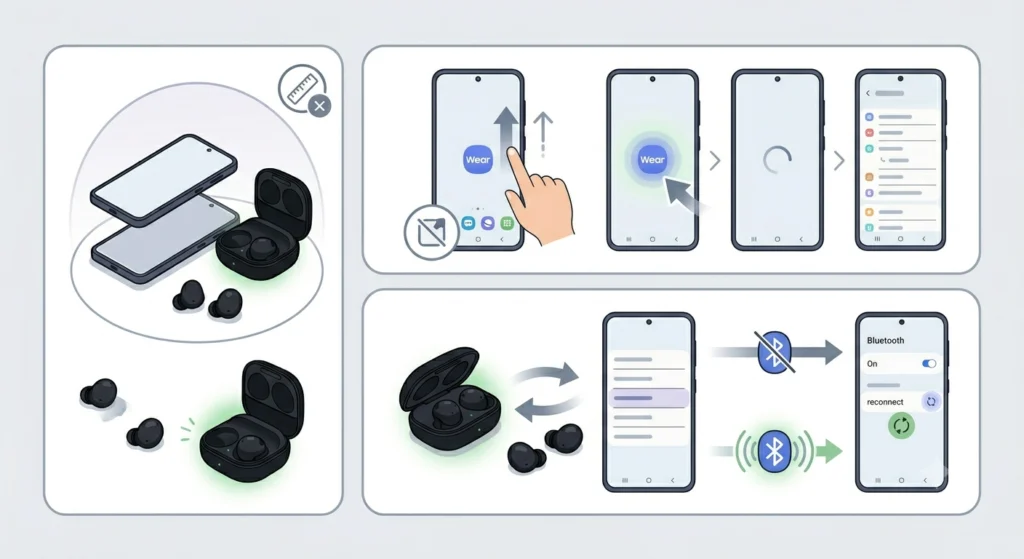
Occasionally the Galaxy Wearable app fails to sync updated settings to the buds. This usually happens when the Bluetooth connection drops briefly during the save process.
- Keep the phone and buds within close range (under 1 meter) when making changes
- Force-close the Galaxy Wearable app and reopen it to confirm the settings were saved
- If settings still revert, disconnect and reconnect the buds from the Bluetooth menu, then re-apply the settings
Fix 3: Galaxy Wearable App Not Detecting the Buds
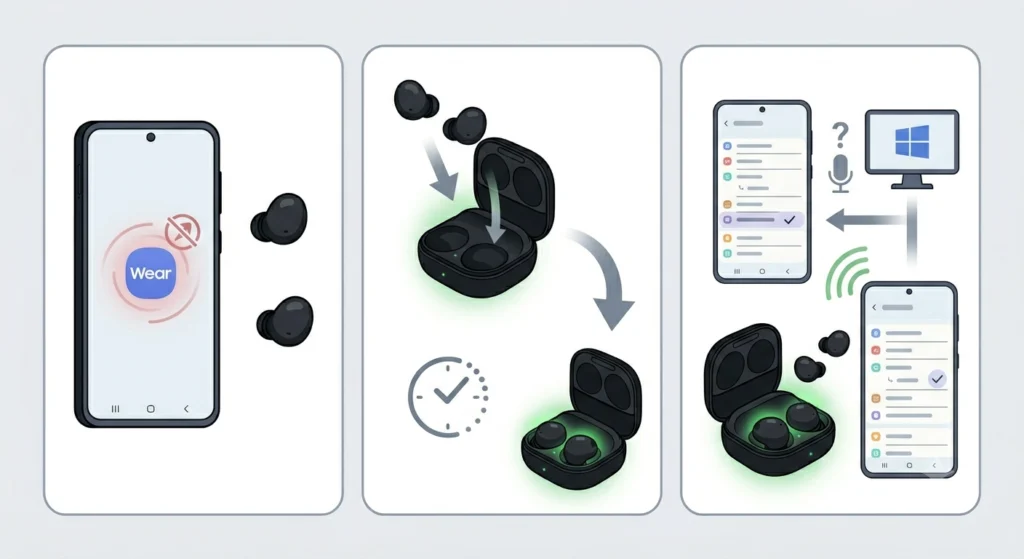
If the app opens but shows the buds as offline or disconnected, the fix is usually straightforward. Place the buds back in the case, close the lid, wait five seconds, then remove the buds and let them reconnect automatically. If the device is a Windows PC and audio settings are involved separately, troubleshooting microphone detection problems on Windows 11 may also be useful if the buds are being used as a mic input.
Frequently Asked Questions
Can the single tap function be customized on Galaxy Buds 2?
No. On the Galaxy Buds 2, single tap actions for media playback (play, pause, skip) and call controls are fixed and cannot be reassigned. Only the ‘touch and hold’ function can be customized through the Galaxy Wearable app.
Does customizing touch controls require a Samsung phone?
No. The Galaxy Wearable app is available on the Google Play Store and works with most Android phones, including non-Samsung devices. However, some advanced Bixby-related features may require a Samsung device to function fully.
Can both earbuds be assigned the same function?
Yes. Both the left and right earbud can be set to the same touch hold function if preferred. However, assigning different functions to each side is generally more useful for quick access to multiple controls.
Will the customized settings stay after the buds are reset?
No. A factory reset on the Galaxy Buds 2 will erase all custom touch control settings and return them to default. After a reset, the settings will need to be reconfigured through the Galaxy Wearable app again.
Is it possible to disable touch controls entirely?
The Galaxy Wearable app does not currently offer a toggle to fully disable all touch controls. However, setting the touch hold function to an option that is rarely used (like switching noise controls off when ANC is already disabled) effectively minimizes unintentional actions.
What is the default touch hold setting on Galaxy Buds 2?
By default, the touch and hold function on both earbuds is set to toggle between noise control modes (ANC, Ambient Sound, and off). This can be changed to any other available function through the app.
Can touch controls be customized when connected to an iPhone?
No. The Galaxy Wearable app is an Android-only application and is not available on iOS. When Galaxy Buds 2 are connected to an iPhone, touch controls cannot be customized and will remain at their default settings.
Do touch control settings sync across multiple connected devices?
Touch control settings are stored on the earbuds themselves, so the configuration remains consistent regardless of which device the buds are currently connected to. The function assigned will behave the same way whether connected to a phone, tablet, or another device.
Why does the touch control sometimes activate twice?
Accidental double-activation often happens when earbuds are inserted or adjusted. The touch panel is sensitive to contact, and any press during insertion can register as an intentional tap. The fix is to insert the buds gently and avoid pressing directly on the flat touch surface during the process.
What should be done if the Galaxy Wearable app does not show the touch control option?
Make sure the app is updated to the latest version from the Play Store. Older versions of the Galaxy Wearable app may not display all settings for the Buds 2. Also confirm the buds are fully connected and showing as ‘online’ in the app before navigating to the settings menu.