
Customizing the EQ on the Jabra Elite 10 through the Sound+ app is one of the quickest ways to unlock the full audio potential of these earbuds. Whether the goal is punchy bass for workouts, a flat response for studio-style listening, or crisp highs for podcasts – the built-in equalizer gives full control without needing any technical background. This guide walks through every step to get the EQ dialed in exactly right.
Quick Summary
- Download the Jabra Sound+ app (iOS or Android)
- Connect the Jabra Elite 10 via Bluetooth
- Navigate to ‘Sound’ then ‘Equalizer’ in the app
- Choose a preset or manually drag frequency bands
- Save the custom EQ profile for persistent use
How to Customize EQ on Jabra Elite 10 Step by Step
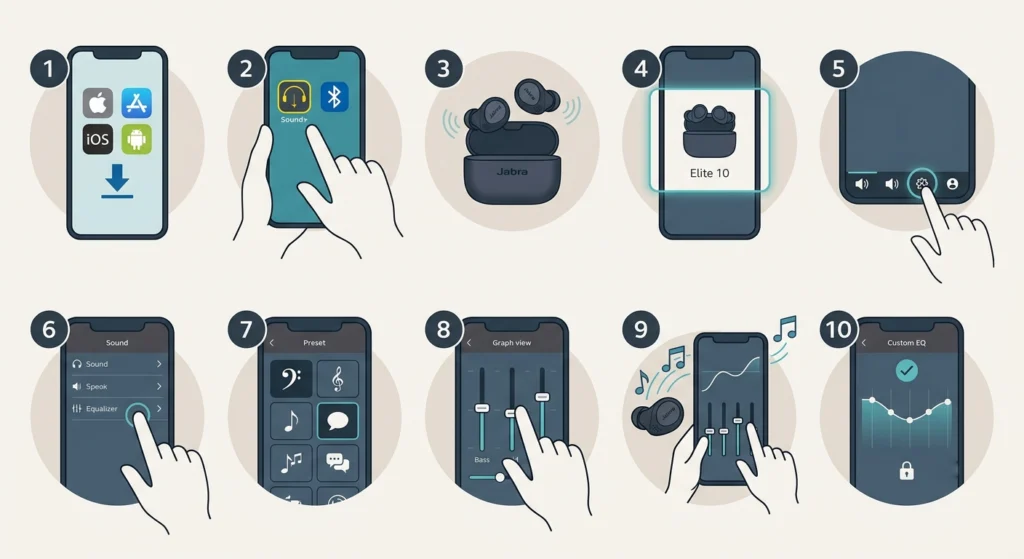
The process is straightforward once the Sound+ app is set up. Follow each step carefully to make sure the EQ settings apply correctly and save to the earbuds.
- Step 1: Download the Jabra Sound+ app from the App Store (iOS) or Google Play Store (Android) if it is not already installed on the device.
- Step 2: Open the Jabra Sound+ app and make sure Bluetooth is enabled on the phone or tablet.
- Step 3: Place the Jabra Elite 10 earbuds in the ears or take them out of the case – either works, but they must be powered on and connected to the device.
- Step 4: The app should automatically detect the Elite 10. If not, tap the device name at the top of the home screen and select the earbuds from the list.
- Step 5: On the main dashboard, tap the ‘Sound’ tab located at the bottom or within the device settings panel (this can vary slightly by app version).
- Step 6: Tap ‘Equalizer’ to open the EQ controls.
- Step 7: Choose from the available presets – options typically include Bass Boost, Treble Boost, Speech, and Neutral – or select ‘My Sound’ if a personalized hearing profile was previously set up.
- Step 8: To manually adjust the EQ, tap the ‘Custom’ or ‘Manual’ option. A set of frequency band sliders will appear, covering bass (low frequencies), midrange, and treble (high frequencies).
- Step 9: Drag each slider up to boost that frequency range or down to reduce it. Play music simultaneously to hear changes in real time.
- Step 10: Once satisfied with the sound, the app saves the settings automatically. The custom EQ profile stays active until it is changed again.
The key is to make small adjustments rather than maxing out sliders in one direction. Subtle tweaks usually produce the most natural and enjoyable listening experience.
Pro-Tip: Use the ‘My Sound’ feature in the Jabra Sound+ app to run a quick hearing test. The app tailors the EQ to the listener’s specific hearing profile, which often sounds more natural than any manual preset. This works best as a starting point before making additional manual tweaks.
Understanding the EQ Frequency Bands on Jabra Elite 10
Knowing what each frequency range controls makes the adjustment process much faster. Most people find that understanding the basic frequency map helps them zero in on the right sliders without guesswork.
- Bass (60-250 Hz): Controls the depth and punch of low-end sounds like kick drums and bass guitar. Boosting this adds warmth and weight to music.
- Low Midrange (250-500 Hz): Affects the body of vocals and instruments. Too much here can sound muddy; reducing slightly can clean up the mix.
- Midrange (500 Hz – 2 kHz): The core of most vocals and lead instruments. Boosting helps with voice clarity, especially for calls and podcasts.
- Upper Midrange (2-4 kHz): Controls presence and attack. A slight boost here makes music feel more detailed and forward.
- Treble (4-16 kHz): Air and brilliance live here. Too much can cause harshness or listening fatigue; a small boost adds sparkle without strain.
Using EQ Presets vs. Manual Adjustment
The Jabra Sound+ app offers two main paths: presets and full manual control. Both are useful depending on the situation.
EQ Presets
Presets are the fastest way to get a good starting sound. Options like Bass Boost, Neutral, and Treble Boost are optimized by Jabra for common listening scenarios. These work well for users who prefer not to dive deep into individual frequency sliders.
Manual EQ Adjustment
Manual mode gives complete control over each frequency band. This is the better choice for audiophiles or anyone with a specific sound preference. The tradeoff is that it takes a bit more time to find the sweet spot.
Most people find that starting with a preset and then making one or two manual adjustments produces the best results quickly.
Pro-Tip: When adjusting EQ manually, always reduce problem frequencies rather than just boosting everything. Cutting a muddy low-mid often sounds cleaner than boosting the highs. This approach preserves headroom and keeps the audio from sounding distorted at higher volumes.
Tips for Getting the Best EQ Results
- Listen to a familiar song during adjustments – something with a known sound makes it easier to hear the difference each slider makes.
- Keep the ANC (Active Noise Cancellation) setting consistent while tweaking EQ, since ANC can slightly affect perceived bass response.
- Reset to ‘Neutral’ if the custom settings stop sounding right – it is always a clean starting point.
- Try different EQ settings for different use cases: one for music, another for calls or video, and another for workouts.
- If audio output sounds different than expected on a connected device, it may be worth checking the audio output settings on Windows 11 to make sure there are no conflicting system-level EQ enhancements applied.
Common Problems and Fixes
Fix 1: EQ Changes Are Not Saving
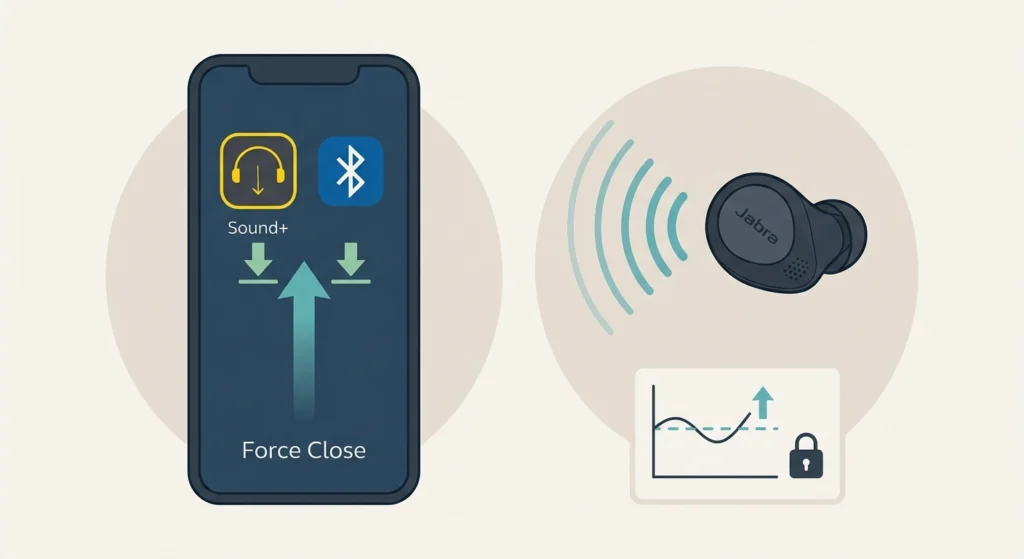
If the custom EQ settings reset after disconnecting, make sure the earbuds are fully connected to the app before making changes. Force-close the Sound+ app, reconnect the earbuds, and apply the EQ settings again. Also check that the app has the latest update installed.
Fix 2: Sound+ App Does Not Detect the Elite 10
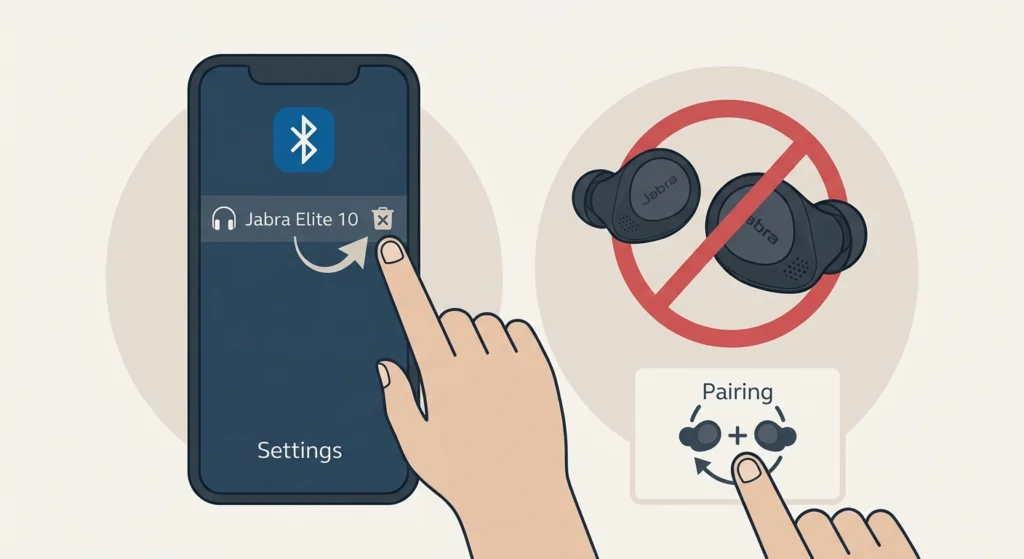
This usually happens due to a Bluetooth pairing issue. Forget the device from the phone’s Bluetooth settings, then re-pair. For a full walkthrough on re-pairing Bluetooth earbuds properly, the guide on re-pairing Bluetooth earbuds for stereo sound covers the process step by step.
Fix 3: EQ Sliders Are Grayed Out
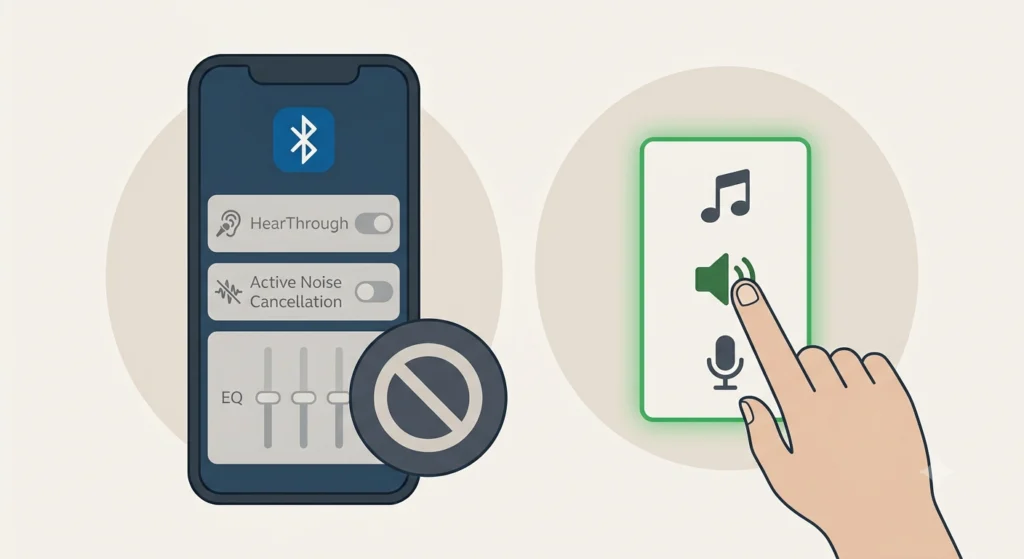
This can occur when ‘HearThrough’ or a specific sound mode is active that locks certain settings. Switch back to standard mode or ANC mode in the app, and the EQ sliders should become interactive again.
Fix 4: Audio Sounds Distorted After EQ Adjustment
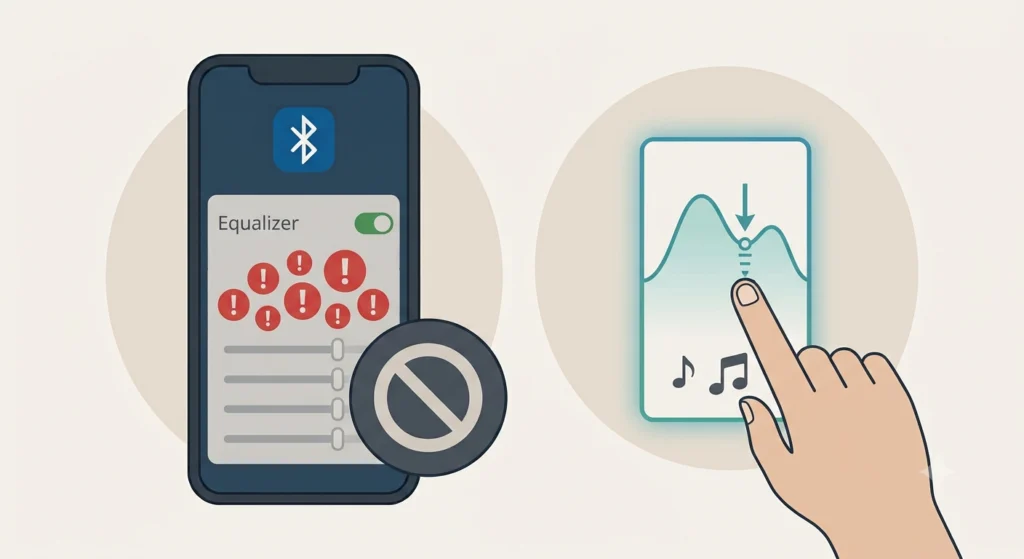
Pushing multiple sliders to maximum can cause distortion. Bring the overall gain down by reducing boosted bands by 1-2 notches. A balanced EQ curve almost always sounds better than extreme settings.
Frequently Asked Questions
Can the Jabra Elite 10 EQ be customized without the Sound+ app?
No. The EQ customization for the Jabra Elite 10 is exclusively available through the Jabra Sound+ app. There are no onboard controls on the earbuds themselves for adjusting EQ settings. The app is free and available for both iOS and Android.
How many EQ bands does the Jabra Elite 10 support?
The Jabra Sound+ app provides a 5-band equalizer for the Elite 10. Each band covers a specific frequency range – from low bass all the way up to high treble – allowing for meaningful customization across the full audio spectrum.
Does changing the EQ affect call quality on the Jabra Elite 10?
The EQ settings in the Sound+ app primarily affect music and media playback. Call audio processing on the Jabra Elite 10 uses separate algorithms, so adjusting the EQ will not directly change how calls sound to the person on the other end.
Will EQ settings stay saved if the earbuds are connected to a different device?
Yes. The EQ profile is stored on the earbuds themselves, not just the app. Once saved, the custom EQ settings travel with the earbuds regardless of which paired device they connect to.
What is ‘My Sound’ in the Jabra Sound+ app?
‘My Sound’ is a personalized EQ profile generated by a short hearing test within the app. The test plays a series of tones and the listener responds to what is audible. The app then creates a custom profile tuned to that individual’s hearing – which is especially useful for those with mild hearing differences.
Can multiple EQ profiles be saved on the Jabra Elite 10?
The app allows saving one custom EQ profile per device slot. However, switching between presets and the custom profile is quick and easy within the app. Users who need multiple profiles can manually adjust before each session as needed.
Does the EQ setting affect battery life on the Jabra Elite 10?
EQ adjustments have a negligible effect on battery life. However, heavily boosted bass at high volumes can increase power draw slightly. For the longest battery life, moderate volume and balanced EQ are recommended.
Why does the EQ sound different with ANC on vs. off?
Active Noise Cancellation slightly alters the acoustic environment inside the ear canal, which can affect how bass and low frequencies are perceived. It is normal for the EQ to sound slightly different between ANC on and off modes. Adjusting the EQ with the preferred ANC setting active gives the most accurate result for that listening mode.
Is there a way to reset the EQ to default on the Jabra Elite 10?
Yes. In the Jabra Sound+ app, open the Equalizer section and select the ‘Neutral’ preset. This returns all frequency bands to their flat, default position – essentially a factory reset for the EQ without affecting any other settings.
Does the Jabra Sound+ app support EQ for other Jabra devices differently?
Yes, different Jabra models have varying levels of EQ control in the app. The Elite 10 is one of the more fully featured models, supporting a 5-band manual EQ plus the ‘My Sound’ personalized profile. Entry-level models may only offer preset selection without manual slider control.