
Connecting Galaxy Buds 2 Pro to a non-Samsung Android phone is completely doable, and it works better than most people expect. While these earbuds are designed with Samsung devices in mind, Android phones from brands like Google Pixel, OnePlus, Xiaomi, and others can pair with them just fine. The key is knowing the right steps to follow so the connection goes smoothly the first time.
Quick Summary
- Galaxy Buds 2 Pro works with any Android phone running Android 7.0 or later
- Pairing is done through Bluetooth settings or the Galaxy Wearable app
- The Galaxy Wearable app unlocks extra features like EQ, ANC controls, and firmware updates
- Initial pairing takes about 2 to 3 minutes
- No Samsung account is required just to pair and use the buds
How to Connect Galaxy Buds 2 Pro to a Non-Samsung Android Phone
There are two ways to connect Galaxy Buds 2 Pro to a non-Samsung Android phone. The first is a basic Bluetooth pairing through the phone’s settings, and the second uses the Galaxy Wearable app for a more complete setup. Both methods work, but using the app gives access to more controls and features.
Method 1: Pair Using Bluetooth Settings (Quick Way)
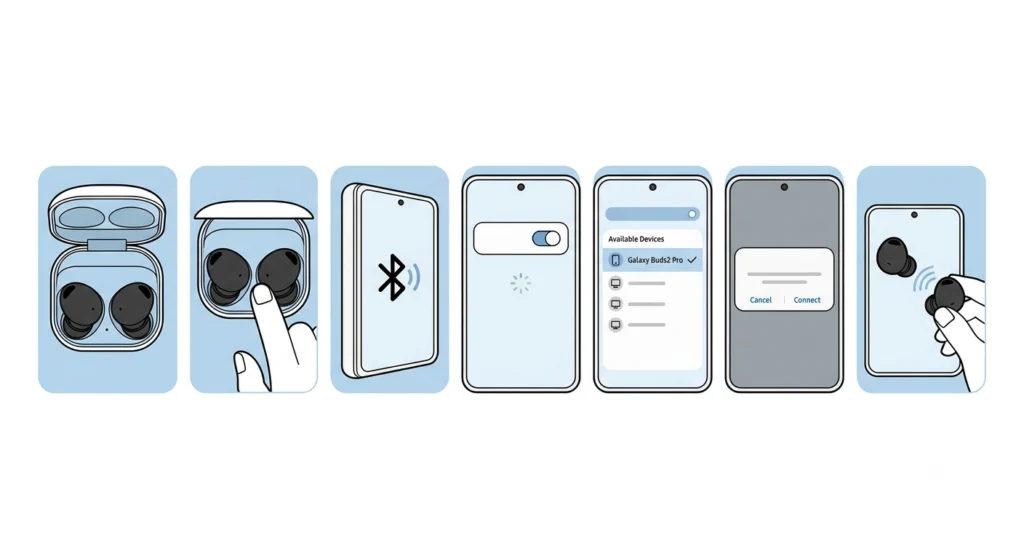
This is the fastest way to get connected without downloading anything. It works for basic audio playback and call use right away.
- Step 1: Open the Galaxy Buds 2 Pro charging case and leave the earbuds inside with the lid open.
- Step 2: Press and hold the small button inside the case (between the two earbud slots) for about 3 to 5 seconds until the LED starts blinking white. This puts the buds into pairing mode.
- Step 3: On the Android phone, go to Settings, then tap Bluetooth.
- Step 4: Make sure Bluetooth is turned on, then wait for the device list to refresh.
- Step 5: Look for ‘Galaxy Buds2 Pro’ in the list of available devices and tap on it.
- Step 6: Confirm the pairing request if prompted, and wait a few seconds for the connection to complete.
- Step 7: Once connected, take the earbuds out of the case and they will automatically connect to the phone.
That’s the basic setup done. The buds will now function as wireless earbuds for audio and calls. The sound quality is still excellent even without the companion app.
Method 2: Connect Using the Galaxy Wearable App (Recommended)
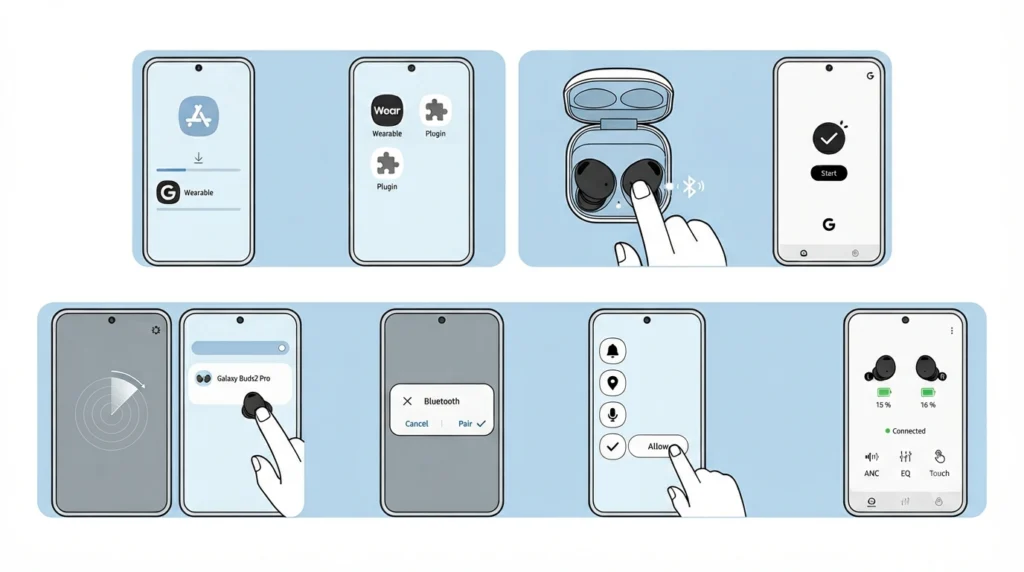
For the full experience, the Galaxy Wearable app is the better option. It enables active noise cancellation controls, equalizer settings, touch controls customization, and firmware updates. The app is available on Google Play Store for any Android phone.
- Step 1: Download the ‘Galaxy Wearable’ app from the Google Play Store on the non-Samsung Android phone.
- Step 2: Also download the ‘Galaxy Buds2 Pro Plugin’ app from the Play Store – this is a separate companion plugin required for the buds to work properly with the Wearable app.
- Step 3: Open the charging case and put the earbuds into pairing mode by pressing and holding the case button until the LED blinks white.
- Step 4: Open the Galaxy Wearable app on the phone and tap ‘Start’ on the welcome screen.
- Step 5: The app will automatically scan for nearby buds. When ‘Galaxy Buds2 Pro’ appears on screen, tap on it.
- Step 6: A Bluetooth pairing request will appear – tap ‘Pair’ to confirm.
- Step 7: Follow any on-screen prompts. The app may ask to allow notifications or location access to complete the pairing.
- Step 8: Once connected, the app will show the battery level and give access to all settings including ANC, EQ, touch controls, and more.
Pro-Tip: If the Galaxy Wearable app doesn’t detect the buds automatically, close the case, wait 10 seconds, then reopen it and press the pairing button again. The buds sometimes need a fresh pairing mode cycle before they appear in the app scan.
Tips for a Better Experience
- Keep both the Galaxy Wearable and Galaxy Buds2 Pro Plugin apps updated through the Play Store to avoid connectivity issues and get the latest features.
- If the phone has multiple Bluetooth devices saved, the buds may sometimes connect to a previously paired device instead. Check that the desired phone is the active connection before putting the buds in.
- When switching between devices, put the buds back in the case first, wait a moment, then take them out near the new phone. This forces a reconnection attempt.
- Galaxy Buds 2 Pro supports Bluetooth 5.3, which means stable connections up to about 10 meters without obstruction. Staying within that range keeps audio clean and uninterrupted.
- If audio sounds one-sided or unbalanced after pairing, check the Bluetooth connection is stereo and not just mono. For related connection issues on other platforms, this guide on how to re-pair Bluetooth earbuds for stereo sound walks through the same root cause and fix.
Common Problems and Fixes
Fix 1: Buds Not Appearing in Bluetooth List
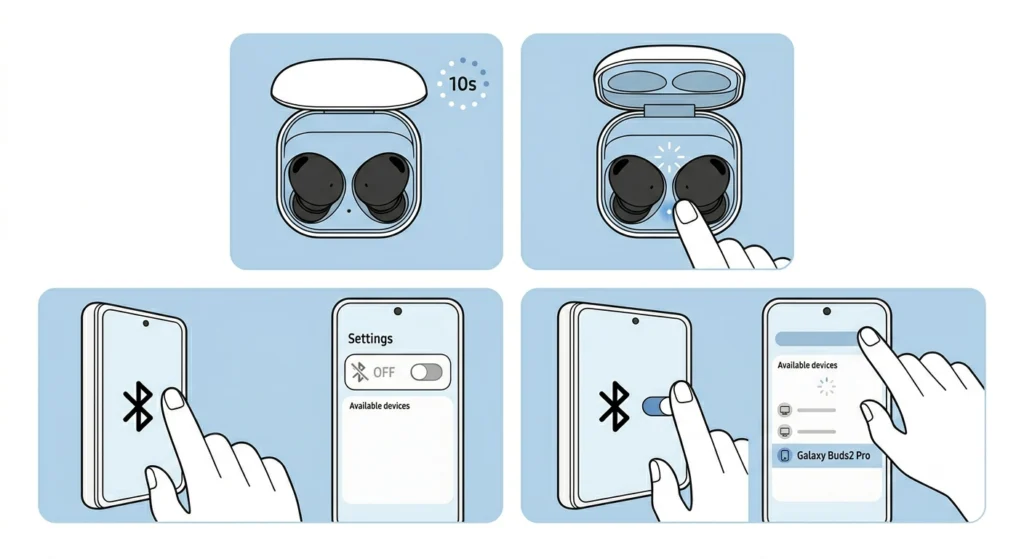
If the Galaxy Buds 2 Pro don’t show up when scanning, they may not be in pairing mode. Place the buds back in the case, close the lid, wait 10 seconds, then open the case again and press the pairing button until the LED blinks white. On the phone, toggle Bluetooth off and back on before scanning again.
Fix 2: Connection Drops Frequently
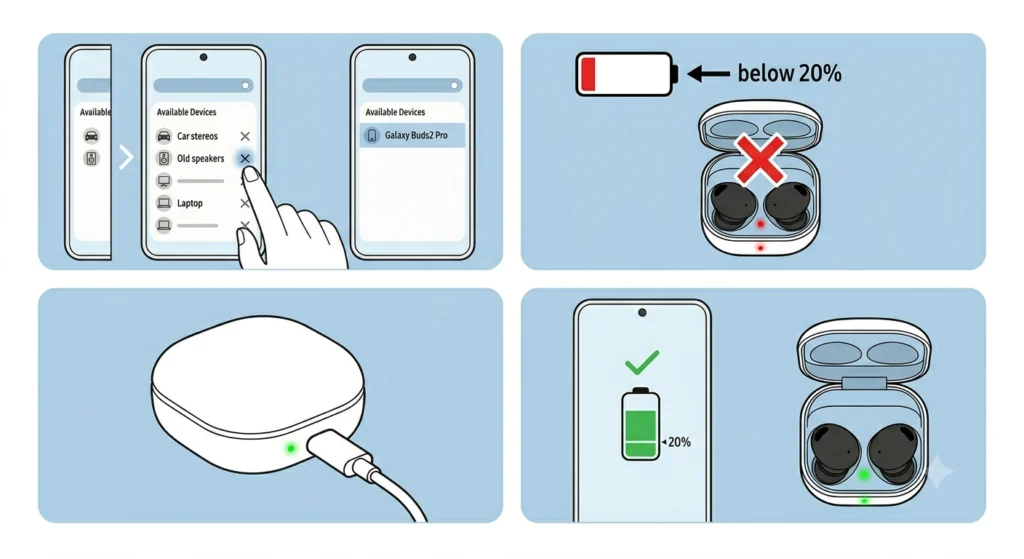
Frequent drops usually happen because of too many saved Bluetooth devices competing for priority, or low battery on the buds. Clear old paired devices from the phone’s Bluetooth list that aren’t in use, and make sure the buds are charged above 20% before pairing sessions.
Fix 3: Galaxy Wearable App Shows ‘Device Not Found’
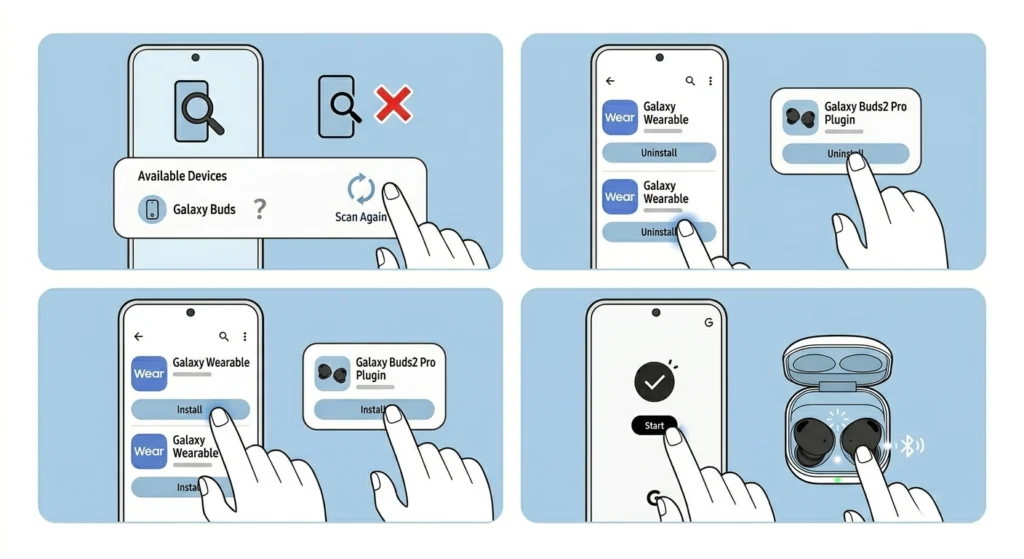
This usually means the Plugin app is missing or outdated. Make sure ‘Galaxy Buds2 Pro Plugin’ is installed separately from the Play Store. If it’s already installed, uninstall and reinstall both the plugin and the main Wearable app, then try pairing from scratch.
Fix 4: Microphone Not Working After Pairing
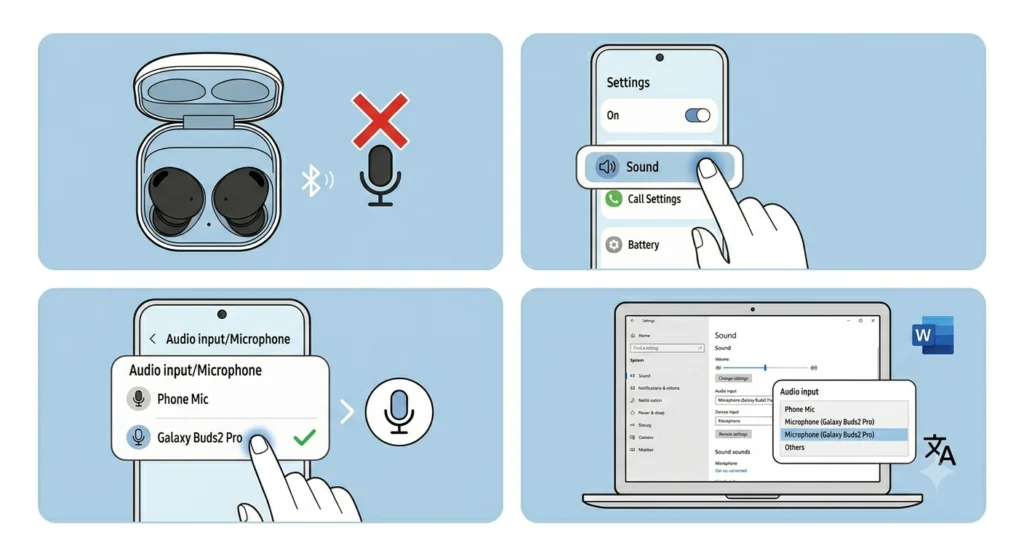
Sometimes after Bluetooth pairing, the phone doesn’t automatically switch the active microphone to the earbuds. Go to the phone’s sound or call settings and manually set the audio output and input to the Galaxy Buds2 Pro. If this issue occurs on a Windows setup as well, the steps for resolving microphone detection problems can be a useful reference for the same type of input routing issue.
Fix 5: Buds Connect But No Sound
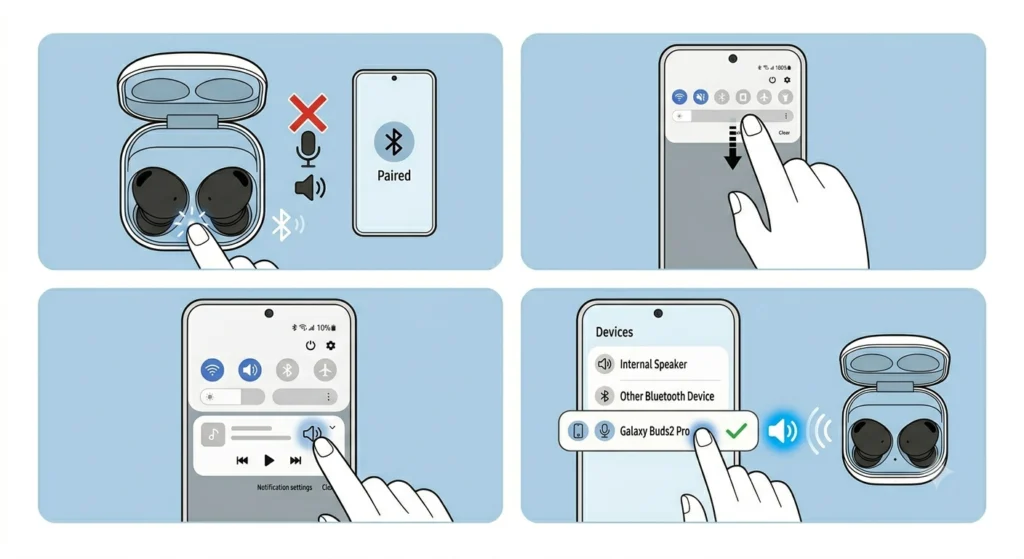
If the earbuds are paired but no audio comes through, the phone’s media audio routing may not have transferred to the buds. Pull down the notification shade, tap on the audio output icon, and manually select ‘Galaxy Buds2 Pro’ as the active output device.
Frequently Asked Questions
Can Galaxy Buds 2 Pro connect to any Android phone?
Yes, Galaxy Buds 2 Pro can connect to any Android phone running Android 7.0 or later. The basic Bluetooth pairing works on all Android brands including Google Pixel, OnePlus, Xiaomi, Sony, and others.
Do Galaxy Buds 2 Pro need the Galaxy Wearable app to work on non-Samsung phones?
No, the app is not required to use the buds for audio and calls. However, the Galaxy Wearable app and Galaxy Buds2 Pro Plugin unlock additional features like noise cancellation settings, EQ, touch controls, and firmware updates.
Is a Samsung account required to connect Galaxy Buds 2 Pro to a non-Samsung phone?
A Samsung account is not needed for basic Bluetooth pairing. The Galaxy Wearable app may prompt for a Samsung account for certain features, but the buds will still connect and function without signing in.
Why does the Galaxy Wearable app not detect the Galaxy Buds 2 Pro?
The most common reason is that the ‘Galaxy Buds2 Pro Plugin’ app is not installed. This plugin must be installed separately from the Google Play Store alongside the main Galaxy Wearable app. Also confirm the buds are in pairing mode with the LED blinking white.
Can Galaxy Buds 2 Pro connect to two phones at the same time?
Galaxy Buds 2 Pro supports multi-point connection, which means they can be paired with two devices simultaneously. Switching audio between devices happens automatically based on which device is actively playing audio, though the multi-point feature works best when both devices have previously been paired to the buds.
Does active noise cancellation work on non-Samsung Android phones?
Yes, ANC works on non-Samsung Android phones. The control for turning ANC on or off can be done through the Galaxy Wearable app or by using the touch controls on the earbuds themselves (long press on either bud cycles through ANC, Ambient Sound, and Off modes).
How do the Galaxy Buds 2 Pro switch back to a Samsung phone after being connected to a non-Samsung phone?
To switch back, put the buds in the case, then open the case near the Samsung phone. If multi-point is enabled and both phones are paired, switching happens automatically when the Samsung phone plays audio. If not, go to the Samsung phone’s Bluetooth settings and tap the Galaxy Buds2 Pro entry to reconnect manually.
What Bluetooth codec does Galaxy Buds 2 Pro use on non-Samsung Android phones?
On non-Samsung Android phones, Galaxy Buds 2 Pro typically connects using AAC or SBC codec. The higher-quality SSC (Samsung Scalable Codec) codec is only available when connected to Samsung devices. Most listeners find AAC still delivers excellent sound quality on supported phones.
How do you reset Galaxy Buds 2 Pro if pairing is not working?
To reset the buds, open the Galaxy Wearable app, go to the buds settings, and select ‘Reset.’ Alternatively, place both buds in the case, open the lid, and press and hold the case button for about 7 to 10 seconds until the LED flashes red, then white, indicating a factory reset. After resetting, pair the buds again from scratch.
Can Galaxy Buds 2 Pro be used for calls on non-Samsung Android phones?
Yes, Galaxy Buds 2 Pro works fully for phone and app calls on non-Samsung Android phones. The built-in microphones handle call audio well. Make sure the phone has set the buds as the default call audio device in Bluetooth settings if the microphone does not activate automatically during calls.