
Key Takeaways
- AirPods Max pair with an iPhone in under a minute using Apple’s automatic setup animation.
- Once set up with an iPhone, AirPods Max connect to a Mac automatically if both devices share the same Apple Account on iCloud.
- A USB-C to USB-C cable works as a quick wired alternative for iPhone, iPad, and Mac.
- Manual Bluetooth pairing is always available if the automatic setup animation does not appear.
- The listening mode button on the right ear cup is the main control used for pairing in Bluetooth settings.
Connecting AirPods Max to iPhone and Mac is one of the simplest parts of owning Apple’s premium over-ear headphones, and most people find that the entire process takes less than a minute once both devices are ready. This guide walks through the exact steps needed to get AirPods Max paired with an iPhone, linked automatically to a Mac, and connected through a USB-C cable for anyone who prefers a wired setup.
Method 1: Connect AirPods Max to iPhone
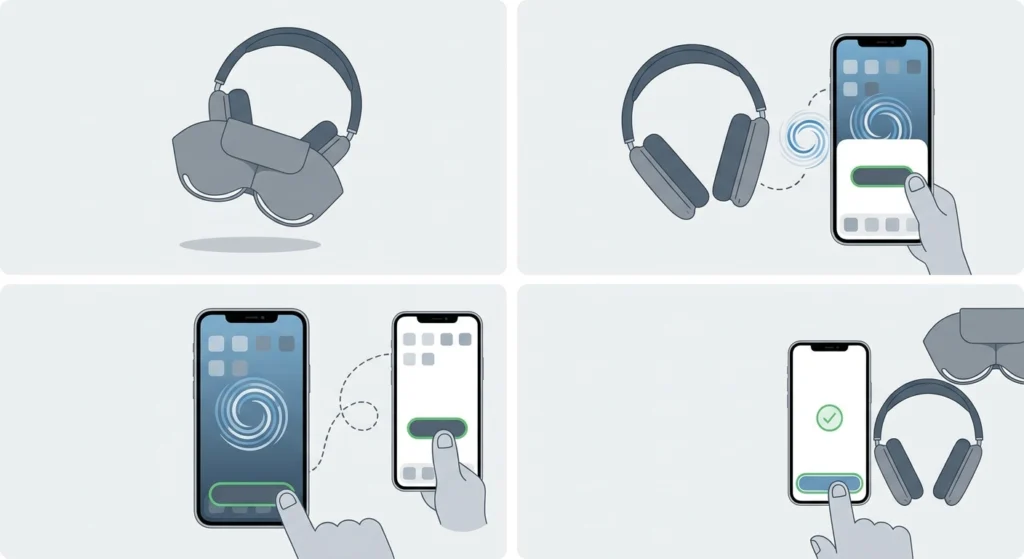
Pairing AirPods Max with an iPhone relies on Apple’s automatic setup animation, the same system used across the AirPods lineup. The key is to keep the headphones close to the phone right after taking them out of the Smart Case.
- Step 1: Take AirPods Max out of the Smart Case.
- Step 2: Within 60 seconds, hold the headphones close to the iPhone until the setup animation appears on the screen.
- Step 3: Tap Connect when the prompt appears.
- Step 4: Tap Done once the setup screen confirms the pairing is complete.
Pro-Tip: Bluetooth needs to be switched on for the setup animation to trigger. If nothing happens within those 60 seconds, the animation window closes and the headphones need to be placed back in the case and removed again to restart it.
Manual Pairing on iPhone (If the Animation Doesn’t Appear)
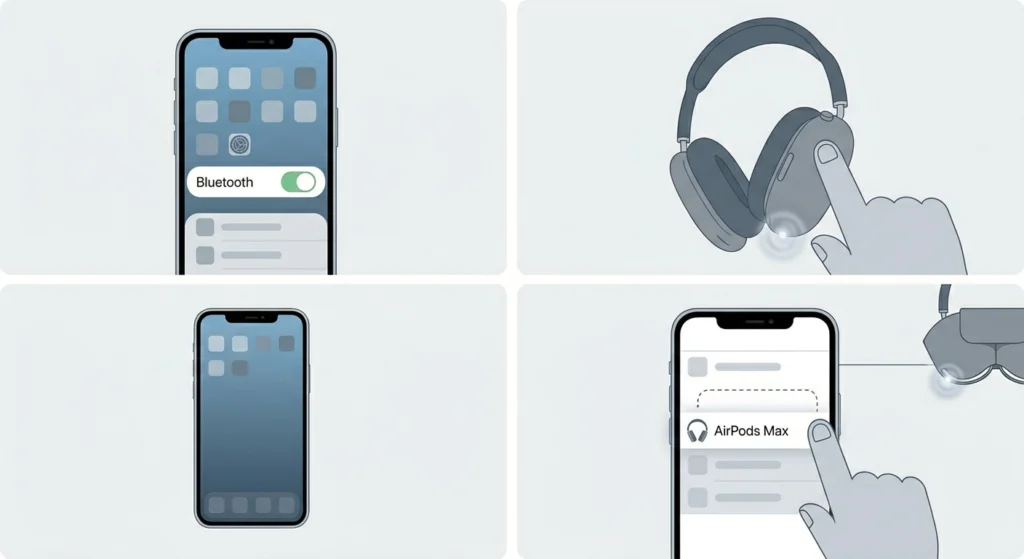
- Step 1: Open the Settings app and tap Bluetooth, then turn Bluetooth on.
- Step 2: Press and hold the listening mode button on AirPods Max for about 5 seconds, or until the status light flashes white.
- Step 3: Select AirPods Max from the list of nearby Bluetooth devices.
Method 2: Connect AirPods Max to Mac
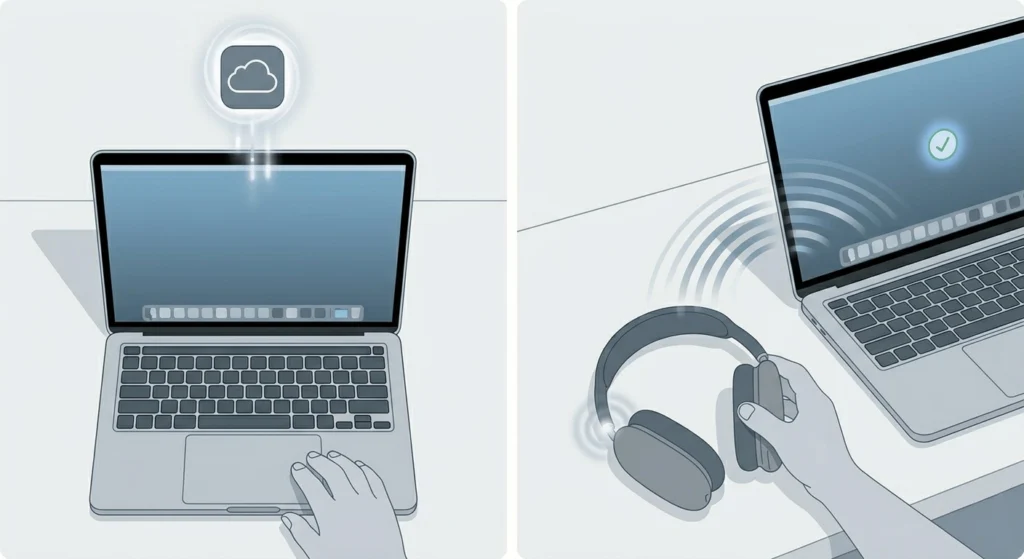
Most AirPods Max owners never need to pair manually with a Mac. Apple’s ecosystem handles this part quietly in the background, provided one condition is met.
Automatic Setup via iCloud
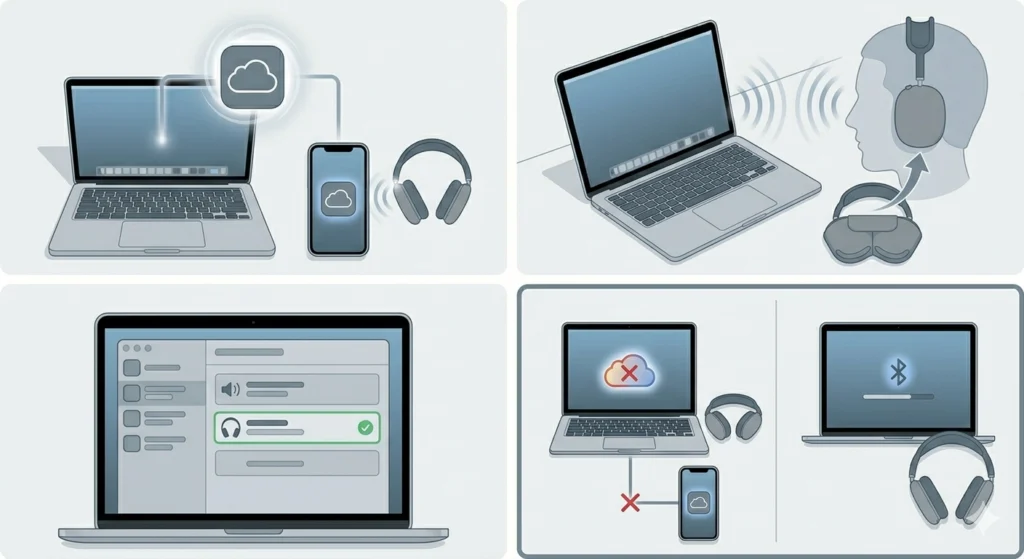
If AirPods Max have already been set up with an iPhone, and that iPhone is signed into iCloud with the same Apple Account as the Mac, the headphones become ready to use on the Mac without any extra steps. Putting them on while audio is playing is often enough to see them appear as the active output device.
Pro-Tip: This automatic handoff only works when both devices use the same Apple Account on iCloud. A different Apple ID on the Mac means manual pairing becomes the only option.
Manual Pairing on Mac
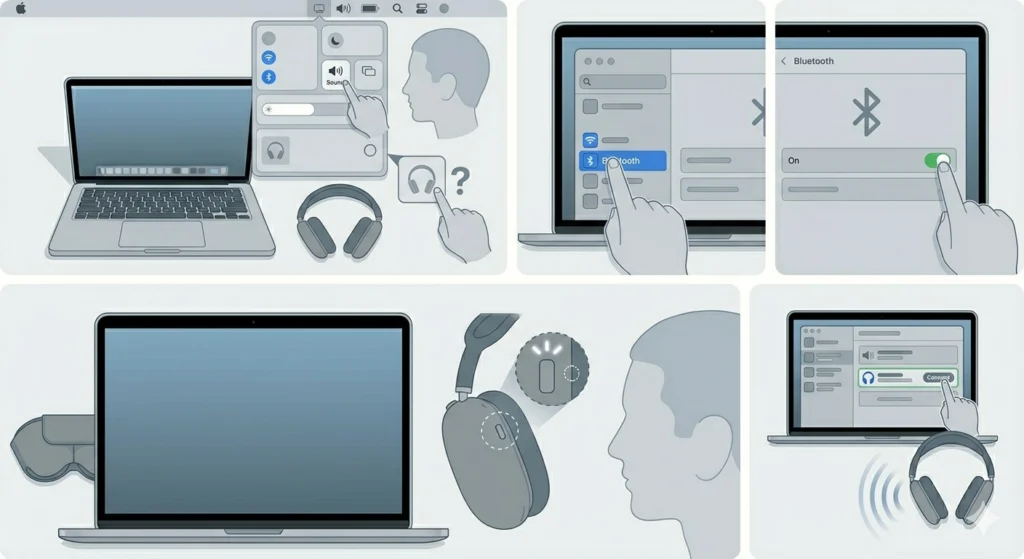
When automatic setup doesn’t kick in, manual pairing takes just a few extra clicks.
- Step 1: Place AirPods Max on, then click Control Center in the Mac menu bar, click Sound, and check whether AirPods Max appear in the list.
- Step 2: If they don’t appear, open System Settings and click Bluetooth in the sidebar.
- Step 3: Make sure Bluetooth is turned on.
- Step 4: Press and hold the listening mode button on AirPods Max until the status light flashes white.
- Step 5: Click Connect next to AirPods Max in the Nearby Devices list.
Connecting AirPods Max Using a USB-C Cable
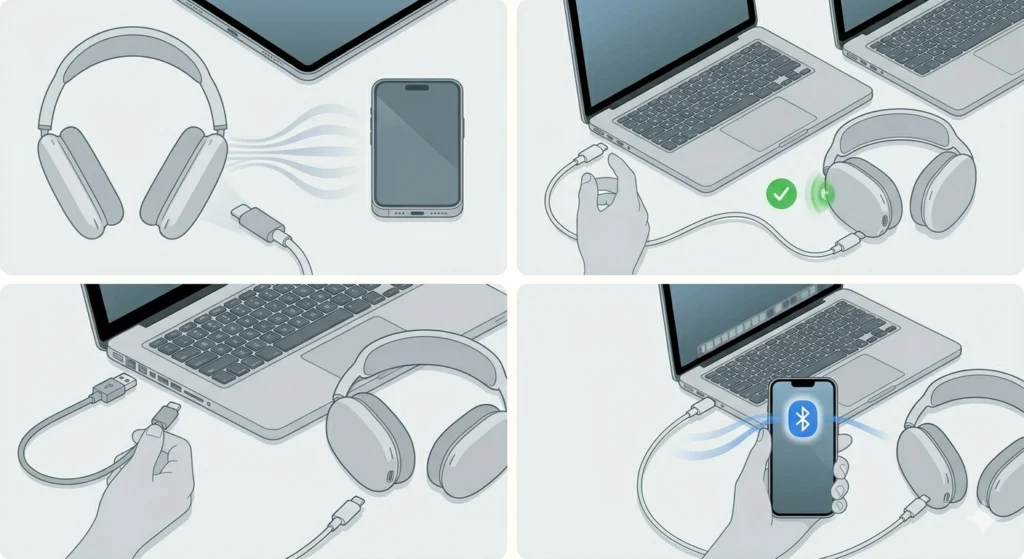
A wired connection works well for anyone who wants a stable, low-latency link or simply prefers skipping Bluetooth altogether. This works best with the USB-C versions of AirPods Max, including AirPods Max 2.
- Step 1: Use the included USB-C to USB-C cable to connect AirPods Max directly to an iPhone, iPad, or Mac with a USB-C port.
- Step 2: For a Mac or non-Apple device with a USB-A port, use a USB-C to USB-A cable instead.
- Step 3: Keep Bluetooth turned on alongside the cable connection to retain access to Siri, Spatial Audio, and call features.
An audio cable also works for purely analog sources. A USB-C to 3.5 mm Audio Cable plugs straight into the USB-C versions of AirPods Max, letting them connect to devices that only offer a standard headphone jack.
Tips for a Smooth AirPods Max Connection
- Place the left ear cushion on the left ear and the right on the right. The cushions are marked L and R, and getting this right matters for the wear-detection sensors that pause and resume audio.
- Keep AirPods Max updated to the latest firmware, since Apple regularly improves Bluetooth stability through these updates.
- Removing AirPods Max from the head pauses audio automatically, and putting them back on within 15 seconds resumes playback without needing to reconnect manually.
- The same Bluetooth fundamentals carry over to other platforms. Anyone re-pairing bluetooth earbuds for stereo sound on a Windows laptop will recognize a similar process of toggling Bluetooth and selecting the device from a nearby list.
- If audio ever plays from the wrong device after connecting, double-checking the output selection solves it almost every time, much like adjusting audio output settings on a Windows 11 PC when a different playback device gets selected by mistake.
Common Connection Problems and Fixes
Fix 1: AirPods Max Not Appearing in the Bluetooth List
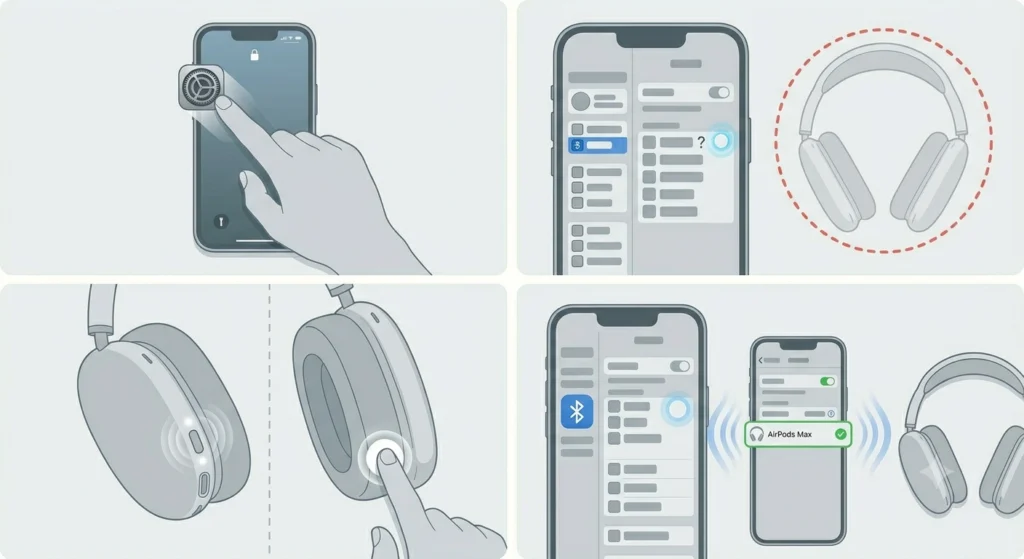
This usually means the headphones aren’t in pairing mode yet. Press and hold the listening mode button until the status light flashes white, then refresh the Bluetooth list on the iPhone or Mac.
Fix 2: Connected to iPhone but Not Showing Up on Mac
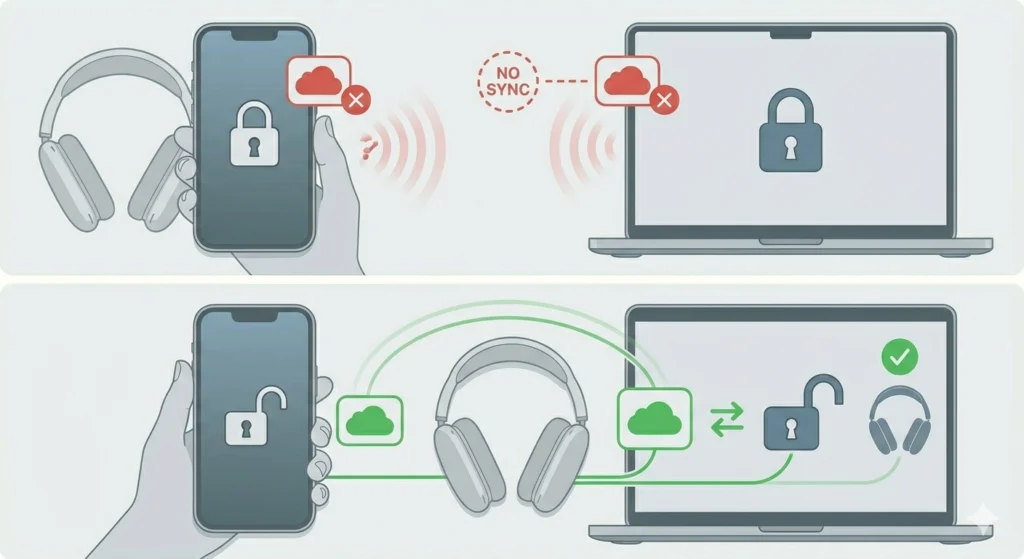
Check that both devices are signed into iCloud with the exact same Apple Account. A mismatched Apple ID is the most common reason automatic setup skips the Mac entirely.
Fix 3: No Sound After Connecting
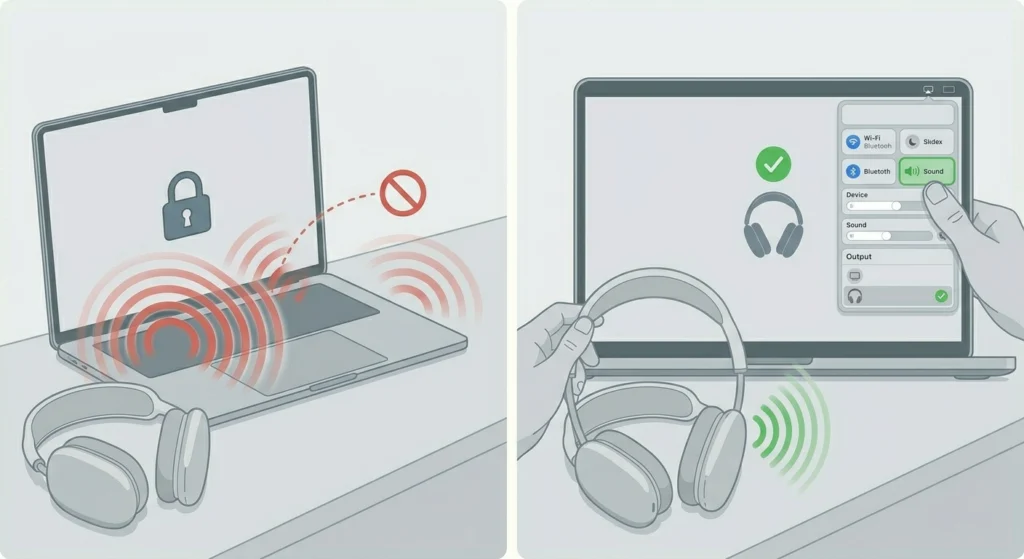
Sound sometimes keeps playing from the Mac’s built-in speakers even after AirPods Max show as connected. Open Control Center, click Sound, and confirm AirPods Max are selected as the active output device.
Frequently Asked Questions
How long does it take to pair AirPods Max with an iPhone?
Pairing typically takes under a minute once the headphones are taken out of the Smart Case and held close to the iPhone.
Do AirPods Max need to be charged before pairing?
A small amount of charge is enough for the initial pairing process. Most people find that even a low battery level allows the setup animation to appear without issues.
Can AirPods Max connect to a Mac without an iPhone?
Yes. AirPods Max can be paired directly with a Mac through Bluetooth settings, even without ever pairing them with an iPhone first.
What does the listening mode button do during pairing?
Pressing and holding the listening mode button puts AirPods Max into pairing mode, signaled by the status light flashing white.
Does connecting AirPods Max with a USB-C cable disable Bluetooth?
No. Bluetooth should stay on even during a cable connection, since it’s still required for features such as Siri, Spatial Audio, and phone calls.
Why won’t AirPods Max connect automatically to a Mac after pairing with an iPhone?
This almost always comes down to the Apple Account. Both the iPhone and the Mac need to be signed into iCloud with the same Apple Account for automatic setup to work.
Can AirPods Max be connected to more than one device at a time?
AirPods Max can switch between paired Apple devices that share the same Apple Account, but active audio output works with one device at a time per Bluetooth connection.
What’s the difference between connecting AirPods Max 2 and the original AirPods Max?
The pairing process is identical across both generations. AirPods Max 2 uses the same listening mode button, status light behavior, and USB-C cable connection as the USB-C version of the original model.
Why does audio keep pausing when wearing AirPods Max?
This is normal behavior tied to the wear-detection sensors. Removing one ear cup or lifting AirPods Max off the head pauses audio automatically, and playback resumes if they’re put back on within 15 seconds.
Is a wired connection better than Bluetooth for AirPods Max?
Neither option is universally better. A USB-C cable connection offers a stable, low-latency link, while Bluetooth offers more freedom of movement. The choice usually comes down to personal preference and the situation at hand.