

Configuring default playback device in Windows 11 is one of the quickest ways to fix audio output problems or switch between speakers, headphones, and other audio devices. This guide is based on the latest version of Windows 11 and uses the actual interface you will see on your screen today. Whether you just plugged in a new headset or your sound stopped working after an update, every step below reflects exactly what you will find on your PC.
What Is a Default Playback Device?
A default playback device is the audio output that Windows 11 uses automatically when playing sound from apps, browsers, music players, and system notifications. If you have multiple audio devices connected — such as speakers, headphones, or a Bluetooth device — Windows needs to know which one to send sound to. That is where setting the default comes in.
Method 1: Set Default Playback Device from the Quick Settings Panel
This is the fastest method available in the latest Windows 11 and requires no deep settings navigation. The steps below reflect exactly what you will see on screen.
Step 1 – Click the speaker icon on the taskbar in the bottom-right corner of your screen. This opens the Quick Settings panel showing your brightness slider, volume slider, and connected network.
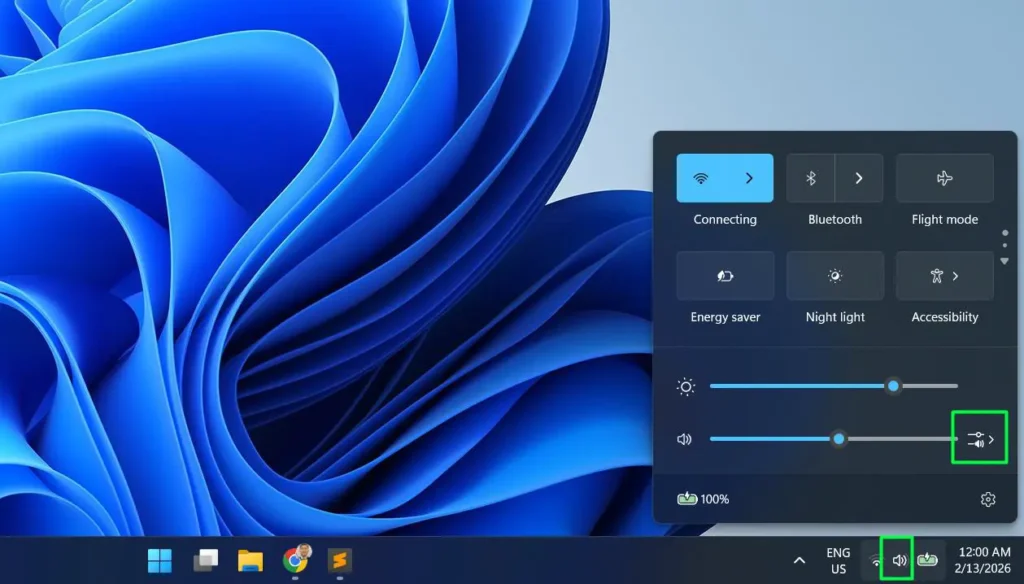
Step 2 – Look at the volume row. On the far right of the volume slider, you will see a small arrow icon (the chevron pointing right). Click that arrow icon.
Step 3 – A new panel labeled Sound output will appear. Under the Output device section, you will see all connected audio devices listed — for example, Speaker (Realtek(R) Audio) and Headphones (JBL TUNE 310C USB-C).
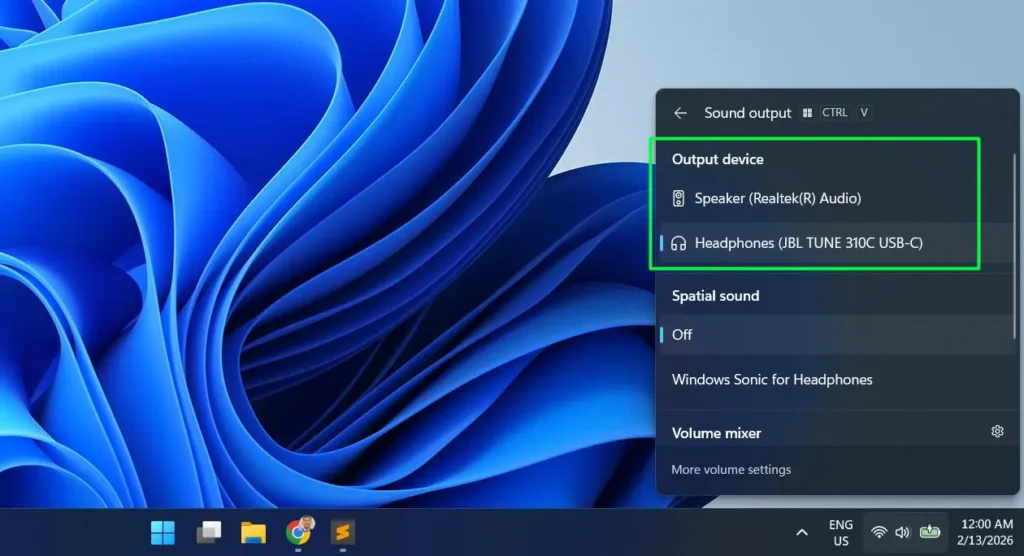
Step 4 – Click on the device you want to use. A blue highlight bar will appear on the left side of the selected device, confirming it is now active. Windows 11 switches the audio output immediately with no restart needed.
This panel also shows a Spatial sound section where you can enable Windows Sonic for Headphones, and a Volume mixer shortcut at the bottom for per-app audio control.
Method 2: Configure Default Playback Device via Windows Settings
The Settings app gives you a cleaner view of all output devices and lets you set a device as the system default with a single click. This is what the latest Windows 11 Sound settings look like.
Step 1 – Press Windows + I to open Settings.
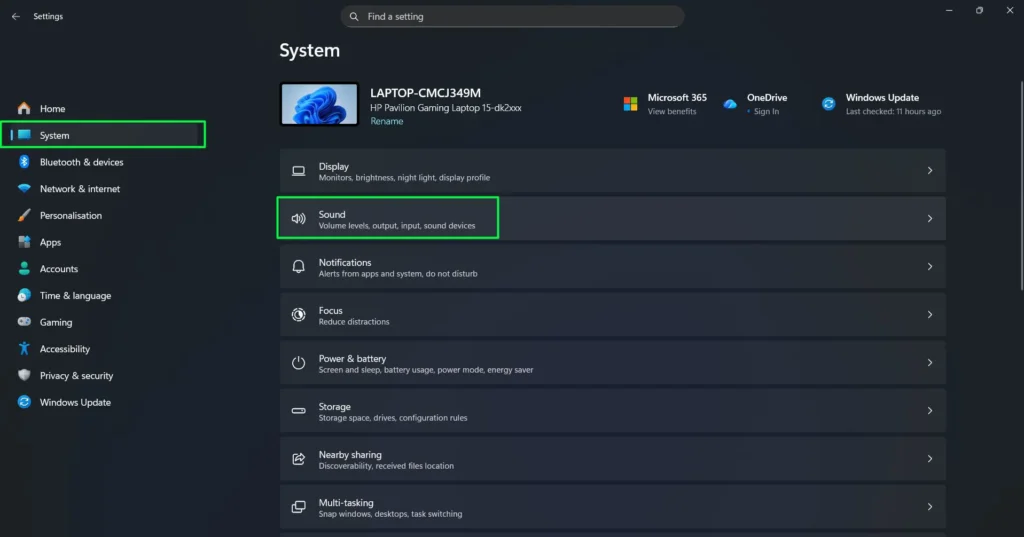
Step 2 – Click System in the left sidebar then Select Sound
Step 3 – Under the Output section, you will see “Choose where to play sound” with a note that says “Apps might have their own settings.” Click the dropdown or expand arrow to reveal all available output devices.
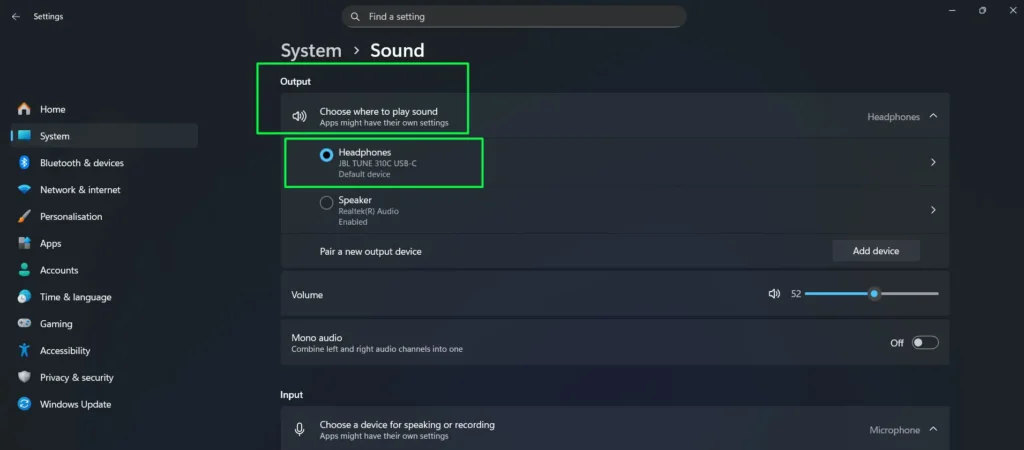
Step 4 – You will see your devices listed with radio buttons. Devices marked as Default device show that label directly beneath the device name. Devices that are active but not default will show Enabled instead.
Step 5 – Click the radio button next to the device you want to set as default. It will immediately show Default device beneath it, confirming the change has been applied.
You can also click the arrow on the right of each device to access deeper settings such as volume levels, audio enhancements, and format configuration for that specific device.
Method 3: Set Default Playback Device Using the Classic Sound Control Panel
The classic Sound Control Panel is still fully available in the latest Windows 11 and gives you separate control over the default audio device and the default communications device.
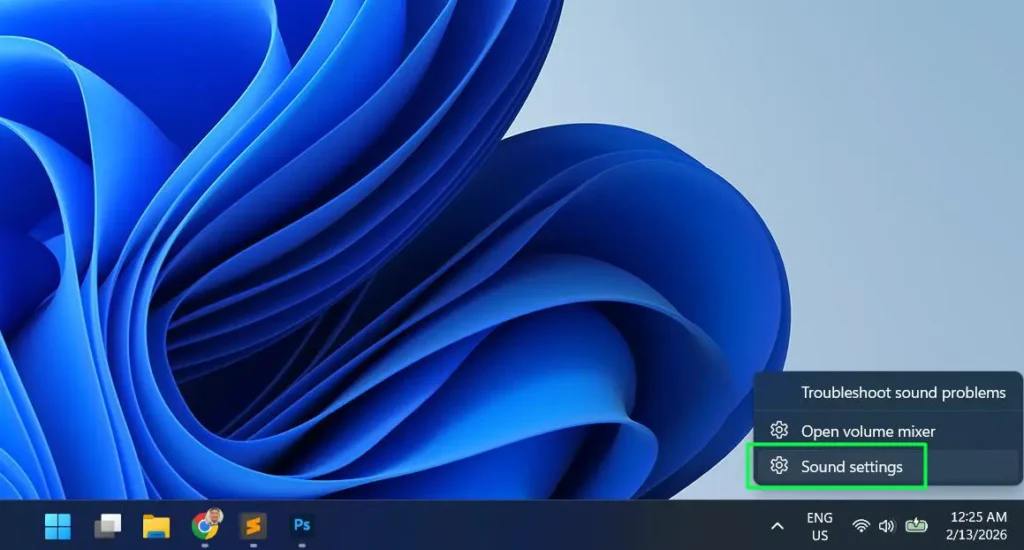
Step 1 – Right-click the speaker icon in the system tray on the taskbar.
Step 2 – Click “Sound settings”.
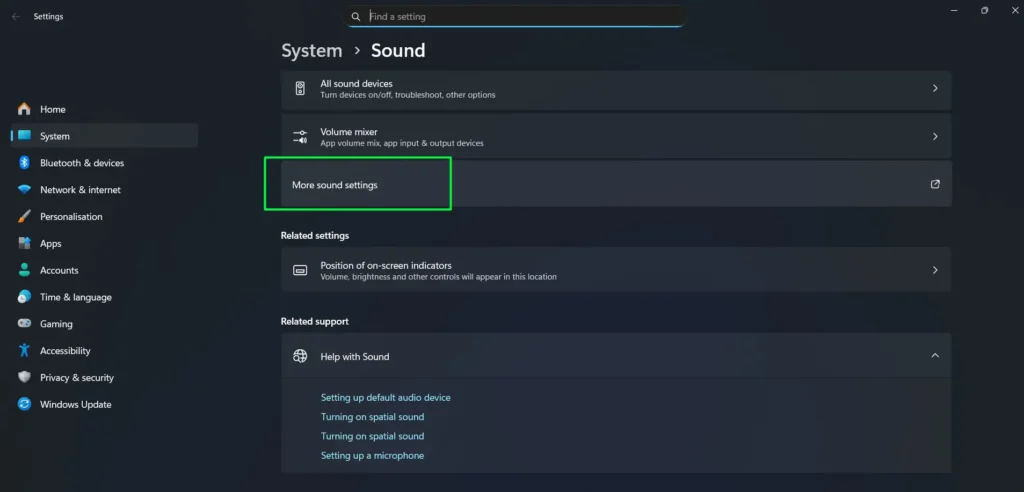
Step 3 – Scroll to the bottom of the Sound settings page and click “More sound settings”. This opens the classic Sound Control Panel window.
Step 4 – In the Playback tab, all connected audio output devices are listed with their current status.
Step 5 – Right-click the device you want to use as your default.
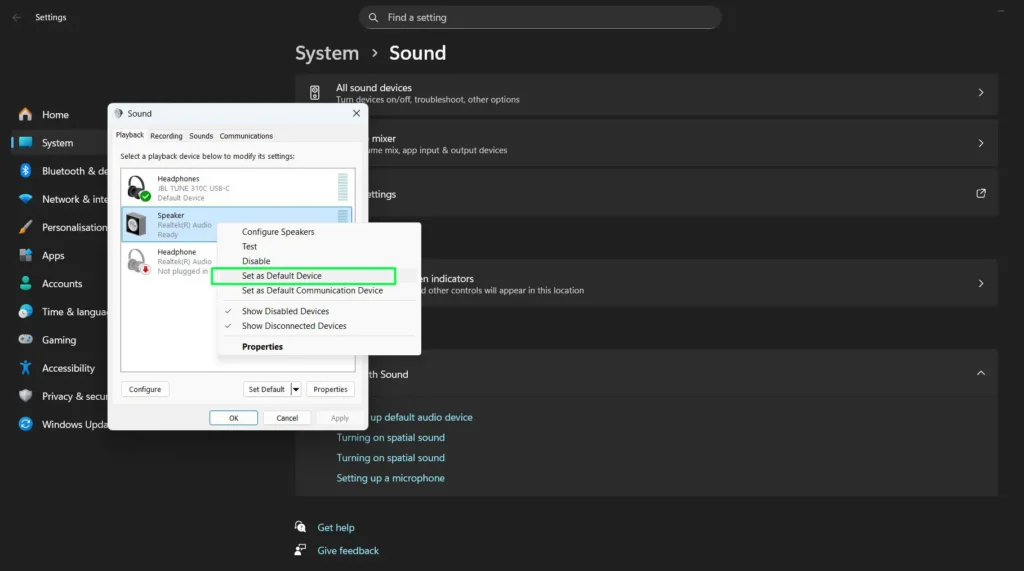
Step 6 – Click “Set as Default Device” for general system audio, or click “Set as Default Communication Device” if you also want it used for calls and voice apps like Microsoft Teams or Zoom.
Step 7 – Click Apply then OK to confirm and close.
Method 4: Set App-Specific Default Playback Device in Windows 11
Windows 11 lets you assign a different audio output to individual apps. This means Spotify can play through your speakers while a video call uses your headphones at the same time.
Step 1 – Open Settings with Windows + I.
Step 2 – Go to System then Sound.
Step 3 – Scroll down and click “Volume mixer”. You can also access this directly from the Sound output panel in Quick Settings by clicking the Volume mixer link at the bottom.
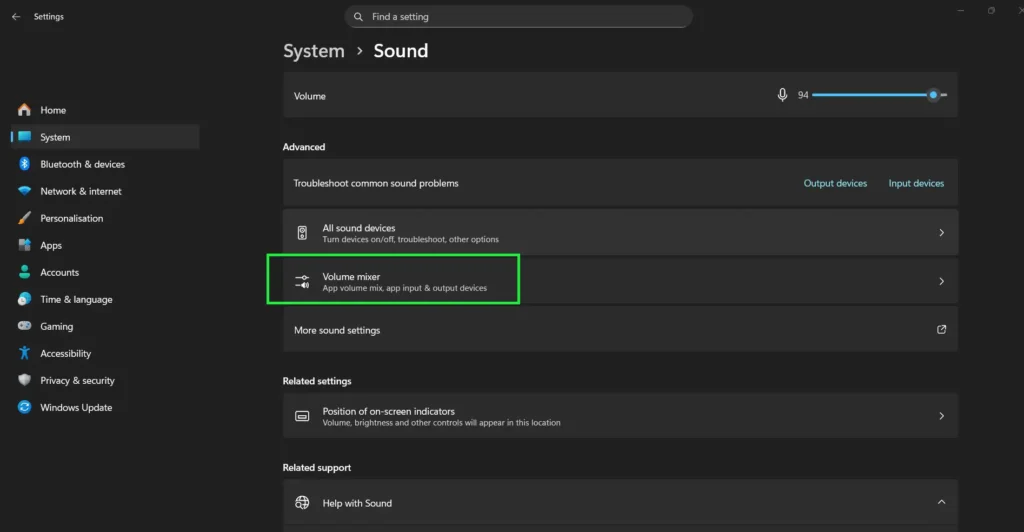
Step 4 – Under the Apps section, find the app you want to configure.
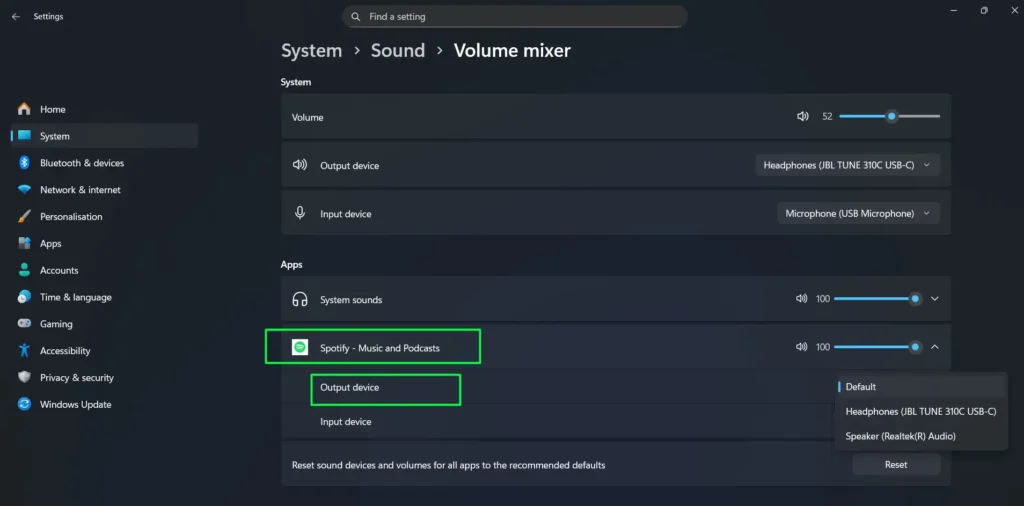
Step 5 – Click the output device dropdown next to the app and select the playback device you want for that specific app only.
How to Set Bluetooth Headphones as Default Playback Device
If you use Bluetooth headphones, Windows 11 may not automatically switch to them when you connect. Here is how to set them as default manually.
Step 1 – Make sure your Bluetooth headphones are paired and connected. You can verify this under Settings > Bluetooth & devices.
Step 2 – Once connected, click the speaker icon in the taskbar to open Quick Settings.
Step 3 – Click the arrow icon next to the volume slider to open the Sound output panel.
Step 4 – Your Bluetooth headphones will appear in the Output device list. Click on them to select them as the active default. The blue bar on the left confirms the selection.
For deeper audio settings and device management, check out our audio guides section for more helpful walkthroughs.
Pro Tip: Use Keyboard Shortcut to Open Sound Output Faster
In the latest Windows 11, when you are in the Sound output panel from Quick Settings, you will notice a keyboard shortcut displayed at the top of the panel — CTRL + V. This shortcut opens the Sound output flyout directly without needing to click through Quick Settings first. This is especially handy if you switch between headphones and speakers frequently throughout the day and want to save a few seconds every time.
How to Check Which Device Is Currently Set as Default
It is easy to confirm your current default playback device without changing any settings. Here are two quick ways to check.
Option 1 – Open Settings > System > Sound. Under the Output section, expand “Choose where to play sound.” The device with the label Default device displayed beneath its name is your current default.
Option 2 – Open the classic Sound Control Panel via More sound settings. In the Playback tab, the default device will have a green checkmark icon on its device icon, making it easy to identify at a glance.
Troubleshooting: Default Playback Device Not Showing or Not Working
Device Not Appearing in the Output List
If your audio device is not showing up, open the classic Sound Control Panel, right-click inside the Playback tab, and enable “Show Disabled Devices” and “Show Disconnected Devices.” Your device may be hidden rather than missing entirely.
No Sound After Setting Default Device
Step 1 – Right-click the speaker icon and click “Troubleshoot sound problems.”
Step 2 – Follow the automated troubleshooter. Windows 11 will scan for conflicts and suggest fixes automatically.
Step 3 – If the issue continues, open Device Manager, expand Sound, video and game controllers, right-click your audio driver, and select Update driver.
Windows Keeps Changing the Default Device Automatically
This is a common issue when connecting or disconnecting devices. To prevent it, open the Sound Control Panel, right-click on devices you do not want Windows to auto-prioritize, and set them to Disabled when not in use.
Tips for Managing Multiple Audio Devices in Windows 11
If you regularly switch between audio outputs — for example between studio monitors and regular speakers — the Quick Settings Sound output panel described in Method 1 is the fastest way to do it. It shows all connected devices in one click and switches instantly with no confirmation needed.
If you are also working with audio files as part of your setup, our MP3 converter tool can help you prepare audio in the right format for any playback device or platform.
Frequently Asked Questions
How do I change the default playback device in Windows 11?
Click the speaker icon in the taskbar, then click the arrow next to the volume slider to open the Sound output panel. Click any device under Output device to make it the active default immediately.
Why is my default playback device not saving in Windows 11?
This usually happens when Windows automatically switches to newly connected devices. Open the Sound Control Panel, right-click devices you do not use, and disable them to stop automatic switching.
Can I set different default audio devices for different apps in Windows 11?
Yes. Go to Settings, then System, then Sound, and open Volume mixer. Each open app will have its own output device selector that you can configure independently from the system default.
How do I set Bluetooth headphones as the default playback device?
Connect your Bluetooth headphones through Settings and Bluetooth and devices, then open the Sound output panel from Quick Settings and click on your headphones in the Output device list to select them.
What is the difference between default device and default communication device?
The default device handles all general audio such as music, videos, and system sounds. The default communication device is used specifically by apps like Microsoft Teams, Zoom, and Skype for calls and voice chat. Both can be set separately in the classic Sound Control Panel.
How do I open the Sound Control Panel in Windows 11?
Right-click the speaker icon in the taskbar, click Sound settings, scroll to the bottom, and click More sound settings to open the classic Sound Control Panel.
What does the blue bar next to a device name mean in the Sound output panel?
The blue bar that appears on the left side of a device name in the Sound output Quick Settings panel confirms that the device is currently selected and active as your default audio output.