
Dealing with Bose QuietComfort 45 not charging is one of the most frustrating things that can happen right before a long flight or workout session. The good news is that most charging issues are fixable at home without any special tools. This step-by-step guide covers every proven fix – from the simplest checks to deeper resets – so the headphones can get back to full power fast.
Quick Summary – Key Takeaways
- Always start by checking the USB-C cable and power source before anything else
- A dirty or blocked charging port is one of the most common and overlooked causes
- The Bose QC45 takes about 2.5 hours to fully charge from 0%
- A factory reset can resolve firmware glitches that prevent charging recognition
- If the battery is completely drained, it may need up to 30 minutes before showing a charge indicator
- Bose offers a 1-year limited warranty that may cover charging defects
Fix 1: Check the USB-C Cable and Power Adapter
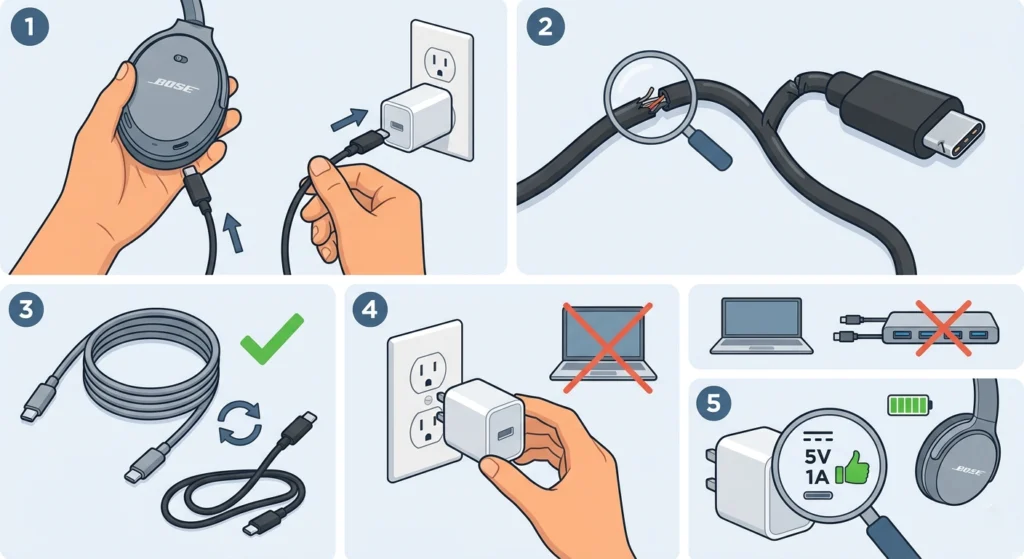
The most common reason the Bose QuietComfort 45 stops charging has nothing to do with the headphones themselves. It is the cable or the adapter. This is the first place to start.
- Step 1: Disconnect the USB-C cable from both the headphones and the power source
- Step 2: Inspect the cable closely for any fraying, kinks, or bent connectors
- Step 3: Try a different USB-C cable – ideally one that is known to work with another device
- Step 4: Swap out the power adapter and try plugging directly into a wall outlet instead of a USB hub or laptop port
- Step 5: Check that the adapter outputs at least 5V/1A, which is the minimum the QC45 needs
This works best when using the original Bose cable that came in the box. Third-party cables can sometimes deliver inconsistent power, especially cheap ones that skip proper data pin wiring.
Fix 2: Clean the Charging Port
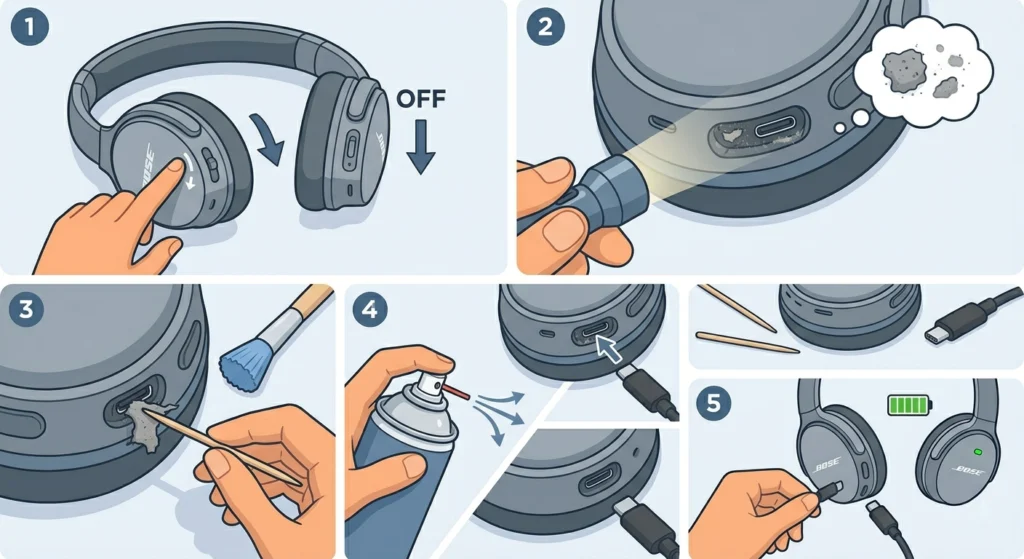
Lint, dust, and debris build up inside the USB-C port over time. Even a small amount of blockage can prevent the cable from seating properly and making good contact. This fix is surprisingly effective and gets overlooked far too often.
- Step 1: Power off the headphones completely
- Step 2: Use a flashlight or phone torch to look inside the USB-C port
- Step 3: If debris is visible, use a toothpick or a soft anti-static brush to gently remove it – never use metal tools
- Step 4: Use a can of compressed air to blow out any remaining dust particles
- Step 5: Reconnect the cable and check if charging resumes
The key is to be gentle. The charging pins inside the port are delicate and can bend if too much pressure is applied.
Pro-Tip: After cleaning, plug and unplug the USB-C cable two or three times slowly. This helps the connector scrape away any oxidation on the contact points and improves the connection quality.
Fix 3: Let the Battery Fully Drain and Recharge

Sometimes the battery management system on the QC45 gets stuck in a confused state – especially if the headphones were stored for a long time or exposed to extreme temperatures. Doing a full discharge and recharge cycle can reset the battery calibration.
- Step 1: Power on the headphones and use them until the battery completely dies and they shut off on their own
- Step 2: Leave them off for 30 minutes after shutdown
- Step 3: Plug in with a verified working cable and adapter
- Step 4: Leave them charging undisturbed for at least 3 hours
- Step 5: Power them on and check the battery level
Most people find that this method fixes charging problems that appear after long storage periods. The Bose QC45 battery can enter a deep discharge state that requires a slow trickle charge before it registers properly.
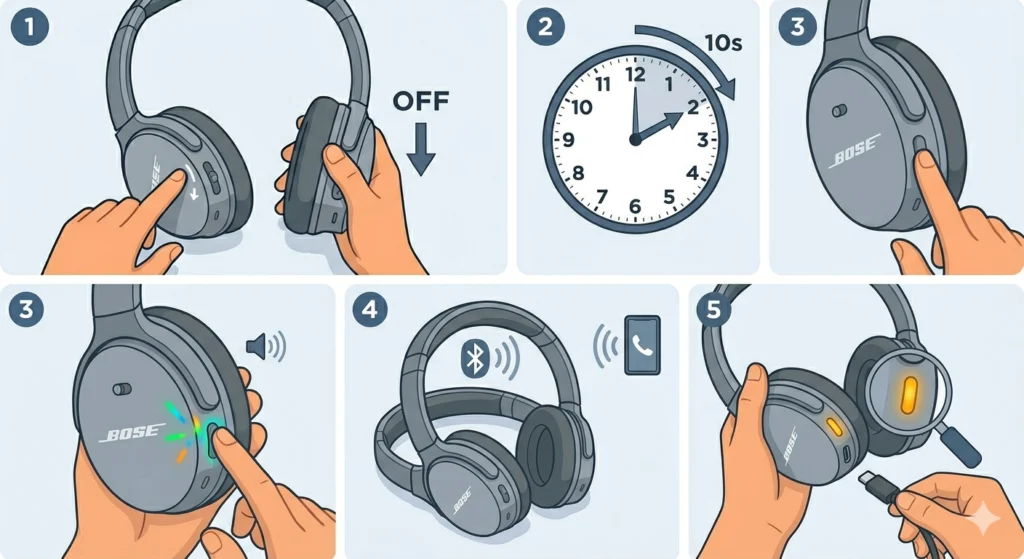
Fix 4: Reset the Bose QuietComfort 45
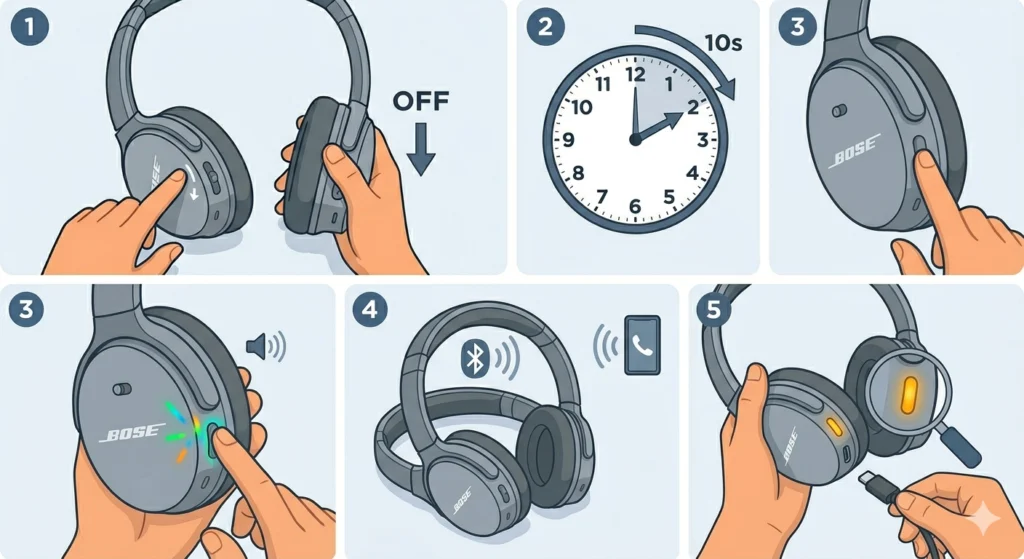
A factory reset wipes any firmware or software glitches that might be preventing the headphones from recognizing a power source. This does not damage the headphones or permanently affect performance – it simply returns them to default settings.
- Step 1: Turn off the headphones using the power switch
- Step 2: While powered off, press and hold the power button for 10 seconds
- Step 3: Release the button when the LED flashes and the headphones power back on
- Step 4: The headphones will enter pairing mode – this confirms the reset was successful
- Step 5: Connect the charging cable and monitor whether the LED indicator lights up
After a reset, the headphones will need to be re-paired to any Bluetooth devices. If the headphones were previously connected to a Windows 11 PC and have audio issues after re-pairing, it helps to review the steps for re-pairing Bluetooth headphones for stereo sound on Windows to restore the full audio experience.
Fix 5: Update Firmware via the Bose Music App
Outdated firmware can cause charging recognition problems. Bose regularly pushes updates that fix bugs in the battery and charging management system. Updating through the Bose Music app is straightforward.
- Step 1: Download the Bose Music app on a smartphone (available on iOS and Android)
- Step 2: Open the app and sign in or create a Bose account
- Step 3: Turn on the QC45 and connect them to the phone via Bluetooth
- Step 4: The app will automatically detect if a firmware update is available
- Step 5: Tap ‘Update’ and keep the headphones close to the phone until the process completes
- Step 6: Once updated, try charging again
Pro-Tip: Make sure the headphones have at least 20% battery before starting a firmware update. If the battery is too low to power on properly, charge them using a different cable first – even a slow trickle charge for 30 minutes can be enough to get them started.
Fix 6: Try a Different Power Source
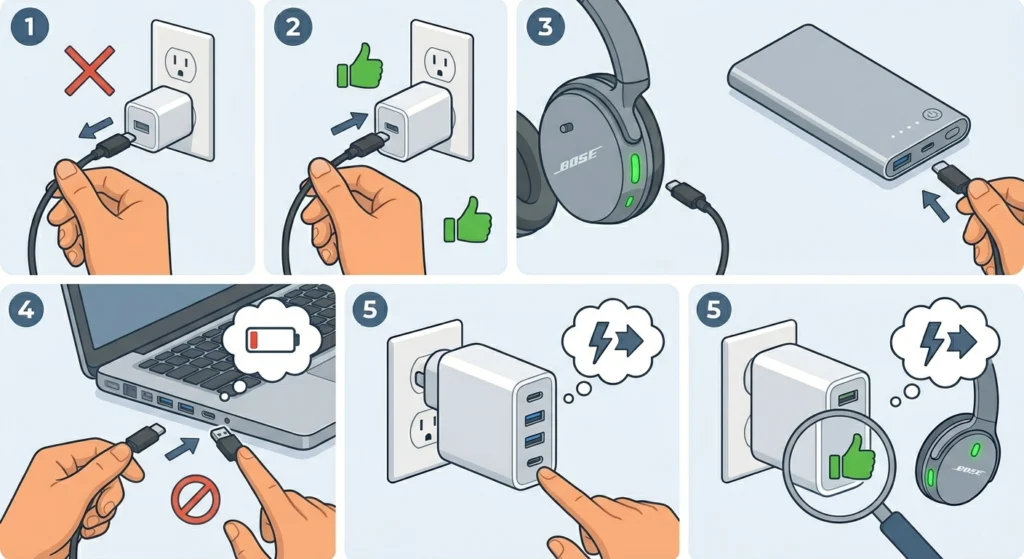
Not all USB ports and adapters deliver stable power. Some laptop USB ports, cheap power banks, and older wall adapters output inconsistent voltage that causes the QC45 to not register a charge at all.
- Step 1: Unplug from the current power source
- Step 2: Try plugging into a direct wall outlet using a quality USB-C charger
- Step 3: Test with a different power bank if available
- Step 4: Avoid USB 2.0 ports on older computers as they may not output enough power
- Step 5: If using a multi-port adapter, try the port labeled with a higher wattage output
If the headphones were previously connected to a Windows 11 device and there were audio output issues alongside the charging problem, checking the audio output settings on Windows 11 can rule out software-related conflicts.
Tips for Keeping the Bose QC45 Charging Properly
- Always use a USB-C cable with proper data and power pin support – not just charge-only cables
- Store the headphones in their case when not in use to protect the charging port from dust
- Avoid charging in extremely hot or cold environments – ideal charging temperature is between 0°C and 45°C (32°F to 113°F)
- Do not leave the headphones on charge for days at a time – once fully charged, unplug them
- Clean the charging port every few months as part of regular maintenance
- Use the Bose Music app to monitor battery health and check for pending firmware updates regularly
Common Problems and Troubleshooting
LED Does Not Light Up When Plugged In
This usually points to a bad cable, blocked port, or fully depleted battery. Start with a different cable, clean the port, then leave the headphones on charge for at least 30 minutes before checking again.
Headphones Show Charging But Battery Does Not Increase
This can indicate a failing battery or a firmware bug. Try doing a full discharge cycle first, then update the firmware via the Bose Music app. If the problem continues, the battery may need replacement.
Charging Stops Randomly
Intermittent charging is almost always caused by a loose cable connection or a slightly worn USB-C port. Try gently wiggling the cable while plugged in to test – if it affects charging, the cable or port needs attention.
Headphones Get Hot While Charging
Some warmth during charging is normal. Excessive heat is not. If the headphones feel very hot to the touch, stop charging immediately, let them cool down, and try again with a different adapter that does not exceed the recommended output.
Battery Drains Fast Even After Charging
A battery that charges but drains quickly usually signals battery degradation over time. Lithium-ion batteries typically last 300 to 500 full charge cycles. If the QC45 is several years old and the battery life has dropped significantly, a battery replacement or warranty claim may be the most practical solution.
Frequently Asked Questions
Why is my Bose QuietComfort 45 not charging at all?
The most common causes are a faulty USB-C cable, a dirty or obstructed charging port, a completely depleted battery, or an inadequate power source. Start by testing a different cable and adapter, then clean the charging port before trying any software-level fixes like a reset or firmware update.
How long does it take to fully charge the Bose QC45?
The Bose QuietComfort 45 takes approximately 2.5 hours to charge from 0% to 100% using a compatible USB-C charger. A 15-minute quick charge provides around 3 hours of playback, which is helpful in urgent situations.
What USB-C charger is compatible with the Bose QC45?
The QC45 works with any standard USB-C charger that outputs 5V/1A or higher. The original Bose cable is recommended, but most quality third-party USB-C cables that support both data and power transfer will work fine.
Does the Bose QC45 support fast charging?
The QC45 supports a quick charge feature – 15 minutes of charging delivers up to 3 hours of playback. However, it does not support USB Power Delivery fast charging protocols in the same way smartphones do. A standard 5V charger is sufficient.
Will resetting the Bose QC45 fix charging issues?
A factory reset can fix charging issues caused by firmware glitches or software bugs in the battery management system. It will not fix physical problems like a damaged cable or dirty port. The reset is a useful step after ruling out hardware-related causes.
How do I know if my Bose QC45 battery needs replacing?
Signs of a failing battery include the headphones not holding a charge for more than 2-3 hours despite a full charge, the battery percentage dropping suddenly, or the headphones refusing to turn on even after extended charging. Bose authorised service centres can replace the battery.
Can I charge the Bose QC45 with a phone charger?
Yes. Any USB-C phone charger with a 5V output can charge the QC45. Avoid using very high-wattage laptop chargers without proper USB-C power negotiation, although in practice most USB-C chargers work correctly with the QC45.
What does the LED indicator mean while charging the Bose QC45?
A solid amber or orange LED means the headphones are charging. A solid white LED means they are fully charged. If the LED does not light up when plugged in, there is likely an issue with the cable, port, or power source.
Can a firmware update fix Bose QC45 charging problems?
Yes, firmware updates can fix bugs related to charging recognition and battery management. Bose periodically releases updates through the Bose Music app. Keeping the firmware up to date is good practice for both charging reliability and overall performance.
What should I do if none of these fixes work?
If all troubleshooting steps have been tried without success, the issue is likely a hardware defect – either a damaged charging port or a failed battery. Contact Bose support directly or visit an authorised service centre. The QC45 comes with a 1-year limited warranty that may cover the repair or replacement at no cost.