
Bluetooth headphones not pairing is one of the most frustrating tech problems people run into – especially when everything seems fine on the surface. The headphones are charged, Bluetooth is on, and yet nothing connects. The good news is that most pairing failures come down to a handful of fixable causes, and this guide walks through each one clearly and directly.
Quick Summary
- The most common fix is performing a factory reset on the headphones to clear old pairing data.
- Always make sure the headphones are in pairing mode before searching from the device.
- Old or conflicting paired devices often block new connections – clearing the pairing list helps.
- Both the headphones and the connecting device need Bluetooth turned on and discoverable.
- Keeping the headphones firmware and device Bluetooth drivers updated prevents many pairing issues.
Fix 1: Put the Headphones Into Pairing Mode Correctly
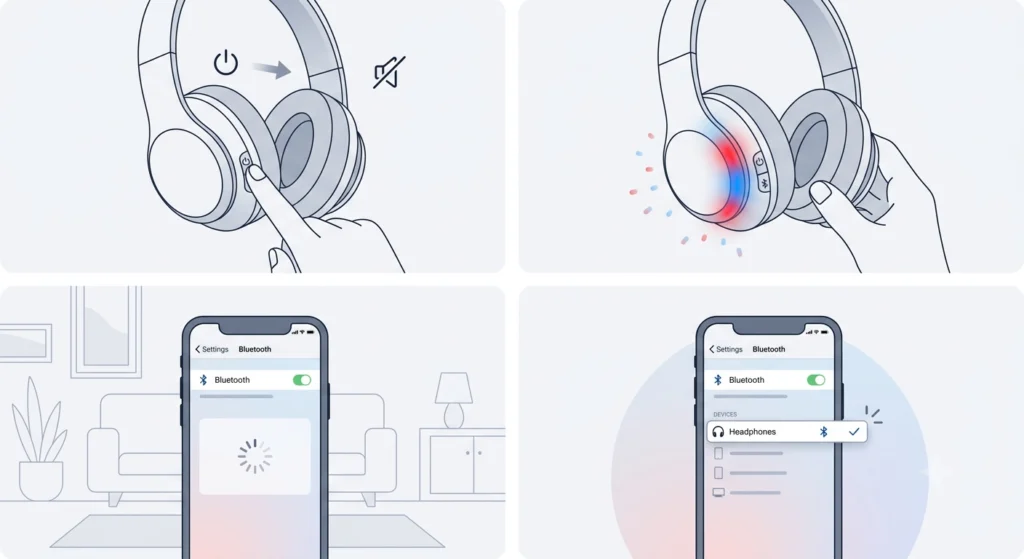
This sounds obvious, but it is the number one reason headphones fail to show up on a device. Most headphones do not automatically enter pairing mode every time they turn on – they only do this the first time, or after a reset. If the headphones have been paired before, they will try to reconnect to a known device instead of appearing as discoverable.
- Step 1: Turn off the headphones completely.
- Step 2: Hold the power or Bluetooth button for 5 to 10 seconds until the LED flashes rapidly or alternates between two colors (usually red and blue). This indicates pairing mode.
- Step 3: On the connecting device, open Bluetooth settings and scan for new devices.
- Step 4: Select the headphones from the list and confirm pairing if prompted.
The exact button combination varies by brand. Sony headphones often require holding the power button for 7 seconds. Bose headphones typically use a dedicated Bluetooth button. Check the manual or the brand’s support page if unsure – the method matters.
Fix 2: Reset the Headphones to Clear Old Pairing Data
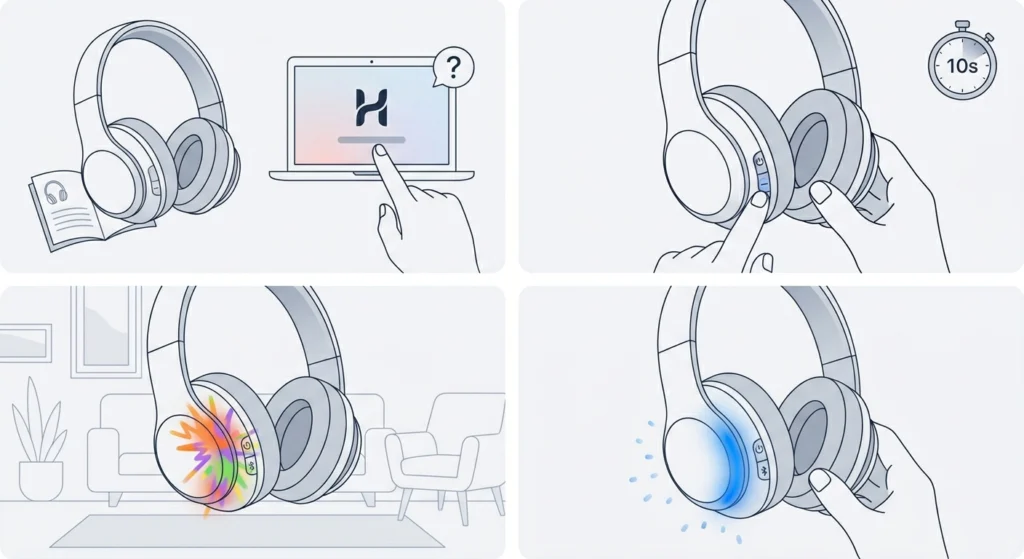
Headphones store a list of previously paired devices in their memory. When that list gets full, or when a corrupted pairing entry exists, the headphones can refuse to pair with anything new. A factory reset wipes that memory and gives a clean slate.
- Step 1: Find the reset procedure for the specific headphone model. This is usually in the manual or the brand’s official website.
- Step 2: Common reset methods include holding the power and volume down buttons together for 10 seconds, or holding the multifunction button while turning on the headphones.
- Step 3: Wait for the indicator light to flash in a reset pattern or hear a confirmation sound.
- Step 4: Put the headphones into pairing mode and try connecting again.
After a reset, the headphones will need to be paired again from scratch on every device – including ones that were connected before. That is expected and normal.
Pro-Tip: If the headphones connect to one device but not another, the issue is almost never the headphones – it is the second device. Run the reset only when headphones fail to connect to any device at all.
Fix 3: Remove the Headphones From the Device’s Paired List and Re-Pair
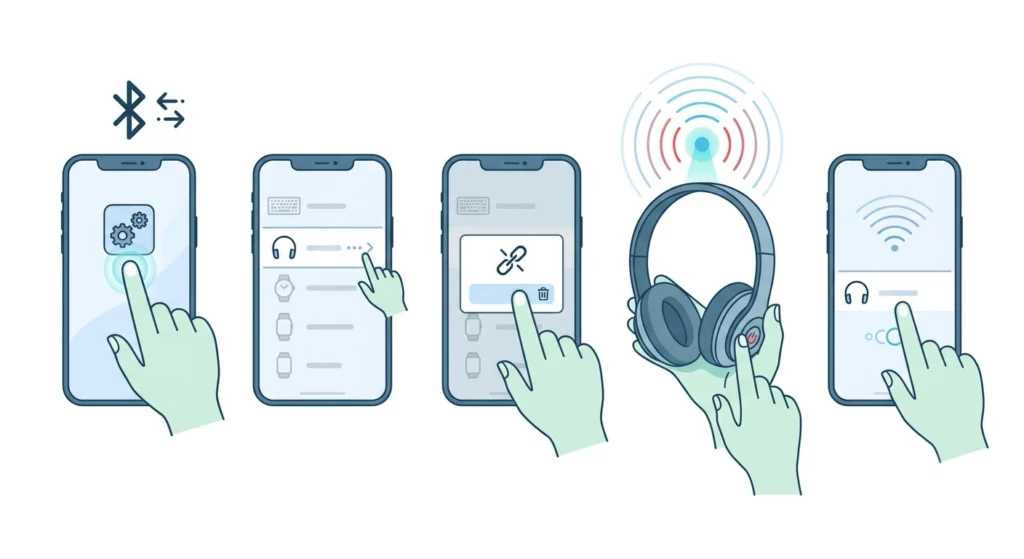
Even when a reset is not needed on the headphones side, stale pairing data on the phone, laptop, or tablet can cause connection failures. The device thinks it still knows the headphones, but the handshake breaks down.
- Step 1: Open Bluetooth settings on the device.
- Step 2: Find the headphones in the paired or known devices list.
- Step 3: Select ‘Forget’, ‘Unpair’, or ‘Remove Device’ (the label varies by operating system).
- Step 4: Put the headphones back into pairing mode.
- Step 5: Scan for devices and pair fresh.
This works especially well for Windows users. If the headphones paired fine before but suddenly stopped working, forgetting and re-pairing solves it most of the time. For Windows 11 users who notice audio issues after re-pairing Bluetooth earbuds for stereo sound, that guide covers the exact steps to get both channels working correctly.
Fix 4: Check the Device’s Bluetooth Is Actually On and Discoverable
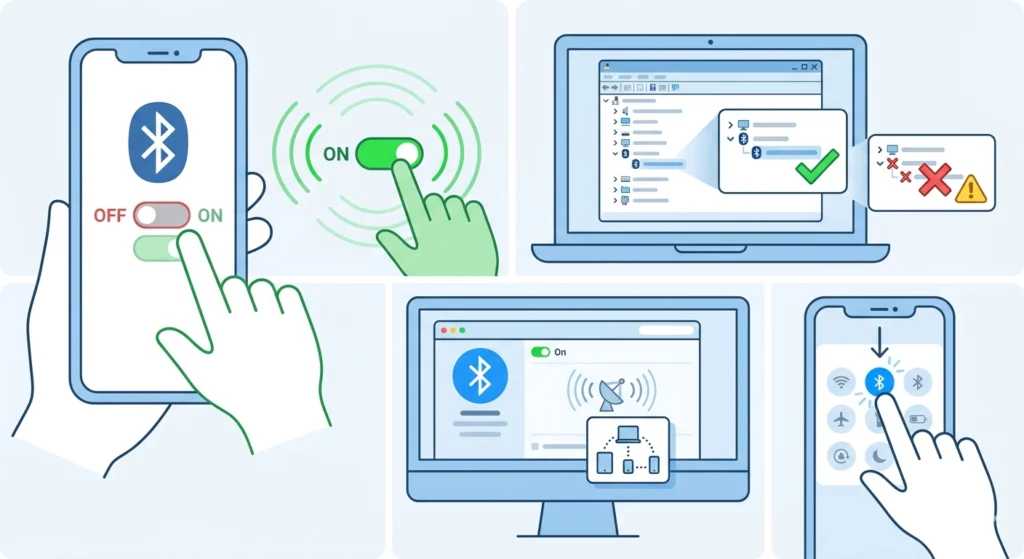
Some devices, particularly laptops and desktops, have Bluetooth toggled off at the system level even when it appears enabled in settings. A quick full check prevents a lot of wasted time.
- Step 1: Toggle Bluetooth off and then back on from the device settings. Do not just assume it is on.
- Step 2: On Windows, open Device Manager and confirm the Bluetooth adapter is present and enabled. If it shows a yellow warning icon, there is a driver issue.
- Step 3: On Mac, go to System Settings, Bluetooth, and confirm it shows ‘On’ and is visible to nearby devices.
- Step 4: On Android or iPhone, pull down the quick settings panel, tap Bluetooth to disable, wait 5 seconds, and enable again.
This reset of the Bluetooth radio clears minor software glitches that stop discovery from working. It takes 10 seconds and solves more pairing problems than most people expect.
Fix 5: Charge the Headphones and Check Battery Level
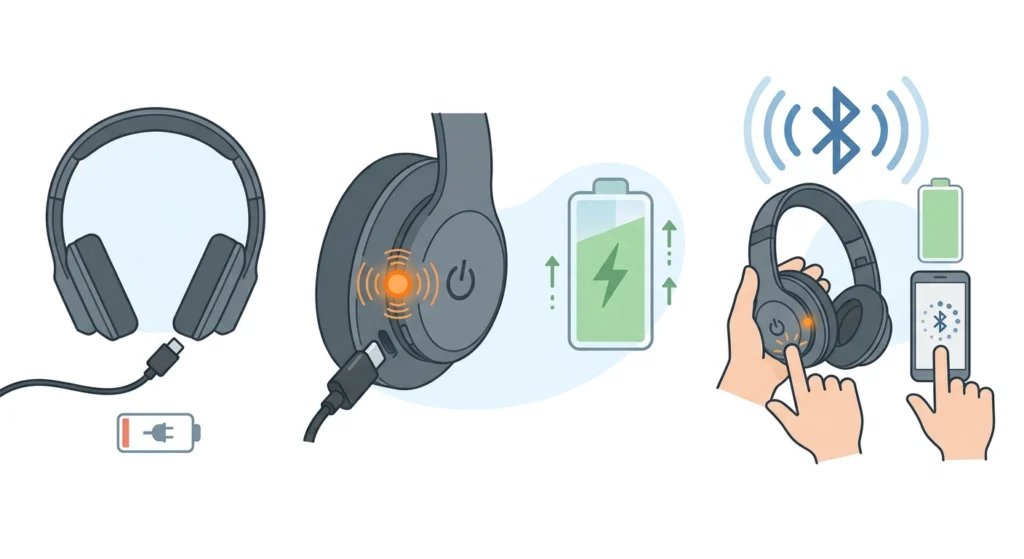
Low battery is a surprisingly common cause of pairing failure. When headphones drop below a certain charge threshold – sometimes as high as 20% on some models – the Bluetooth radio becomes unstable or shuts down entirely to preserve power. The headphones might turn on and play a startup sound, but fail to enter a stable pairing mode.
- Step 1: Plug the headphones into the charger for at least 15 to 30 minutes before trying to pair.
- Step 2: Check the LED indicator to confirm charging is active (usually a solid or slowly pulsing light).
- Step 3: Once at a reasonable charge, turn off and back on, then attempt pairing again.
Fix 6: Move Away From Wireless Interference
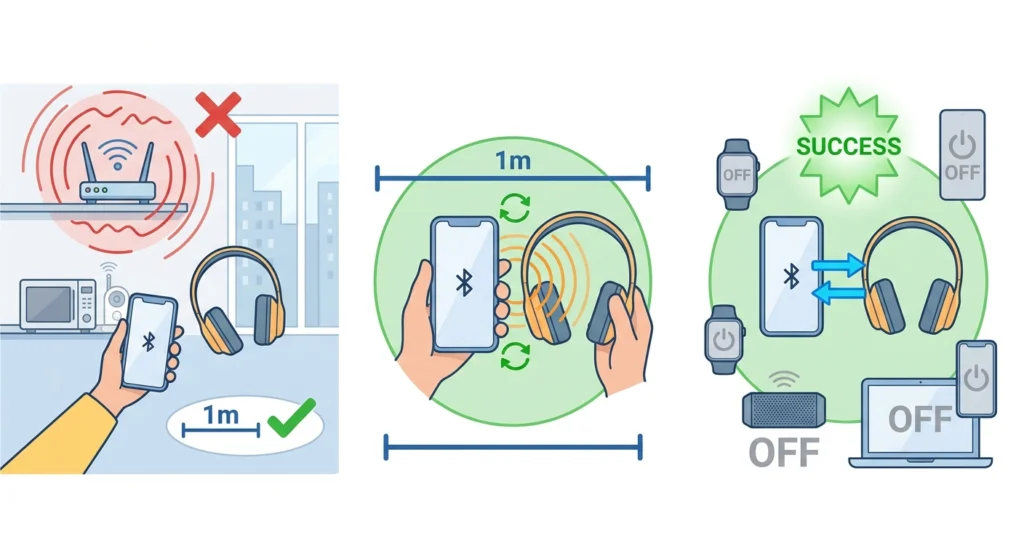
Bluetooth operates on the 2.4 GHz frequency, the same band used by Wi-Fi routers, microwaves, baby monitors, and other wireless devices. In environments with heavy wireless traffic, pairing signals can get interrupted before the connection completes.
- Step 1: Move the headphones and the connecting device at least 1 meter away from the router during the initial pairing process.
- Step 2: Keep the two devices within 1 meter of each other while pairing – even if the normal range is much larger, initial pairing works best up close.
- Step 3: Turn off other Bluetooth devices nearby temporarily to reduce competition during the pairing handshake.
Fix 7: Update Bluetooth Drivers or Firmware
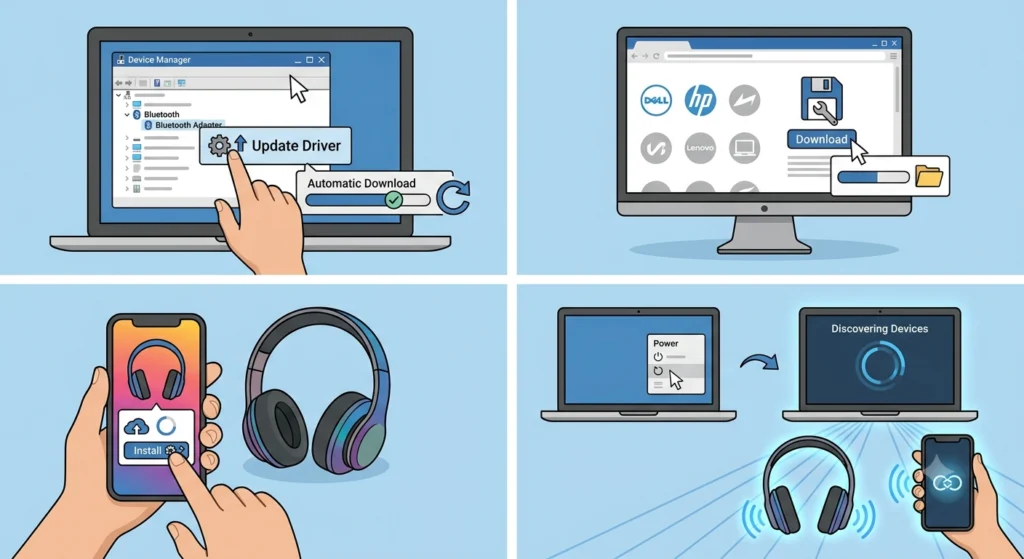
Outdated Bluetooth drivers on a Windows PC are a known source of pairing failures. The same applies to headphone firmware – manufacturers release updates that fix compatibility bugs with newer phones or operating systems.
- Step 1: On Windows, open Device Manager, expand Bluetooth, right-click the adapter, and choose ‘Update driver’. Select ‘Search automatically for drivers’.
- Step 2: Alternatively, visit the PC manufacturer’s support page and download the latest Bluetooth driver manually.
- Step 3: For headphone firmware, download the brand’s companion app (Sony Headphones Connect, Bose Music, Jabra Sound+, etc.) and check for available firmware updates.
- Step 4: Restart both devices after any update, then attempt pairing.
Windows 11 users who experience audio routing issues after a driver update can also check the guide for adjusting audio output settings on Windows 11 to make sure the headphones are set as the default output device.
Pro-Tip: Firmware updates on headphones often fix specific device compatibility issues. If the headphones pair fine with an older phone but not a new one, a firmware update is almost always the fix. Always update headphone firmware through the official app – third-party tools can brick the device.
Tips for Keeping Bluetooth Headphones Pairing Reliably
- Clear the headphone pairing list every few months, especially if many devices have been connected over time. Most headphones store between 5 and 10 paired devices, and a full list causes unpredictable behavior.
- Keep the headphones charged above 30% when not in use. Deep discharge cycles can degrade the Bluetooth module over time on cheaper models.
- Avoid leaving headphones in extreme heat (like a hot car) – this degrades the internal components including the Bluetooth chip.
- Use the official companion app when available. These apps often manage firmware, pairing priority, and device switching in ways that manual Bluetooth settings cannot.
- When pairing to a new device, always start the process from the headphone side first – put them in pairing mode before opening Bluetooth settings on the device.
Common Bluetooth Headphone Pairing Problems
Headphones Appear in the List But Fail to Connect
This usually means a stale pairing entry. Remove the headphones from the device’s Bluetooth list completely and pair again from scratch. If the problem persists, reset the headphones to factory settings.
Headphones Connect to Phone But Not Laptop
The headphone pairing list is likely full, or the laptop’s Bluetooth driver needs updating. Try forgetting the connection on the laptop side first, then re-pair. If that does not work, update the Bluetooth driver via Device Manager.
Headphones Keep Disconnecting Right After Pairing
This points to either a low battery issue, firmware incompatibility, or radio interference. Charge the headphones fully, move away from the router, and check for firmware updates via the companion app.
Headphones Show as ‘Not Available’ or ‘Unavailable’
The headphones are either connected to another device already or not properly in pairing mode. Disconnect them from any other paired device, reset them, and begin the pairing process fresh.
Headphones Are Not Showing Up at All During Scan
The headphones may not be in pairing mode, or they could be too far away. Keep both devices within 1 meter, make sure the headphones are actively flashing (indicating pairing mode), and toggle Bluetooth off and on again on the scanning device.
Frequently Asked Questions
Why are my Bluetooth headphones not showing up when pairing?
The most common reason is that the headphones are not in active pairing mode. They need to be manually put into pairing mode by holding the Bluetooth or power button until the LED flashes in an alternating pattern. Simply turning the headphones on is not enough if they have been paired before.
How do I force Bluetooth headphones into pairing mode?
Turn the headphones off completely, then hold the power or Bluetooth button for 5 to 10 seconds until the LED indicator flashes rapidly or alternates between two colors. The exact method varies by brand, but this long-press approach works for the vast majority of models.
Will resetting my Bluetooth headphones delete all paired devices?
Yes. A factory reset clears the entire pairing memory on the headphones. Every device – phone, laptop, tablet – will need to be paired again from scratch. This is expected behavior and is actually the goal when clearing a problematic pairing history.
How many devices can Bluetooth headphones be paired with at once?
Most Bluetooth headphones can store between 5 and 10 previously paired devices in memory, but they can only actively connect to 1 or 2 devices simultaneously depending on the model. Multipoint connection (connecting to two devices at the same time) is a feature available on mid-range and premium models.
Can outdated firmware cause Bluetooth pairing failure?
Yes, absolutely. Headphone manufacturers release firmware updates specifically to address Bluetooth compatibility issues with newer phones and operating systems. If the headphones pair with older devices but not newer ones, a firmware update via the brand’s companion app almost always resolves it.
Why do my headphones connect to my phone but not my laptop?
This typically points to a Bluetooth driver issue on the laptop, a full pairing list on the headphones, or a stale entry in the laptop’s device list. Start by forgetting the connection on the laptop side and re-pairing. If that does not help, update the Bluetooth adapter driver through Device Manager.
Is it bad to leave Bluetooth headphones paired but not connected?
No, leaving headphones in a paired state without an active connection is completely fine. The headphone just sits idle waiting for the paired device to initiate a connection. However, if too many devices are stored in the pairing list, it can cause connection priority conflicts – clearing old devices helps.
Can interference from Wi-Fi cause Bluetooth pairing to fail?
Yes. Bluetooth and Wi-Fi both use the 2.4 GHz frequency band. In environments with many active wireless devices, the pairing handshake can get disrupted before completing. Moving the headphones and phone closer together and away from the router during the initial pairing process significantly reduces this issue.
Why do my headphones say they are connected but produce no sound?
The headphones may be connected but not set as the active audio output on the device. On Windows, check the sound output settings to confirm the headphones are selected as the playback device. On mobile, check if the audio is being routed to speaker or another output instead.
How do I know if my Bluetooth headphones are broken or just not pairing correctly?
If the headphones power on, play a startup sound, and show LED indicators but fail to pair after a factory reset and multiple attempts on different devices, there may be a hardware issue with the Bluetooth module. Test them on at least two different devices after a full reset before concluding they are defective.