

AirPods Pro 2 one side not working is one of the most common complaints among Apple earbuds users – and the good news is it is almost always fixable without a trip to the Apple Store. Whether the left AirPod has gone silent, the right one cuts out randomly, or the audio sounds unbalanced, the causes usually come down to a few specific issues that are easy to address at home.
Quick Summary – What You Need to Know
- The most common fix is simply cleaning the earbuds and resetting them
- Audio balance settings on the iPhone can silently mute one side
- Firmware bugs can cause one AirPod to stop working – a full reset usually resolves this
- Charging contact issues are a frequent hardware-related cause
- If only one earbud has sound problems, check the ear tip fit and microphone mesh for debris
- A factory reset paired with re-pairing solves the majority of one-sided audio issues
Fix 1: Check and Adjust the Audio Balance Setting
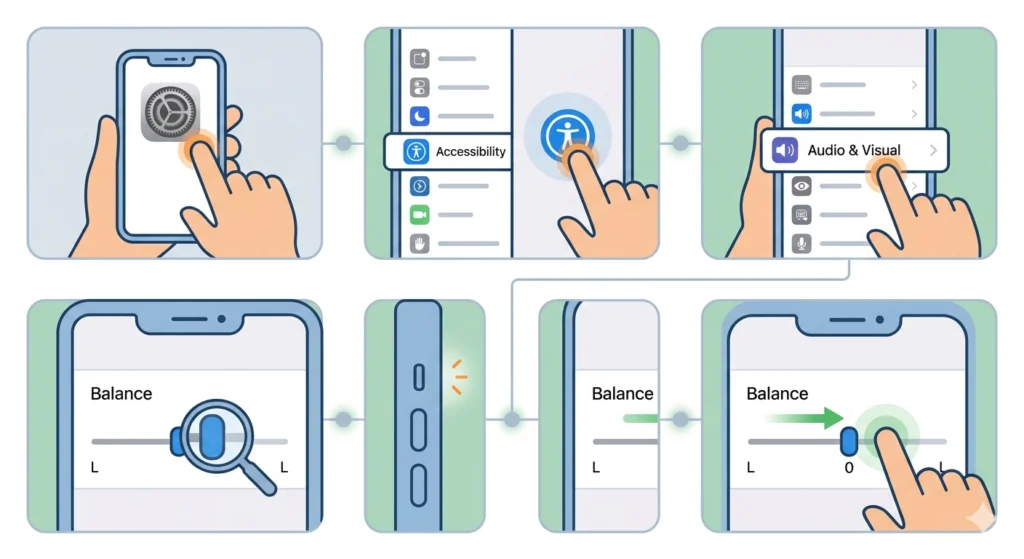
Before assuming anything is broken, check the audio balance setting on the connected device. Apple includes an accessibility feature that can shift all sound to one ear – and it is surprisingly easy to trigger accidentally.
- Step 1: Open the Settings app on the iPhone or iPad
- Step 2: Tap Accessibility
- Step 3: Select Audio and Visual
- Step 4: Look at the Balance slider – make sure it is centered at 0
- Step 5: If it is shifted left or right, drag it back to the middle
This single step fixes a surprising number of ‘one side not working’ cases. The slider is subtle and easy to nudge without realizing it.
Fix 2: Clean the AirPods and Charging Case Contacts
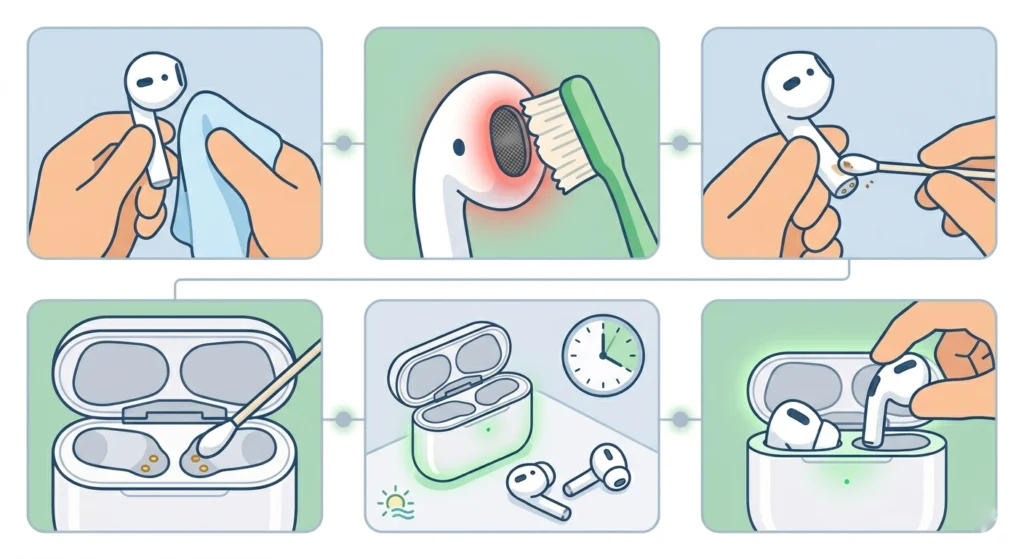
Earwax, dust, and moisture buildup are silent killers of one-side audio. The speaker mesh and charging contacts are the two main spots to focus on.
- Step 1: Use a dry, lint-free cloth to wipe down the exterior of both AirPods
- Step 2: Take a clean, dry soft-bristled brush (a toothbrush works well) and gently brush the speaker mesh on the affected AirPod
- Step 3: Clean the charging contacts at the bottom of each AirPod with a dry cotton swab
- Step 4: Wipe the inside of the charging case, especially the metal charging pins
- Step 5: Let everything dry completely before placing the AirPods back in the case
The key is to never use water or liquid cleaners directly on the speaker mesh – moisture can cause more damage than the debris itself.
Pro-Tip: A small amount of 70% isopropyl alcohol on a cotton swab works well for cleaning the charging contacts, but keep it away from the speaker grille. Alcohol evaporates quickly and does not damage the metal contacts the way water can.
Fix 3: Re-seat the Ear Tips
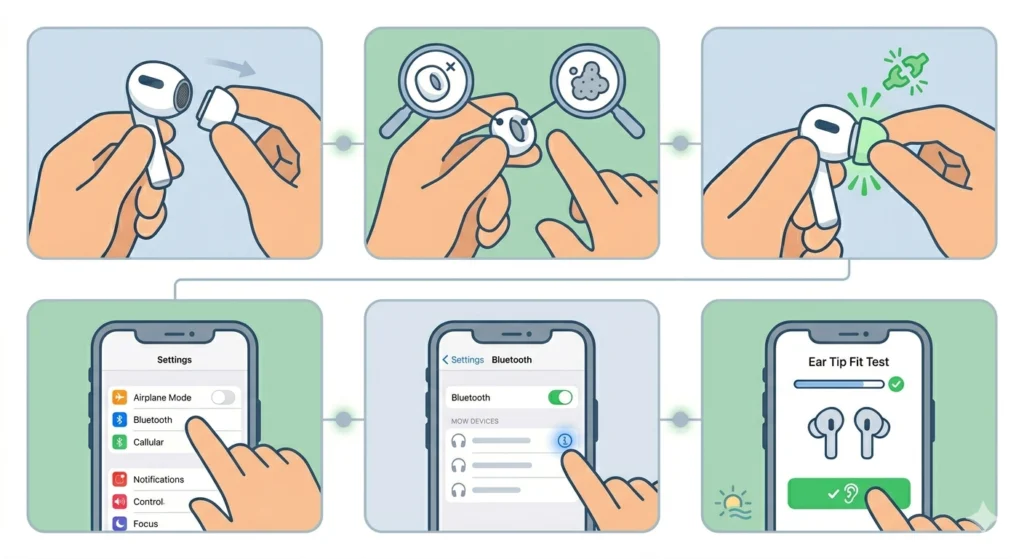
AirPods Pro 2 ear tips form a seal that affects how sound travels into the ear canal. A loose or misaligned ear tip can make one side sound muffled or completely silent.
- Step 1: Remove both ear tips by pulling them gently from the AirPod stem
- Step 2: Inspect each tip for tears, debris, or misalignment
- Step 3: Push the ear tip firmly back onto the AirPod until it clicks into place
- Step 4: Go to Settings, then Bluetooth, tap the info icon next to AirPods Pro, and run the Ear Tip Fit Test
If the ear tips are worn out or damaged, replacing them with Apple-certified tips is a low-cost fix that makes a significant difference in sound quality.
Fix 4: Forget and Re-Pair the AirPods
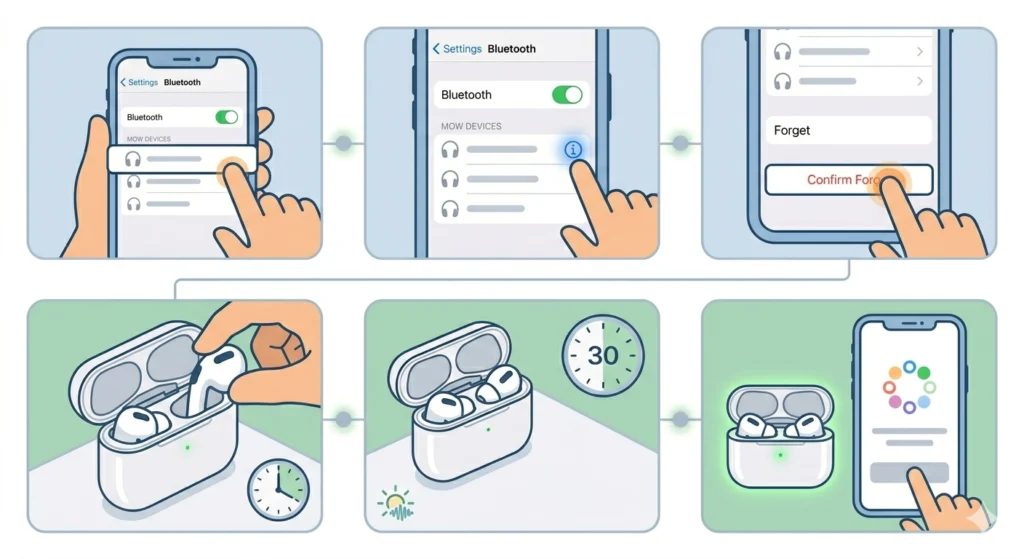
Bluetooth connection glitches can cause one AirPod to drop out or fail to receive audio. Re-pairing Bluetooth earbuds for stereo sound is a proven method for restoring proper left-right audio channels.
- Step 1: Open Settings on the iPhone and tap Bluetooth
- Step 2: Tap the info icon (i) next to AirPods Pro in the list
- Step 3: Tap ‘Forget This Device’ and confirm
- Step 4: Place both AirPods in the charging case and close the lid
- Step 5: Wait 30 seconds, then open the lid near the iPhone
- Step 6: Follow the on-screen pairing prompt to reconnect
Most people find that this alone brings both sides back to normal. It forces the device to establish a fresh stereo connection rather than trying to patch a corrupted one.
Fix 5: Reset AirPods Pro 2 to Factory Settings
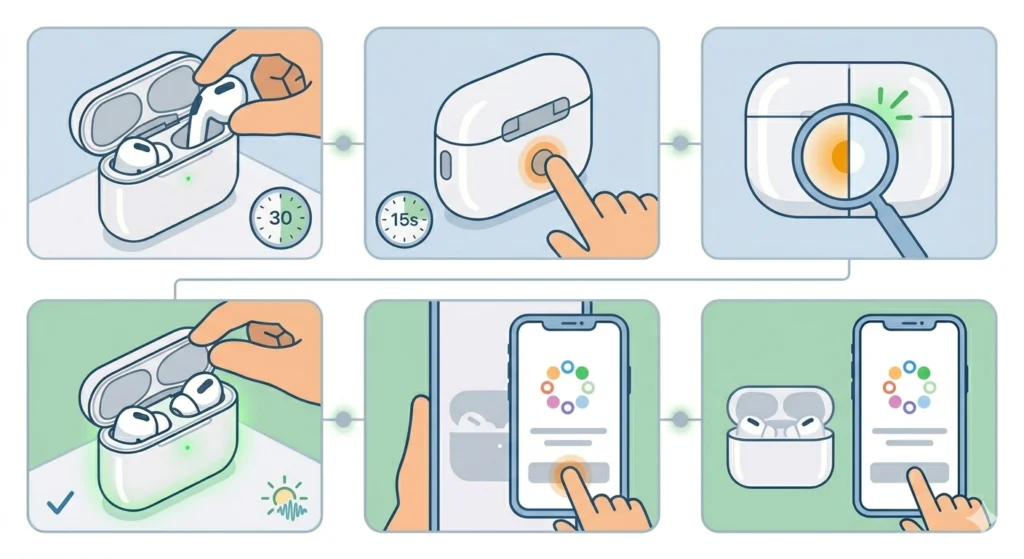
A full factory reset wipes any firmware state or pairing data that might be causing one side to malfunction. This works best when other fixes have not resolved the issue.
- Step 1: Place both AirPods in the charging case and close the lid for at least 30 seconds
- Step 2: Open the lid
- Step 3: Press and hold the button on the back of the case for about 15 seconds until the status light flashes amber, then white
- Step 4: The AirPods are now reset – re-pair them to the iPhone as normal
Pro-Tip: After a factory reset, the AirPods will also disconnect from all other Apple devices signed into the same iCloud account. Just open the lid next to the iPhone again and they will re-pair instantly – no need to go through Settings manually.
Fix 6: Update AirPods Pro Firmware
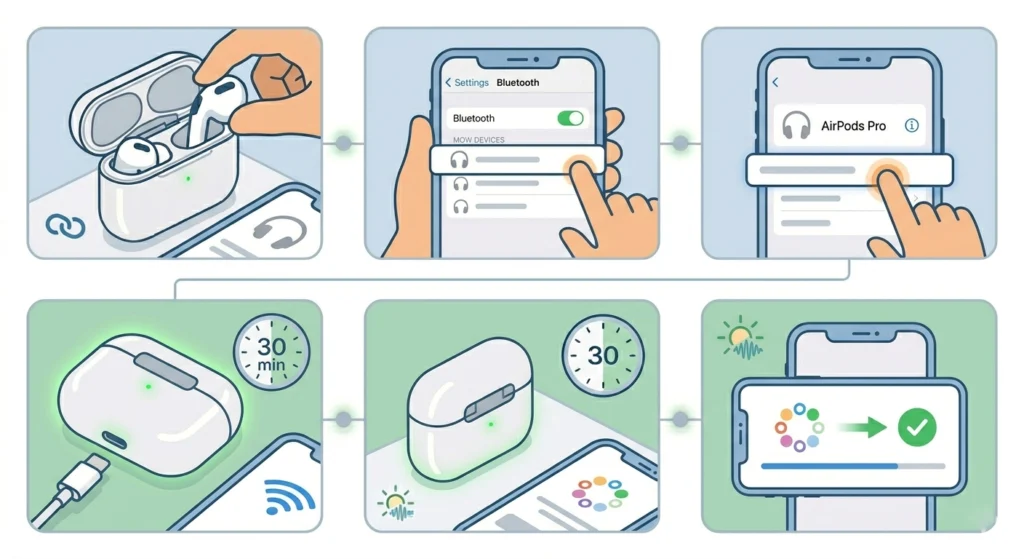
Apple periodically releases firmware updates for AirPods Pro 2 that fix bugs, including audio channel issues. Firmware updates happen automatically, but there is a way to nudge the process.
- Step 1: Connect the AirPods to the iPhone
- Step 2: Go to Settings, tap Bluetooth, then tap the info icon next to AirPods Pro
- Step 3: Scroll down to see the current firmware version
- Step 4: To trigger an update, place the AirPods in the case, plug the case into power, and keep the iPhone nearby with Wi-Fi connected
- Step 5: Leave them for 30 minutes – the update will install automatically if one is available
Fix 7: Check Mono Audio Setting
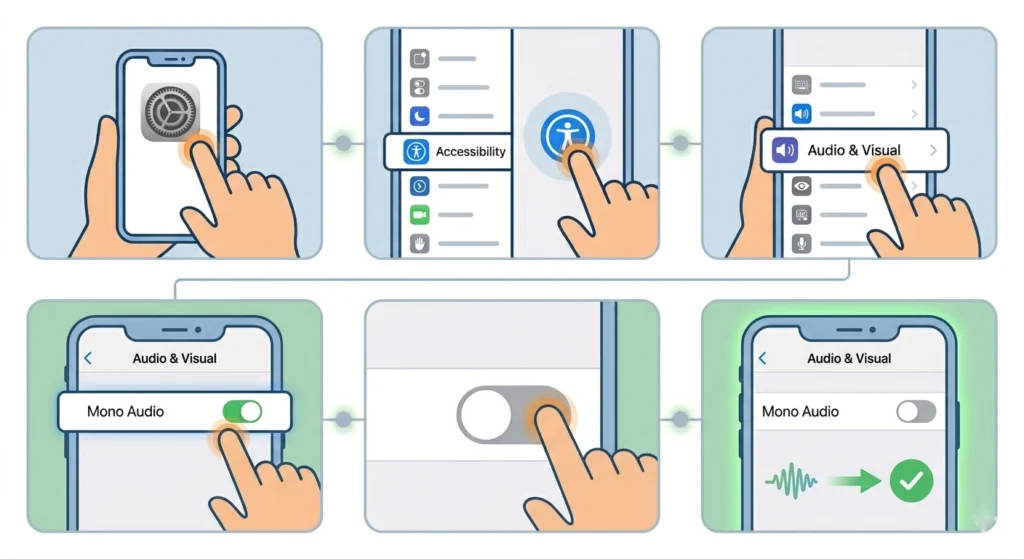
Apple’s Mono Audio setting combines both audio channels into one and sends it to both ears – but when enabled, it can cause unexpected behavior where only one side seems active depending on the source content.
- Step 1: Open Settings and go to Accessibility
- Step 2: Tap Audio and Visual
- Step 3: Make sure the Mono Audio toggle is turned off
Tips for Keeping AirPods Pro 2 Working Properly
- Store AirPods in the case when not in use to protect the speaker mesh from dust
- Clean the ear tips at least once a week if used daily
- Avoid wearing AirPods during heavy workouts without wiping them down afterward – sweat accelerates contact corrosion
- Keep the charging case battery above 20% to ensure stable firmware update delivery
- Periodically check the audio balance setting, especially after handing the phone to others
- If using AirPods with a Windows PC, reviewing audio output settings on Windows 11 can help confirm the issue is with the AirPods and not the device configuration
Common Problems and Solutions
One AirPod is quieter but not completely silent
This is almost always an audio balance issue or earwax blocking the speaker mesh. Start with Fix 1 (balance check) and Fix 2 (cleaning) before anything else.
One AirPod cuts in and out intermittently
Intermittent dropouts usually point to a Bluetooth interference issue or a weak connection. Try re-pairing (Fix 4) and make sure the device running audio is within a reasonable range.
One AirPod does not charge, and now it has no sound
This is a charging contact problem. Clean the contacts on both the AirPod and the case with a dry cotton swab. If the light still does not activate when placed in the case, the contacts may need professional cleaning or repair.
Sound works fine but microphone only picks up from one side
AirPods Pro 2 automatically selects the active microphone. If calls sound one-sided to the other person, check microphone settings on the device. Reviewing how to resolve microphone detection issues can help identify whether this is a device-side or hardware problem.
Reset did not fix the problem
If a full factory reset does not restore both-sided audio, the issue is likely hardware – either a speaker failure or internal water damage. At this point, Apple Support or an Apple Authorized Service Provider is the next step. AirPods Pro 2 purchased within the last year may be covered under warranty.
Frequently Asked Questions
Why is only one of my AirPods Pro 2 working?
The most common reasons are an off-center audio balance setting, earwax blocking the speaker mesh, a Bluetooth pairing glitch, or a firmware bug. Start by checking the audio balance in Accessibility settings, then clean the earbuds, and reset them if needed.
Can earwax actually stop an AirPod from producing sound?
Yes. The speaker mesh on AirPods Pro 2 is very fine, and compacted earwax can block sound output almost completely. Regular cleaning with a dry soft brush prevents this from becoming a recurring issue.
Will resetting AirPods Pro 2 delete all my settings?
A factory reset clears the pairing data and returns the AirPods to their default state. Custom controls and noise cancellation preferences will need to be reconfigured after re-pairing, but the process only takes a minute or two.
How do you check the AirPods Pro 2 firmware version?
Go to Settings, tap Bluetooth, tap the info icon next to the AirPods Pro name, then scroll down to find the firmware version listed under ‘About.’
What does the amber flashing light on the AirPods case mean during a reset?
The amber light flashing during a reset indicates the AirPods are clearing their pairing data. When it transitions to a white flash, the reset is complete and the AirPods are ready to be paired again.
Is it normal for only one AirPod to connect at a time?
No. Both AirPods Pro 2 should connect simultaneously as a stereo pair. If only one is connecting, the Bluetooth pairing data is likely corrupted. Forget the device and re-pair both AirPods together.
Can I use one AirPod Pro 2 while the other one charges?
Yes, Apple designed AirPods Pro 2 to work independently. Audio will automatically shift to mono when only one is in use. This is normal behavior and not a sign of malfunction.
Does Apple warranty cover one AirPod stopping working?
AirPods Pro 2 come with a one-year limited warranty that covers manufacturing defects. If one side stops working due to a hardware fault (not physical damage or liquid damage), it is typically covered. AppleCare+ extends coverage and adds accidental damage protection.
Why does one AirPod sound muffled but still produce audio?
Muffled audio from one side is usually caused by a partially blocked speaker mesh, a loose ear tip not forming a proper seal, or an audio balance slightly shifted to one side. Clean the mesh, reseat the ear tip, and check the balance setting.
How long does an AirPods Pro 2 reset take?
The reset itself takes about 15 seconds of holding the case button. Adding the recommended 30-second wait before and after, the whole process takes under two minutes. Re-pairing afterward is nearly instant when the lid is opened near a connected iPhone.