
AirPods Pro 2 Active Noise Cancelling not working is one of the most frustrating things that can happen – especially when you paid a premium for it. The good news? Most ANC issues are fixable in just a few minutes without visiting an Apple Store. This guide walks through the exact steps to get ANC back to working the way it should, starting from the fastest fixes first.
Key Takeaways
- Most ANC issues on AirPods Pro 2 are caused by software glitches, not hardware failure
- Forcing a reconnection or restart fixes the majority of cases instantly
- Ear Tip Fit Test is critical – a poor seal will always make ANC underperform
- Firmware updates and Calibration resets are the deeper-level fixes for persistent problems
- Resetting the AirPods to factory settings resolves almost all remaining software-related ANC issues
Steps to Fix AirPods Pro 2 Active Noise Cancelling Not Working
Step 1: Toggle ANC Off and Back On
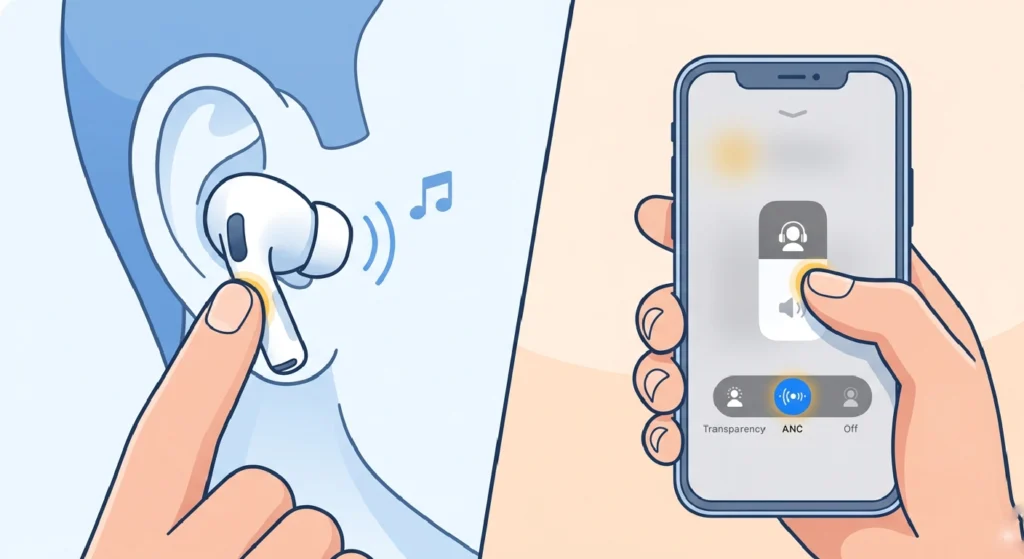
The simplest fix is often the most effective. ANC can get stuck in a partial state after waking from sleep or switching devices.
- Step 1: Press and hold the stem of either AirPod until you hear the chime that signals a mode switch
- Step 2: Cycle through to Transparency mode, then press and hold again to return to Active Noise Cancellation
- Step 3: Alternatively, go to Control Center on iPhone, long-press the volume slider with AirPods connected, and tap the ANC icon to toggle it
This forces the ANC circuit to reinitialize and clears most temporary glitches in under ten seconds. If the AirPods are connected to a Windows PC and ANC is not responding there, the process for re-pairing Bluetooth earbuds on Windows may also help restore proper functionality.
Step 2: Run the Ear Tip Fit Test
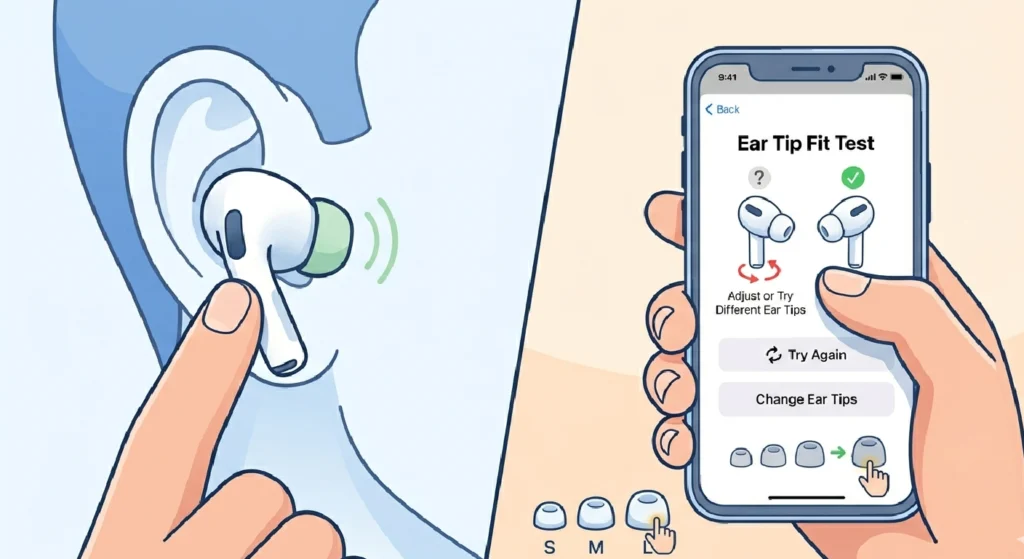
This is the most overlooked step. ANC on AirPods Pro 2 is acoustic – meaning it physically depends on a proper ear seal. If the ear tips are slightly loose, ANC will always sound weak or completely ineffective.
- Step 1: Open Settings on the connected iPhone or iPad
- Step 2: Tap Bluetooth, then tap the info icon next to the AirPods Pro 2
- Step 3: Select Ear Tip Fit Test and tap Continue
- Step 4: The test plays a short tone and analyzes the seal. If it shows ‘Adjust or Try Different Ear Tips’, switch to a smaller or larger size
Most people find that a size change immediately restores full ANC performance. The key is getting that proper in-ear seal before assuming there is a software problem.
Pro-Tip: Apple includes three ear tip sizes (XS, S, M, L) with AirPods Pro 2. If the fit test keeps failing with all sizes, try the XS tips – many users find the default medium tips are too large for their ear canals, causing constant ANC underperformance.
Step 3: Disconnect and Reconnect the AirPods
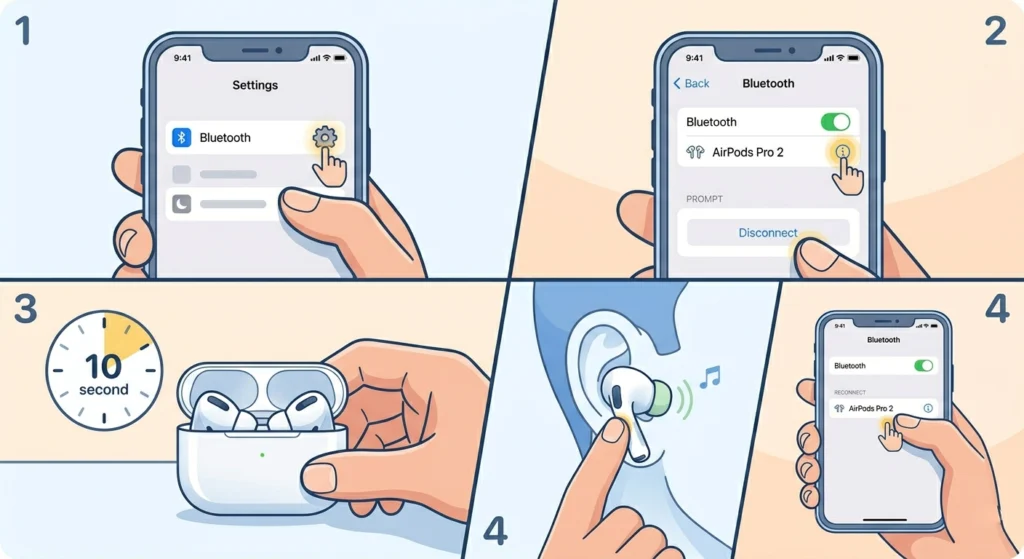
A fresh Bluetooth connection resets the audio stack, which often restores ANC functionality after switching between devices or after a firmware update.
- Step 1: Open Settings then Bluetooth on the connected device
- Step 2: Tap the info icon next to the AirPods Pro 2 and select Disconnect
- Step 3: Wait 10 seconds, then tap the AirPods in the Bluetooth list to reconnect
- Step 4: Once reconnected, test ANC by pressing and holding the stem
This works best when the AirPods were recently used with another device like a Mac or iPad before returning to iPhone.
Step 4: Restart the Connected Device
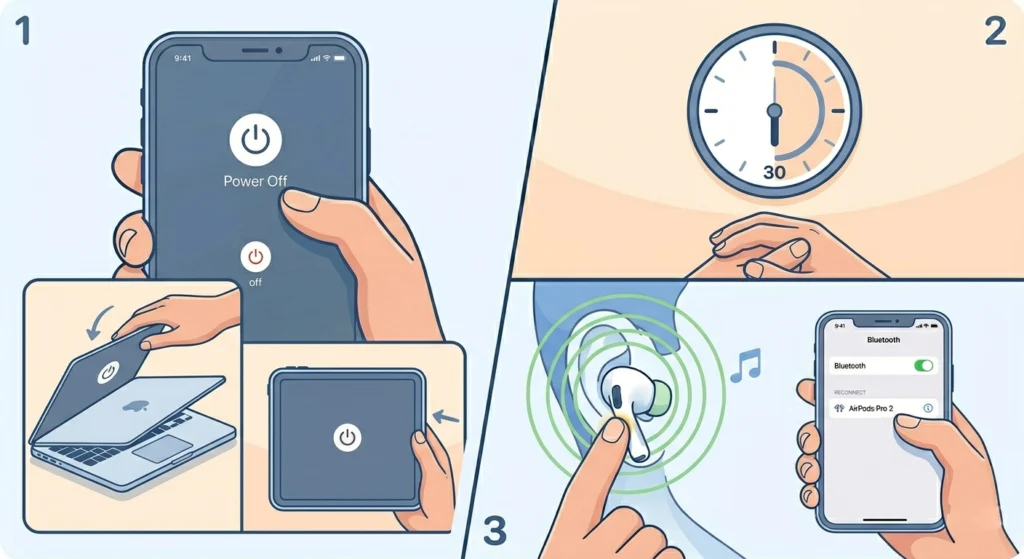
If the AirPods themselves are fine but ANC still is not responding, the issue may be with the host device’s Bluetooth stack. A simple restart clears that.
- Step 1: Power off the iPhone, iPad, or Mac completely
- Step 2: Wait 30 seconds before turning it back on
- Step 3: Reconnect the AirPods and test ANC again
Step 5: Check and Update AirPods Firmware
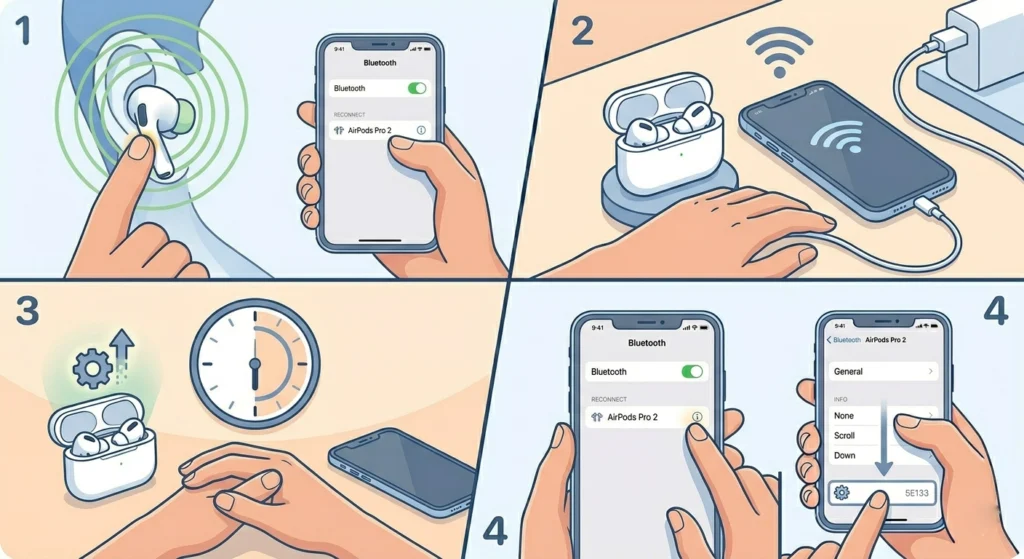
Outdated firmware is a known cause of ANC bugs on AirPods Pro 2. Apple pushes firmware updates automatically, but they do not always install on schedule.
- Step 1: Connect the AirPods to the iPhone and keep them in the ears
- Step 2: Make sure the iPhone is connected to Wi-Fi and plugged into a charger
- Step 3: Place the AirPods in their case, keep the case open near the iPhone, and leave them for 30 minutes – this is when firmware updates typically install
- Step 4: To check the current firmware version, go to Settings > Bluetooth > tap the info icon next to AirPods > scroll down to see the firmware version
There is no manual ‘Update Firmware’ button – it happens automatically when conditions are met. Leaving AirPods near a connected, charging iPhone overnight is the most reliable way to trigger the update. If using AirPods with a Windows machine and audio is behaving oddly after a firmware change, reviewing the guide on adjusting audio output settings on Windows 11 can rule out system-level audio conflicts.
Step 6: Recalibrate the ANC Using a Reset of Audio Settings
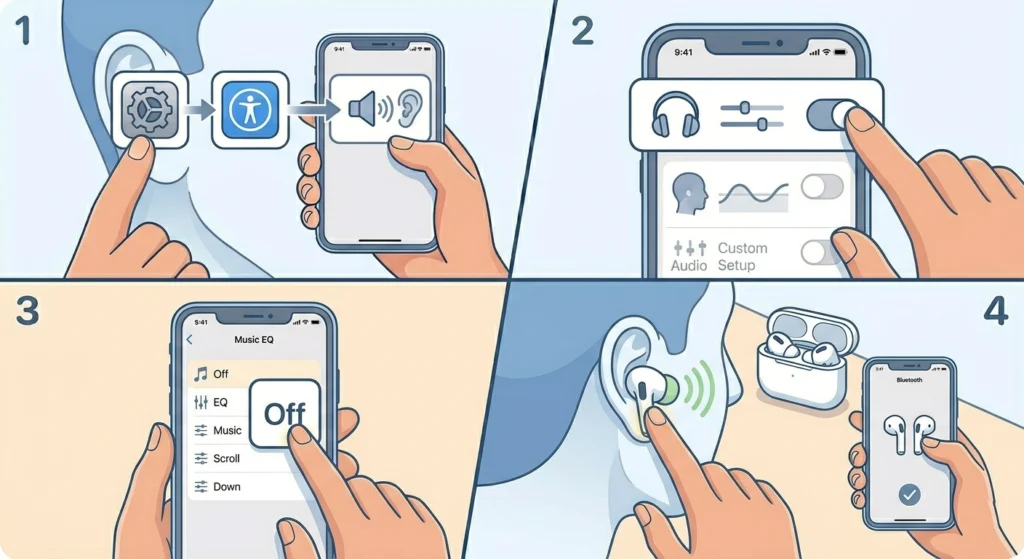
Sometimes the ANC calibration data stored on the device becomes corrupted. Resetting audio and accessibility-related settings without wiping the phone can help.
- Step 1: Go to Settings > Accessibility > Audio and Visual
- Step 2: Make sure Headphone Accommodations is turned off, as custom audio profiles can interfere with ANC performance
- Step 3: Also check Settings > Music > EQ and set it to Off
- Step 4: Reconnect AirPods and test ANC again
Pro-Tip: Headphone Accommodations is designed to boost certain frequencies for hearing assistance, but it can actually reduce the perceived effectiveness of ANC by adding back sound in the frequency ranges that noise cancellation is suppressing. Turning it off is a quick calibration fix many people overlook.
Step 7: Reset the AirPods Pro 2 to Factory Settings
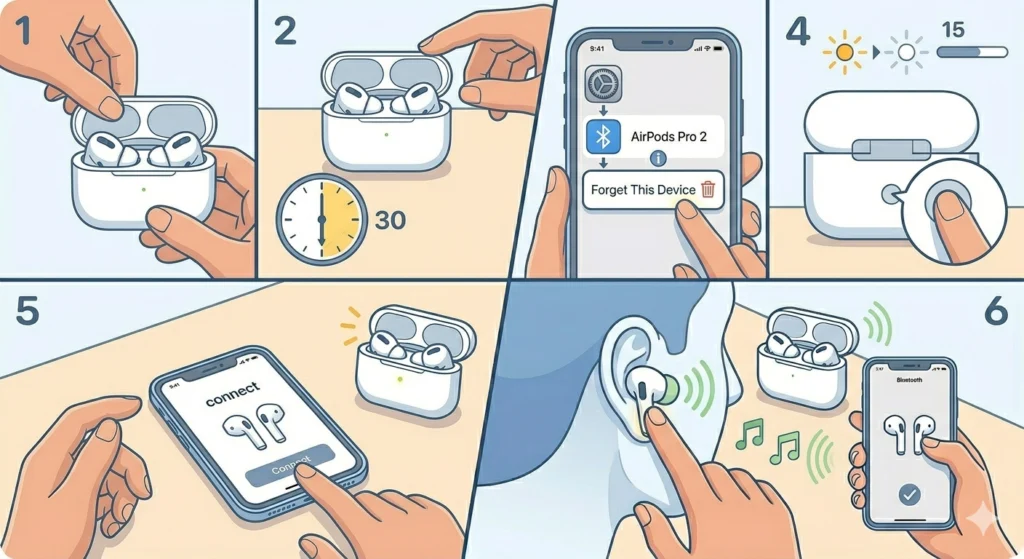
This is the most powerful software-level fix. A full reset wipes all pairing data and recalibrates the ANC hardware from scratch. It resolves the vast majority of persistent ANC issues.
- Step 1: Place both AirPods inside the charging case and close the lid
- Step 2: Wait 30 seconds, then open the lid
- Step 3: On the iPhone, go to Settings > Bluetooth, tap the info icon next to AirPods Pro 2, and select Forget This Device
- Step 4: With the AirPods still in the open case, press and hold the Setup button on the back of the case for about 15 seconds until the status light flashes amber, then white
- Step 5: Bring the open case close to the iPhone and follow the on-screen pairing prompt to reconnect
- Step 6: Once paired, enable ANC and test
After a factory reset, the AirPods essentially start fresh – all stored calibration, personalized settings, and pairing history are cleared. This works best when all other steps have failed.
Tips for Keeping ANC Working Properly
- Clean the AirPods mesh regularly – ear wax buildup on the mesh near the microphones directly degrades ANC performance
- Always use Apple-approved ear tips – third-party foam or silicone tips may feel comfortable but can break the acoustic seal ANC depends on
- Avoid using ANC in extremely windy conditions outdoors – the microphones pick up wind noise which overwhelms the cancellation algorithm
- Keep the charging case firmware updated by keeping it near a paired iPhone on Wi-Fi regularly
- Store AirPods in the case between uses to preserve battery health, as ANC is battery-intensive and degraded cells affect its consistency
Common ANC Problems and What Causes Them
ANC Sounds Weak or Barely Noticeable
This is almost always a seal issue. Run the Ear Tip Fit Test first. If the seal passes but ANC still sounds weak, try resetting the AirPods to factory settings, as the ANC calibration data may be corrupted.
ANC Turns Off by Itself
This typically happens due to low battery. ANC is one of the first features the firmware disables when battery drops below a threshold. Check battery levels in the widget or Control Center. If battery is fine and ANC still drops, a firmware issue may be responsible – triggering a firmware update should help.
ANC Works on One AirPod But Not the Other
This points to a hardware microphone issue on the affected AirPod. Before assuming hardware failure, do a factory reset – sometimes one AirPod’s calibration data becomes corrupted independently. If the problem persists after reset, contact Apple Support to check for hardware defects, especially if the AirPods are under warranty.
ANC Causes a Pressure or ‘Sucking’ Sensation
This is normal for some users – it is called ‘eardrum suck’. It happens when ANC is working correctly but the ear canal is especially sensitive to pressure changes. Switching to a slightly looser ear tip size reduces the sensation while maintaining adequate noise cancellation.
ANC Makes a Hissing or Static Sound
A faint hiss during ANC is normal – it is the result of the microphones amplifying environmental sound slightly before cancelling it. However, if the hiss is loud or persistent, toggling ANC off and on, or doing a full reset, typically resolves it.
Frequently Asked Questions
Why is my AirPods Pro 2 Active Noise Cancelling not working all of a sudden?
Sudden ANC failure is usually caused by a software glitch, a firmware update that did not install cleanly, or the AirPods switching between devices and getting stuck in a mixed state. Toggling ANC off and on via the stem press or restarting the connected iPhone resolves this in most cases.
Does a dirty mesh affect ANC on AirPods Pro 2?
Yes, significantly. The outer microphones used for noise cancellation sit near or on the mesh. Ear wax or debris blocking the mesh muffles the microphones and reduces ANC effectiveness. Cleaning the mesh gently with a dry cotton swab can noticeably restore ANC strength.
Can third-party ear tips affect ANC performance?
Yes. Third-party ear tips – including popular foam memory tips – change the acoustic seal geometry that Apple’s ANC algorithm is calibrated for. This can make ANC sound weaker or inconsistent even when the seal feels comfortable. Apple’s included ear tips are optimized specifically for the ANC tuning on AirPods Pro 2.
How do you know if AirPods Pro 2 ANC is actually working?
Put the AirPods on in a moderately noisy environment. Enable ANC via a long press on the stem. There should be a noticeable reduction in ambient sound within one second – voices, background music, and low-frequency hum should all drop noticeably. Running the Ear Tip Fit Test also confirms that the hardware seal needed for ANC is in place.
Will resetting AirPods Pro 2 fix ANC issues permanently?
A factory reset resolves most software-related ANC problems permanently. However, if the underlying issue is a hardware defect (such as a failed microphone), the reset will not fix it. In that case, contacting Apple Support or visiting an Apple Store for diagnostic testing is the right next step.
Why does ANC on AirPods Pro 2 keep turning off automatically?
The most common cause is low battery. ANC draws significant power, and the firmware disables it to extend playback time when battery is low. If battery levels are adequate and ANC still keeps disabling itself, a firmware bug may be responsible – triggering a firmware update by leaving AirPods near a charging iPhone on Wi-Fi overnight usually fixes this.
Does ANC on AirPods Pro 2 work without being connected to an iPhone?
Yes. ANC is handled by the H2 chip inside the AirPods themselves, not the connected device. Pressing and holding the stem switches ANC modes regardless of what device is connected, including Android phones, Windows PCs, or even when playing audio from other Bluetooth sources.
Can a software update break ANC on AirPods Pro 2?
It can happen. Occasionally, iOS updates or AirPods firmware updates introduce bugs that affect ANC behavior. Checking Apple’s support forums or tech communities after an update can confirm whether others are experiencing the same issue. In most cases, Apple releases a follow-up firmware update to address the bug within a few weeks.
Is it normal for ANC to work differently in different environments?
Yes, this is completely expected behavior. ANC on AirPods Pro 2 uses adaptive algorithms that respond to the type and intensity of ambient sound. It performs best against steady, low-frequency noise like airplane engines or air conditioning. It is less effective against sudden, sharp sounds or highly variable noise environments. This is not a malfunction – it is how adaptive ANC technology works.
When should ANC issues on AirPods Pro 2 be taken to Apple for repair?
If ANC fails consistently after completing all the steps in this guide – including a factory reset – and the problem affects only one AirPod or is accompanied by crackling, distortion, or complete audio failure, a hardware defect is likely. AirPods Pro 2 come with a one-year limited warranty, and AppleCare+ extends coverage further. Contacting Apple Support or visiting an Apple Store for diagnostics is the right move at that point.