

AirPods Max not turning on is one of those frustrating moments that can happen out of nowhere. One minute they work fine, the next they are completely unresponsive. The good news is that most of the time, the fix is straightforward and does not require a trip to the Apple Store. This step-by-step guide covers the most effective solutions to get AirPods Max powered back on quickly.
Quick Summary – Key Takeaways
- A dead or critically low battery is the most common reason AirPods Max will not turn on
- Charging for at least 15-30 minutes before powering on usually resolves the issue
- A force restart can fix software freezes that prevent the headphones from responding
- Cleaning the charging port and checking the cable or adapter can eliminate hardware-side causes
- A factory reset through the Settings app is the last resort before contacting Apple Support
Fix 1: Charge AirPods Max Fully Before Attempting to Turn On
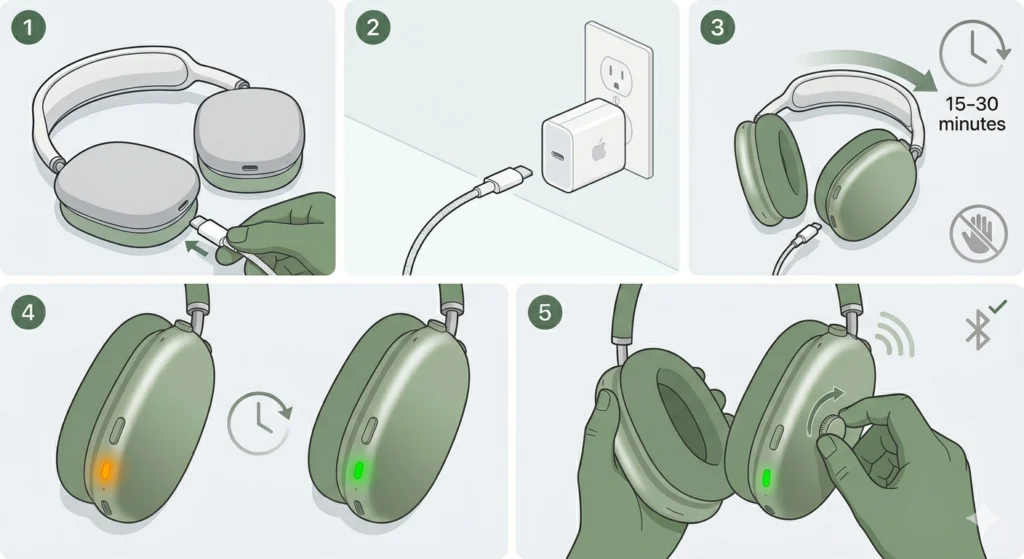
The most common reason AirPods Max will not turn on is a completely drained battery. When the battery drops to zero, the headphones enter a deep discharge state and will not respond at all until they receive enough charge to boot up.
- Step 1: Connect the AirPods Max to a power source using the Lightning to USB-C cable that came in the box.
- Step 2: Use a reliable Apple-certified USB-C power adapter. Avoid third-party chargers that may not provide stable output.
- Step 3: Leave the headphones charging for at least 15 to 30 minutes without pressing any buttons.
- Step 4: After 30 minutes, check if the LED indicator on the right ear cup lights up. A solid amber light means they are charging. A green light means they are sufficiently charged.
- Step 5: Once the indicator shows charge, move the Digital Crown or press any button to see if the headphones respond.
Pro Tip: If no light appears after plugging in, try a different Lightning cable and a different power adapter. A faulty cable is often the hidden culprit. The key is to confirm power is actually reaching the headphones before ruling out other causes.
Fix 2: Force Restart AirPods Max
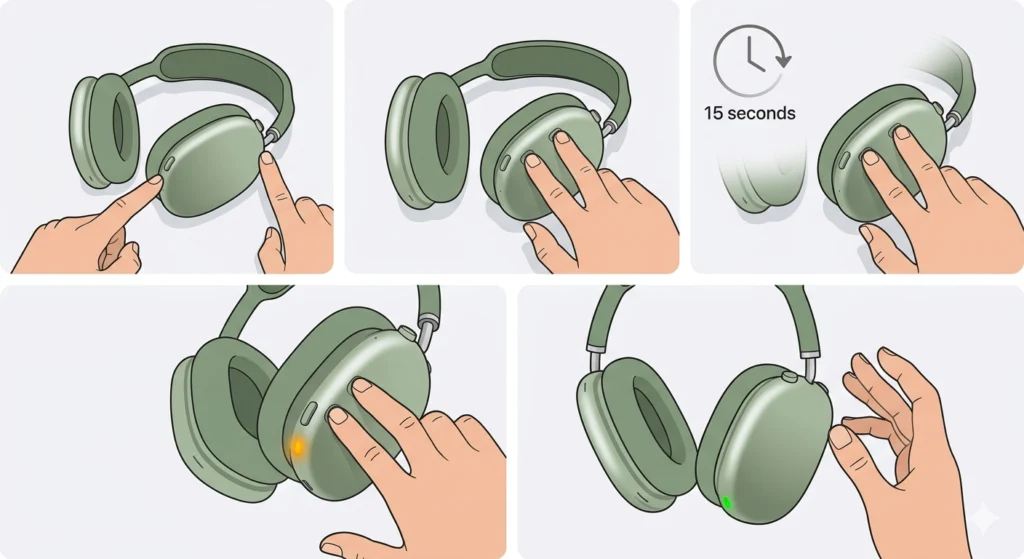
If the battery is not the issue and the headphones still will not respond, a force restart is the next step. This clears any temporary software glitch or frozen state that is preventing the AirPods Max from powering on normally.
- Step 1: Locate the Digital Crown (the rotating dial on the right ear cup) and the Noise Control button (the oval button next to it).
- Step 2: Press and hold both the Digital Crown and the Noise Control button at the same time.
- Step 3: Hold both buttons for at least 15 seconds. Do not release early.
- Step 4: Keep holding until the LED indicator light flashes amber. This confirms the reset process has started.
- Step 5: Release both buttons once the amber light flashes. The headphones will restart automatically.
Most people find that this method resolves unresponsive AirPods Max almost instantly. The force restart does not erase any pairing data or settings – it simply reboots the internal firmware.
Fix 3: Check and Clean the Lightning Charging Port
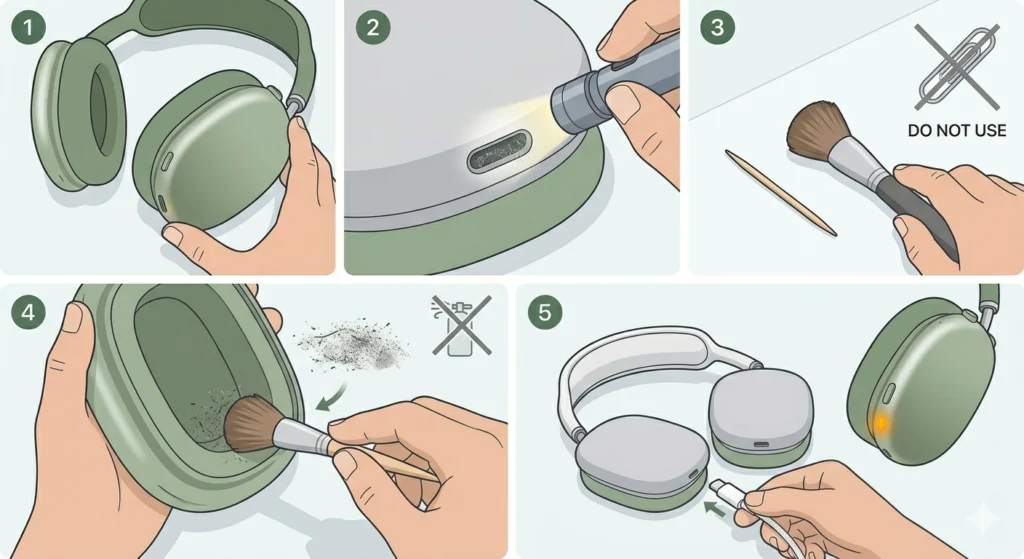
A dirty or obstructed Lightning port prevents proper charging, which in turn stops the AirPods Max from turning on. Lint, debris, and oxidation can build up inside the port over time without being obvious to the eye.
- Step 1: Turn the AirPods Max so the charging port is visible under good lighting.
- Step 2: Use a flashlight to inspect the inside of the port for visible debris, lint, or any foreign material.
- Step 3: If debris is present, use a dry, non-metallic tool like a wooden toothpick or a soft anti-static brush to gently remove it. Never use metal objects.
- Step 4: Avoid using compressed air directly into the port as this can push debris further in.
- Step 5: After cleaning, reconnect the charging cable firmly and check if the LED indicator responds.
Fix 4: Try a Different Charging Cable and Power Source
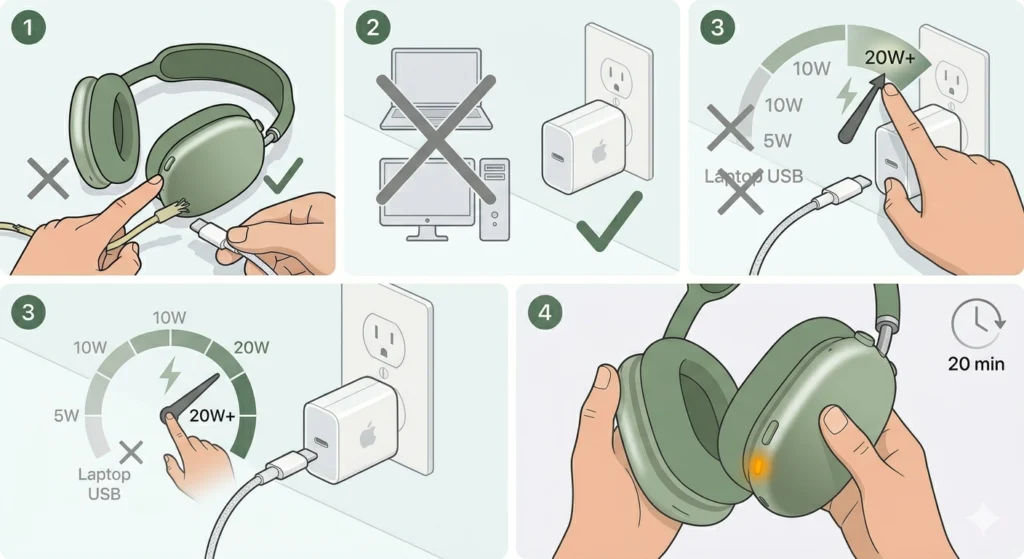
Before assuming the headphones have a hardware fault, rule out the accessories first. A damaged cable or a low-output charger is a surprisingly common cause of AirPods Max charging failure.
- Step 1: Swap the current Lightning cable with a different Apple-certified cable.
- Step 2: Connect to a wall adapter rather than a laptop or computer USB port. Computer USB ports often deliver insufficient current for charging AirPods Max reliably.
- Step 3: Use a power adapter rated at 20W or higher for faster and more stable charging.
- Step 4: Leave connected for 20 minutes and check the LED indicator again.
This works best when the original cable has been used for a long time, has visible kinks, or has been bent repeatedly near the connectors.
Fix 5: Update or Reinstall Firmware via iPhone
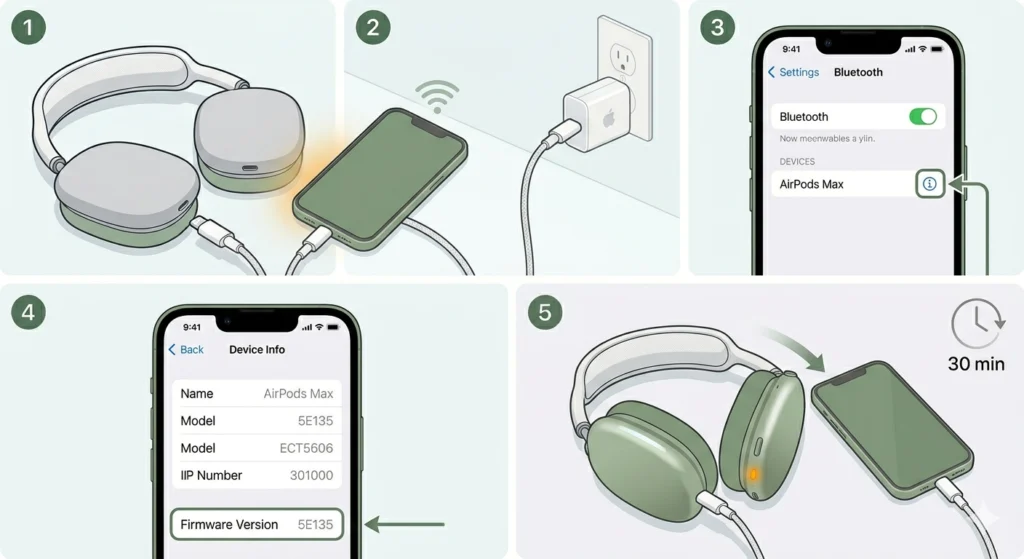
Outdated firmware can cause AirPods Max to behave erratically, including failing to power on properly. Connecting them to an iPhone allows the device to push firmware updates automatically.
- Step 1: Place the AirPods Max near an iPhone that is connected to Wi-Fi and plugged in to charge.
- Step 2: Make sure the AirPods Max are also connected to power at the same time.
- Step 3: Open the Settings app on the iPhone, tap Bluetooth, and find the AirPods Max in the device list.
- Step 4: Tap the info icon next to the AirPods Max name and check the firmware version shown.
- Step 5: Leave both devices in this state for about 30 minutes. Firmware updates happen automatically in the background when conditions are met. There is no manual trigger for this on iOS.
Fix 6: Factory Reset AirPods Max
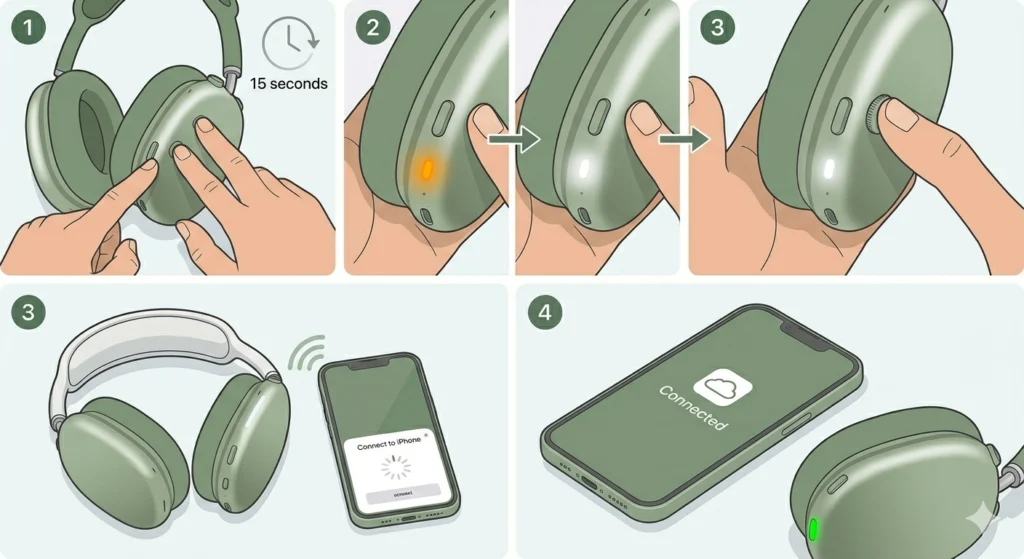
A factory reset erases all pairing data and restores the headphones to their original out-of-box state. This is the most thorough software fix available and should be done after the previous steps have failed.
- Step 1: Press and hold the Noise Control button and Digital Crown simultaneously for 15 seconds until the LED light flashes amber, then white.
- Step 2: The white flash confirms the factory reset is complete.
- Step 3: Place the AirPods Max next to the iPhone to begin the pairing process again from scratch.
- Step 4: Follow the on-screen prompts to reconnect the headphones to the Apple ID and iCloud account.
Pro Tip: Before performing a factory reset, remove the AirPods Max from the Bluetooth settings on all paired devices. This prevents ghost connections from interfering with the fresh pairing process after the reset.
Tips for Keeping AirPods Max in Good Working Condition
- Store AirPods Max in the Smart Case when not in use. This triggers a low-power mode that preserves battery life significantly.
- Charge the headphones before they drop below 10% to avoid deep discharge, which can reduce long-term battery capacity.
- Avoid leaving AirPods Max in extreme temperatures – both very hot and very cold environments can affect battery performance and firmware stability.
- Keep the firmware updated by regularly pairing with an iPhone that has Wi-Fi and Bluetooth active.
- Clean the ear cushions and charging port every few weeks to prevent debris accumulation.
- If experiencing recurring audio or connectivity issues alongside power problems, reviewing how to re-pair Bluetooth audio devices for proper stereo output can help diagnose deeper connection issues.
Common Problems and Troubleshooting
AirPods Max LED Light Does Not Come On While Charging
This usually means the cable, adapter, or port has an issue. Try a different cable and adapter first. If still no light, clean the Lightning port carefully. If the port appears damaged or bent internally, contact Apple Support.
AirPods Max Turns On But Disconnects Immediately
This points to a firmware or pairing issue rather than a power issue. Perform a factory reset and re-pair the headphones. Also check if the Bluetooth on the paired device is functioning correctly – issues with audio detection problems on Windows 11 can sometimes mimic AirPods connectivity failures.
AirPods Max Drains Battery Overnight Without Use
AirPods Max should enter a low-power mode when placed in the Smart Case. If battery drain is excessive, ensure the Smart Case magnets are making proper contact with the ear cups. A factory reset can also fix software bugs causing abnormal battery drain.
Force Restart Is Not Working
Make sure both buttons are pressed simultaneously and held for the full 15 seconds without releasing early. The amber flash can be easy to miss – try in a dimmer environment. If the LED never flashes at all, the battery may be completely dead and the headphones need to charge for at least 30 minutes first before a force restart will work.
AirPods Max Shows on iPhone but Will Not Play Audio
This is typically an audio routing issue rather than a power problem. The headphones are on, but the audio output is directed elsewhere. Check the audio output settings on the iPhone and make sure AirPods Max is selected as the active output device.
Frequently Asked Questions
Why are AirPods Max not turning on even after charging?
If AirPods Max still will not turn on after charging, the most likely causes are a faulty charging cable, a dirty Lightning port, or a software freeze. Try a different cable and perform a force restart by holding the Digital Crown and Noise Control button simultaneously for 15 seconds.
How long does it take for completely dead AirPods Max to turn on after plugging in?
When the battery is fully depleted, AirPods Max typically need 15 to 30 minutes of charging before they have enough power to boot up. Leave them connected without pressing any buttons during this initial charging window.
Does force restarting AirPods Max delete all settings and pairings?
A force restart does not erase any pairing data or user settings. It simply reboots the internal firmware to clear temporary glitches. A factory reset, on the other hand, does remove all pairing data and restores the headphones to factory defaults.
Can a software update cause AirPods Max to stop turning on?
Yes, a failed or interrupted firmware update can occasionally leave AirPods Max in an unresponsive state. Connecting them to an iPhone that is charged, connected to Wi-Fi, and near the headphones for 30 minutes usually resolves this by completing or rolling back the update automatically.
What does it mean when AirPods Max LED flashes amber?
An amber flashing LED during the force restart process confirms that the reset command has been received. When the LED flashes amber while charging, it typically indicates a low battery or a pairing error. In some cases, a persistent amber light can signal that the headphones need to be re-paired with the connected device.
How do you know if AirPods Max are completely dead vs broken?
If the AirPods Max show no LED response at all after 30 minutes of charging with a known-good cable and adapter, there is a possibility of a hardware fault. However, always rule out the charging accessories and port debris before concluding that the headphones are broken. If cleaning and different accessories do not help, Apple Diagnostics through an Apple Store can confirm hardware issues.
Should AirPods Max be stored in the Smart Case when not in use?
Yes, storing AirPods Max in the Smart Case is strongly recommended. The case triggers an ultra-low power mode that significantly reduces standby battery drain. Without the case, AirPods Max consume considerably more power while idle, which can lead to unexpected battery depletion and difficulty turning on.
Is it safe to use third-party chargers with AirPods Max?
It is generally safer to use Apple-certified (MFi-certified) cables and adapters with AirPods Max. Third-party chargers that are not certified may deliver inconsistent voltage, which can prevent proper charging or potentially cause long-term battery degradation.
Can extreme cold or heat prevent AirPods Max from turning on?
Yes. Lithium-ion batteries inside AirPods Max perform poorly in very cold temperatures and can temporarily appear dead until the device warms up to room temperature. Extreme heat can also cause the headphones to shut down as a safety measure. Always store and use AirPods Max within the operating temperature range of 0 to 35 degrees Celsius.
What should be done if none of the fixes work?
If AirPods Max still will not turn on after trying all the steps above – including charging with a different cable, force restarting, cleaning the port, and performing a factory reset – the next step is to contact Apple Support or visit an Apple Store for a hardware diagnostic. The headphones may have a battery or charging circuit issue that requires a repair or replacement.