
Touch controls not responding on earbuds is one of the most frustrating things that can happen mid-listen. One tap works, the next does nothing – or worse, the controls stop registering entirely. The good news is that this is almost always fixable without needing a replacement. This guide walks through every reliable fix, step by step, so the earbuds are back to working the way they should.
Key Takeaways
- Dirty or wet touch sensors are the most common cause of unresponsive controls – clean them first before anything else.
- A full reset clears most firmware glitches that cause touch controls to stop working.
- Outdated firmware can break touch sensitivity – always check for updates after a reset.
- Earwax, moisture, and case contact issues cause around 80% of touch control failures.
- If controls only fail in one earbud, the issue is likely physical – cleaning or a hardware fault.
Fix 1: Clean the Touch Surface
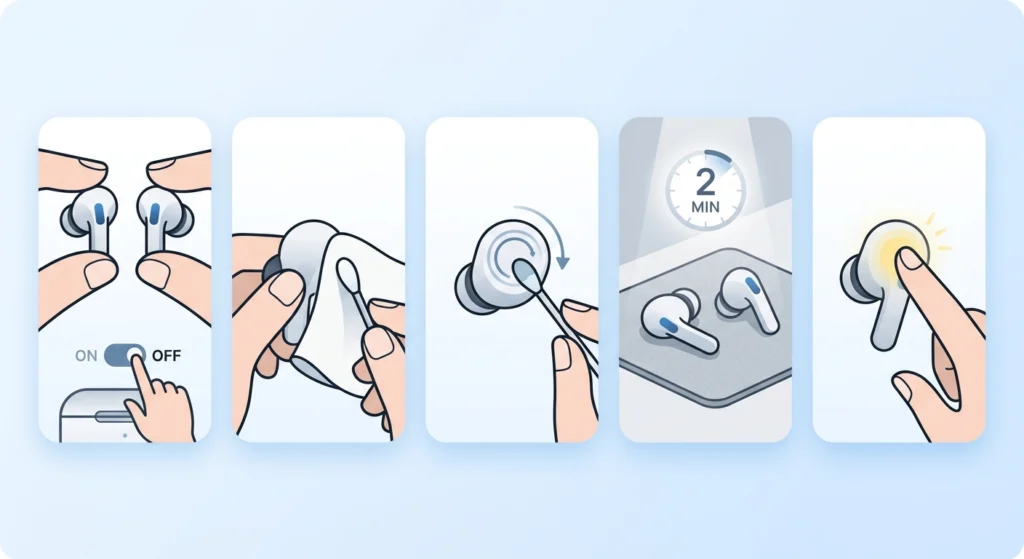
This is the first place to start. Touch sensors on earbuds are small and sit directly against the skin, so they collect oils, earwax, sweat, and dust faster than most people expect. Even a thin layer of buildup can completely block the sensor from registering a tap.
- Step 1: Remove both earbuds from the ears and power them off.
- Step 2: Take a dry microfiber cloth or a cotton swab lightly dampened with isopropyl alcohol (70% or less).
- Step 3: Gently wipe the touch panel area in a circular motion – avoid pressing hard or letting liquid seep into any openings.
- Step 4: Let the earbuds air dry for at least 2 minutes before turning them back on.
- Step 5: Test the touch controls to see if response has returned.
The key is to be thorough but gentle. Most touch surfaces are glass or glossy plastic, and they respond much better once the layer of grime is removed.
Fix 2: Reset the Earbuds
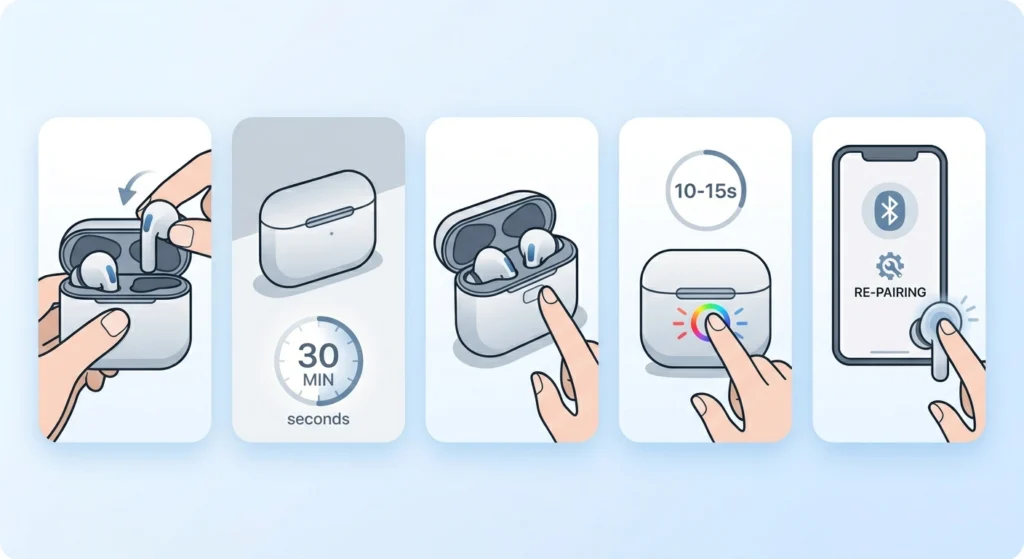
When the touch controls stop working for no obvious reason, a firmware glitch is usually behind it. Resetting the earbuds clears temporary errors and restores default behavior. Most people find that a reset alone solves the issue in cases where cleaning did not help.
- Step 1: Place both earbuds back into the charging case and close the lid.
- Step 2: Wait 30 seconds, then open the case.
- Step 3: Locate the reset button – most cases have a small physical button on the back or inside the lid. If the earbuds use a touch-based reset, check the manual for the gesture (commonly a long press on both earbuds simultaneously).
- Step 4: Hold the reset button or perform the gesture for 10 to 15 seconds until the LED indicator flashes or changes color.
- Step 5: Re-pair the earbuds to the device and test the touch controls.
The reset process varies slightly between brands. Sony, Samsung, Apple, and Jabra all use slightly different methods, so a quick look at the manufacturer’s reset guide for the specific model is worth doing if the above does not match.
Pro Tip: After resetting, always re-pair the earbuds from scratch. Remove the old Bluetooth pairing from the phone first, then pair again as a new device. This clears any connection-side issues that might cause touch commands to be misread. If the earbuds drop from the device list, see this guide on how to re-pair Bluetooth earbuds for stereo sound to get them connected cleanly.
Fix 3: Check for Moisture Damage
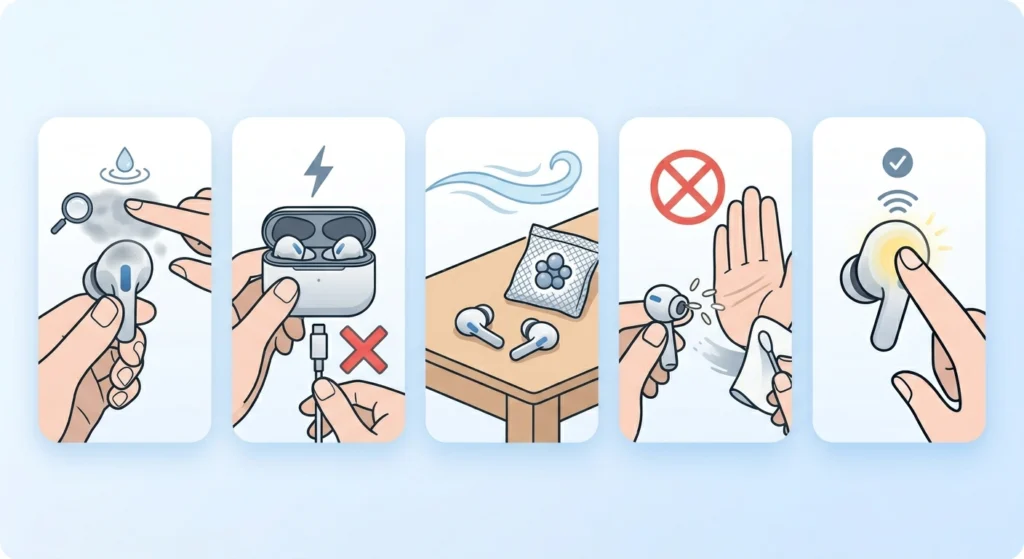
Sweat and rain exposure are common culprits, even for earbuds rated water-resistant. IPX4 or IPX5 ratings mean splash-proof, not waterproof. If the earbuds were used during a heavy workout or got caught in rain, moisture may have affected the touch sensor layer underneath the surface.
- Step 1: Inspect the touch area under good lighting for any fogging, discoloration, or visible moisture.
- Step 2: Do not attempt to charge the earbuds if moisture is suspected – this can cause further damage.
- Step 3: Place the earbuds in a dry, well-ventilated area for 12 to 24 hours. A small bag of silica gel packets nearby helps speed up drying.
- Step 4: Avoid using rice – it does not work as well as silica gel and can leave starch residue inside openings.
- Step 5: Once fully dry, power on and test the touch controls.
This works best when the drying period is not rushed. Many people try powering the earbuds on too soon, which can cause additional sensor malfunctions.
Fix 4: Update the Firmware
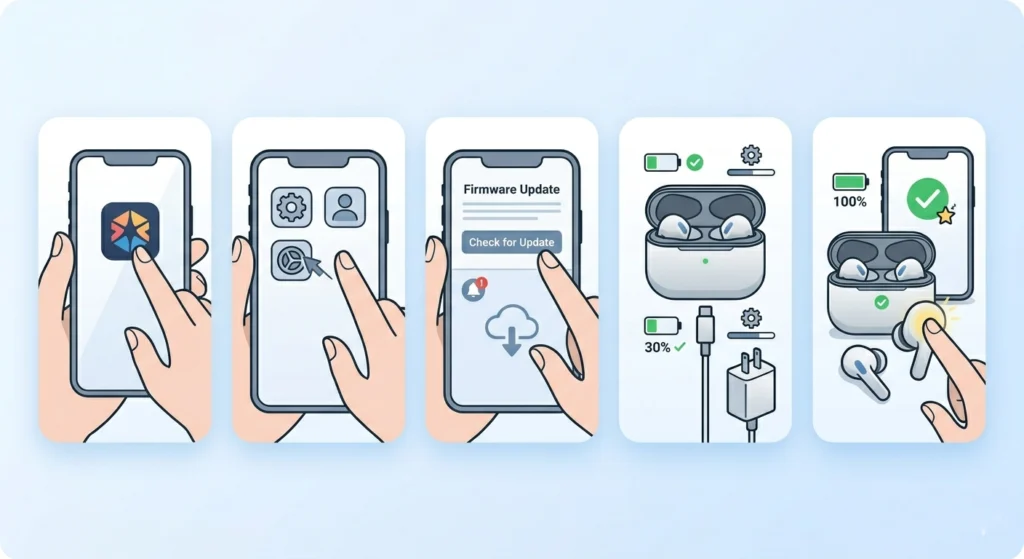
Manufacturers regularly release firmware updates that fix bugs related to touch control sensitivity, responsiveness, and gesture recognition. If the earbuds recently stopped responding to touch after normal use – or after a phone software update – a firmware mismatch is a strong possibility.
- Step 1: Open the companion app for the earbuds (Sony Headphones Connect, Samsung Galaxy Wearable, Jabra Sound+, etc.).
- Step 2: Navigate to the device settings or ‘About’ section.
- Step 3: Look for a firmware update option and check if an update is available.
- Step 4: Keep the earbuds in the case, connected, and charged above 30% during the update.
- Step 5: Allow the update to complete fully before testing touch controls.
Interrupting a firmware update can sometimes cause more problems, so it is important to stay connected and patient through the process.
Fix 5: Adjust Touch Control Settings in the App
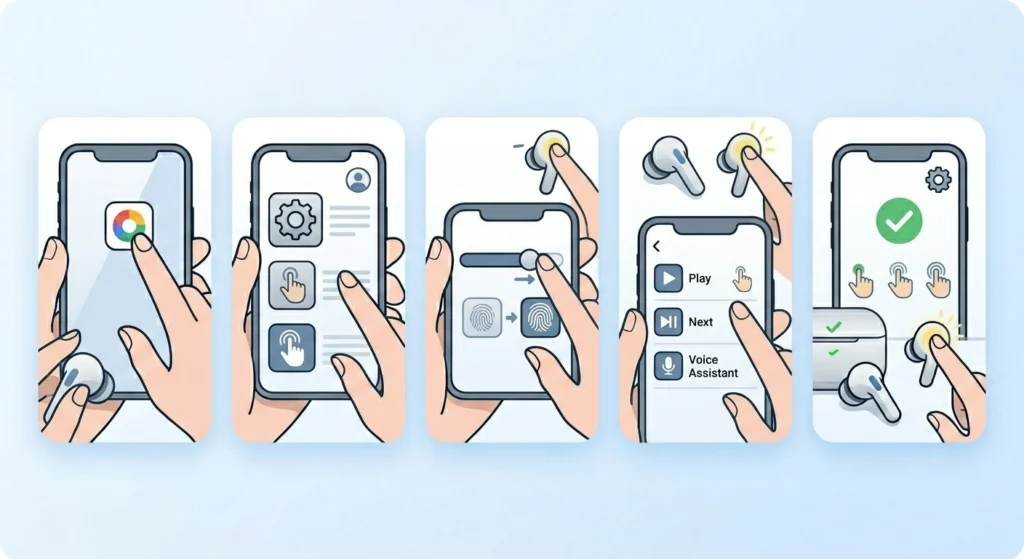
Some earbuds allow touch sensitivity to be adjusted through the companion app. If the sensitivity is set too low, light taps will not register. This setting is easy to overlook, especially after an app update that may have reset preferences to default.
- Step 1: Open the companion app and navigate to touch control or gesture settings.
- Step 2: Check if touch controls are enabled – some apps allow them to be fully turned off.
- Step 3: If sensitivity is adjustable, increase it by one level and test.
- Step 4: Reassign any gestures that may have been cleared or changed during an update.
- Step 5: Save the settings and test each touch function individually.
This step catches a surprisingly common problem – the touch controls were never broken, just disabled or misconfigured in the app settings.
Fix 6: Check the Charging Case Contacts
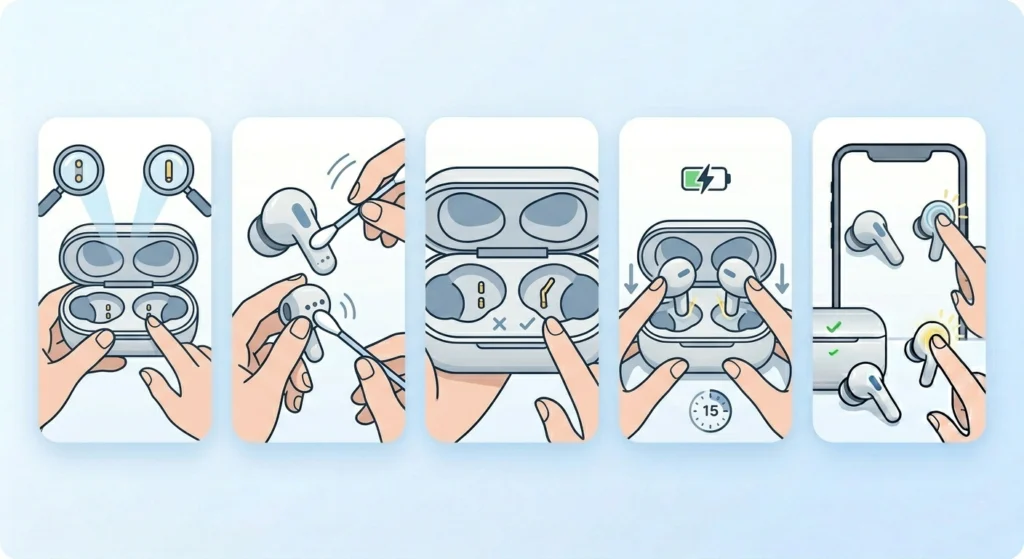
When earbuds sit in the case, they rely on metal contact pins to charge and sometimes to sync firmware. If those contacts are dirty or bent, the earbuds may not fully power cycle – which can leave the touch sensor in a confused state.
- Step 1: Remove the earbuds from the case and inspect the charging contacts on both the earbuds and the inside of the case.
- Step 2: Use a dry cotton swab to gently clean the metal contacts on both the earbuds and the case.
- Step 3: Look for any bent or corroded pins – if a pin is visibly bent, that may require service.
- Step 4: Reinsert the earbuds, ensure they click or seat properly, and let them charge for 15 minutes.
- Step 5: Remove and test touch response again.
Pro Tip: A slight click or LED confirmation when placing earbuds in the case means the contacts are aligned. If there is no light or sound indicator, the earbuds may not be sitting correctly – reposition them and try again.
Tips for Keeping Touch Controls Working Long-Term
- Wipe the touch surface with a dry cloth after every workout or outdoor use.
- Store earbuds in the case when not in use – exposure to dust and debris degrades touch sensors over time.
- Keep the companion app updated so firmware updates are pushed automatically.
- Avoid touching the sensors with wet fingers right after washing hands.
- Never spray cleaning products directly onto the earbuds – always apply to a cloth first.
Common Problems with Touch Controls and What Causes Them
- Only one earbud responds to touch: Usually caused by debris or moisture on that specific earbud. Clean the affected side and check contacts.
- Touch works sometimes but not always: Often a sensitivity setting issue or firmware bug. Update firmware and check the app settings.
- Controls stopped working after a software update: The update may have reset gesture preferences. Reconfigure settings in the companion app.
- Earbuds register phantom touches: Moisture or a faulty sensor layer. Dry thoroughly and reset.
- Touch does nothing even after reset: Possible hardware failure. Contact the manufacturer for warranty service.
- Controls unresponsive only during calls: Some earbuds disable certain gestures during calls by design – check the app’s call settings.
Frequently Asked Questions
Why did my earbud touch controls suddenly stop working?
The most common reasons are dirty sensors, a firmware glitch, or moisture exposure. Start by cleaning the touch surface with a dry cloth, then try resetting the earbuds. Most sudden failures are resolved by one of these two steps.
Can earwax really affect touch sensor performance?
Yes. Earwax is oily and conductive enough to interfere with capacitive touch sensors. Even a small amount built up over weeks can cause missed taps or total non-response. Regular cleaning prevents this from becoming an issue.
Will resetting the earbuds erase all my settings?
A factory reset typically restores default settings, which means custom gestures, EQ preferences, and assigned functions will need to be reconfigured in the app afterward. However, it does not delete any data from the connected device.
How do I know if it is a hardware problem and not software?
If the touch controls do not respond after cleaning, resetting, and updating the firmware, and the problem persists in only one earbud, it is likely a hardware fault. Visible damage, corrosion on contacts, or a cracked surface panel also point to a physical issue.
Can I use the earbuds without touch controls while waiting for a fix?
Yes. Most earbuds can still be controlled through the connected device’s media controls, voice assistant, or the companion app. Touch controls are a convenience feature and the earbuds themselves will still play audio.
Is there a way to increase touch sensitivity on earbuds?
Some models allow sensitivity adjustment through their companion app. Check the touch control or gesture settings section. If no sensitivity slider exists, cleaning the surface is the most effective way to improve responsiveness without a hardware change.
Why do touch controls work fine outside but fail when using them indoors with gloves or cold fingers?
Capacitive touch sensors require direct skin contact to register. Gloves block the electrical signal from the fingertip. Cold fingers have lower conductivity, which can make taps register less reliably. Pressing slightly firmer or using a bare fingertip solves this.
My earbuds got wet – will the touch controls come back after drying?
In many cases, yes. If the moisture has not caused corrosion or short-circuit damage to the sensor layer, drying for 12 to 24 hours often restores full function. Using silica gel during drying speeds up recovery. If controls remain unresponsive after full drying, the sensor may have been permanently damaged.
Do firmware updates ever break touch controls that were previously working?
It does happen, though it is uncommon. Manufacturers occasionally push updates that introduce bugs affecting touch sensitivity or gesture mapping. If controls stopped working right after an update, check the brand’s community forums or support page for others reporting the same issue, and look for a follow-up patch.
Should touch controls be used differently when the earbuds are in a phone case or tight ear canal?
Earbuds fit into the ear canal, not in a phone case, so fit is what matters for touch accuracy. A poor seal or loose fit can shift the touch sensor away from where fingers naturally tap. Trying a different ear tip size can improve both fit and touch accuracy at the same time.