
If the Sony WH-1000XM5 is not connecting to a phone, it is almost always a Bluetooth pairing issue that can be fixed in minutes. These headphones are packed with smart features, but that same complexity can sometimes cause connection hiccups – especially after a software update, a factory reset, or when switching between multiple paired devices. This guide walks through every proven fix, step by step, so the headphones are back up and running as fast as possible.
Quick Summary
- Most connection failures on the WH-1000XM5 are caused by a stale Bluetooth pairing, device memory overload, or a firmware glitch.
- The fastest first step is to forget the headphones on the phone and re-pair from scratch.
- If re-pairing does not work, a factory reset on the headphones clears all saved pairings and resolves most stubborn issues.
- Always check that the headphones are not already connected to another device – the XM5 can only connect to two devices at once via Multipoint.
- Keeping firmware updated via the Sony Headphones Connect app prevents many recurring connection problems.
How to Fix Sony WH-1000XM5 Not Connecting to Phone
Fix 1: Turn the Headphones Off and Back On
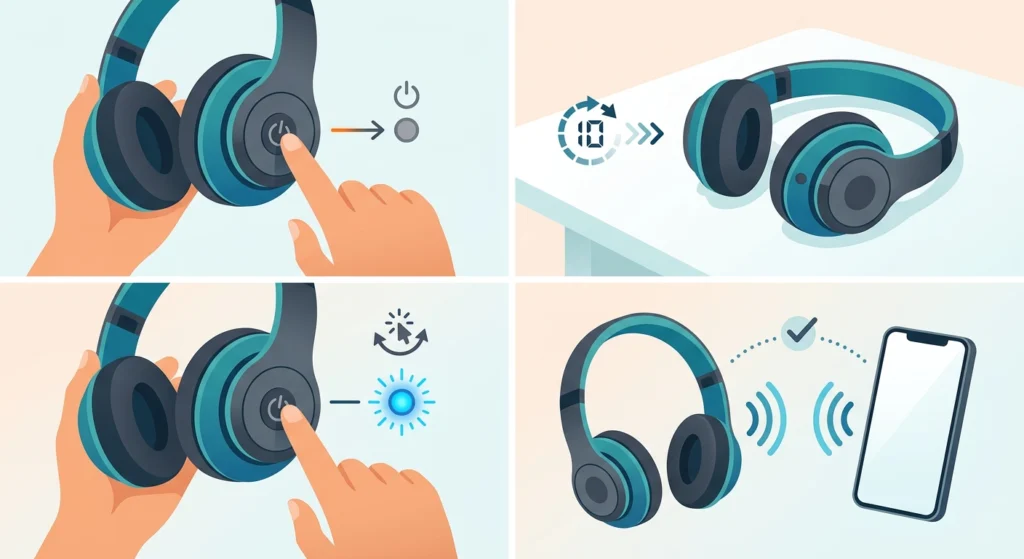
It sounds simple, but a full power cycle clears temporary Bluetooth stack errors that build up over time. Do not just put the headphones in standby.
- Step 1: Press and hold the Power button until the LED indicator turns off and the voice prompt says ‘Power off’.
- Step 2: Wait 10 seconds.
- Step 3: Press and hold the Power button again until the LED flashes blue and the voice prompt says ‘Power on’.
- Step 4: Check if the headphones reconnect automatically to the phone.
Fix 2: Toggle Bluetooth Off and On the Phone
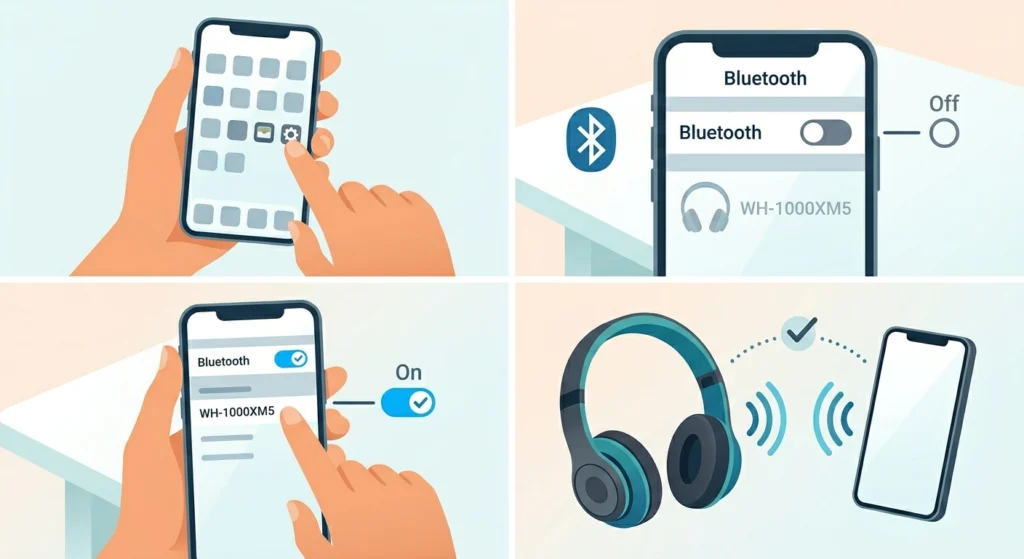
Sometimes the phone’s Bluetooth radio gets into a bad state and stops recognizing previously paired devices. Toggling it refreshes the connection list.
- Step 1: Open the phone’s Settings app.
- Step 2: Go to Bluetooth and toggle it OFF.
- Step 3: Wait 5 seconds, then toggle it back ON.
- Step 4: Wait for the WH-1000XM5 to appear in the connected devices list and tap it to connect.
Fix 3: Check That the Headphones Are Not Connected to Another Device
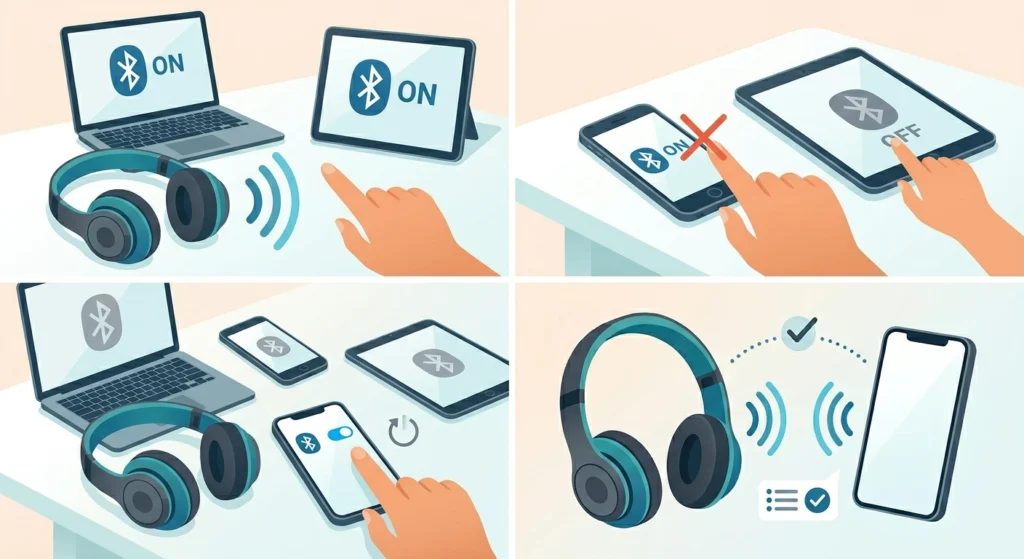
The Sony WH-1000XM5 supports Multipoint connection, meaning it can stay connected to two devices at the same time. If both slots are already occupied by a laptop, tablet, or another phone, the headphones will not be able to accept a new connection from a third device.
- Step 1: Turn off Bluetooth on any other device that may be paired to the headphones – a laptop, old phone, or tablet.
- Step 2: Wait a few seconds for the headphones to drop those connections.
- Step 3: Try connecting from the target phone again.
This is one of the most overlooked causes. The XM5 will not throw an obvious error when its connection slots are full – it simply will not connect.
Fix 4: Forget the Device and Re-Pair from Scratch
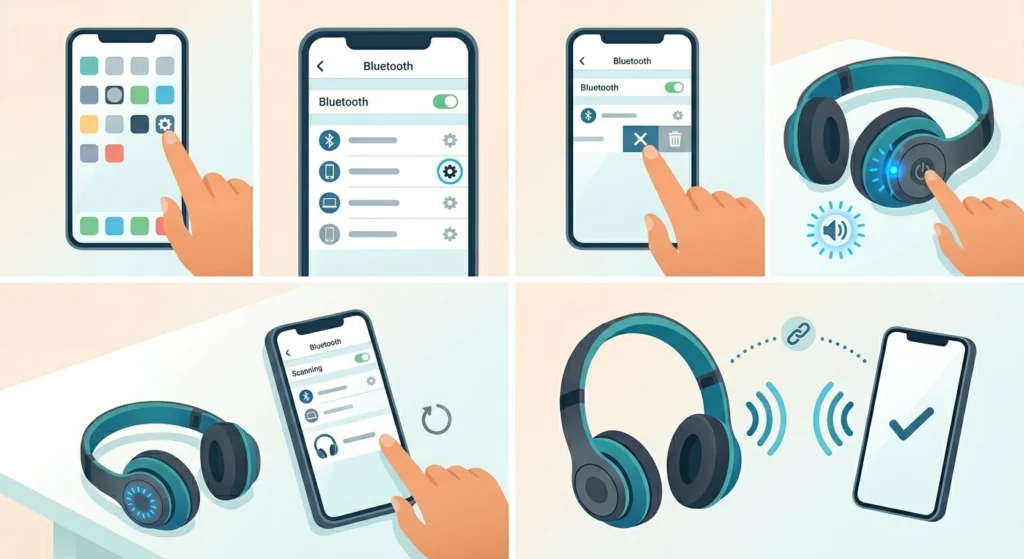
Corrupted pairing data is a very common culprit. Removing the headphones from the phone’s Bluetooth list and re-pairing them fresh almost always resolves persistent ‘not connecting’ problems.
- Step 1: On the phone, go to Settings then Bluetooth.
- Step 2: Find ‘WH-1000XM5’ in the paired devices list and tap the gear icon or ‘i’ icon next to it.
- Step 3: Select ‘Forget’ or ‘Unpair’ and confirm.
- Step 4: On the headphones, press and hold the Power button for about 3 seconds to enter pairing mode. The LED will flash rapidly in blue and the voice prompt will say ‘Bluetooth pairing’.
- Step 5: On the phone, scan for new Bluetooth devices and select ‘WH-1000XM5’ from the list.
- Step 6: Confirm the pairing request when prompted.
For anyone who has ever had to re-pair Bluetooth earbuds for stereo sound on Windows, the process is nearly identical – the key is always to remove the old pairing first before attempting a fresh one.
Pro-Tip: Before re-pairing, delete the WH-1000XM5 from every device it has ever been paired with – not just the current phone. The headphones store up to 9 paired devices in memory. If that list is full, new pairing attempts can fail silently.
Fix 5: Put the Headphones into Pairing Mode Manually
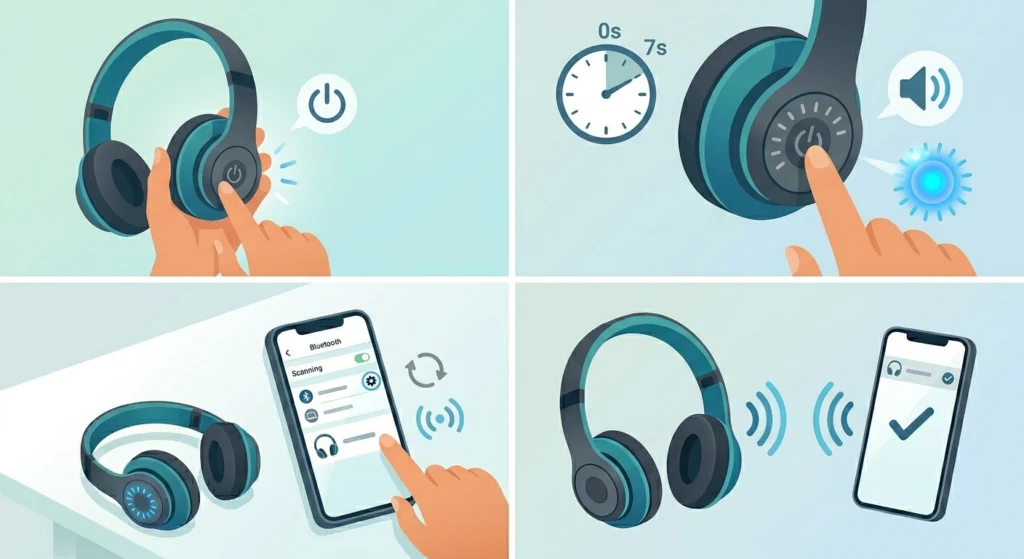
Sometimes the headphones do not automatically enter pairing mode even after being forgotten on the phone. Forcing pairing mode manually guarantees the headphones are actively broadcasting and ready to be discovered.
- Step 1: Make sure the headphones are powered on.
- Step 2: Press and hold the Power button for about 7 seconds (longer than a normal power-on press) until the voice prompt says ‘Bluetooth pairing’ and the LED flashes blue.
- Step 3: On the phone, open Bluetooth settings and search for new devices.
- Step 4: Tap ‘WH-1000XM5’ when it appears and complete the pairing.
Fix 6: Factory Reset the Sony WH-1000XM5
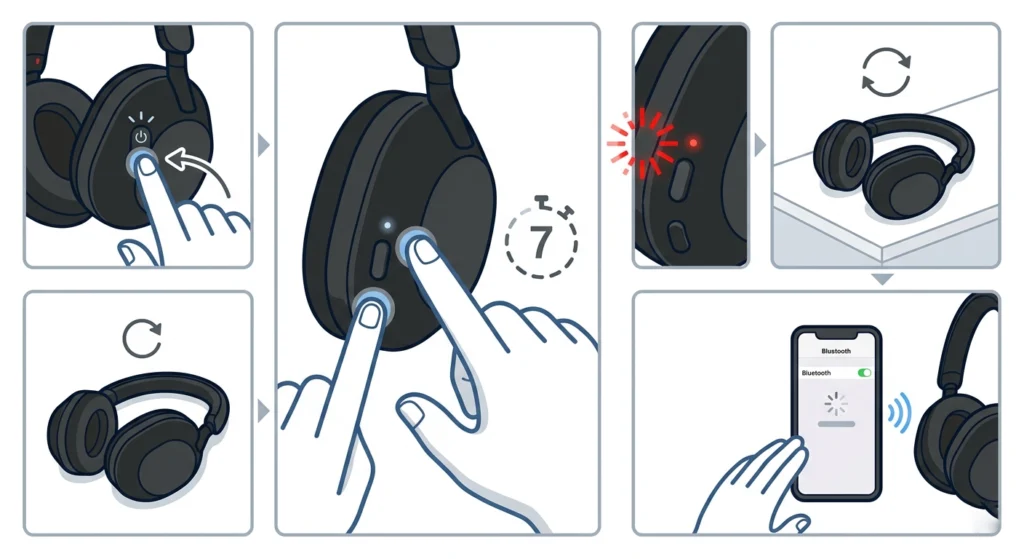
A factory reset wipes all saved pairings and returns the headphones to their default settings. This is the most reliable fix for stubborn connection issues that survive re-pairing.
- Step 1: Turn on the headphones.
- Step 2: Press and hold the Power button and the NC/Ambient button simultaneously for about 7 seconds.
- Step 3: The LED will flash red several times and then turn off. A voice prompt may confirm the reset.
- Step 4: The headphones will restart. All pairing data is now erased.
- Step 5: Re-pair the headphones to the phone as described in Fix 4 above.
Pro-Tip: After a factory reset, the XM5 goes back into pairing mode automatically. Take advantage of this and pair the primary phone first so it gets priority connection going forward.
Fix 7: Update the Firmware via Sony Headphones Connect App
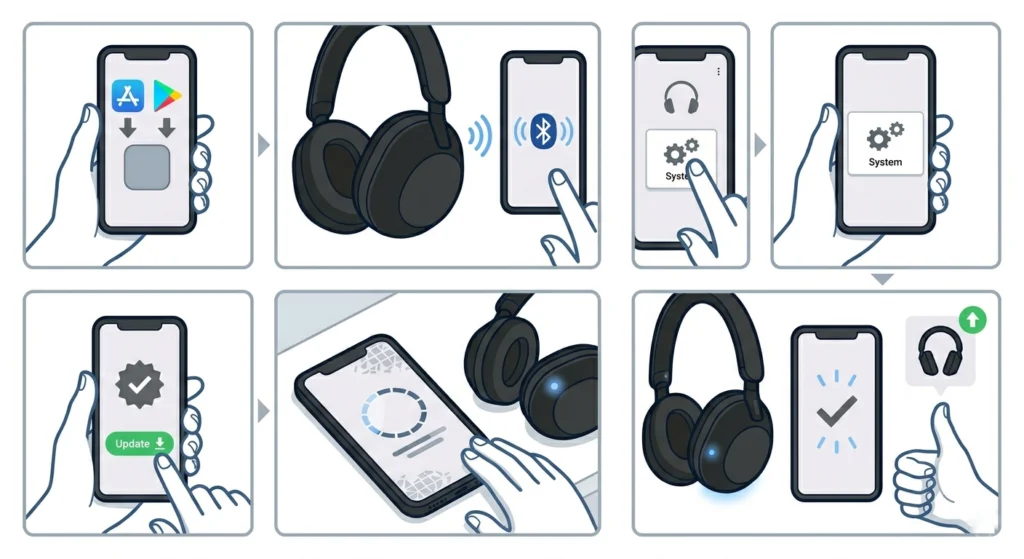
Outdated firmware can introduce Bluetooth bugs that Sony has already patched in newer versions. Updating takes just a few minutes and can permanently resolve recurring connection failures.
- Step 1: Download the ‘Sony Headphones Connect’ app from the App Store or Google Play Store.
- Step 2: Connect the WH-1000XM5 to the phone via Bluetooth (use one of the fixes above if needed to get the initial connection).
- Step 3: Open the Sony Headphones Connect app and go to the System section.
- Step 4: If a firmware update is available, a notification will appear. Tap ‘Update’ and follow the on-screen instructions.
- Step 5: Keep the headphones near the phone and do not power them off during the update.
Fix 8: Restart the Phone
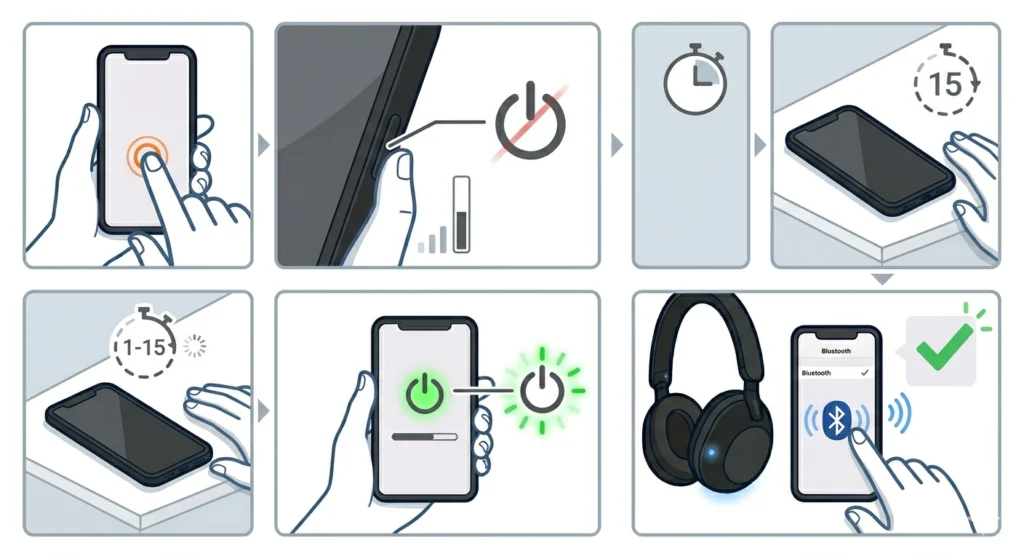
A full phone restart clears the Bluetooth daemon cache – a background process that manages all wireless connections. On both Android and iPhone, this is a quick fix that resolves phantom connectivity issues that toggling Bluetooth alone cannot fix.
- Step 1: Power the phone completely off (not just a screen lock).
- Step 2: Wait 15 seconds before powering it back on.
- Step 3: Once the phone has fully rebooted, turn on Bluetooth and try connecting to the WH-1000XM5.
Fix 9: Check for Phone OS Updates
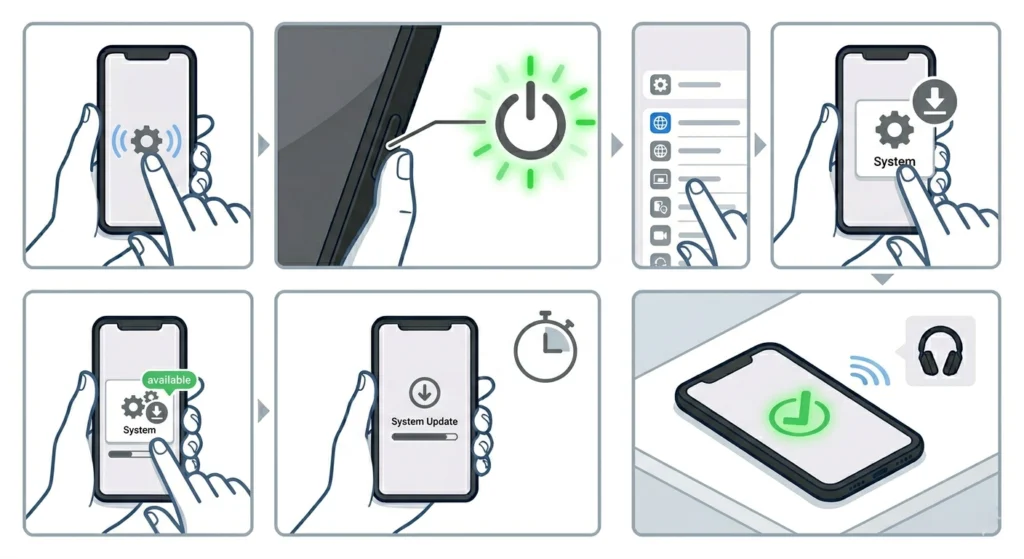
An outdated phone operating system can cause Bluetooth compatibility issues, especially with newer Sony firmware. Always make sure the phone is running the latest available OS version.
- Step 1: On iPhone, go to Settings then General then Software Update.
- Step 2: On Android, go to Settings then System then System Update (the path may vary slightly by manufacturer).
- Step 3: Download and install any available update, then retry the Bluetooth connection.
Tips for Keeping Sony WH-1000XM5 Connected Reliably
- Always power the headphones off completely when not in use rather than leaving them in standby. This preserves pairing data and reduces connection drift over time.
- Keep the total number of paired devices below 5. While the XM5 can store up to 9 pairings, having too many saved devices can sometimes cause the headphones to connect to the wrong device unexpectedly.
- Use the Sony Headphones Connect app to check and manage Multipoint settings. If connecting to only one device is the priority, disabling Multipoint reduces connection conflicts.
- Avoid areas with heavy Bluetooth interference – crowded Wi-Fi environments (2.4GHz networks) and other Bluetooth devices competing for the same frequency can destabilize the connection.
- Keep the headphones charged above 20%. Very low battery can cause Bluetooth instability even if the headphones stay powered on.
Common Problems and Solutions
WH-1000XM5 Connects but No Sound
If the headphones show as connected on the phone but there is no audio, the phone may have set a different audio output device as default. Check the phone’s sound output settings and manually select the WH-1000XM5. On Android, pull down the notification bar and tap the audio output icon to switch. On iPhone, swipe to the AirPlay/audio output button in Control Center.
Headphones Keep Disconnecting Every Few Minutes
Frequent disconnections usually point to either Bluetooth interference or a low battery. Try moving away from Wi-Fi routers and microwaves, and make sure the headphones are sufficiently charged. If the problem persists, a factory reset followed by a fresh pairing almost always resolves it.
WH-1000XM5 Not Showing Up in Bluetooth Scan
If the headphones do not appear in the phone’s Bluetooth device list at all, they are likely not in pairing mode. Follow Fix 5 above to manually force pairing mode. Also confirm the headphones are not already connected to another device, since the XM5 will not broadcast as discoverable when its two Multipoint slots are occupied.
Sony Headphones Connect App Not Recognizing the Headphones
The Sony Headphones Connect app requires an active Bluetooth connection before it can see the headphones. Make sure the headphones are paired and connected to the phone first, then open the app. If the app still does not detect them, force-close the app, toggle Bluetooth off and on, and reopen.
Frequently Asked Questions
Why won’t my Sony WH-1000XM5 connect to my phone?
The most common reasons are a corrupted pairing, the headphones already being connected to another device occupying both Multipoint slots, or a Bluetooth glitch on either the phone or the headphones. Start by toggling Bluetooth off and on, then try forgetting and re-pairing the device.
How do I put Sony WH-1000XM5 into pairing mode?
Press and hold the Power button for approximately 7 seconds while the headphones are on. The LED will flash blue rapidly and a voice prompt will say ‘Bluetooth pairing’. The headphones are now discoverable and ready to pair with a new device.
How do I reset Sony WH-1000XM5 to fix connection issues?
Press and hold both the Power button and the NC/Ambient button simultaneously for 7 seconds while the headphones are powered on. The LED will flash red multiple times and the headphones will restart with all pairings erased. Re-pair the headphones to the phone afterwards.
Can Sony WH-1000XM5 connect to two phones at the same time?
Yes. The WH-1000XM5 supports Multipoint connection, allowing it to stay actively connected to two Bluetooth devices simultaneously. If both slots are already in use, the headphones will not accept a connection from a third device until one of the current connections is dropped.
Why does my WH-1000XM5 keep disconnecting from my phone?
Frequent disconnections are usually caused by Bluetooth interference from nearby Wi-Fi routers or other wireless devices, low battery, or outdated firmware. Try moving away from potential interference sources, charge the headphones, and update the firmware via the Sony Headphones Connect app.
Does the Sony Headphones Connect app help with connection issues?
Yes. The Sony Headphones Connect app is very helpful for managing pairing settings, updating firmware, and adjusting Multipoint preferences. Keeping the firmware current through this app prevents many Bluetooth connection issues before they start.
How many devices can Sony WH-1000XM5 remember?
The WH-1000XM5 can store pairing data for up to 9 devices. If the memory is full, the headphones will automatically overwrite the oldest pairing when a new device is added. Clearing out unused old pairings through a factory reset can help avoid unexpected behavior.
Will a factory reset on WH-1000XM5 fix Bluetooth not connecting?
In most cases, yes. A factory reset erases all saved pairings and resets the Bluetooth module to a clean state. It resolves the vast majority of persistent connection failures that survive a simple re-pair. After the reset, re-pair the headphones to the phone as a fresh device.
Do I need to update the phone’s OS to fix WH-1000XM5 connection issues?
Not always, but an outdated phone OS can cause Bluetooth compatibility issues – especially if Sony has released a firmware update for the headphones that relies on newer Bluetooth protocol support. Keeping the phone updated is good practice for overall connectivity health.
What does the blinking LED mean on Sony WH-1000XM5?
A rapidly blinking blue LED means the headphones are in active pairing mode and waiting to be discovered. A slow blue blink means they are connected. A red blink usually indicates low battery. If the LED flashes red multiple times and then goes off during a button hold, that signals a factory reset has been completed.