
The stem squeeze controls on AirPods 3 are one of the most practical features Apple built into these earbuds. Instead of tapping the earbud itself, a firm squeeze on the flat stem lets users control music, manage calls, and even summon Siri – all without touching a phone. The key is understanding exactly which squeeze pattern does what, because each combination triggers a different action.
Quick Summary Table
| Squeeze Action | What It Does |
|---|---|
| 1 Squeeze | Play or pause audio, answer or end a call |
| 2 Squeezes | Skip to the next track |
| 3 Squeezes | Go back to the previous track |
| Squeeze and Hold | Switch Noise Control modes (or activate Siri if set) |
How to Squeeze the AirPods 3 Stem Correctly
Before getting into specific controls, it helps to know what ‘squeezing’ actually means on AirPods 3. These earbuds do not have a physical button. Instead, the flat stem has a force sensor built inside it. Applying firm pinching pressure – using the thumb and index finger on the flat sides of the stem – is what registers as a squeeze.
- Hold the AirPods 3 with two fingers on the flat part of the stem
- Pinch firmly but not forcefully – it takes only moderate pressure
- Listen for a soft click sound, which confirms the squeeze registered
- Release immediately after squeezing; holding changes the action
Most people find the stem naturally falls between the thumb and index finger when the AirPods are already in the ear. There is no need to remove them to operate the controls.
Step-by-Step: What Each Squeeze Does
Play and Pause Audio
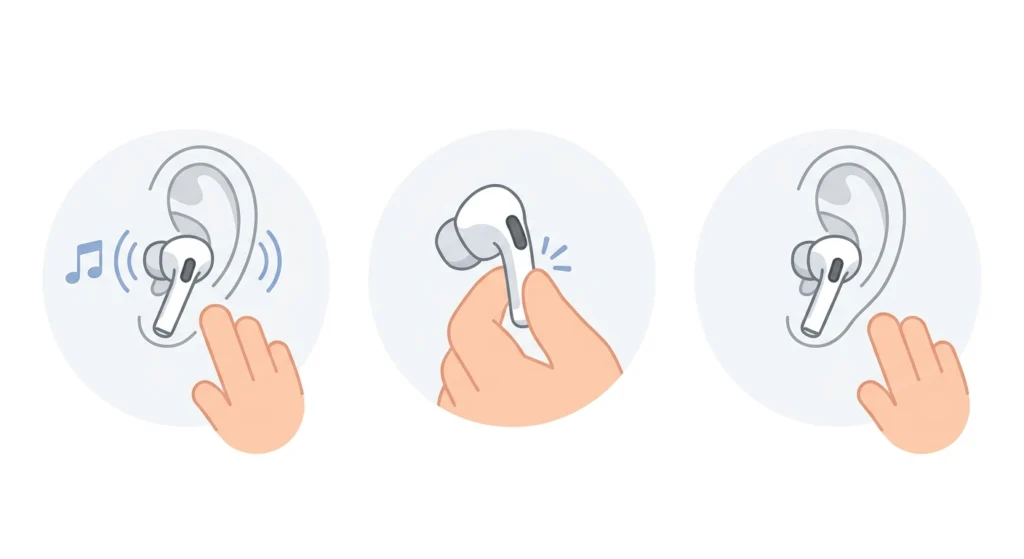
- Step 1: Make sure audio is playing from a connected device
- Step 2: Pinch the flat stem of either AirPod once with a firm squeeze
- Step 3: Audio pauses; squeeze once again to resume playback
Skip to the Next Track
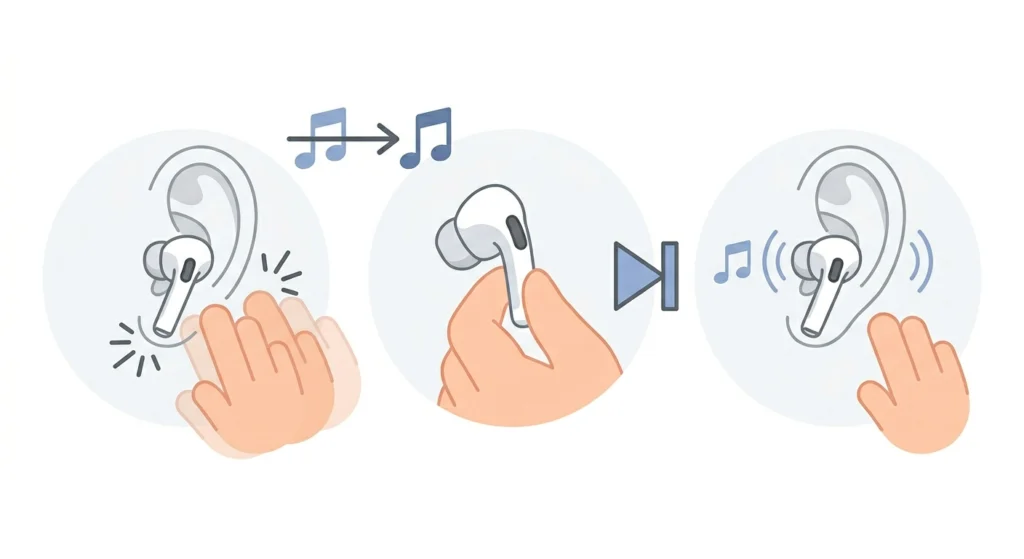
- Step 1: While audio is playing, squeeze the stem twice in quick succession
- Step 2: Two clicks will be heard and the next track begins immediately
Go Back to the Previous Track
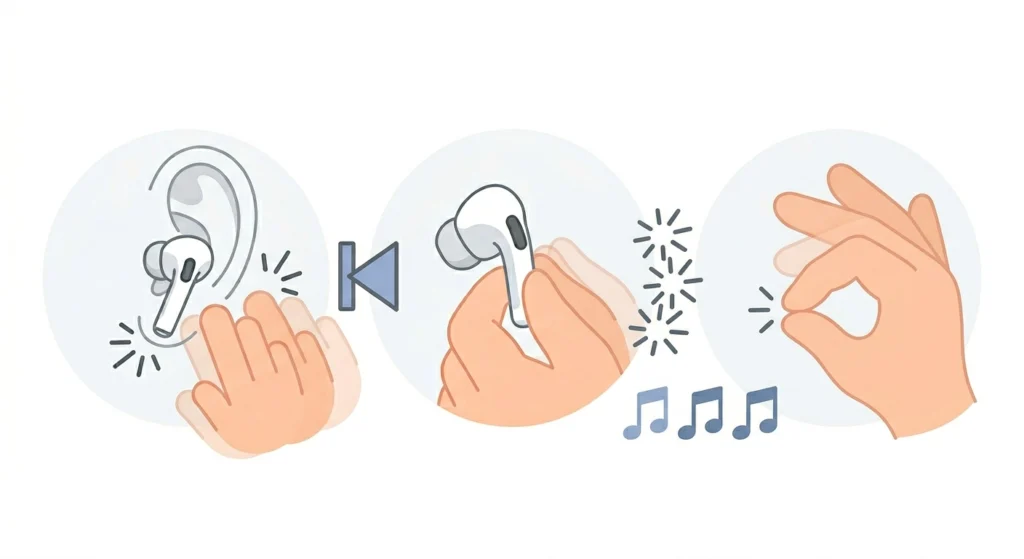
- Step 1: Squeeze the stem three times rapidly
- Step 2: Three clicks confirm the action, and the current track restarts or the previous one begins
Answer or End a Phone Call
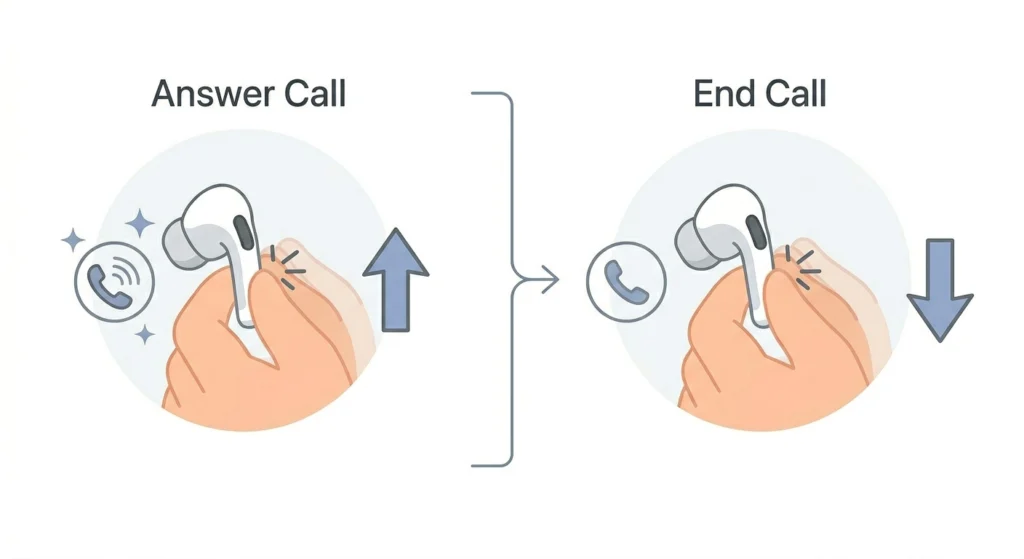
- Step 1: When an incoming call arrives, squeeze the stem once to answer
- Step 2: Squeeze the stem once again when ready to hang up
Decline an Incoming Call
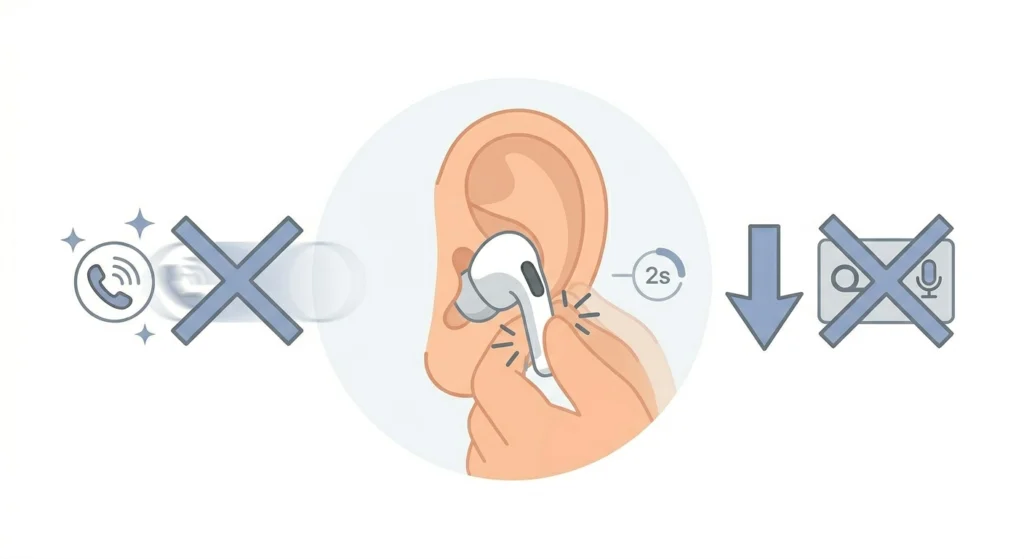
- Step 1: When an incoming call arrives, squeeze and hold the stem for about two seconds
- Step 2: The call will be declined and sent to voicemail
Switch Between Noise Control Modes
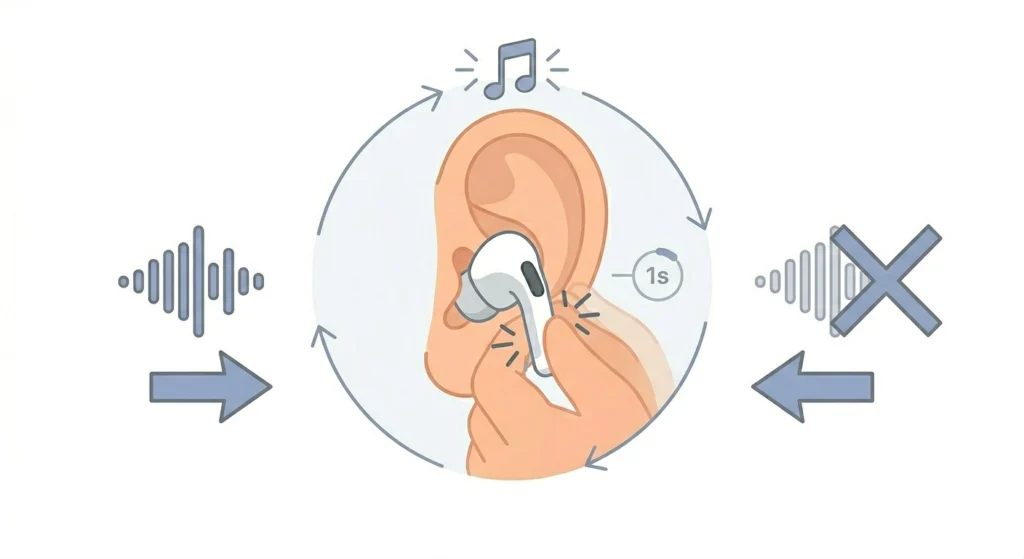
- Step 1: Squeeze and hold the stem for about one second until a chime plays
- Step 2: AirPods 3 will cycle between Active Noise Cancellation and Transparency mode (if both are enabled in Settings)
Pro-Tip: To customize which Noise Control modes cycle when squeezing and holding, go to Settings on an iPhone, tap on the AirPods 3 name under Bluetooth, and select ‘Press and Hold AirPods.’ From there, choose which modes should be included in the rotation.
Activate Siri
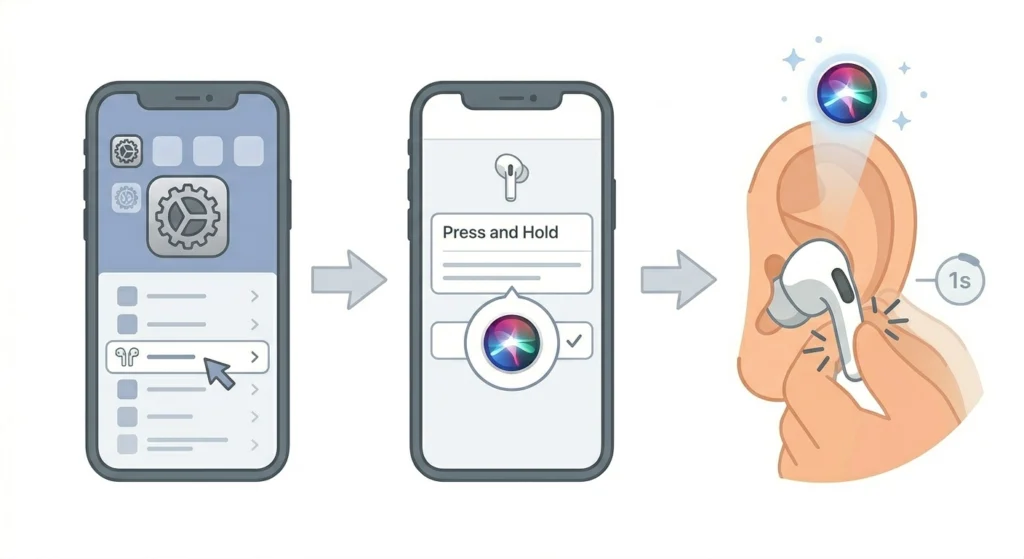
- Step 1: Open iPhone Settings, tap on the connected AirPods 3
- Step 2: Under ‘Press and Hold AirPods,’ set the action to Siri
- Step 3: Once set, squeeze and hold the stem to trigger Siri directly from the earbuds
This works best when ‘Hey Siri’ is not always reliable – for example, in noisy outdoor environments where hands-free voice detection struggles.
How to Customize the Stem Squeeze Controls
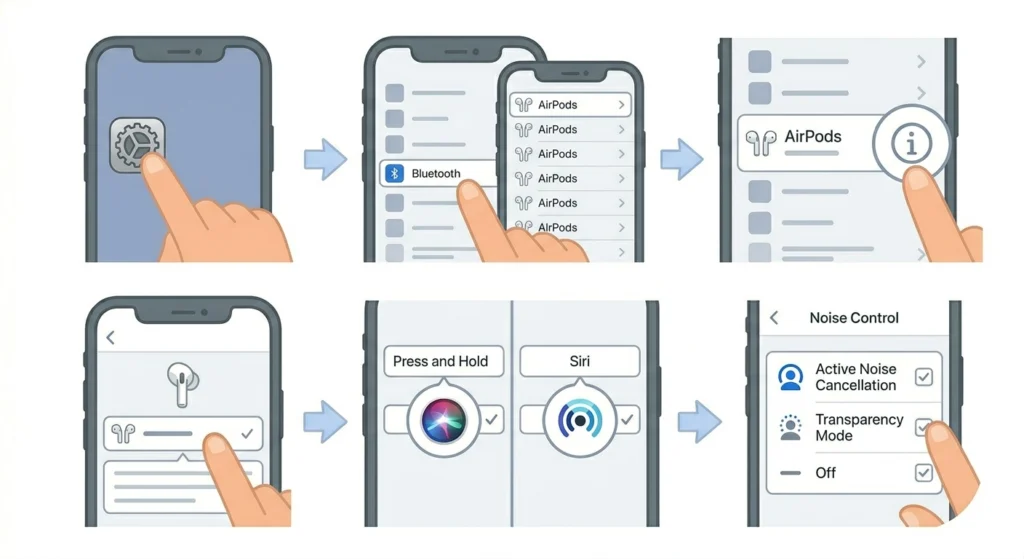
Apple allows customization of the press-and-hold behavior through the iPhone Settings app. The single, double, and triple squeeze actions are fixed by Apple and cannot be remapped, but the hold action can be changed.
- Step 1: Open the Settings app on an iPhone paired with AirPods 3
- Step 2: Tap ‘Bluetooth’ and find the AirPods 3 in the list
- Step 3: Tap the info icon (circle with ‘i’) next to the AirPods name
- Step 4: Tap ‘Press and Hold AirPods’ to see the options
- Step 5: Choose either ‘Noise Control’ or ‘Siri’ as the hold action
- Step 6: For Noise Control, select which modes to include in the cycle
Each AirPod (left and right) can be set to a different hold action if preferred, though most users find keeping both on the same setting simpler.
Pro-Tip: Setting one side to Noise Control and the other side to Siri is a useful trick for power users who frequently switch listening environments. This effectively doubles the available shortcut options from a single pair of earbuds.
Tips for Better Stem Squeeze Performance
- Squeeze on the flat side of the stem only – the rounded sides do not register
- Quick, firm squeezes work better than slow presses; the sensor responds to a decisive action
- For double and triple squeezes, keep the rhythm consistent – roughly half a second between each squeeze
- If AirPods 3 are not responding to squeezes, check that they are properly connected via Bluetooth
- Clean the stem area regularly, as buildup can occasionally make the sensor less responsive
Common Problems with Stem Squeeze Controls
Fix 1: Stem Squeeze Is Not Registering
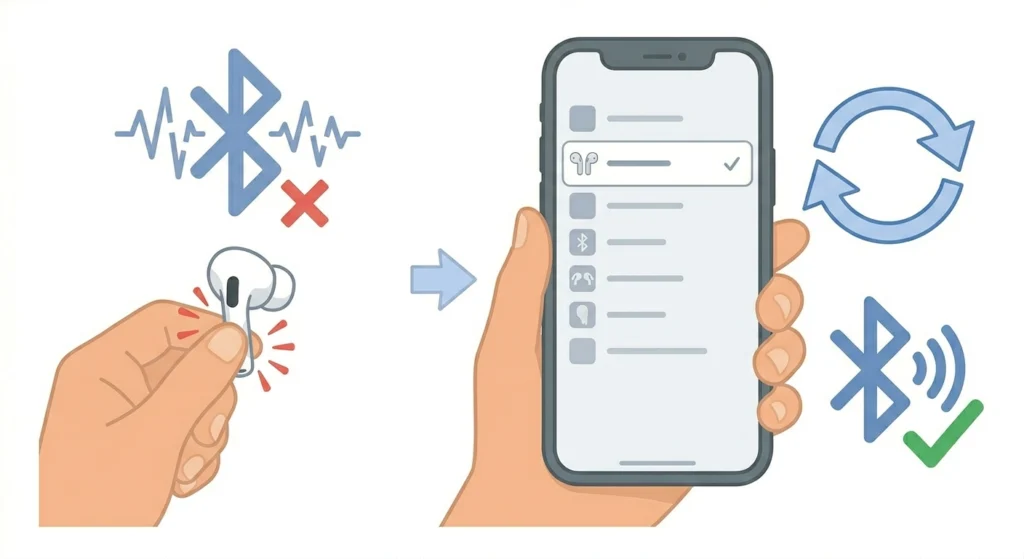
If squeezing the stem does not trigger any action, the most common cause is an unstable Bluetooth connection. Re-pairing the earbuds often resolves this. A guide on how to re-pair Bluetooth earbuds for stereo sound can be helpful if the connection seems inconsistent after the fix.
Fix 2: Only One AirPod Responds to Squeezes
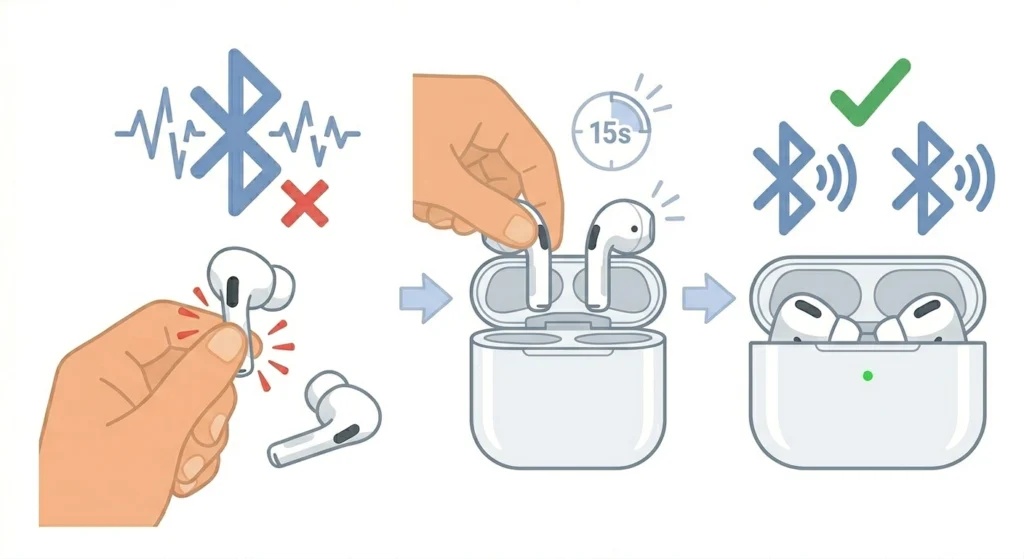
This usually means only one earbud is active in the connection. Remove both AirPods from the ears, place them back in the case for 15 seconds, then reinsert them. Both should reconnect together and restore dual-earbud functionality.
Fix 3: Press and Hold Is Not Activating the Correct Mode
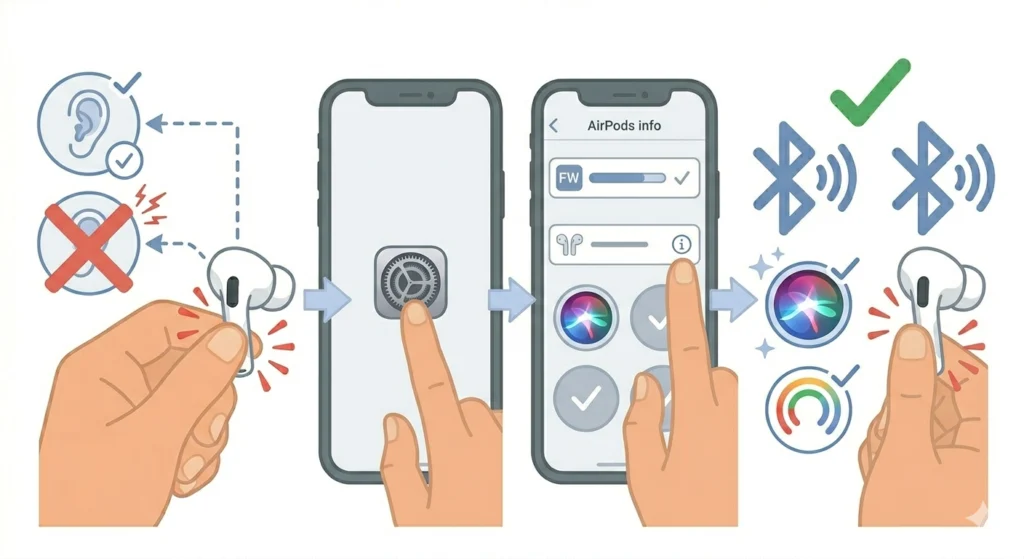
Check the customization settings in the iPhone Settings app under the AirPods 3 info panel. The hold action may have been changed or reset after a firmware update. Reassign the preferred action manually.
Fix 4: Siri Does Not Launch When Holding the Stem
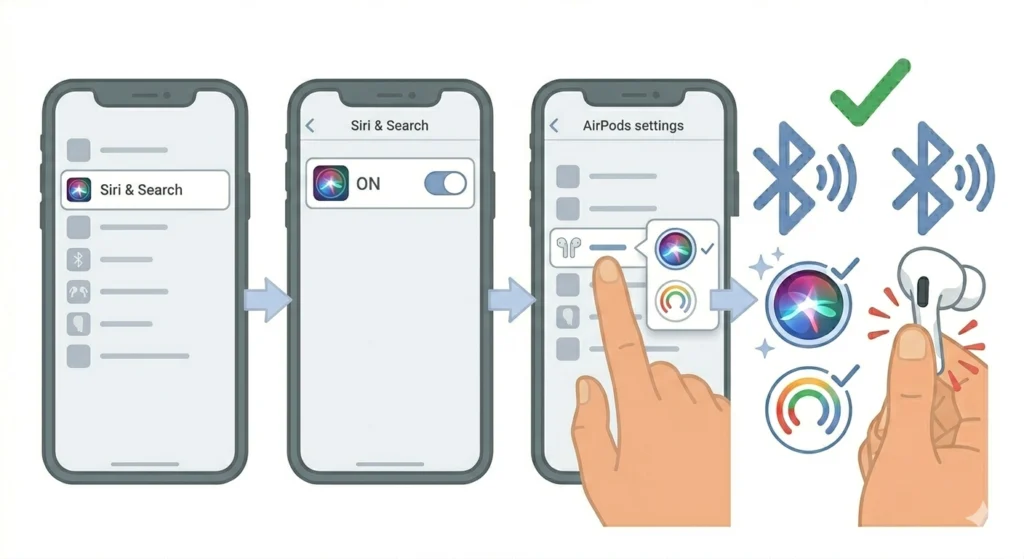
This can happen if Siri is disabled on the device. Go to Settings, tap ‘Siri and Search,’ and confirm that Siri is turned on. Also verify that ‘Press and Hold AirPods’ in the AirPods settings is actually set to Siri and not Noise Control.
Frequently Asked Questions
Can the single squeeze action be changed to something other than play or pause?
No. Apple has locked the single, double, and triple squeeze functions to specific actions. Only the press-and-hold function can be customized through the iPhone Settings app.
Do the stem squeeze controls work the same with Android devices?
Basic functions like play, pause, and call management work on Android. However, advanced customization options and Siri activation are only available when paired with an Apple device running iOS 15 or later.
Why do the squeeze controls sometimes have a slight delay?
A very brief processing delay is normal and built into the sensor to distinguish between single and double squeezes. If the delay seems excessive, it may indicate a weak Bluetooth connection or low battery on one or both earbuds.
Does squeezing the stem too hard damage the AirPods 3?
Moderate firm pressure is all that is needed. The force sensor is designed to handle normal use, and squeezing harder than necessary will not improve responsiveness. Extremely forceful squeezing repeatedly over time is not recommended.
Can both AirPods be squeezed simultaneously?
Yes, but each earbud’s stem press is processed independently. Squeezing both at the same time generally triggers the action of whichever stem squeeze is registered first by the device.
Do stem squeeze controls work when only one AirPod 3 is in use?
Yes. When using a single AirPod 3, the stem controls on that earbud remain fully functional for play, pause, skip, and call management.
Is there a way to turn off the stem squeeze controls entirely?
Apple does not offer a native option to completely disable the force sensor controls on AirPods 3. The controls are always active when the earbuds are connected.
Why does squeezing the stem skip the track instead of pausing?
This typically means the squeeze is being registered as two presses instead of one. Try slowing down slightly and using a single firm pinch rather than a quick tap-like motion.
Can the AirPods 3 stem controls be used to switch audio between devices?
Not directly through stem squeezing. Automatic device switching is handled by Apple’s Automatic Ear Detection feature, which responds to which device is actively playing audio – not through manual stem input.
Do the stem squeeze settings transfer if AirPods 3 are connected to a new iPhone?
Yes. If the new iPhone is signed into the same Apple ID, AirPods 3 settings sync through iCloud and the customization preferences carry over automatically.