
Setting up AirPods 3 on an iPhone or iPad is one of the fastest wireless earbud pairing experiences available today. Thanks to Apple’s H1 chip and seamless iOS integration, the whole process takes under a minute for most users. Whether the device is brand new or being paired for the first time after a reset, this guide walks through every step clearly and directly.
Quick Summary
- AirPods 3 pair automatically when held near an unlocked iPhone or iPad signed into iCloud
- The pairing prompt appears on screen – just tap ‘Connect’ to finish
- Both devices must have Bluetooth enabled before starting
- AirPods 3 sync instantly across all Apple devices using the same Apple ID
- Manual pairing via Bluetooth Settings is available as an alternative method
How to Set Up AirPods 3 on iPhone and iPad
The setup process differs slightly between automatic pairing and manual Bluetooth pairing. Both methods are covered below, starting with the fastest and most common approach.
Method 1: Automatic Pairing (Recommended)
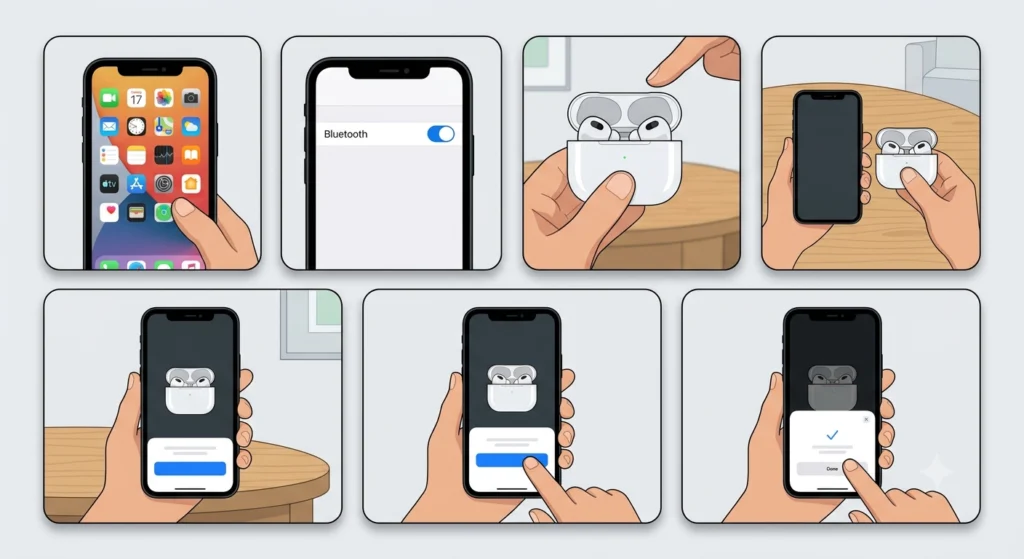
This is the standard setup method for AirPods 3 and works on any iPhone or iPad running iOS 15 or later. The key is to have the AirPods inside the charging case with the lid open near the device.
- Step 1: Unlock the iPhone or iPad and go to the Home Screen.
- Step 2: Make sure Bluetooth is turned on. Go to Settings, then Bluetooth, and toggle it on if it is off.
- Step 3: Open the AirPods 3 charging case without removing the AirPods.
- Step 4: Hold the open case close to the iPhone or iPad – within a few centimeters works best.
- Step 5: A pairing animation and prompt will appear on the screen automatically.
- Step 6: Tap ‘Connect’ on the pop-up to complete the pairing.
- Step 7: If prompted, tap ‘Done’ to finish the setup. The AirPods 3 are now ready to use.
Most people find that the prompt appears within two to three seconds of opening the case. If it does not appear immediately, make sure the iPhone or iPad is signed in to iCloud, as this is required for the automatic detection to work.
Pro Tip: AirPods 3 set up using an Apple ID automatically sync to every Apple device linked to that same account, including Mac, Apple Watch, and Apple TV. There is no need to pair them separately on each device – they just appear in the audio output options automatically.
Method 2: Manual Pairing via Bluetooth Settings
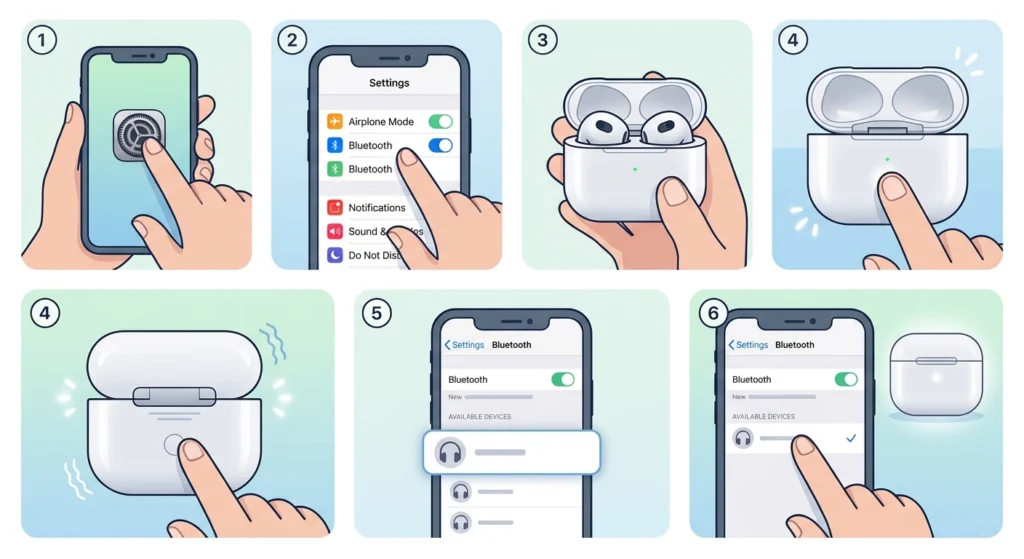
If the automatic pairing prompt does not appear, or if the AirPods 3 have been previously connected to a non-Apple device, manual pairing through Bluetooth Settings is the right approach.
- Step 1: Open Settings on the iPhone or iPad.
- Step 2: Tap ‘Bluetooth’ and make sure it is enabled.
- Step 3: Open the AirPods 3 case and keep the AirPods inside.
- Step 4: Press and hold the small setup button on the back of the AirPods 3 case for about five seconds until the status light flashes white.
- Step 5: ‘AirPods’ will appear under the ‘Other Devices’ list in the Bluetooth Settings screen.
- Step 6: Tap on ‘AirPods’ to pair them. The status light will flash white briefly, then turn solid, confirming the connection.
This method works well when pairing AirPods 3 to a second device or after using them with an Android phone or Windows PC. The flashing white light is the signal that the AirPods are in pairing mode and ready to connect.
This process is similar to how other Bluetooth earbuds work on non-Apple platforms. For example, users who also re-pair Bluetooth earbuds on Windows for proper stereo sound will recognize the same concept of putting the device back into pairing mode before connecting.
Tips for Getting the Best Experience with AirPods 3
- Keep the AirPods 3 firmware updated. iOS updates usually push AirPods firmware automatically when the earbuds are in the case and charging near a connected iPhone.
- Use ‘Hey Siri’ for hands-free control. AirPods 3 support Siri commands directly, so there is no need to reach for the phone while listening.
- Enable Automatic Ear Detection in Settings under Bluetooth by tapping the info icon next to the AirPods name. This pauses audio when the AirPods are removed, which saves battery life.
- Spatial Audio with dynamic head tracking is available on AirPods 3 when used with compatible content. Enable it through the Bluetooth settings or from Control Center.
- Check battery levels quickly by opening the AirPods case near the iPhone – a battery widget will appear on screen showing remaining charge for each earbud and the case.
Pro Tip: If the AirPods 3 are not switching automatically between an iPhone and iPad, go to Settings, tap the Bluetooth info icon next to the AirPods name, and set ‘Connect to This iPhone’ to ‘Automatically’. This enables seamless switching based on which device is actively being used.
Common Problems When Setting Up AirPods 3
Fix 1: Pairing Prompt Does Not Appear
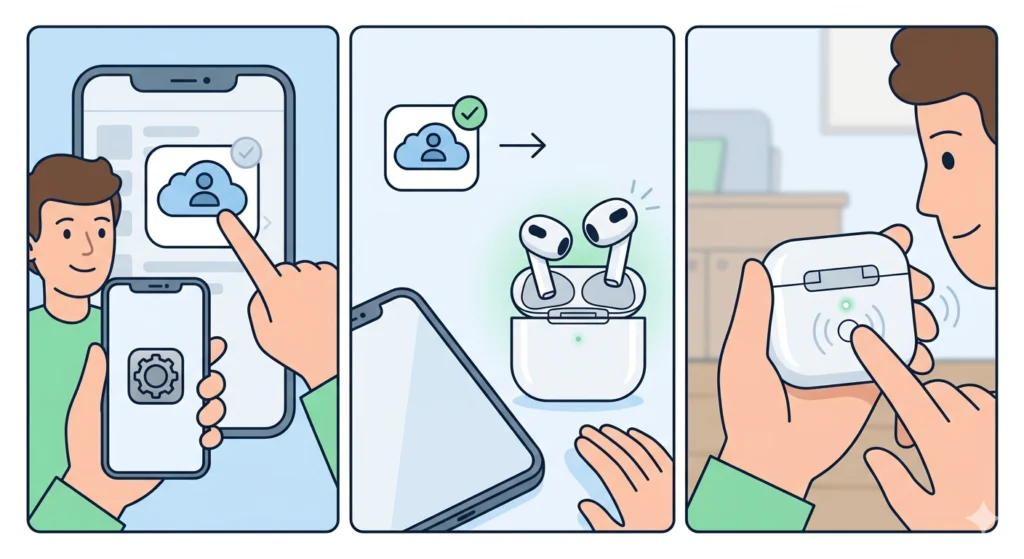
This usually happens when iCloud is not signed in on the device, or when the AirPods are already actively paired to another device. Sign into iCloud under Settings, then try again. If that does not help, put the AirPods into manual pairing mode using the setup button on the back of the case.
Fix 2: AirPods 3 Not Showing in Bluetooth List
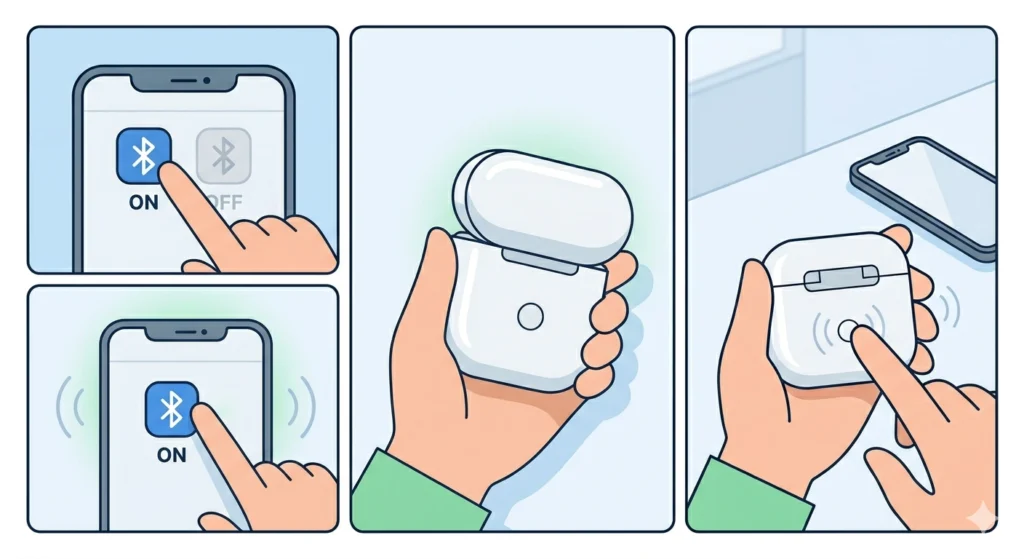
Toggle Bluetooth off and on again in Settings. Then hold the setup button on the AirPods case until the white light flashes, indicating pairing mode is active. The AirPods should now appear in the list under ‘Other Devices.’
Fix 3: One AirPod Is Not Connecting or Has No Sound
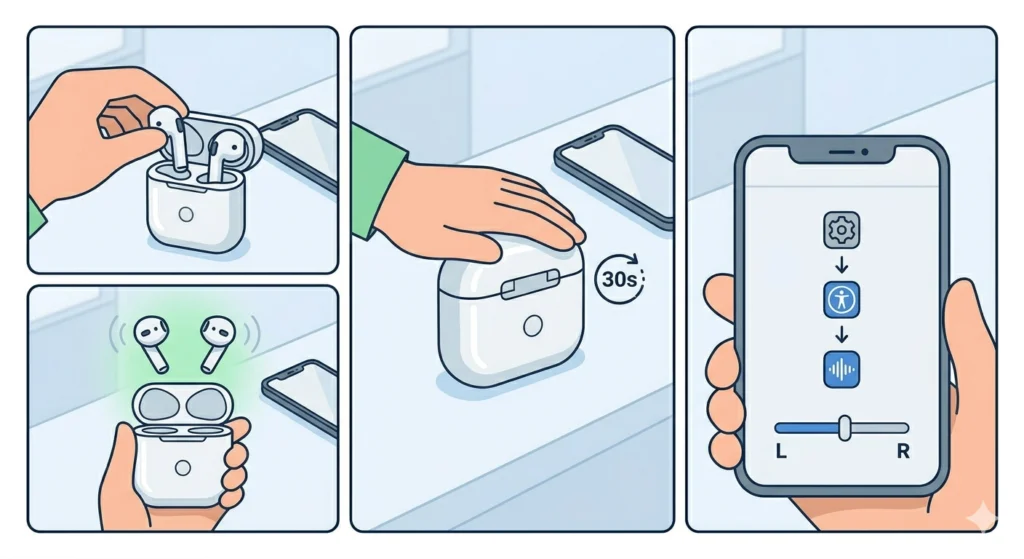
Place both AirPods back in the case, close the lid, and wait 30 seconds. Open the case again and reconnect. This resets the connection state of both earbuds and usually resolves the imbalance. Audio output settings can also affect which earbud plays sound, so checking audio balance under Settings, Accessibility, and then Audio/Visual can rule that out as the cause.
Fix 4: AirPods 3 Not Switching Between iPhone and iPad
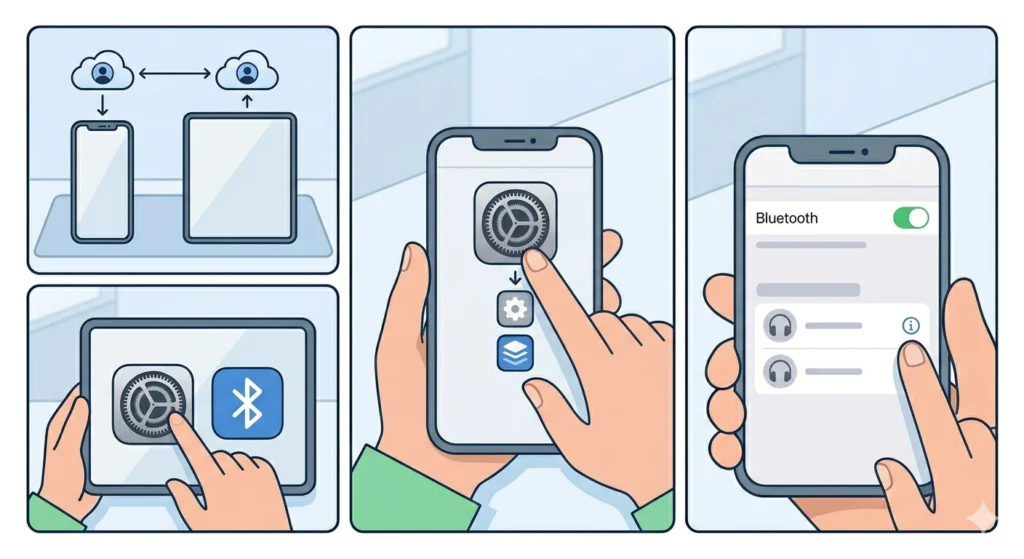
Automatic switching relies on iCloud. Make sure both the iPhone and iPad are signed into the same Apple ID. Then on each device, go to Settings, Bluetooth, tap the info icon next to the AirPods, and set ‘Connect to This iPhone’ or ‘Connect to This iPad’ to ‘Automatically.’
Fix 5: Audio Sounds Distorted or Cuts Out
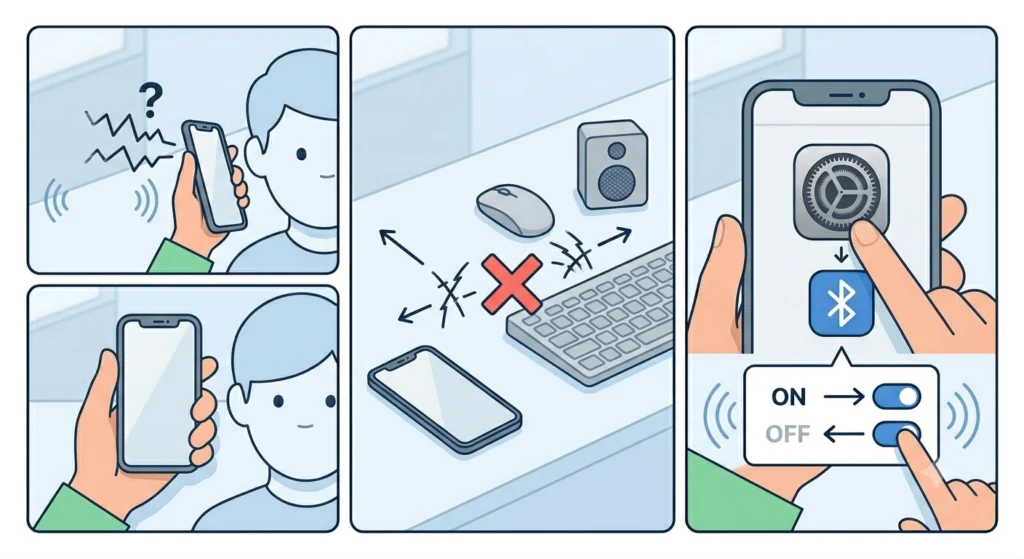
Move the iPhone or iPad closer to reduce Bluetooth interference. Also check if other Bluetooth devices nearby are causing signal conflict. Turning off and on Bluetooth on the device often resolves intermittent audio dropout issues.
Frequently Asked Questions
Do AirPods 3 work with older iPhone models?
Yes. AirPods 3 are compatible with any iPhone running iOS 15 or later. This includes the iPhone 6s and newer. The automatic pairing pop-up works best on iPhone 8 or later with a current version of iOS.
Can AirPods 3 connect to an iPad without an iPhone?
Absolutely. AirPods 3 pair directly to any iPad running iPadOS 15 or later. The same automatic pairing method applies – just open the case near the iPad and tap ‘Connect’ on the prompt.
How many devices can AirPods 3 be paired to at once?
AirPods 3 can be actively connected to one device at a time, but they are paired to all Apple devices sharing the same Apple ID through iCloud. Switching between them happens automatically or manually from the audio output menu.
Do AirPods 3 need an iCloud account to set up?
iCloud is not strictly required for basic pairing via Bluetooth Settings. However, for the automatic pairing pop-up and seamless multi-device switching, the device must be signed into iCloud.
How do you know AirPods 3 are fully connected?
After tapping ‘Connect’, a confirmation screen shows the AirPods name and battery levels. The audio output also switches automatically to the AirPods, which confirms the connection is active.
Can AirPods 3 be used with an iPad and iPhone at the same time?
Not simultaneously. AirPods 3 can only output audio from one device at a time. However, they switch between devices automatically depending on which one is actively playing audio or in use.
What is the setup button on the AirPods 3 case for?
The small button on the back of the case is used for manual pairing mode and resetting the AirPods. Holding it until the light flashes white puts the AirPods into pairing mode. Holding it until the light flashes amber initiates a factory reset.
Why do AirPods 3 keep disconnecting from the iPad?
This is often caused by the iPad’s Bluetooth settings switching priority to another nearby device. Setting ‘Connect to This iPad’ to ‘Automatically’ in Bluetooth settings helps maintain a stable connection. Keeping iOS and iPadOS updated also improves Bluetooth reliability.
How do you rename AirPods 3 on iPhone or iPad?
Go to Settings, tap Bluetooth, then tap the info icon next to the AirPods name. Tap the current name at the top of the screen to edit it and enter a custom name.
Can AirPods 3 be set up on an iPad without touching the iPhone first?
Yes. The setup process is identical whether starting on an iPhone or iPad. Simply hold the open AirPods case near the target device, or use the manual Bluetooth pairing method through Settings. No prior iPhone setup is needed.