
Google Pixel Buds Pro not charging in case is one of the most frustrating issues users run into – especially when the buds look seated perfectly but just refuse to charge. The good news is that most of these problems come down to a few fixable causes: dirty charging contacts, a firmware glitch, or a pairing conflict. This step-by-step guide covers the exact fixes that actually work, in order from easiest to most thorough.
Quick Summary – Key Takeaways
- Dirty or misaligned charging contacts are the most common cause of this issue
- A factory reset on the buds clears most firmware-related charging bugs
- The case itself needs charge too – a dead case cannot charge the buds
- Firmware updates via the Pixel Buds app often resolve persistent charging failures
- If only one earbud fails to charge, the issue is almost always contact alignment or debris
- Google’s warranty covers charging defects – worth checking if nothing else works
How to Fix Google Pixel Buds Pro Not Charging in Case
Fix 1: Check and Clean the Charging Contacts
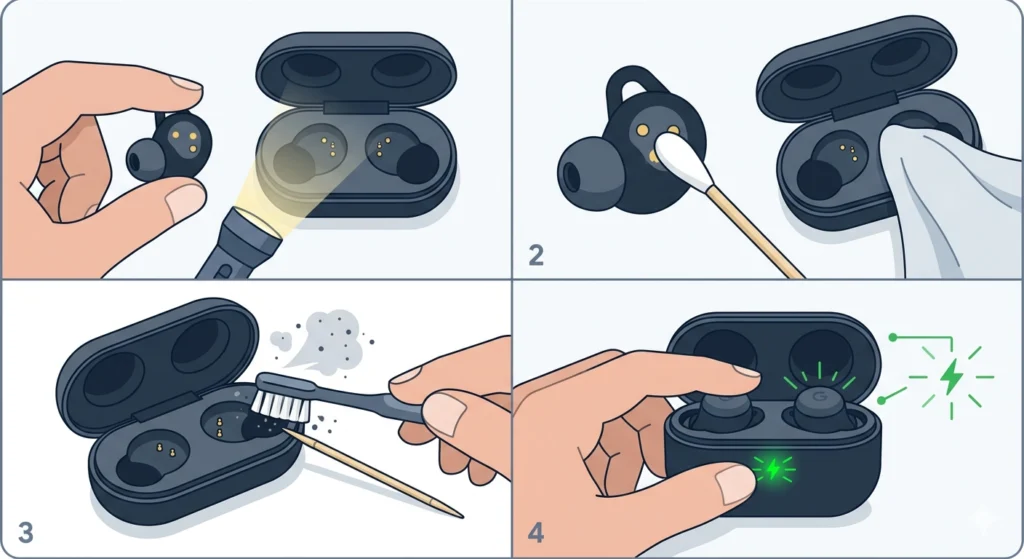
The most common reason the Pixel Buds Pro stop charging inside the case is dirty or blocked charging contacts. Sweat, earwax, and pocket debris build up on the metal pins over time and break the connection silently.
- Step 1: Remove the buds from the case and inspect the gold charging contacts on both the buds and inside the case using a flashlight.
- Step 2: Use a dry cotton swab or a soft lint-free cloth to gently wipe the contacts on both the buds and the case. Do not use water or alcohol directly on the pins.
- Step 3: If there is visible debris stuck in the case cavity, use a dry toothbrush or a toothpick carefully around the edges – not directly on the pins.
- Step 4: Place the buds back into the case and listen or watch for the LED indicator to confirm charging has started.
This works best when done in good lighting. Most people find that even a light wipe makes an immediate difference, especially with older cases that have seen daily use.
Fix 2: Make Sure the Case Has Enough Charge
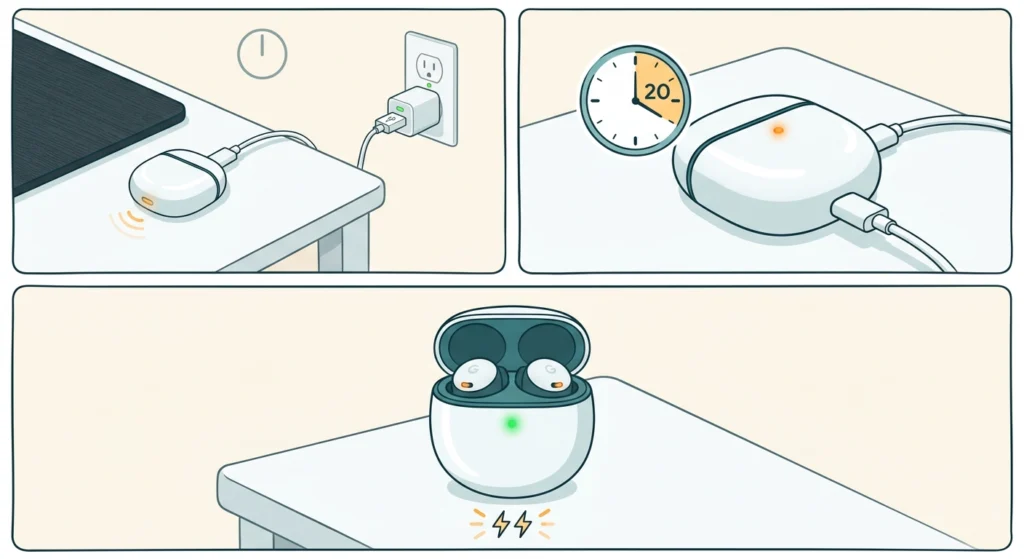
It sounds obvious, but a fully drained case will not charge the buds – and there is no warning that this is happening. The case LED should light up when opened or when the buds are placed inside.
- Step 1: Connect the case to a charger using the USB-C cable. Use the cable and adapter that came with the device or a certified USB-C charger.
- Step 2: Let the case charge for at least 15 to 20 minutes before placing the buds inside.
- Step 3: Once the case shows a charging LED, place the buds in and check if they begin charging.
The key is to rule out the case as the culprit before moving on to more involved steps. Also try a different USB-C cable – worn cables are a surprisingly frequent cause of case charging failures.
Fix 3: Reseat the Buds Properly in the Case
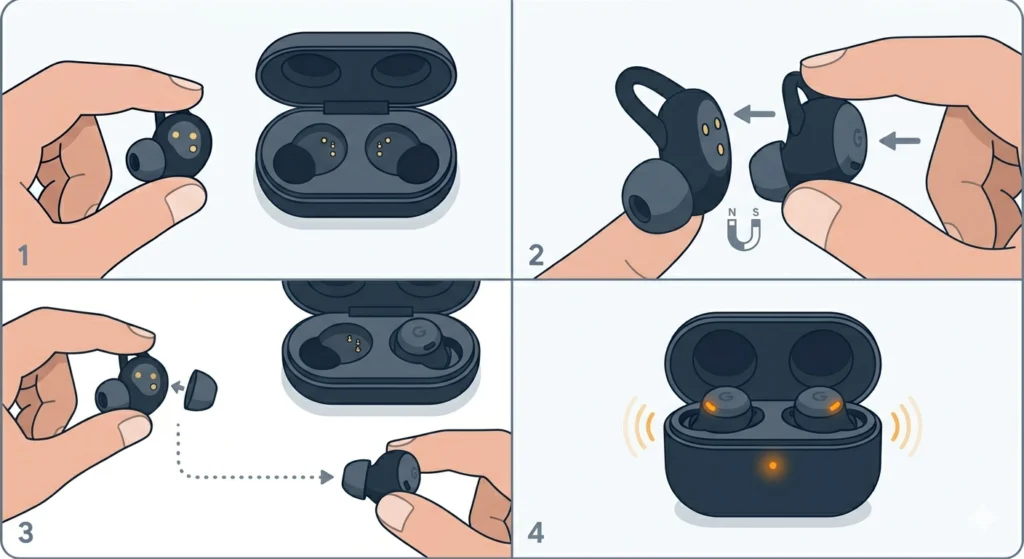
The Pixel Buds Pro use a magnetic seating system. If a bud is even slightly off-center, the charging contacts will not line up and charging will not begin – even though the bud may look seated from the outside.
- Step 1: Remove both buds from the case completely.
- Step 2: Place each bud back in slowly, starting with the stem angled in, then pressing the body of the bud down until you feel and hear a soft magnetic click.
- Step 3: Do not force them in. If they do not seat naturally with the magnet, the eartip may be preventing full contact. Try removing the silicone eartip and reseating the bud, then replace the tip after confirming the fit.
- Step 4: Close the lid and wait 30 seconds, then open it. The amber LED inside should be visible if charging is active.
Fix 4: Restart and Reset the Pixel Buds Pro
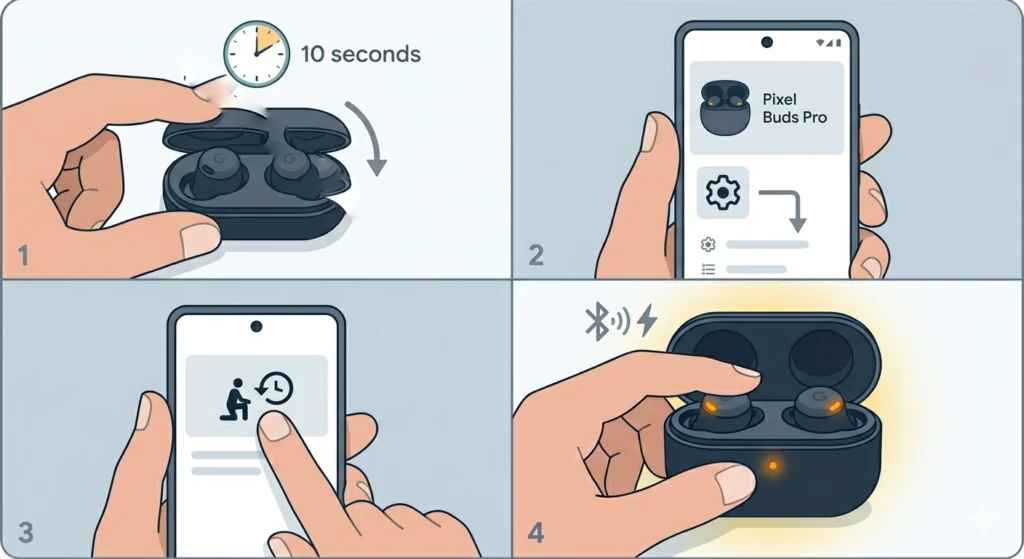
Firmware bugs can cause the buds to enter a state where they do not draw power even when seated correctly. A soft restart followed by a factory reset usually clears this.
- Step 1: Place the buds in the case and close the lid for 10 seconds, then open it. This forces a soft restart.
- Step 2: If that does not help, open the Pixel Buds app on an Android device connected to the buds.
- Step 3: Tap on the buds name, scroll to ‘Advanced’, then tap ‘Factory Reset’.
- Step 4: Confirm the reset. The buds will enter pairing mode. Place them in the case before re-pairing and check if the charging LED activates.
The factory reset is one of the most effective fixes for software-caused charging issues. It clears stored pairing data and resets the internal firmware state entirely. If Bluetooth pairing becomes an issue afterward on a Windows device, a guide on how to re-pair Bluetooth earbuds for stereo sound on Windows can help get things back in order.
Pro-Tip: After a factory reset, always place the buds in the case for at least 2 minutes before attempting to re-pair them. This gives the internal firmware time to reinitialize properly and prevents repeat charging detection failures.
Fix 5: Update the Pixel Buds Firmware
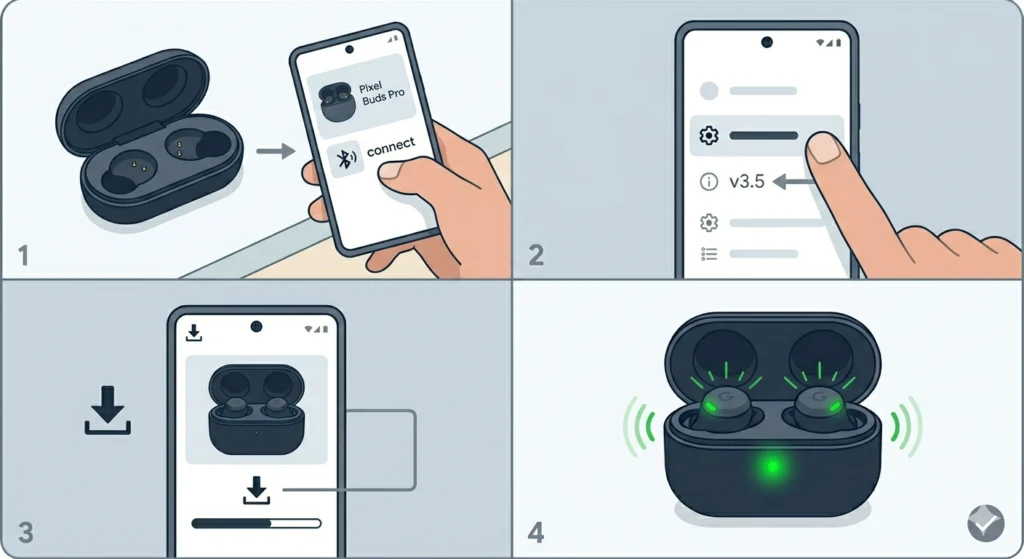
Google regularly pushes firmware updates that fix charging and connectivity bugs. Running outdated firmware is a known cause of intermittent charging failures with the Pixel Buds Pro.
- Step 1: Make sure the Pixel Buds Pro are connected to an Android phone with the Pixel Buds app installed and open.
- Step 2: Tap on the buds in the app and look for a firmware version listed under ‘Device Info’ or ‘About’.
- Step 3: If an update is available, the app will prompt installation. Keep the buds in the case during the update process.
- Step 4: After the update completes, place the buds in the case and verify charging resumes normally.
Firmware updates install automatically when the buds are idle and charging. If updates have not been applying, check that Bluetooth is active and the phone is nearby overnight.
Fix 6: Try a Different Power Source for the Case
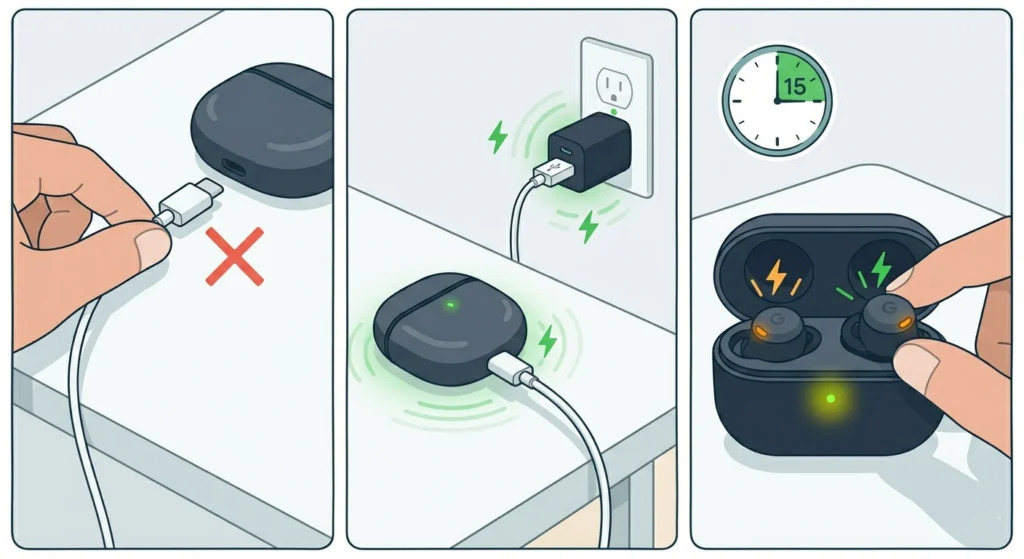
Sometimes the issue is not the buds or the contacts – it is the power being delivered to the case itself. A low-output USB port on a laptop or a faulty wall adapter can leave the case in a partial charge state that is not enough to push power to the buds.
- Step 1: Disconnect the case from its current charger.
- Step 2: Plug the case into a different power source – ideally a wall adapter rated at 5V/1A or higher, or a known working USB-C charger.
- Step 3: Let the case charge for 15 minutes, then test if the buds charge when placed inside.
Wireless charging is also supported on the Pixel Buds Pro case. If USB-C charging seems inconsistent, placing the case on a Qi-compatible wireless charging pad is a good way to rule out cable or port issues entirely.
Fix 7: Inspect the Case for Physical Damage
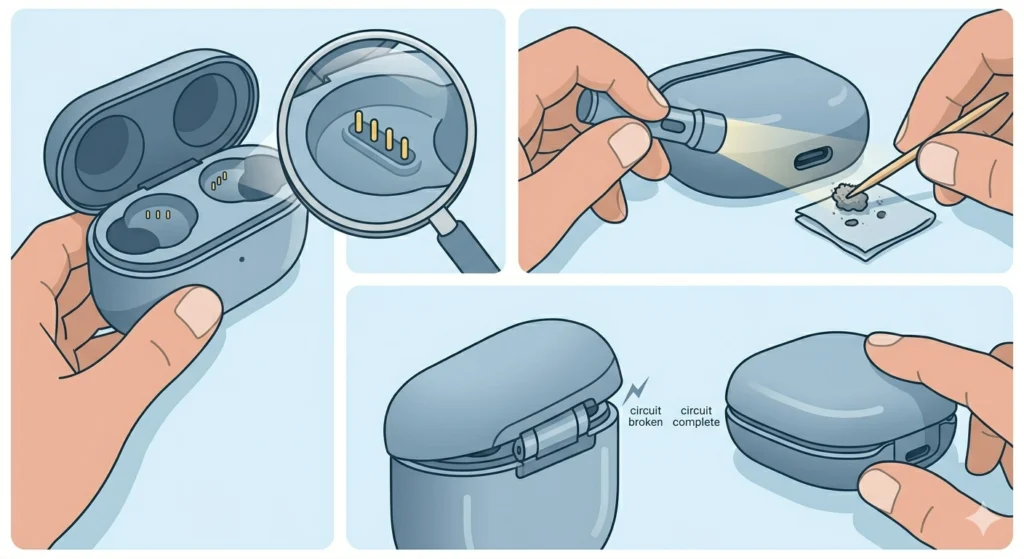
A cracked hinge, bent charging pins, or a damaged USB-C port on the case can all stop charging from working. This is especially worth checking if the case has been dropped or sat on.
- Step 1: Open the case and look at the charging pin area inside each earbud cavity. The pins should be flush, evenly spaced, and free of bent or discolored areas.
- Step 2: Inspect the USB-C port at the base of the case for lint or debris using a flashlight. Use a wooden toothpick to carefully remove any compacted material.
- Step 3: Check the hinge. If the lid does not close flush and tight, the case may not be completing an internal circuit needed for charging.
Pro-Tip: Debris inside the USB-C port is one of the most overlooked causes of case charging failure. Even a thin layer of pocket lint can prevent the cable from making full contact, which trickles down to the buds not charging at all.
Tips for Keeping Pixel Buds Pro Charging Consistently
- Wipe down the charging contacts with a dry cloth once a week, especially after workouts
- Always use a USB-C cable rated for charging, not data-only cables
- Store the buds in the case with the lid fully closed to maintain contact alignment
- Avoid leaving the case in direct sunlight or very hot environments, which can degrade battery performance over time
- Keep the Pixel Buds app updated on the connected Android device to ensure firmware updates apply automatically
- If using wireless charging, make sure the case is centered on the pad and not sitting at an angle
Common Problems and Troubleshooting
Only One Earbud Is Not Charging
When only one bud fails to charge, the issue is almost always a contact alignment problem on that specific bud rather than a firmware or power issue. Remove the earbud, clean its contacts carefully, and check if the eartip is preventing it from seating flush in the cavity. Swapping which ear the tip is on (left vs right) and reseating can sometimes resolve this immediately.
LED Light Does Not Turn On When Buds Are in Case
If the case LED does not activate at all when the buds are placed inside, the case battery is likely fully drained. Connect it to a charger and wait at least 10 minutes before testing again. If the LED still does not respond after charging, the case itself may have a fault.
Buds Show Charging in App But Battery Does Not Increase
This usually points to a firmware bug. The buds believe they are charging but the power is not transferring correctly. A factory reset through the Pixel Buds app followed by a firmware update resolves this in most cases. If it persists, contacting Google Support is the recommended next step.
Case Charges Fine But Buds Do Not Respond
If the case LED lights up normally during USB-C charging but the buds show no activity when placed inside, the problem is most likely dirty or corroded charging contacts on the buds themselves. Try the cleaning step first, then attempt a reset. If the buds are unresponsive even to the reset process, the internal battery may have fully discharged beyond recovery and a replacement may be needed.
Frequently Asked Questions
Why are my Google Pixel Buds Pro not charging in the case?
The most common causes include dirty charging contacts, a fully drained case, firmware bugs, or improper seating of the buds inside the case. Cleaning the contacts and making sure the case has enough charge resolves most cases without any advanced steps.
How do I know if my Pixel Buds Pro are charging in the case?
When the buds are seated correctly and charging, the LED inside the case will glow amber. The Pixel Buds app on an Android device will also display a charging indicator when the lid is opened near the phone.
Can a software bug cause the Pixel Buds Pro to stop charging?
Yes. Firmware bugs are a known cause of charging detection failures with the Pixel Buds Pro. Performing a factory reset through the Pixel Buds app and updating the firmware typically resolves software-related charging issues.
How do I reset my Google Pixel Buds Pro?
Open the Pixel Buds app on a connected Android device, select the buds, navigate to ‘Advanced’, and tap ‘Factory Reset’. After the reset, the buds will enter pairing mode and can be re-paired as usual. Place the buds in the case for at least 2 minutes before re-pairing.
Does the Pixel Buds Pro case support wireless charging?
Yes, the Pixel Buds Pro case supports Qi wireless charging. If USB-C charging is giving inconsistent results, placing the case on a wireless charging pad is a good alternative to verify whether the issue is with the cable or port.
What should I clean the charging contacts with?
Use a dry cotton swab or a soft lint-free cloth. Do not use water, alcohol wipes, or any liquid directly on the charging pins as this can cause corrosion or short circuits. For stubborn debris around the contacts, a dry toothbrush works well.
Why is only one of my Pixel Buds Pro not charging?
If only one bud is not charging, the issue is typically contact misalignment or debris on that specific earbud. Remove the silicone eartip, clean the contacts, and reseat the bud carefully. Check that the eartip is not preventing the bud from sitting flush inside the case cavity.
How long does it take to fully charge the Pixel Buds Pro in the case?
The Pixel Buds Pro take approximately 1 hour to fully charge inside the case. The case itself takes about 1.5 hours to fully charge via USB-C. A quick 15-minute charge in the case provides around 2.5 hours of listening time.
My Pixel Buds Pro case LED does not turn on – what does that mean?
A non-responsive case LED usually means the case battery is fully drained. Connect the case to a wall charger using the USB-C cable and give it at least 10 to 15 minutes before testing the buds again. If the LED still does not respond, inspect the USB-C port for debris or try a different cable and adapter.
When should I contact Google Support about charging issues?
If cleaning, resetting, and updating the firmware do not resolve the charging problem, it is worth reaching out to Google Support. The Pixel Buds Pro carry a one-year limited warranty that covers manufacturing defects including charging failures. Google Support can run remote diagnostics or arrange a replacement if a hardware fault is confirmed.