
Most Windows users have no idea this feature exists — and that’s a shame, because it changes how everything sounds. Spatial sound takes whatever headphones you already own and makes audio feel three-dimensional: footsteps come from behind you, rain falls from above, dialogue lands exactly where the speaker is on screen. It’s built right into Windows 10 and 11, takes about 30 seconds to turn on, and costs nothing if you use the default option.
This guide shows you every way to enable it, explains which format to pick, and covers the fixes if something isn’t working.
Quick Takeaways
- Spatial sound creates a 3D audio experience through any standard headphones on Windows 10 and Windows 11.
- Enable it via Windows Settings, Control Panel, or the taskbar Quick Settings panel.
- Windows Sonic is free and built-in. Dolby Atmos and DTS Sound Unbound offer better quality but require paid apps from the Microsoft Store.
- Gamers benefit the most — spatial audio helps you pinpoint exact sound directions in-game.
- Works with any headphones, but better quality headphones deliver stronger results.
- If it is not working, update audio drivers or disable conflicting in-app audio settings.
How to Turn On Spatial Sound in Windows 11
There are three ways to reach spatial sound settings in Windows 11. All three do the same thing — pick whichever is fastest for you.
Method 1: Using Windows Settings (Recommended)
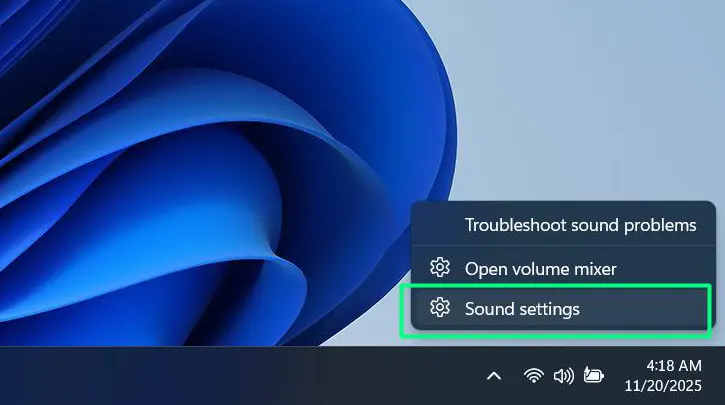
Step 1: Right-click the speaker icon in your system tray (bottom-right of your screen).
Step 2: Select Open Sound settings from the menu.
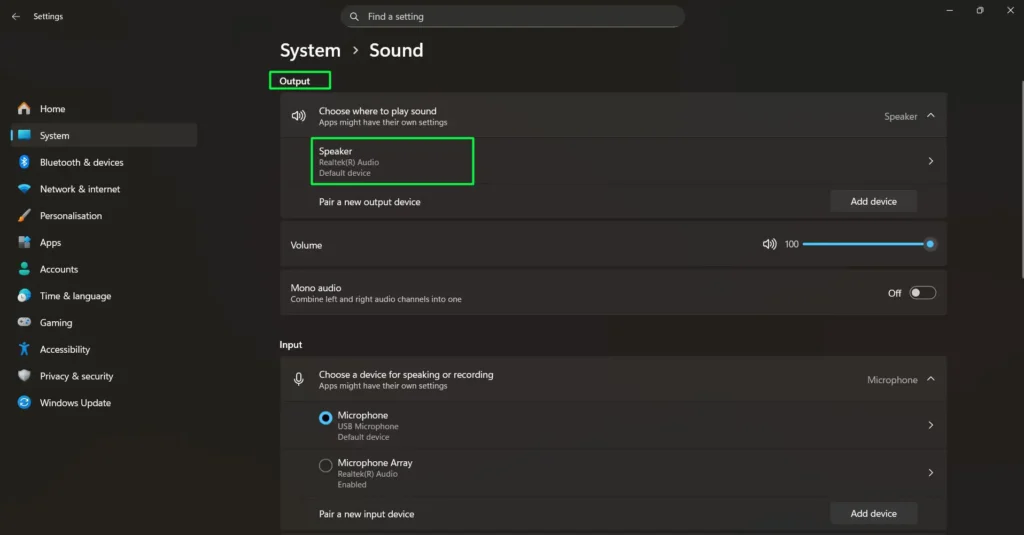
Step 3: Under the Output section, click on your active audio device.
Step 4: Click Speaker – Default Device.
Step 5: Scroll down to find the Spatial sound section in the properties panel.
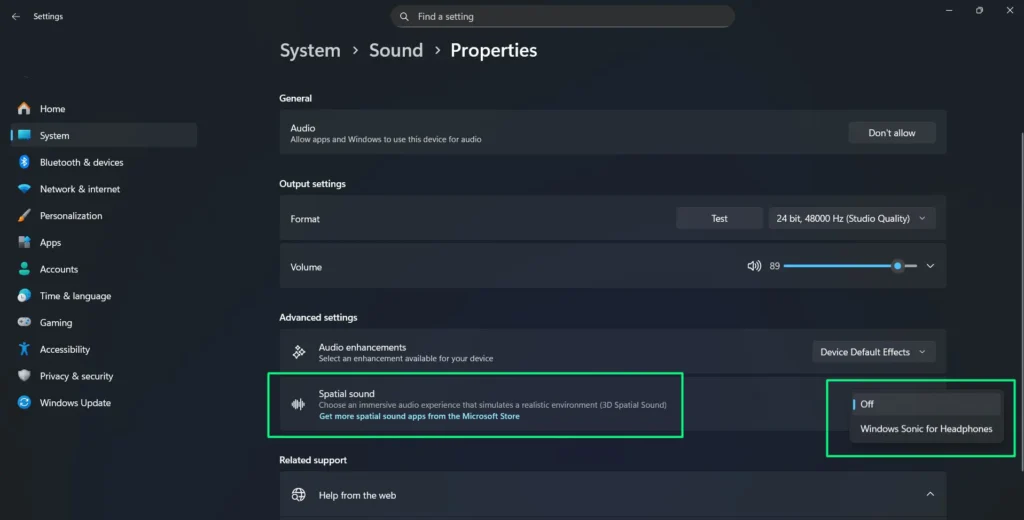
Step 6: Click the dropdown (shows Off by default).
Step 7: Choose your format — Windows Sonic for Headphones (free), Dolby Atmos for Headphones (requires Dolby Access app), or DTS Sound Unbound (requires DTS app).
Step 8: Settings apply instantly. You’ll hear the difference right away.
Method 2: Through Control Panel
Use this method if you prefer the classic Windows Sound panel or if Method 1 doesn’t show a Spatial sound option for your device.
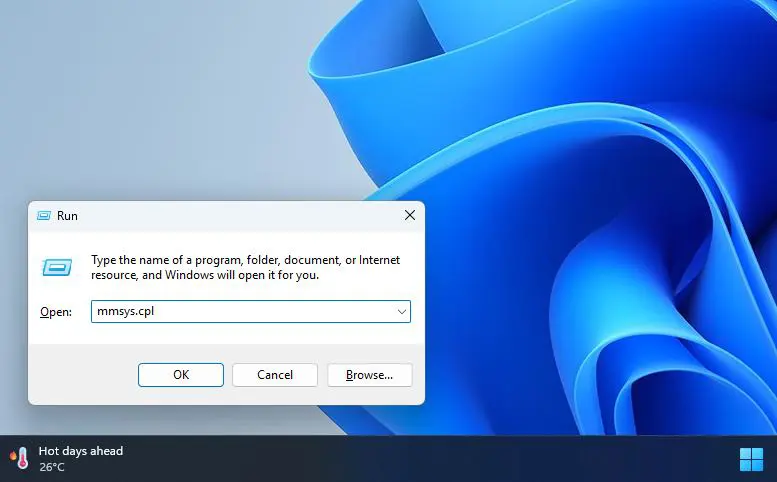
Step 1: Press Windows + R to open the Run dialog.
Step 2: Type mmsys.cpl and press Enter.
Step 3: Click the Playback tab in the Sound window.
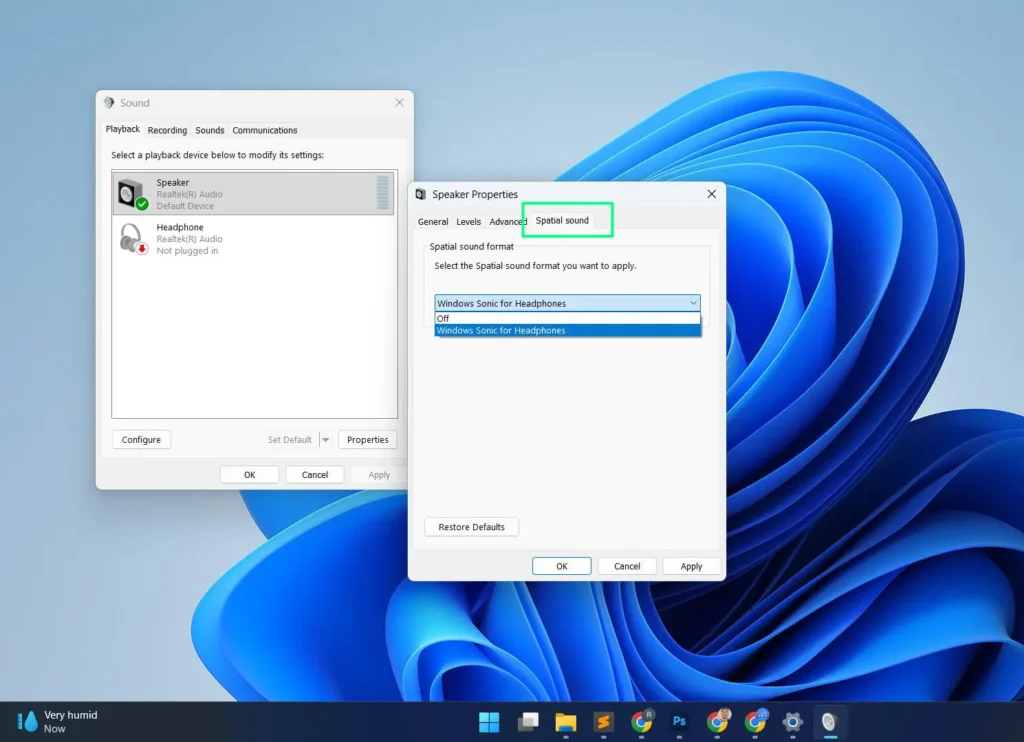
Step 4: Double-click your active audio device.
Step 5: Click the Spatial sound tab in the properties window.
Step 6: Choose your preferred format from the dropdown.
Step 7: Click Apply, then OK.
Method 3: Using the Quick Settings Panel (Fastest Way)
This is the quickest method — no menus to dig through, just two clicks from your taskbar.
Step 1: Click the speaker icon in the system tray (bottom-right corner).
Step 2: Find the volume slider in the Quick Settings panel.
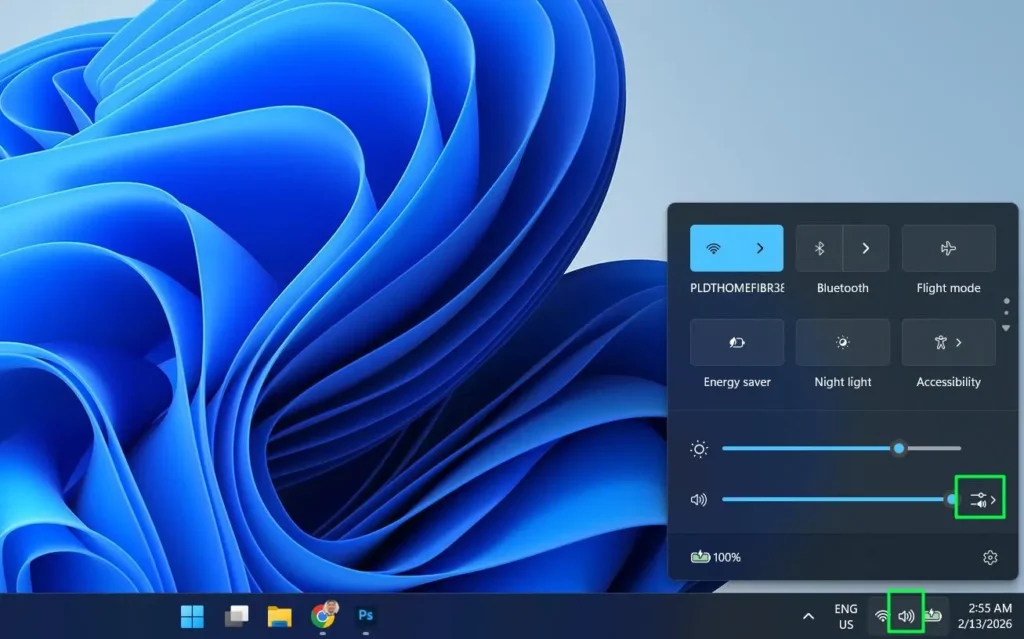
Step 3: Click the arrow button (>) next to the volume slider.
Step 4: This opens the Sound output settings for your current device.
Step 5: Under Spatial sound, click the current setting (shows Off by default).
Step 6: Select Windows Sonic for Headphones.
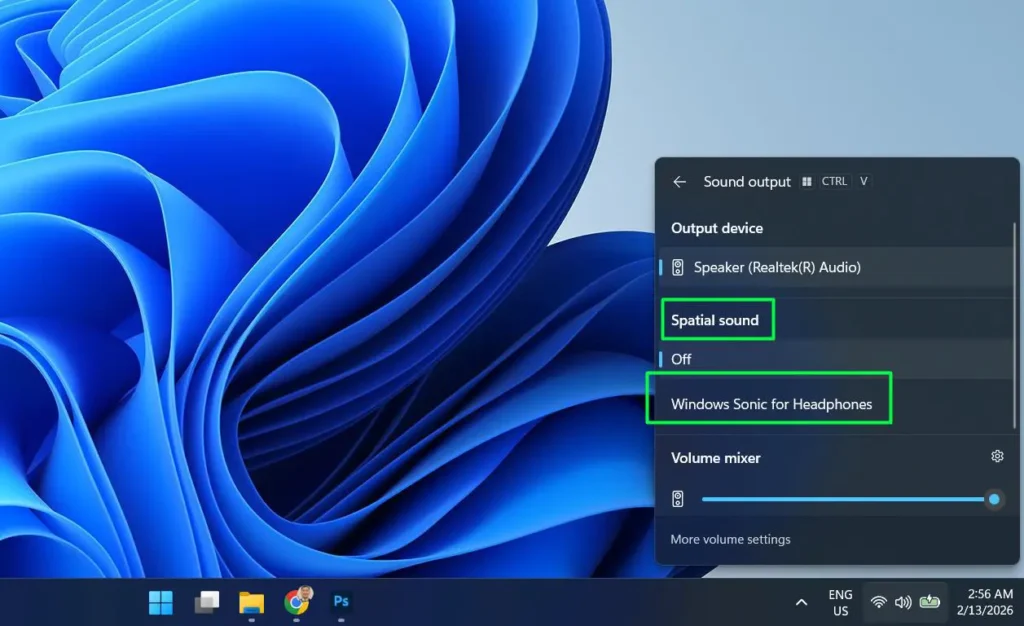
Step 7: Spatial sound is now on. No need to close any windows.
How to Turn On Spatial Sound in Windows 10
Windows 10 uses a slightly different path, but the end result is the same. Here’s how to get there.
Method 1: Via Windows 10 Sound Settings
Step 1: Right-click the speaker icon in the taskbar (bottom-right corner).
Step 2: Select Open Sound settings.
Step 3: Under Output, click Device properties.
Step 4: Click Additional device properties on the next page.
Step 5: In the Speaker Properties window, click the Spatial sound tab.
Step 6: Open the Spatial sound format dropdown and select Windows Sonic for Headphones.
Step 7: Click Apply, then OK.
Method 2: Via Windows 10 Control Panel
Step 1: Press Windows + R, type mmsys.cpl, and press Enter.
Step 2: Right-click your active playback device and select Properties.
Step 3: Click the Spatial sound tab.
Step 4: Select Windows Sonic for Headphones from the dropdown.
Step 5: Click Apply, then OK.
How to Turn Off Spatial Sound in Windows
Not every situation calls for spatial sound. Some music listeners prefer a flat stereo mix — and that’s valid. Turning it off takes the same amount of time as turning it on.
Step 1: Right-click the speaker icon in the system tray and select Open Sound settings.
Step 2: Click your active output device under Output.
Step 3: Scroll down to the Spatial sound dropdown.
Step 4: Select Off.
Step 5: Your audio reverts to standard stereo immediately.
You can also do this through the Quick Settings panel: click the speaker icon → click the arrow next to the volume slider → set Spatial sound to Off.
What Is Spatial Sound and How Does It Work?
Standard headphone audio gives you two channels: left and right. That’s it. Spatial sound processing takes that flat stereo signal and uses algorithms to simulate sound arriving from above, below, in front, and behind you. The result is a three-dimensional soundscape from the same pair of headphones you already own.
Windows handles this at the system level, meaning it applies to everything — games, streaming apps, video calls, music. You don’t have to configure anything per-app. The processing works by taking standard stereo or surround sound content and repositioning audio objects in virtual 3D space before they reach your ears, creating the perception of depth and direction through regular headphones.
Spatial Sound Formats in Windows: Which One Should You Use?
Windows supports three spatial sound formats. Here’s a quick comparison to help you pick the right one.
| Feature | Windows Sonic | Dolby Atmos | DTS Sound Unbound |
|---|---|---|---|
| Cost | Free (built-in) | Paid (free trial via Dolby Access app) | Paid (free trial via DTS app) |
| Installation | No install needed | Dolby Access from Microsoft Store | DTS Sound Unbound from Microsoft Store |
| Best For | Everyday use, gaming, movies | Dolby Atmos content, movies, music | Gaming, DTS:X content |
| Height Channels | No | Yes | Yes |
| Content Support | Stereo & surround | Stereo, surround & Atmos tracks | Stereo, surround & DTS:X tracks |
| Works on Windows 10 | Yes | Yes | Yes |
| Works on Windows 11 | Yes | Yes | Yes |
Windows Sonic for Headphones
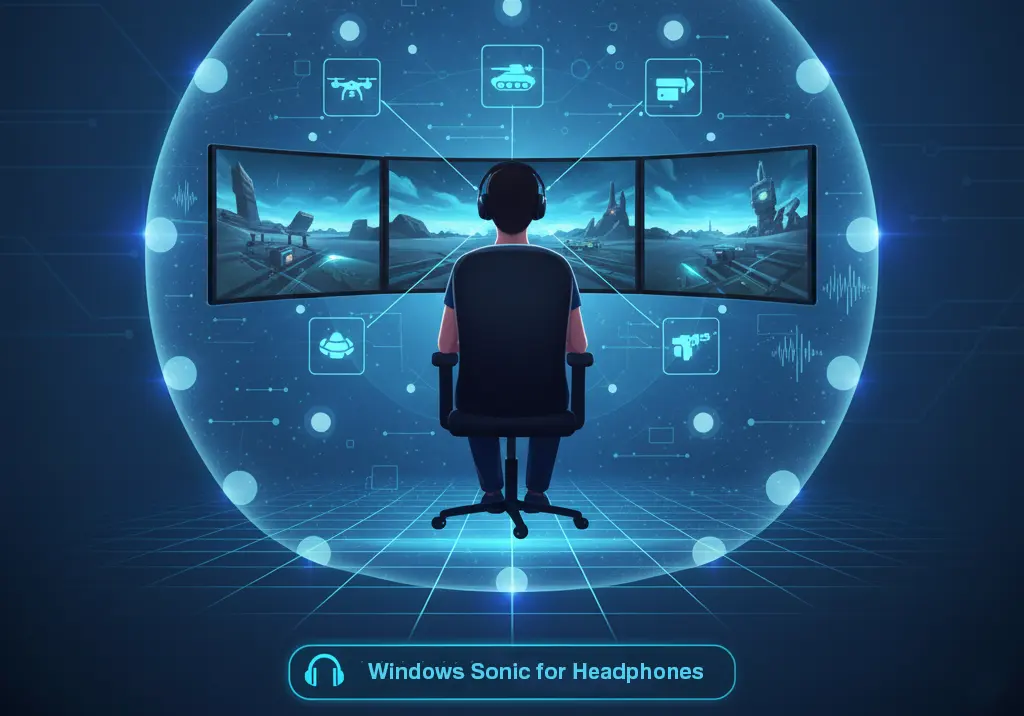
Windows Sonic for Headphones is Microsoft’s free spatial audio solution built directly into Windows 10 and Windows 11. No app to install, no subscription, no catch. It works with any headphones and uses object-based audio processing to create virtual surround sound from standard stereo output.
For most users — especially gamers and movie watchers — Windows Sonic is the right starting point. It handles both stereo and surround sound content automatically, and the directional improvement over regular stereo is noticeable from the first minute.
Dolby Atmos for Headphones
Dolby Atmos for Headphones requires the Dolby Access app from the Microsoft Store. It offers a free trial, then a one-time purchase for continued access. The upgrade over Windows Sonic is real — Atmos supports height channels for true three-dimensional audio and processes content more precisely when the source is mixed in Atmos format.
If you regularly stream from Netflix, Disney+, or Apple TV+ — all of which carry Atmos titles — this format will deliver noticeably wider soundstage and sharper positional accuracy on compatible content.
DTS Sound Unbound
DTS Sound Unbound is the gamer-first alternative to Dolby Atmos. It uses DTS:X object-based audio to create 3D positional sound with height channel support, and it performs especially well with games that include DTS:X audio tracks. Like Atmos, it requires downloading the DTS Sound Unbound app from the Microsoft Store and purchasing a license after the trial.
If you’re deciding between Atmos and DTS, the practical difference in day-to-day gaming is small. Dolby Atmos tends to have wider content support across streaming platforms, while DTS Sound Unbound has a loyal base among PC gamers who prefer DTS processing.
Why Enable Spatial Sound? Real Benefits Worth Knowing
For gaming, the advantage is immediate. You can hear footsteps approaching from behind, track enemy positions through audio alone, and react before you see anything on screen. In competitive titles, this isn’t just immersion — it’s a genuine edge.
For movies and TV, spatial sound matches audio to the visual space. Dialogue comes from where the speaker is on screen. Ambient sound fills the room around you. It makes a 55-inch screen feel bigger than it is.
For music, the effect depends on the recording. Tracks mixed for spatial audio open up dramatically — instruments land in specific positions instead of being stacked in the center. For regular stereo mixes, the difference is subtler but the soundstage still widens.
There’s also a fatigue factor. Long listening sessions through standard headphones feel more tiring because audio is pressed hard against your ears. Spatial processing creates a more natural sense of distance, which is easier on the brain over several hours.
Key Benefits at a Glance
- 🎮 Improved gaming awareness – Hear footsteps and actions with precise direction.
- 🎬 More immersive movies – Sounds match on-screen movement for a cinematic feel.
- 🎵 Richer music experience – Instruments and vocals feel more separated and detailed.
- 👂 Reduced listening fatigue – More natural sound for long listening sessions.
- 🎧 Better headphone performance – Creates surround sound without extra hardware.
Spatial Audio for Video Calls: An Underrated Use Case
This one catches people off guard. Back-to-back Teams and Zoom calls are exhausting partly because multiple voices collapse into a single flat track — your brain has to work harder to separate who’s talking. Spatial sound subtly places different participants in different virtual positions, which makes it easier to follow conversations and reduces the mental load of long meetings. If you’re spending hours in calls every week, this alone is worth enabling.
What Content Works Best With Spatial Audio?
Games with rich environmental audio benefit the most — first-person shooters, open-world titles, and horror games where audio direction matters. Battle royale games like Fortnite and tactical shooters like Valorant become noticeably more readable with spatial sound active.
Streaming services are catching up fast. Netflix, Disney+, and Amazon Prime Video carry growing libraries of Dolby Atmos content in 2026. Many recent originals and blockbuster films include dedicated spatial audio tracks that spatial sound settings on Windows can take full advantage of.
Music streaming platforms are also expanding their spatial audio catalogs. Apple Music, Amazon Music HD, and Tidal offer tracks mixed specifically for spatial playback. For music enthusiasts looking to find content that truly showcases the technology, browsing curated song collections is a good starting point.
How to Get the Most Out of Spatial Sound
The format you choose matters less than the headphones you’re using. Spatial sound works on budget earbuds, but headphones with better frequency response and clear driver separation will give you more defined positional cues. Open-back headphones tend to perform especially well because they already have a natural sense of space — spatial processing builds on that rather than fighting against a closed, tight soundstage.
If you’re thinking about upgrading your setup, check out these high-quality headphone options that pair well with spatial audio processing.
If you’re using speakers rather than headphones, room layout matters. Reflective walls and hard floors can muddy spatial audio cues. Minimizing echo and placing speakers symmetrically helps the processing do its job correctly.
Spatial Sound Not Working? Here’s How to Fix It
Audio drivers are out of date. This is the most common reason spatial sound fails or sounds wrong. Go to your PC manufacturer’s support page (Dell, HP, Lenovo, ASUS, etc.) or your audio chip manufacturer (Realtek, IDT) and download the latest driver. Device Manager works too — right-click your audio device and select Update driver.
The app is overriding Windows audio. Many games ship with their own spatial audio engines — Call of Duty, Apex Legends, and Fortnite all have in-game audio settings that can conflict with Windows Sonic or Dolby Atmos. Open the game’s audio settings and disable any built-in surround or spatial options. Let Windows handle it instead.
Third-party audio software is interfering. Programs like Nahimic, Sonic Studio, or Realtek Audio Console often apply their own processing. If you have any of these installed, try disabling them temporarily and see if spatial sound starts working.
The spatial sound option is greyed out. This usually means your audio device isn’t set as the default playback device, your drivers are outdated, or you’re connected via Bluetooth with a codec that doesn’t support spatial processing. Set the device as default first, then update drivers. For Bluetooth, try switching to a different audio codec in your Bluetooth settings.
Hardware That Pairs Well With Spatial Sound
USB headphones with dedicated drivers tend to perform better with spatial audio than analog connections through a standard 3.5mm jack. The cleaner signal path means the processing has better source material to work with. Gaming headsets with onboard processing chips can complement Windows spatial sound features, though you’ll want to confirm they’re not running their own conflicting surround emulation.
If you’re in the market for an upgrade, comparing advanced earbud options can help you find hardware that takes full advantage of spatial processing. External DACs and sound cards with low-latency converters are also worth considering if you want to squeeze the most out of Dolby Atmos or DTS Sound Unbound.
Frequently Asked Questions
How do I turn on spatial sound in Windows 11?
Right-click the speaker icon in the taskbar and select “Open Sound settings.” Under Output, click your active audio device, scroll to the Spatial sound dropdown, and select “Windows Sonic for Headphones.” The change applies instantly. You can also go to Settings > System > Sound > select your output device > Device Properties > Spatial sound.
How do I enable spatial sound in Windows 10?
Right-click the speaker icon in the taskbar and go to Sound settings. Click Device properties, then Additional device properties. In the Speaker Properties window, click the Spatial sound tab, select “Windows Sonic for Headphones” from the dropdown, and click Apply then OK.
Does spatial sound work with all headphones?
Yes — spatial sound works with any headphones, including budget wired models. The effect is noticeable even on inexpensive pairs. That said, headphones with better frequency response and driver separation will give you more defined positional audio and a wider soundstage.
Is Windows Sonic as good as Dolby Atmos for Headphones?
Windows Sonic is free and delivers a solid spatial audio experience for most users. Dolby Atmos goes further — it supports height channels and produces more precise positioning, especially with content specifically mixed for Atmos. If you mostly use streaming services or play Atmos-supported games, the Dolby Access app is worth the cost. For casual use, Windows Sonic covers it well.
What is DTS Sound Unbound and how is it different from Dolby Atmos?
DTS Sound Unbound is a premium Windows spatial audio format that uses DTS:X object-based processing — the same concept as Dolby Atmos but built on the DTS standard. Both support height channels and require a paid app from the Microsoft Store. Dolby Atmos has broader support across streaming services like Netflix and Disney+. DTS Sound Unbound is preferred by gamers in the DTS ecosystem, but both perform similarly in practice.
Can I use spatial sound with Bluetooth headphones?
Yes, but with limitations. Spatial sound can work over Bluetooth, but some Bluetooth codecs restrict the audio pipeline in a way that prevents spatial processing from applying correctly — or causes the Spatial sound option to appear greyed out. If this happens, check your Bluetooth device settings and switch to a higher-quality codec if available (aptX or AAC are generally better than SBC for spatial audio compatibility).
Why is the spatial sound option greyed out in Windows?
This usually comes down to one of three things: your audio device is not set as the default playback device, your audio drivers are outdated, or your Bluetooth codec doesn’t support spatial processing. Start by right-clicking your audio device in Sound settings and setting it as the default. Then update your audio drivers. For Bluetooth devices, try reconnecting or switching to a wired connection to confirm the device works before troubleshooting the codec.
Does spatial sound make music sound worse?
It can, depending on the music and your preference. Spatial processing widens the soundstage, which some listeners love — but for music that was carefully mixed for stereo playback, the processing can shift the image in ways the producer didn’t intend. Classical, jazz, and audiophile recordings especially can sound “off” with heavy spatial processing. If you find music sounds less accurate with spatial sound on, just turn it off — it takes two clicks and you can toggle it anytime.