
A crackling sound on AirPods Max is one of the most frustrating audio problems a user can deal with – especially when it hits during music, calls, or a quiet listening session. The good news is that most crackling issues are fixable without a trip to Apple support. This guide covers the exact steps to diagnose and resolve the AirPods Max crackling sound issue quickly and effectively.
Key Takeaways
- Crackling on AirPods Max is most often caused by Bluetooth interference, software glitches, or dirty ear cushions
- A simple reset fixes the majority of crackling issues in minutes
- Keeping firmware and iOS updated prevents recurring audio distortion
- Physical inspection of the mesh and cushions should always be part of the fix process
- If software fixes fail, a hardware inspection through Apple is the next step
Fix 1: Clean the Ear Cushions and Mesh
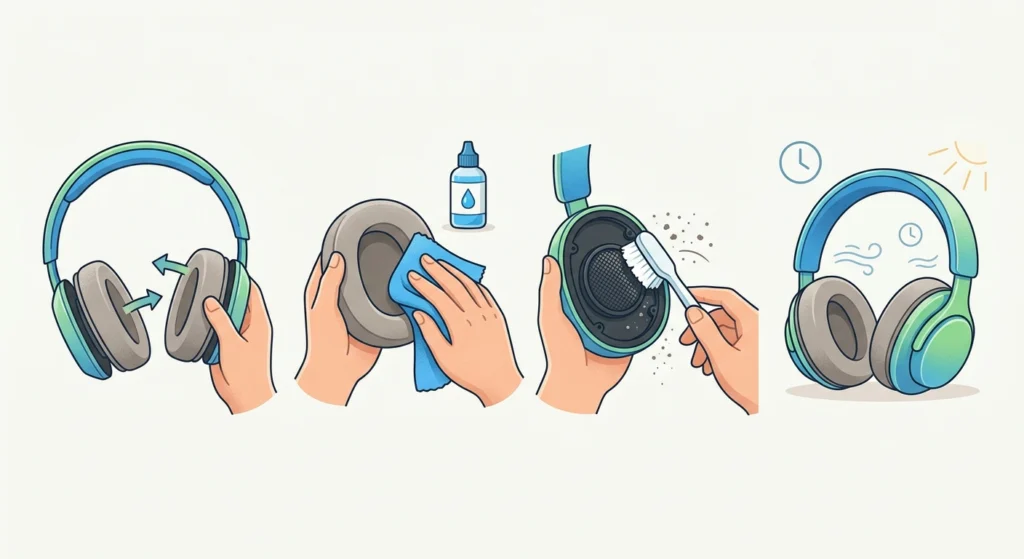
Dirt, earwax, and debris trapped in the ear cushions or the speaker mesh are a surprisingly common cause of crackling. Even a thin layer of buildup can vibrate against the driver and create that annoying distorted sound.
- Step 1: Remove the magnetic ear cushions from the headphone frame by pulling them gently away.
- Step 2: Use a soft, lint-free cloth lightly dampened with isopropyl alcohol to wipe the cushion surface.
- Step 3: Inspect the speaker mesh on the inside of each ear cup. Use a dry, soft-bristled brush (like a clean toothbrush) to gently clear any visible debris.
- Step 4: Let everything dry completely before reattaching the cushions and testing audio.
This works best when done regularly, especially if the AirPods Max are used during workouts or in dusty environments.
Fix 2: Reset the AirPods Max
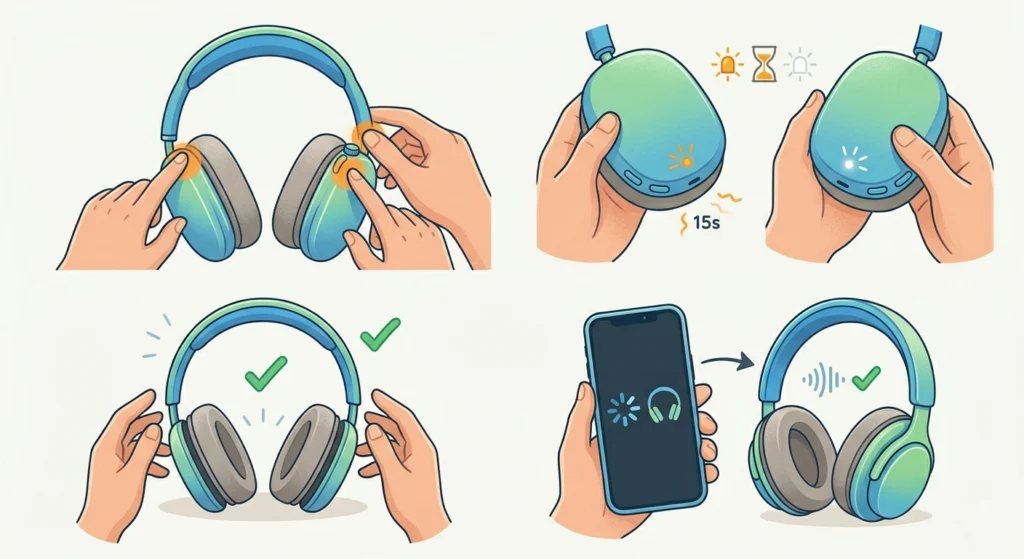
A firmware glitch or corrupted Bluetooth pairing state is one of the leading causes of crackling. Resetting the AirPods Max clears this state entirely and gives the headphones a fresh start.
- Step 1: Press and hold the Digital Crown and the Noise Control button at the same time.
- Step 2: Hold both buttons for about 15 seconds until the LED light flashes amber, then white.
- Step 3: Release both buttons. The AirPods Max are now reset and ready to pair again.
- Step 4: Open the case near the paired iPhone or iPad and follow the on-screen pairing instructions.
- Step 5: Test audio playback to check if the crackling has stopped.
Most people find that a full reset eliminates the crackling completely, particularly if it started suddenly without any physical cause.
Pro-Tip: Before resetting, make sure the AirPods Max are charged above 20%. A low battery during the reset process can cause an incomplete firmware wipe, which may actually worsen audio issues.
Fix 3: Re-Pair the AirPods Max via Bluetooth
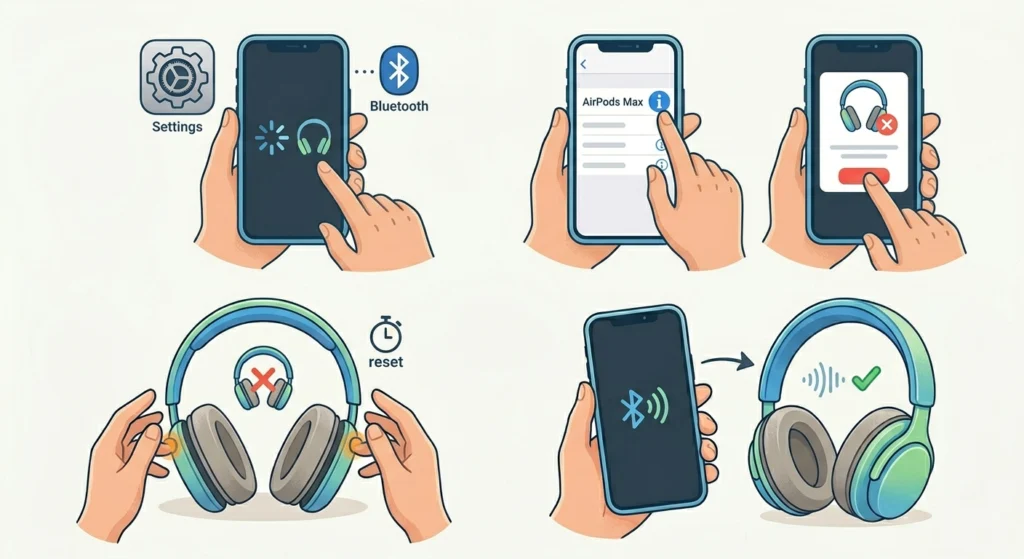
Sometimes the Bluetooth connection between the AirPods Max and a device becomes unstable or corrupted over time. Re-pairing forces a clean connection and can eliminate crackling caused by a bad link. This process is similar to re-pairing Bluetooth earbuds for stereo sound on other platforms – the core principle is the same.
- Step 1: On the paired iPhone or iPad, go to Settings, then Bluetooth.
- Step 2: Find ‘AirPods Max’ in the device list and tap the info icon next to it.
- Step 3: Select ‘Forget This Device’ and confirm.
- Step 4: Reset the AirPods Max using the method in Fix 2 above.
- Step 5: Hold the AirPods Max close to the device and re-pair from scratch via the on-screen prompt.
Fix 4: Update AirPods Max Firmware and iOS
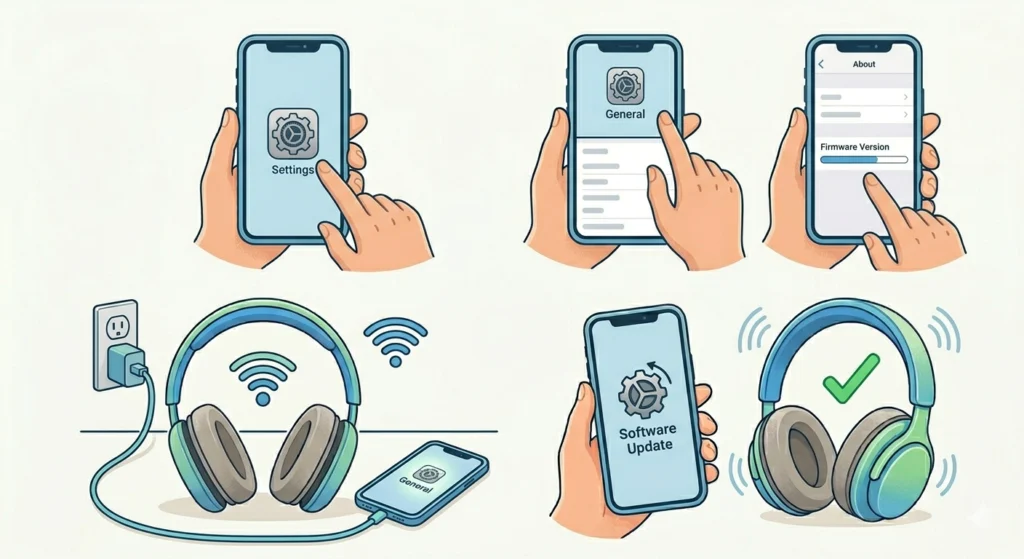
Apple regularly pushes firmware updates to fix known audio bugs including crackling and distortion. Running outdated firmware is a common but overlooked cause of persistent sound issues.
- Step 1: Go to Settings on the paired iPhone and tap General, then About.
- Step 2: Scroll down and tap on ‘AirPods Max’ to see the current firmware version.
- Step 3: To trigger a firmware update, connect the AirPods Max to power, place them near the paired iPhone, and leave them for 30 minutes while the iPhone is connected to Wi-Fi.
- Step 4: Also update iOS by going to Settings, General, then Software Update.
- Step 5: After updates complete, test audio on the AirPods Max.
The key is to keep both devices updated simultaneously. An updated iPhone paired with outdated AirPods Max firmware can still produce compatibility-related crackling.
Fix 5: Disable Automatic Ear Detection
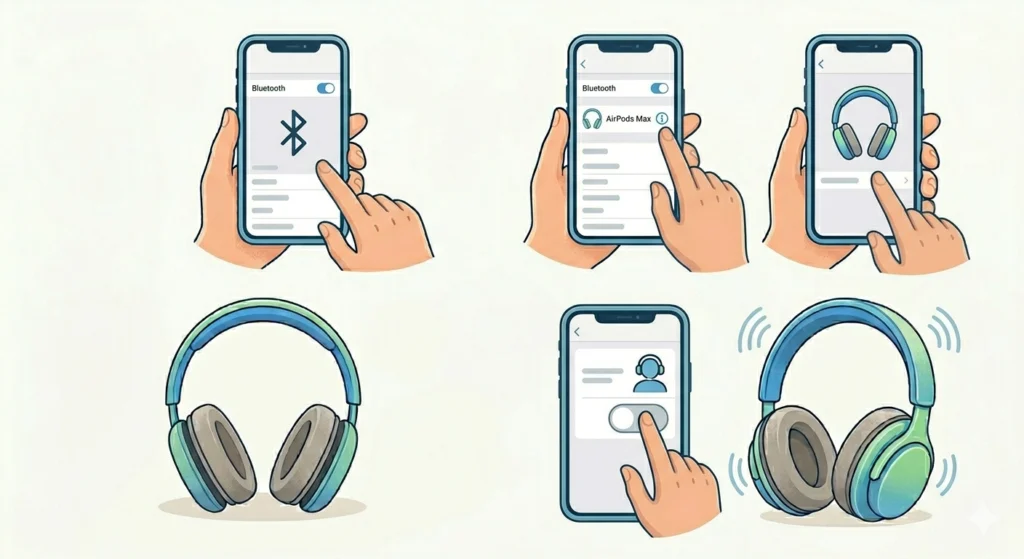
Automatic Ear Detection is a useful feature, but in some cases it can interfere with audio processing and contribute to intermittent crackling sounds – especially during pauses in playback.
- Step 1: Open Settings on the paired iPhone and go to Bluetooth.
- Step 2: Tap the info icon next to the AirPods Max.
- Step 3: Toggle off ‘Automatic Ear Detection’.
- Step 4: Play audio through the AirPods Max and monitor if the crackling is reduced or gone.
Fix 6: Reduce Bluetooth Interference
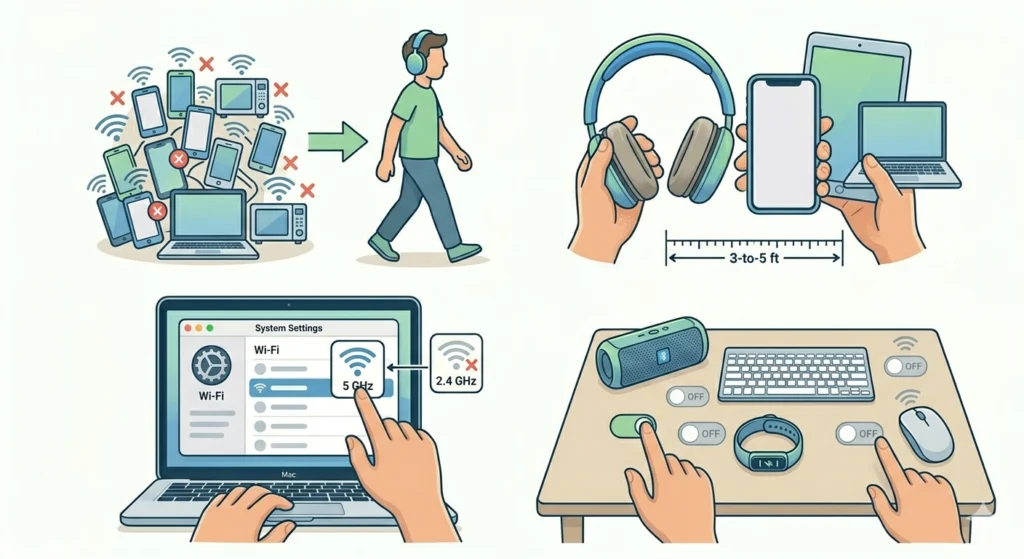
Bluetooth operates on the 2.4 GHz frequency band, which is also used by Wi-Fi routers, microwaves, and other wireless devices. High signal congestion in this band can cause choppy, crackly audio on AirPods Max.
- Step 1: Move away from areas with many wireless devices – particularly crowded offices or kitchens with active appliances.
- Step 2: Keep the source device (iPhone, Mac, iPad) close to the AirPods Max – ideally within 3 to 5 feet.
- Step 3: On Mac, go to System Settings, then Wi-Fi, and switch the router to a 5 GHz band if available. This frees up the 2.4 GHz band for Bluetooth.
- Step 4: Turn off other Bluetooth devices in the area that are not in use to reduce signal competition.
Pro-Tip: On Mac, hold the Option key and click the Wi-Fi icon in the menu bar to see the Wi-Fi channel. If the router is on channel 1, 6, or 11 and the AirPods Max are crackling only on Mac, switching to a less congested channel from the router settings can make a significant difference.
Fix 7: Check and Adjust Audio Source Quality
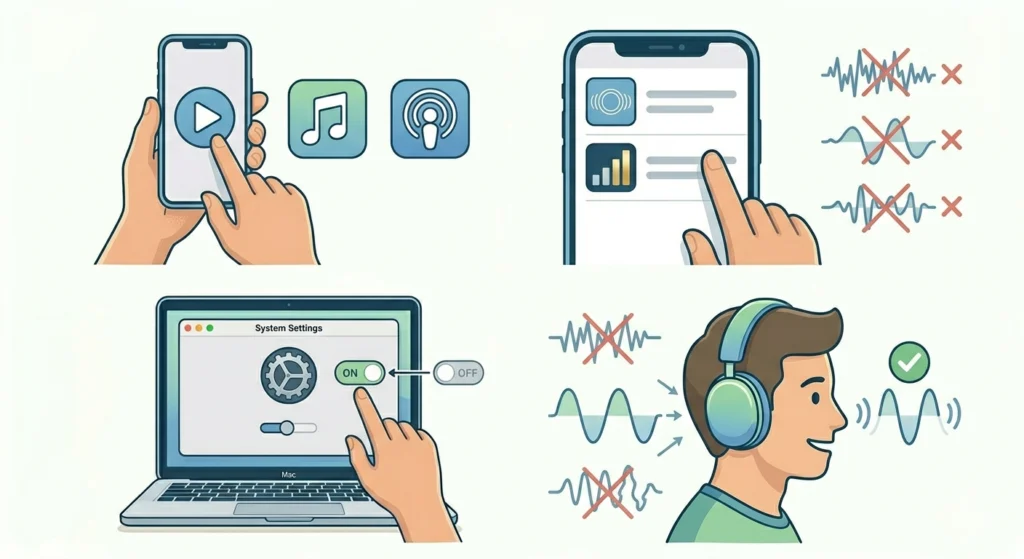
Low-quality or highly compressed audio files can sometimes produce crackling artifacts that sound like a hardware problem. Before assuming something is wrong with the headphones, it is worth checking the source.
- Step 1: Test with a different audio source – try a different streaming app, local audio file, or device entirely.
- Step 2: In Apple Music, go to Settings, Music, then Audio Quality, and set streaming quality to ‘High’ or ‘Lossless’ if on a fast connection.
- Step 3: Disable any audio equalizer settings or third-party audio enhancement apps that might be processing the signal.
- Step 4: If the crackling only appears on one app or source, the issue is likely with that content rather than the AirPods Max.
Tips for Preventing AirPods Max Crackling
- Store the AirPods Max in their Smart Case when not in use to protect the drivers from dust and humidity
- Clean the ear cushions and mesh at least once a month, more often in high-use situations
- Avoid using the headphones in extreme temperatures, as heat and cold can affect the internal components
- Keep iOS and firmware updated consistently – do not ignore software update prompts
- Charge the AirPods Max fully before long listening sessions to prevent power-related audio instability
- Avoid placing the AirPods Max near strong magnets, as these can interfere with the magnetic ear cushion attachment and the internal drivers
Common Problems and Troubleshooting
Crackling only on one side
If the crackling is isolated to the left or right ear cup, check that cushion for physical debris first. If cleaning does not help, reset the AirPods Max. If the issue persists after a reset, it may point to a failing driver in that ear cup and an Apple service appointment would be the next step.
Crackling during calls but not music
This pattern often points to a microphone or call audio processing issue rather than the speakers themselves. Check microphone permissions for the calling app and ensure the AirPods Max firmware is up to date. In some cases, disabling noise cancellation during calls resolves the issue.
Crackling returns after a few days
Recurring crackling after a temporary fix usually means a persistent Bluetooth interference source or an underlying firmware bug. Try switching the source device to a 5 GHz Wi-Fi network and monitor whether the issue recurs. If it does, contact Apple Support to check whether a firmware issue is affecting that specific unit.
Crackling when using Active Noise Cancellation
Some users notice crackling specifically when ANC is active. This can happen in environments with strong low-frequency noise, as ANC processing can occasionally produce artifacts. Try switching to Transparency Mode or turning off ANC entirely to confirm whether it is the source. Apple has addressed this in past firmware updates, so ensuring the latest version is installed is essential.
Frequently Asked Questions
Why do AirPods Max make a crackling sound?
AirPods Max crackling is most commonly caused by Bluetooth interference, software or firmware glitches, dirty speaker mesh, or a corrupted pairing state. Less often, it can result from a damaged audio driver or low battery power affecting signal processing.
Does resetting AirPods Max fix crackling?
Yes, a reset fixes crackling in many cases – particularly when the cause is a firmware glitch or unstable Bluetooth pairing. It is one of the fastest and most reliable first steps to take before exploring more complex solutions.
How do you reset AirPods Max?
Hold the Digital Crown and Noise Control button simultaneously for 15 seconds until the LED flashes amber and then white. The AirPods Max will then need to be paired again with the source device.
Can a dirty mesh cause AirPods Max to crackle?
Yes. Debris or earwax caught in the speaker mesh can physically vibrate against the driver during playback, creating a crackling or buzzing sound. Cleaning the mesh with a soft dry brush usually resolves this type of issue.
How do you update AirPods Max firmware?
Firmware updates happen automatically when the AirPods Max are connected to power, placed near the paired iPhone, and the iPhone is connected to Wi-Fi. There is no manual trigger button – the update installs in the background. Keeping the iPhone updated to the latest iOS version also encourages firmware pushes.
Does Bluetooth interference cause crackling on AirPods Max?
Absolutely. The 2.4 GHz band used by Bluetooth is also shared with Wi-Fi and many household devices. In congested signal environments, this can cause audio dropouts and crackling. Moving away from interference sources or switching the router to 5 GHz typically helps.
Can Active Noise Cancellation cause crackling?
In some cases, yes. ANC processing can occasionally produce audio artifacts in environments with strong or unusual low-frequency sounds. Switching to Transparency Mode or turning off ANC is a good way to confirm whether it is the source. Updating the firmware usually resolves ANC-related crackling.
What if cleaning and resetting do not stop the crackling?
If none of the software and cleaning fixes resolve the issue, it is possible there is a hardware defect – such as a damaged audio driver. The best next step is to contact Apple Support or visit an Apple Authorized Service Provider for a hardware inspection.
Is AirPods Max crackling covered under warranty?
If the AirPods Max are within the standard one-year limited warranty or covered by AppleCare+, a hardware defect causing crackling should qualify for a repair or replacement. Apple will typically run diagnostics to confirm the issue before proceeding with a service claim.
Can using AirPods Max with a Mac cause crackling?
Yes, some users experience crackling specifically on Mac due to Bluetooth congestion from Wi-Fi or other connected peripherals. Switching the Mac’s Wi-Fi to a 5 GHz band, removing unnecessary Bluetooth devices, and ensuring macOS is updated can all help reduce Mac-specific crackling on AirPods Max.