
AirPods 3 not charging in case is one of the most frustrating issues any AirPods owner can run into – especially when you need them ready to go. The good news is that most charging problems come down to a few common causes that are completely fixable without any special tools or a trip to the Apple Store. This guide walks through every proven fix, step by step, so you can get your AirPods charging again as quickly as possible.
Quick Summary Table
| Fix | Difficulty | Time Needed |
|---|---|---|
| Clean charging contacts | Easy | 2-5 minutes |
| Reseat AirPods in case | Easy | Under 1 minute |
| Check and replace charging cable or adapter | Easy | 1-2 minutes |
| Reset AirPods | Easy | 2-3 minutes |
| Update firmware | Moderate | 15-30 minutes |
| Contact Apple Support | Easy | Varies |
Fix 1: Clean the Charging Contacts
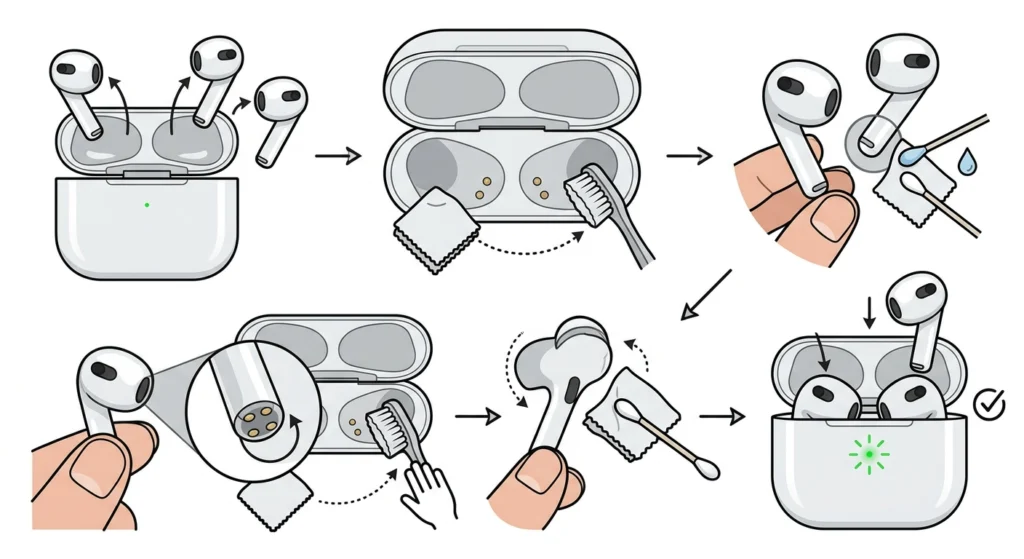
Dirty or corroded charging contacts are the number one reason AirPods 3 stop charging inside the case. Earwax, dust, and skin oils build up on the metal contacts over time, blocking the electrical connection between the AirPods and the case.
- Step 1: Remove both AirPods from the case and set them aside.
- Step 2: Use a dry, lint-free cloth or a soft-bristled toothbrush to gently wipe the metal charging contacts inside the case – the small circular dots at the bottom of each AirPod slot.
- Step 3: Clean the corresponding contacts on the bottom of each AirPod using the same dry cloth. Avoid any liquid cleaners directly on the contacts.
- Step 4: If there is visible buildup, lightly dampen a cotton swab with isopropyl alcohol (70% or higher) and gently clean the contacts. Let them dry fully before placing the AirPods back.
- Step 5: Reseat the AirPods and check if the charging LED turns on.
Pro Tip: Make cleaning the charging contacts a monthly habit. Even a thin invisible film of oil from daily handling is enough to interrupt the charging connection over time. A quick 30-second wipe every few weeks prevents most charging issues before they start.
Fix 2: Properly Reseat the AirPods in the Case
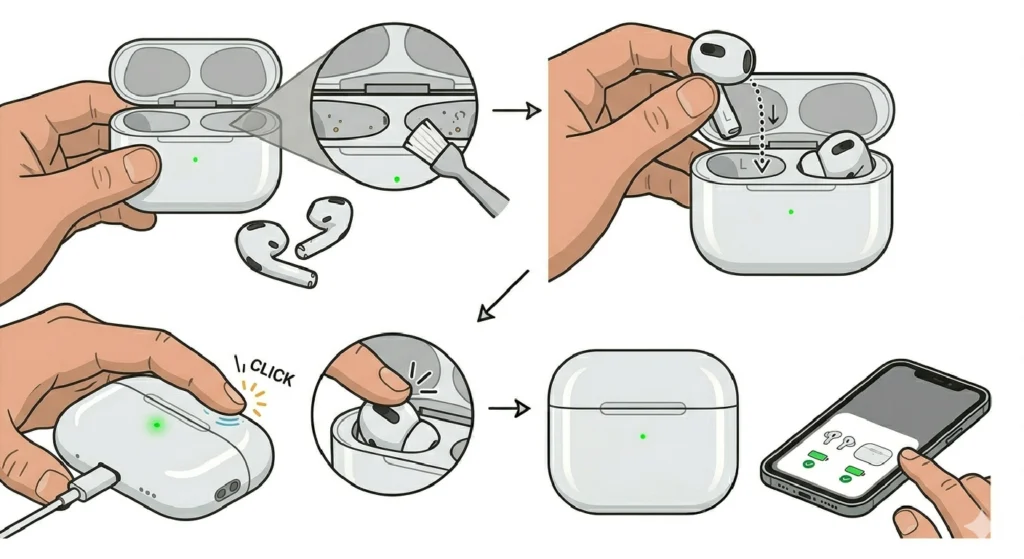
This one sounds too simple, but it works more often than expected. If an AirPod is not sitting perfectly in its slot, the charging contacts do not align correctly and charging fails silently.
- Step 1: Take both AirPods out of the case completely.
- Step 2: Look inside the case slots and make sure there is no debris, lint, or foreign material preventing a proper fit.
- Step 3: Place each AirPod back into its correct slot – left (L) and right (R) are marked inside the case.
- Step 4: Press each AirPod down gently until you feel it click or seat firmly in place.
- Step 5: Close the lid and wait 30 seconds, then open it and check the battery status on a paired iPhone – the charging level should be visible if it is working.
Fix 3: Check the Charging Cable and Power Source
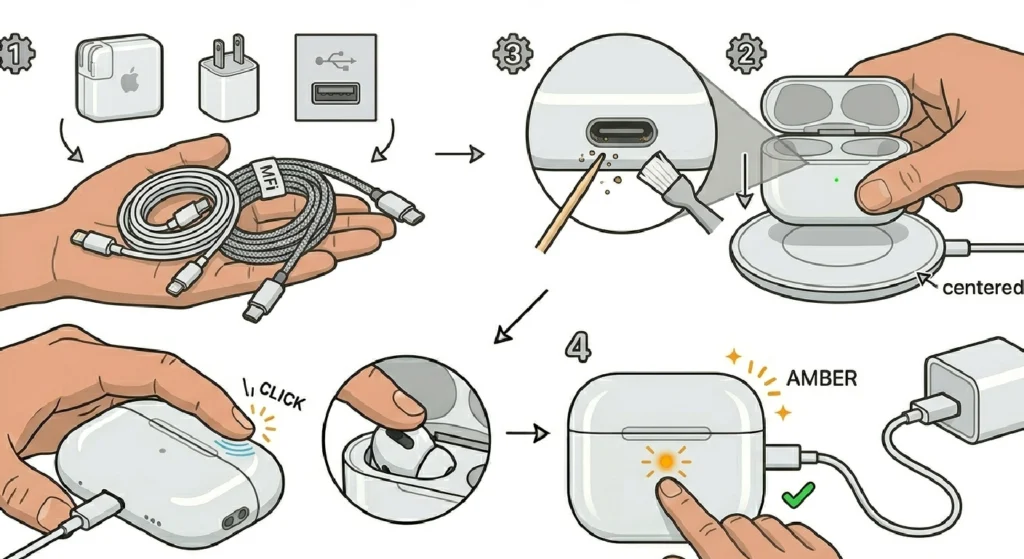
A faulty cable or power adapter is often the culprit when the case itself is not receiving power. The AirPods cannot charge if the case has no power, even if everything else is working perfectly.
- Step 1: Try a different Lightning cable or USB-C cable (depending on your case model). Use an Apple-certified or MFi-certified cable when possible.
- Step 2: Plug the cable into a different USB port or wall adapter to rule out a dead power source.
- Step 3: If using wireless charging, make sure the case is placed correctly centered on the charging pad. The AirPods 3 case supports MagSafe, Qi, and Apple Watch chargers.
- Step 4: Check the Lightning or USB-C port on the case for any lint or debris. Use a toothpick or a soft brush to carefully remove any blockage.
- Step 5: Plug in and watch for the status light on the front of the case – amber means it is charging, green means fully charged. No light means the case is not receiving power.
Fix 4: Reset Your AirPods
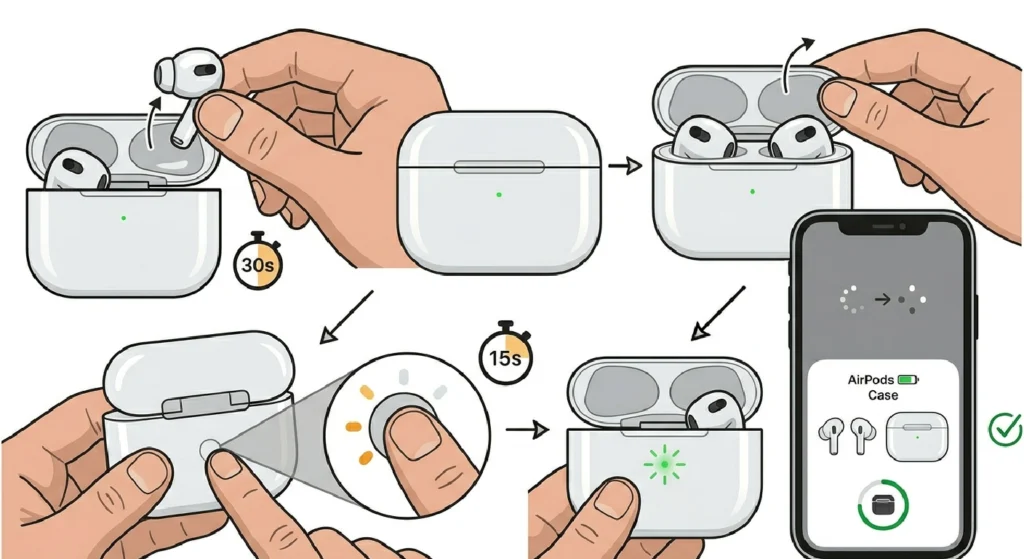
A firmware glitch or a pairing error can sometimes prevent AirPods 3 from communicating correctly with the case, which disrupts charging. Resetting clears these software-level issues and gives everything a fresh start.
- Step 1: Place both AirPods inside the case and close the lid. Wait at least 30 seconds.
- Step 2: Open the lid without removing the AirPods.
- Step 3: On the back of the case, press and hold the setup button for about 15 seconds. The status light will flash amber a few times, then flash white. Release the button when it flashes white.
- Step 4: Reconnect the AirPods to your iPhone by holding the open case near the device and following the on-screen prompt.
- Step 5: Check the battery status to confirm the AirPods are now registering as charging inside the case.
Pro Tip: After resetting, always re-pair the AirPods with the primary device before checking charging. Sometimes the AirPods need a fresh Bluetooth handshake to properly report their charging state. If you have previously had issues with re-pairing Bluetooth earbuds for stereo sound, the same careful reconnection steps apply here.
Fix 5: Update AirPods Firmware
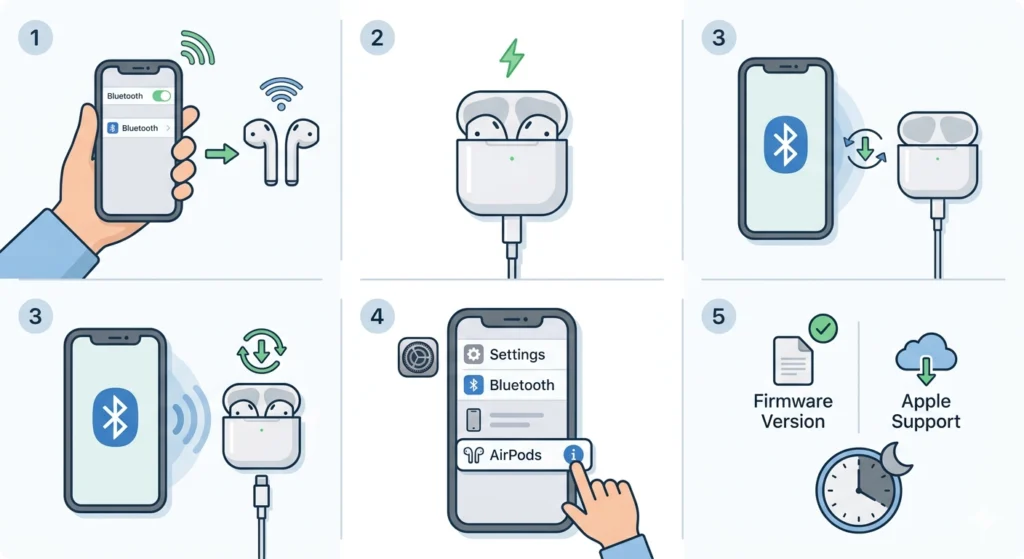
Outdated firmware can cause charging anomalies that are not related to hardware at all. Apple periodically releases firmware updates for AirPods that address battery and charging bugs. The update process is automatic but can be triggered manually.
- Step 1: Make sure the AirPods are connected to an iPhone or iPad that is connected to Wi-Fi.
- Step 2: Place the AirPods inside the case and connect the case to a power source via cable or wireless pad.
- Step 3: Leave the iPhone nearby with Bluetooth enabled. Firmware updates install automatically in the background when this setup is in place.
- Step 4: To check the current firmware version, go to Settings > Bluetooth on your iPhone, tap the ‘i’ icon next to your AirPods, and scroll down to ‘Firmware Version’.
- Step 5: Compare this version to the latest available on Apple’s support page. If it is outdated, leave the AirPods charging overnight – the update will install automatically.
Fix 6: Inspect for Physical Damage
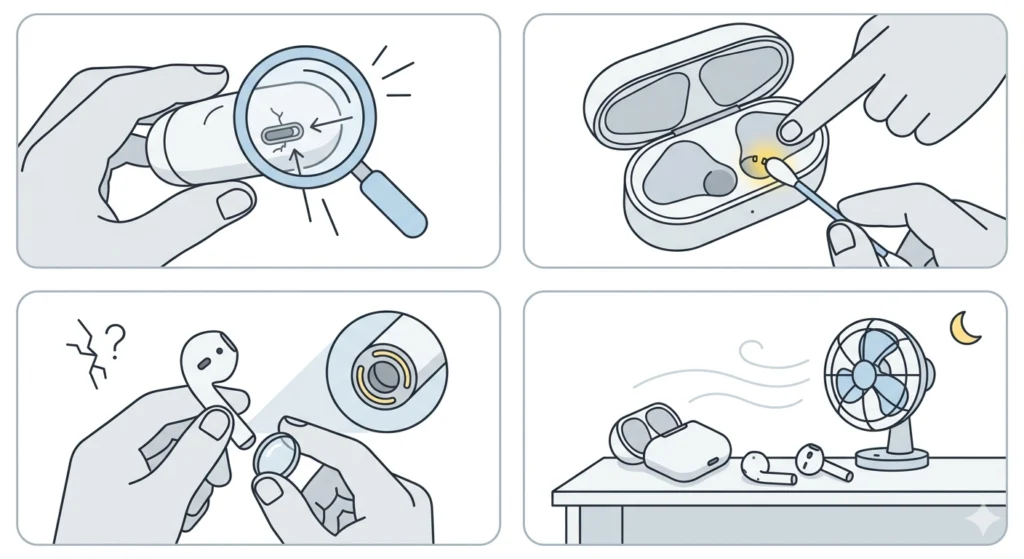
Physical damage to the case or the AirPods themselves can prevent proper charging even when every other fix has been tried. It is worth doing a close visual inspection before assuming a deeper issue.
- Step 1: Inspect the charging port on the case for any visible damage, corrosion, or bent pins.
- Step 2: Check the charging contacts inside the case for any scratches, discoloration, or damage that may have come from drops or moisture.
- Step 3: Look at the AirPods themselves for any cracks or damage near the charging contacts at the base of each earbud.
- Step 4: If moisture exposure is suspected, place the case and AirPods in a dry environment or near a gentle fan for several hours before attempting to charge again.
Fix 7: Contact Apple Support or Visit an Apple Store
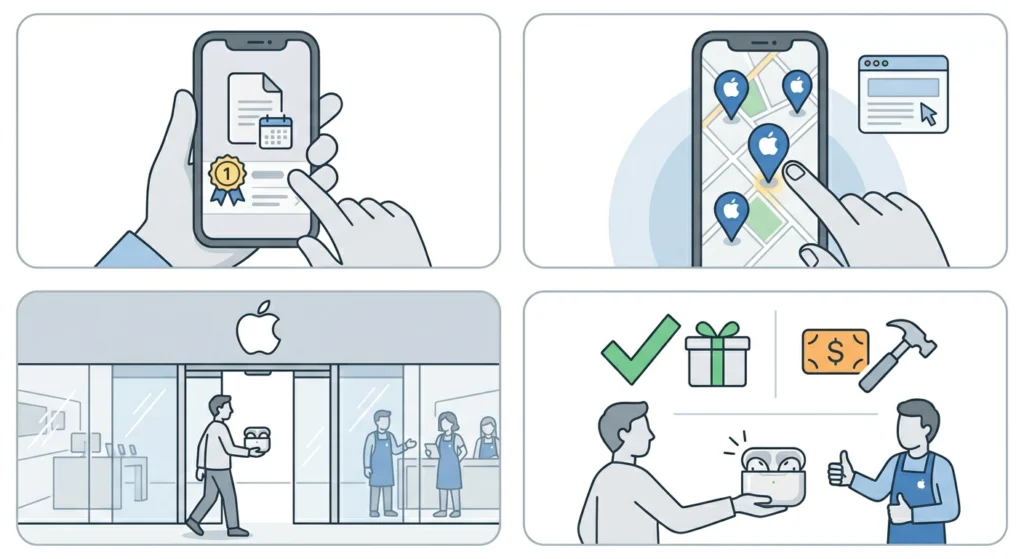
If none of the above fixes resolve the issue, the problem is most likely hardware-related – either a failed battery in the case or a defective charging component. This is where Apple Support becomes the right next step.
- Step 1: Check if the AirPods 3 are still under Apple’s one-year limited warranty or covered by AppleCare+.
- Step 2: Visit Apple’s support website or use the Apple Support app to start a repair or replacement request.
- Step 3: Bring the AirPods and case to an Apple Store or Apple Authorized Service Provider for in-person diagnostics.
- Step 4: If covered, Apple may replace the case or AirPods at no cost. Out-of-warranty replacements are available at a service fee.
Tips to Keep AirPods 3 Charging Properly
- Always store AirPods inside the case when not in use – this maintains the battery health and keeps contacts engaged properly.
- Avoid charging the case in extremely hot or cold environments. Lithium batteries perform best between 16 and 22 degrees Celsius.
- Use only MFi-certified or Apple-original charging cables to avoid power delivery issues that can affect the case battery.
- Clean the case interior with a dry cloth every few weeks to prevent debris buildup on the charging pins.
- Do not leave the case fully discharged for extended periods – this can make it harder for the battery to recover and accept a charge.
- When using wireless charging, make sure the charging mat is rated for at least 5W output to ensure reliable charging for the AirPods case.
Common AirPods 3 Charging Problems and What They Mean
AirPods Show 0% Battery Even After Being in the Case
This usually points to dirty contacts or a misaligned seat. Clean the contacts and reseat the AirPods firmly. If the issue persists, resetting the AirPods often resolves the firmware-level tracking error causing the incorrect reading.
Case Light Does Not Turn On When Plugged In
The case is not receiving power. Try a different cable, a different power brick, and check the charging port for debris. If the light stays off with multiple cables and sources, the case battery may be completely drained or failed.
One AirPod Charges But the Other Does Not
A contact alignment issue on the non-charging AirPod is the most likely cause. Remove both, clean all contacts thoroughly, and reseat them. If one slot inside the case shows physical damage or corrosion, Apple service may be needed.
AirPods Charge Slowly in the Case
Slow charging can indicate a low-output power source, a marginal cable, or the early signs of a degrading case battery. Try a higher-output charger and a new cable. If the case battery is old, capacity naturally decreases over charge cycles.
AirPods Stop Charging Partway Through
Intermittent charging is often a contact or software issue. Clean all contacts, perform a reset, and make sure the firmware is up to date. Placing the case in a cooler environment can also help if heat is interrupting the charge cycle.
Frequently Asked Questions
Why are the AirPods 3 not charging in the case?
The most common reasons include dirty charging contacts, the AirPods not sitting correctly in the case, a faulty cable or power adapter, a software glitch requiring a reset, or physical damage to the case or AirPods. Working through each fix in order resolves the issue in most cases.
How do you know if the AirPods 3 case is charging?
The status light on the front of the case turns amber when it is charging and green when it is fully charged. With the AirPods inside and the lid closed, the light reflects the AirPods’ battery status. With the lid open, it reflects the case’s own battery level.
How do you reset AirPods 3 to fix charging issues?
Place both AirPods in the case, close the lid for 30 seconds, then open it. Press and hold the setup button on the back of the case for about 15 seconds until the status light flashes amber then white. Re-pair the AirPods with your device afterward.
Can a dead case prevent AirPods 3 from charging?
Yes. If the case itself has no battery charge, it cannot charge the AirPods inside. Always charge the case first using a cable or wireless charging pad and confirm the status light turns on before checking whether the AirPods are charging.
Does moisture affect AirPods 3 charging?
Yes. While AirPods 3 have an IPX4 water resistance rating, moisture can still get into the charging contacts and case port, temporarily preventing charging. If moisture is suspected, let everything dry thoroughly in open air before attempting to charge again.
Can a software update fix AirPods 3 charging problems?
In some cases, yes. Apple releases firmware updates for AirPods that address battery management and charging bugs. Connecting the AirPods to a charged iPhone on Wi-Fi while the case is plugged in will prompt an automatic firmware update if one is available.
How long should AirPods 3 take to fully charge in the case?
AirPods 3 take approximately 30 minutes to charge to full inside the case. The case itself takes about an hour to charge fully via a wired connection and slightly longer via wireless charging.
Is it safe to use third-party cables to charge the AirPods 3 case?
It is safest to use Apple-original or MFi-certified cables. Non-certified cables can deliver inconsistent power and may not trigger charging correctly, which can be mistaken for a hardware fault when the cable is actually the problem.
What should you do if only one AirPod is not charging?
Remove both AirPods, clean all charging contacts on the AirPods and inside the case slots, then reseat them firmly. If only one slot seems to have contact issues, check for visible damage or debris inside that specific slot. A reset can also resolve uneven charging behavior.
When should the AirPods 3 be sent to Apple for repair?
If cleaning, resetting, updating firmware, and trying different cables and power sources do not fix the charging problem, the issue is likely hardware-related. At that point, contacting Apple Support or visiting an Apple Store for diagnostics is the right move, especially if the device is still under warranty.