
Adjusting volume for apps on Windows 11 is a built-in feature that lets each app run at its own independent audio level — no third-party tools required. Whether the goal is silencing a noisy browser tab, balancing game audio against voice chat, or routing specific apps to different output devices, Windows 11 handles all of it natively. This guide covers every method for adjusting app volume and configuring per-app audio device settings on Windows 11.
Why Use Individual App Volume Control in Windows 11
- Avoid interruptions – Lower noisy apps like browsers or games without affecting your video call or music
- Balance audio sources – Set each app to its own comfortable level so nothing overpowers another
- Mute without closing – Silence a specific app instantly without hunting for a pause button
- Better meeting prep – Quickly reduce background app audio before a call starts
- Gaming + voice chat – Keep game sounds and communication apps at separate, ideal levels
- Route audio to different devices – Send a movie to your TV while keeping notifications on your headset
- No third-party tools needed – It is all built into Windows 11, free and always available
How to Adjust Volume for Apps on Windows 11
Method 1: Using the Quick Settings Panel
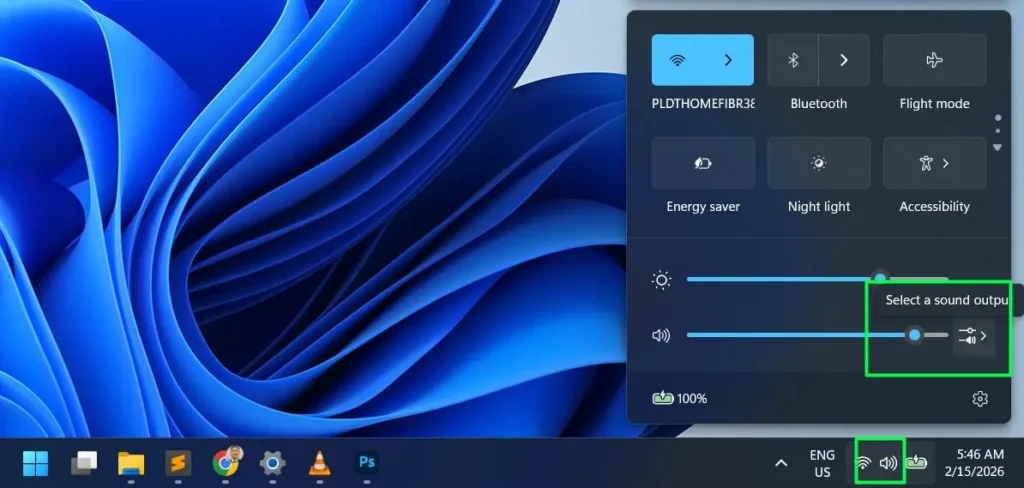
Step 1: Click the speaker icon in the taskbar system tray at the bottom-right corner of the screen. A quick settings panel will appear showing the main volume slider.

Step 2: Click the small arrow icon placed directly in front of the speaker icon on the volume slider row.

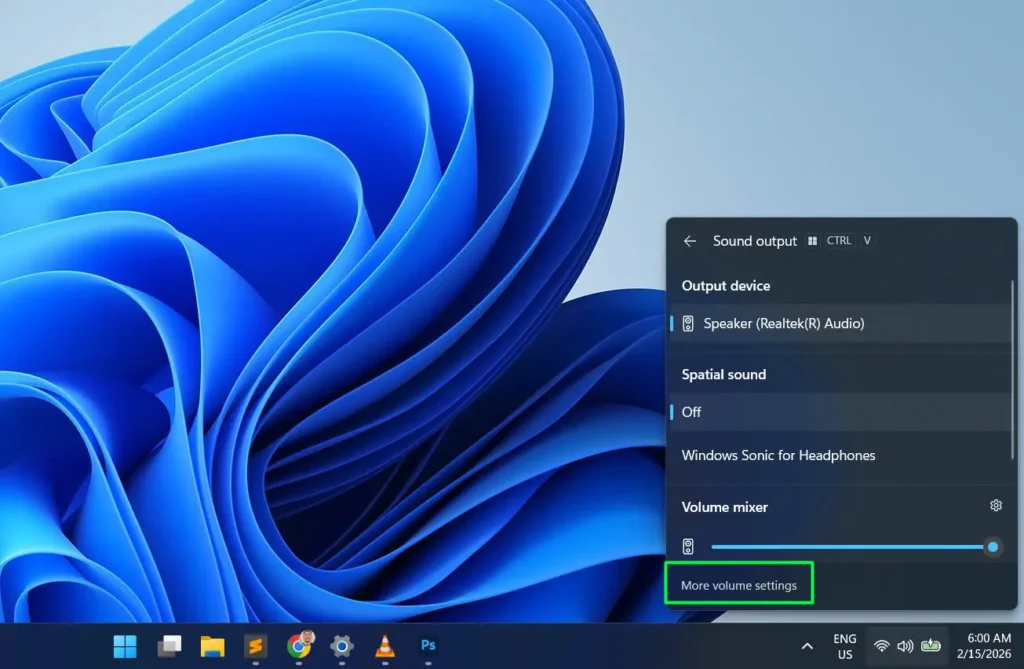
Step 3: A Sound output panel will slide open showing spatial audio options and the Volume Mixer section below.
Step 4: Scroll down to reach the Volume Mixer. Each active app appears here with its own individual volume slider.
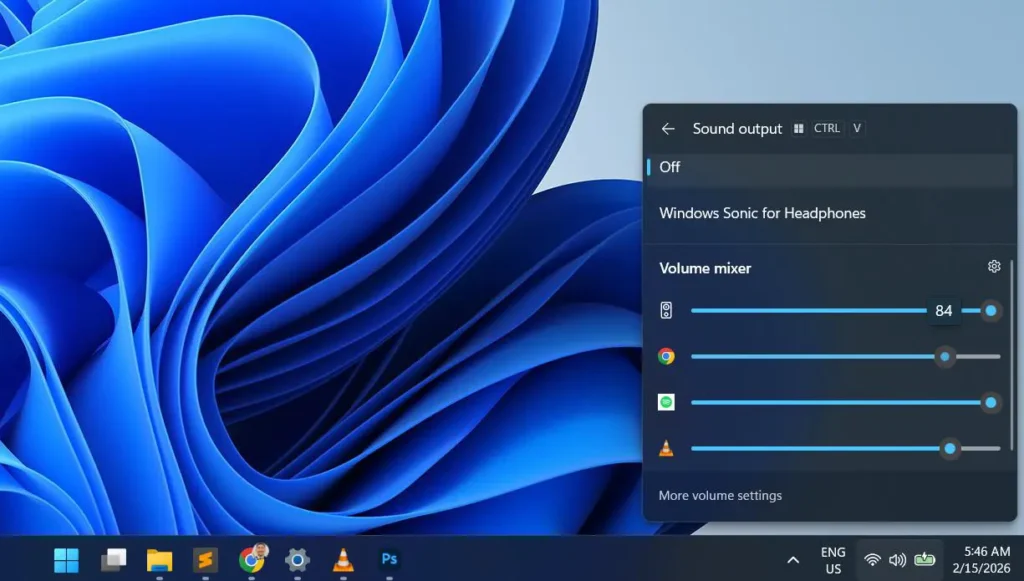
Step 5: Click and drag the slider next to the app to the left to lower the volume or to the right to raise it. Changes take effect instantly.
Method 2: Using the Volume Mixer via Right-Click
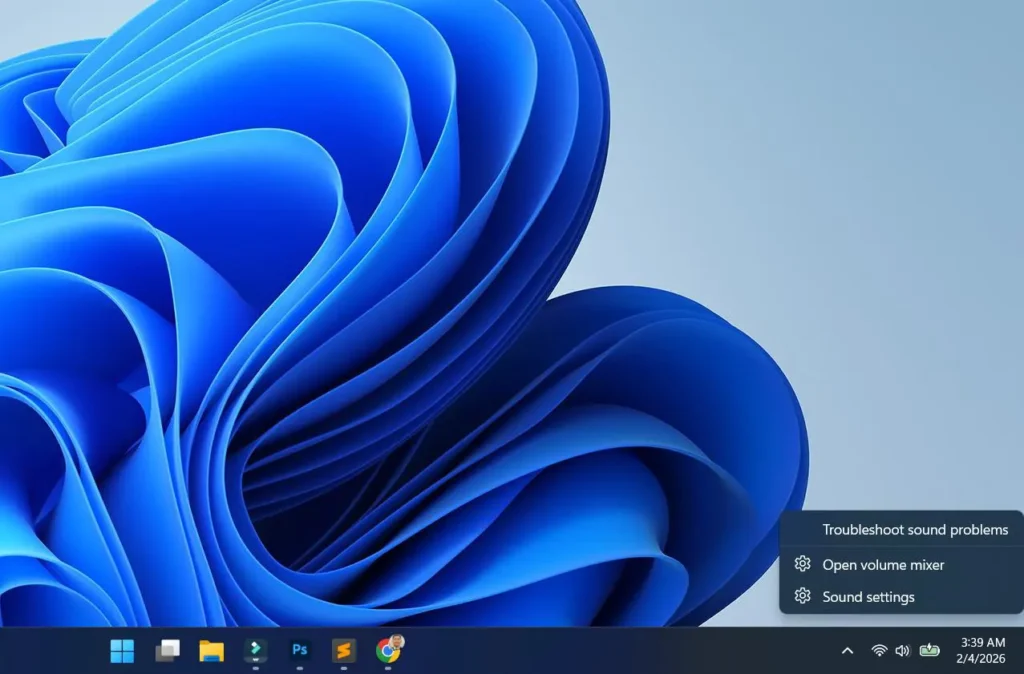
Step 1: Right-click the speaker icon in the taskbar system tray at the bottom-right corner of the screen.
Step 2: Click Open volume mixer from the small menu that appears.
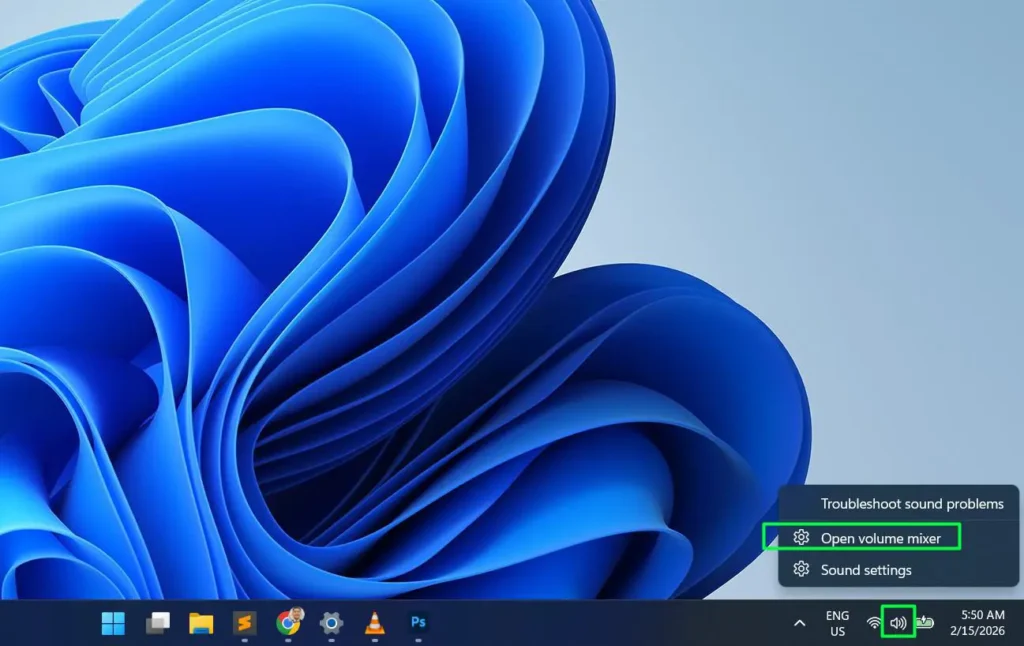
Step 3: The Volume Mixer panel will open, showing all active audio apps with individual volume sliders.
Step 4: Click and drag the slider next to the app to the left to lower the volume or to the right to raise it. Changes take effect instantly.
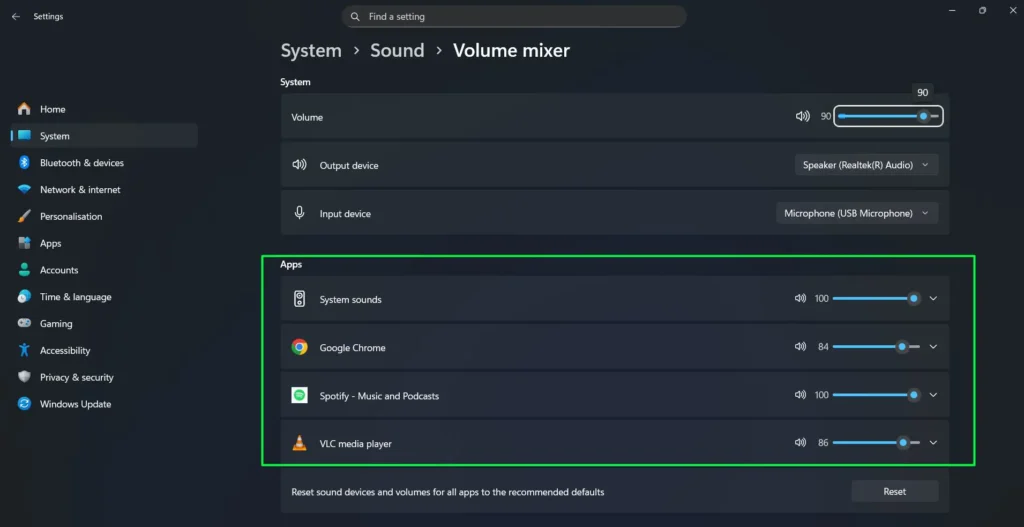
Step 5: Repeat for any other apps that need adjustment.
Pro-Tip: If an app does not appear in the Volume Mixer, it is not currently producing audio. Start playing something in that app first, then reopen the mixer — it will show up right away.
Method 3: Using the Settings App
This method opens a more detailed version of the Volume Mixer directly from Windows Settings — useful for managing both volume levels and output device assignments for each app in one place.
Step 1: Press Windows + I on the keyboard to open the Settings app.
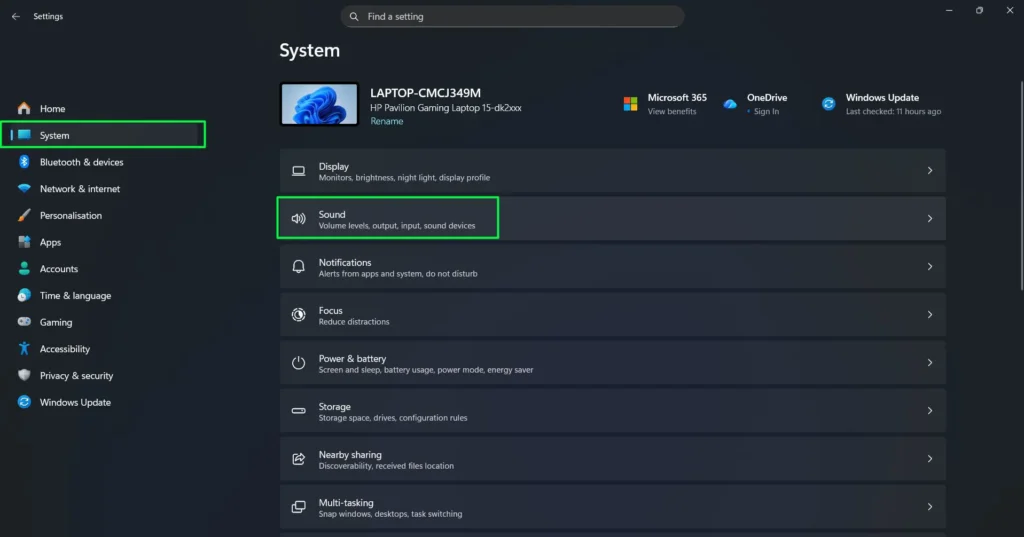
Step 2: Click System in the left sidebar, then select Sound from the options on the right.
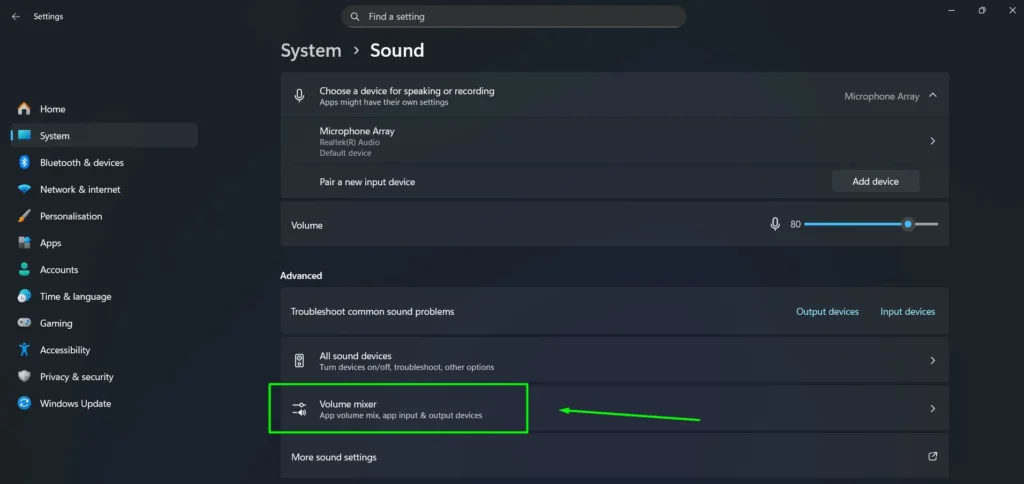
Step 3: Scroll down and click Volume mixer under the Advanced section.
Step 4: All apps currently producing audio appear here with individual volume sliders. Drag any slider to adjust that app’s volume independently.
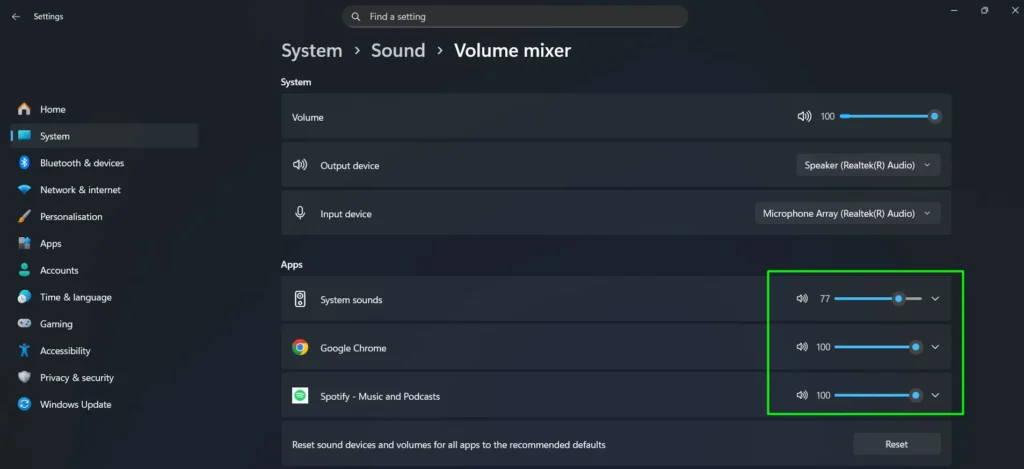
Step 5: Each app also shows an output device dropdown. Use it to route specific apps to different speakers or headsets without changing the system default.
Pro-Tip: This Settings path is the only built-in place where volume control and per-app output device assignment appear together on the same screen. It is the most complete view for managing all app audio in one spot.
Method 4: Using the Classic Volume Mixer (sndvol)
Some users prefer the classic Volume Mixer look from older Windows versions. It is still fully accessible on Windows 11 through a quick shortcut and works well for fast mid-task adjustments.
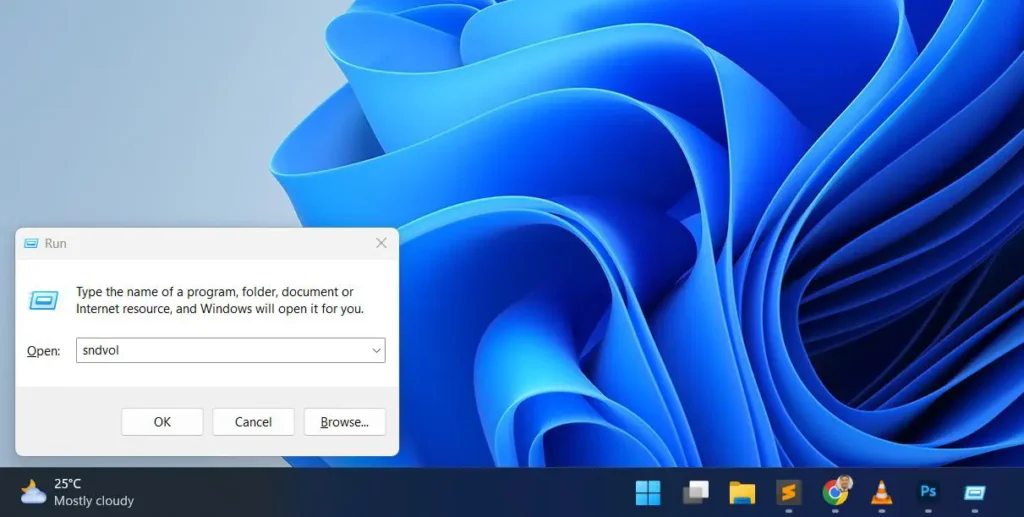
Step 1: Press Windows + R on the keyboard to open the Run dialog.
Step 2: Type sndvol and press Enter.
Step 3: The classic Volume Mixer window will open, showing vertical sliders for each active audio application.
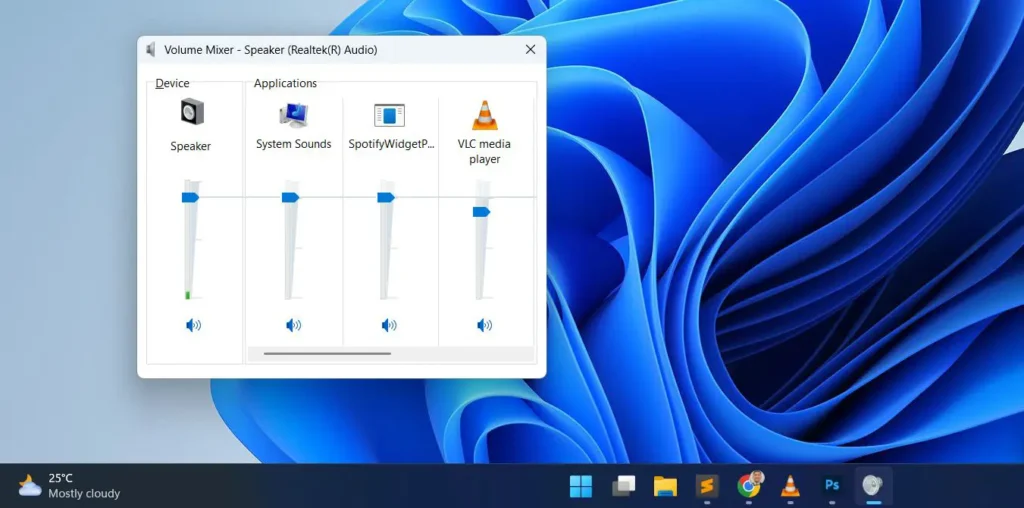
Step 4: Drag the sliders up or down to adjust each app independently.
The classic mixer floats as a small window that can be moved anywhere on screen. It stays visible while switching between apps — making it the most practical option for quick adjustments without reopening any settings panel.
Configuring App Volume and Device Settings in Windows 11
Beyond adjusting volume sliders, Windows 11 also allows configuring the output and input device for each app individually. This means one app can play through a TV soundbar while another routes to headphones — all at the same time. Here is how to set it up.
Step 1: Right-click on the volume icon in the taskbar and select Open volume mixer.
Step 2: Adjust the volume for individual apps by moving the sliders next to each app listed.
Step 3: To access advanced device settings, press the Windows key and open Settings.
Step 4: Navigate to System and select Sound.
Step 5: Click on Volume mixer under the Advanced section.
Step 6: Adjust the Output device or Input device for specific apps by selecting the desired device from the dropdown menus next to each app.
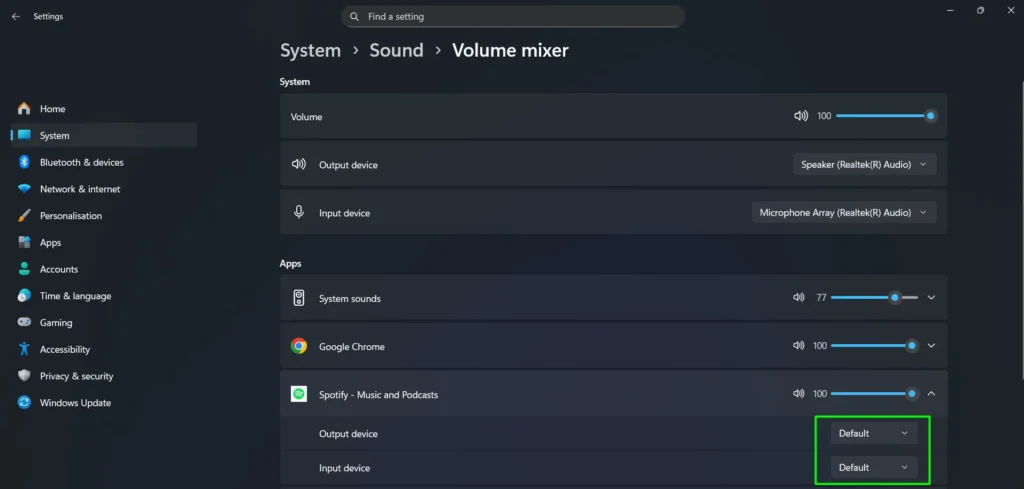
Step 7: Changes apply immediately — no save button is required. Windows 11 applies device and volume settings as soon as they are selected.
Pro-Tip: This is the only built-in screen in Windows 11 where volume levels and per-app device routing appear together. Configure both here instead of switching between menus.
How to Mute a Specific App Without Closing It
Step 1: Open the Volume Mixer using either method above.
Step 2: Find the app to be muted in the list.
Step 3: Click the small speaker icon directly beside the app’s slider.
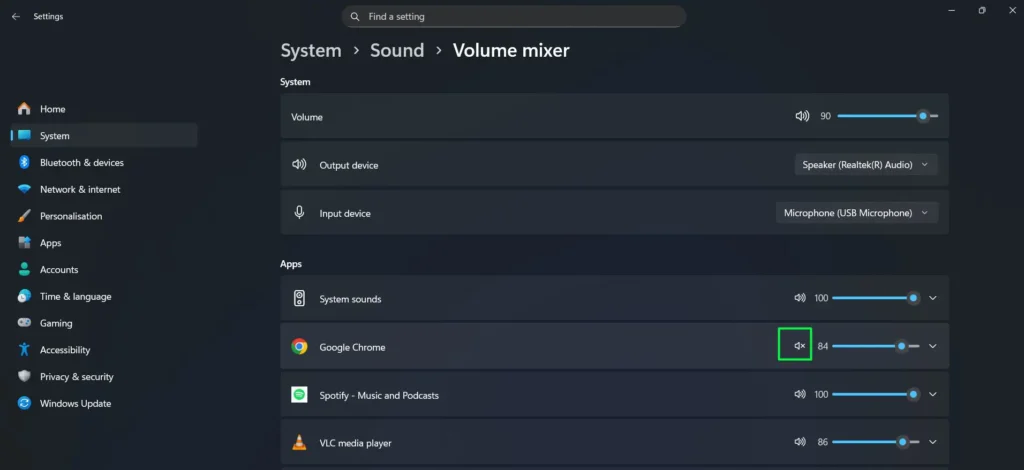
Step 4: The icon will show a muted symbol, and that app’s audio will be completely silenced while everything else continues normally.
Step 5: Click the same speaker icon again to unmute it.
This trick works best when jumping between tasks. Silence a browser tab’s auto-playing video without hunting through tabs for the pause button.
How to Access More Volume Settings From the Quick Settings Panel
Step 1: Open the Volume Mixer by clicking the speaker icon in the taskbar, then clicking the arrow icon next to the volume slider.
Step 2: Click More volume settings at the bottom of the panel.
Step 3: This opens the full Sound settings page where additional controls like spatial audio, mono audio, and per-app output device assignment are available.
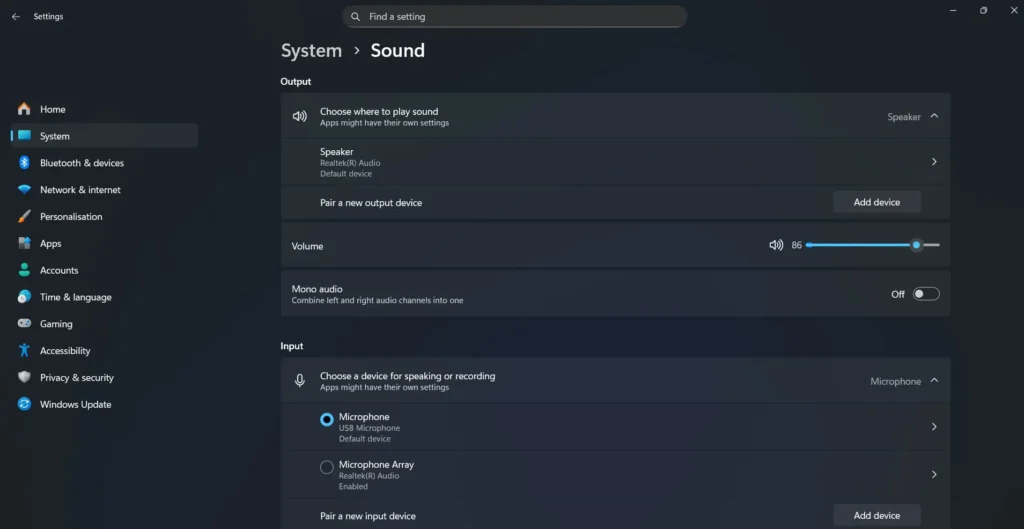
Pro-Tip: The More volume settings link at the bottom of the quick panel is the fastest route to advanced audio controls. No need to dig through multiple settings menus manually.
What Is the Volume Mixer in Windows 11
The Volume Mixer is a built-in Windows 11 feature that displays every app currently producing sound. Each app gets its own dedicated volume slider — completely separate from the system volume. Think of it like a sound mixing board where every channel goes up or down without touching the others.
One important detail: app volume levels in Windows 11 are tied to a specific output device. If the active output switches from speakers to headphones, the mixer may show different levels or appear empty. Always confirm the correct output device is selected before adjusting any app sliders. This avoids the confusion of moving sliders that apply to a device not currently in use.
No administrator rights are required to use the Volume Mixer. Standard user accounts can adjust per-app volume freely. The only exception is managed or corporate systems where group policy may restrict access to audio settings.
Tips and Recommendations for Managing App Audio on Windows 11
Knowing how to open the Volume Mixer is one thing — knowing how to use it efficiently is another. These practical tips help get the most out of Windows 11’s per-app audio controls, whether the setup is a home office, a gaming rig, or just a regular laptop used for streaming and calls.
Set App Volumes Before a Call or Meeting
One of the most common video call frustrations is background noise bleeding in from other apps. A music player, browser tab, or game running in the background can distract everyone on the call. Open the Volume Mixer a minute before any call. Bring down non-essential apps to around 20 to 30 percent — or mute them entirely. With practice, this routine takes less than 30 seconds.
Use Different Output Devices to Create a Better Listening Experience
Many people do not realize Windows 11 supports per-app audio routing. Sending a movie to a TV or soundbar is entirely possible while keeping notifications on a headset at the same time. Accessing More volume settings from the quick panel — or opening the Volume Mixer via Settings — leads directly to those per-app output controls. No third-party software needed. Configure it once and manual device switching becomes unnecessary.
Treat the Volume Mixer Like a Routine Check
Audio settings drift over time. Updates can reset preferences, and new apps often default to full volume. A previously muted app might also quietly unmute itself after a restart. Checking the Volume Mixer occasionally — especially after a Windows update — keeps everything in order. The whole check takes just a moment.
Lower Browser Volume for a Cleaner Audio Balance
Browsers rank among the loudest culprits in any audio setup. Auto-playing ads, videos, and notifications can spike without warning. Instead of chasing browser extensions or per-tab controls, set the browser to 60 to 70 percent in the Volume Mixer. That creates a reliable baseline. Bump up the system volume temporarily when a specific video needs more. This approach delivers far more predictable control overall.
Keep Gaming Audio at a Separate Level from Communication Apps
Balancing in-game audio against voice chat is a constant challenge for gamers. Set the game volume to a comfortable level in the Volume Mixer, then fine-tune the communication app separately. Most experienced gamers keep in-game sound between 50 and 70 percent. Voice chat typically stays closer to 80 to 90 percent. That separation lets game audio shine without drowning out the conversation.
Avoid Maxing Out Individual App Volume Sliders
Pushing a single app’s slider to 100 percent while system volume is maxed out can distort audio. Built-in laptop speakers are especially prone to this problem. Keep app-level volume around 80 to 85 percent instead. Then use the master volume to raise overall output when needed. That approach keeps audio clean and eliminates the harsh crackling from overdriven speakers.
Use the Classic Mixer for Quick Multitasking Adjustments
The classic Volume Mixer — opened via the Run dialog — is faster for quick mid-task adjustments than any settings panel. It floats as a small window, movable to any spot on screen. Best use case: watching a movie while switching between a browser or chat app. The mixer stays visible and accessible the whole time.
Pair Volume Settings with Windows Focus Assist
Windows 11 includes a Focus Assist feature that suppresses notifications during work or gaming sessions. Pairing it with custom Volume Mixer settings creates a powerful combination. When Focus Assist activates, Windows already quiets notification sounds. Manually lowering the corresponding apps in the Volume Mixer adds another layer of control. The result is a quieter, distraction-free environment without cutting audio off entirely.
Check Audio Drivers If App Sliders Go Missing
If apps that are clearly playing audio do not appear in the Volume Mixer, a driver issue is often the cause. Windows relies on the audio driver to expose individual application streams correctly. Generic or outdated drivers can prevent sliders from appearing. Check Device Manager to confirm the sound device is listed normally. Manufacturer-provided drivers typically behave more reliably than the generic Windows defaults — especially after a major Windows update.
Remember That Volume Mixer Settings Are Not Always Permanent
Many users discover this the hard way. Per-app settings stick as long as the app runs regularly — but some apps reset audio levels on startup or after updates. Double-check the slider each time an app launches for the first session if a consistent volume balance matters. Media players and communication tools hold their levels reliably. Browsers and games are more likely to shift after updates.
Take Advantage of Windows 11’s Sound Settings for Advanced Control
Beyond the Volume Mixer, the full Sound settings page offers additional controls like spatial audio, mono audio toggle, and per-device volume calibration. These options complement per-app volume controls and deserve exploration for a fully fine-tuned audio setup. Spatial audio in particular transforms how music and games sound through headphones — and it works alongside custom app volume levels without any conflict.
For more helpful guides like this, check out the full collection of step-by-step guides covering audio, software, and system tips.
Frequently Asked Questions
How do I adjust the volume of a specific app on Windows 11?
Open the Volume Mixer by right-clicking the speaker icon in the taskbar and selecting Open volume mixer. A second option: click the speaker icon, then the small arrow icon next to the volume slider, and scroll down to the Volume Mixer. A third option is pressing Windows + I, going to System, then Sound, then Volume mixer. Find the app and drag its slider left to lower or right to raise the volume. Only that app changes — everything else stays the same.
Why is an app not showing up in the Volume Mixer?
An app only appears in the Volume Mixer when it is actively playing audio. Simply having an app open is not enough — start playing sound in that app first, then reopen the mixer and it will show up with its own slider. If the app is producing sound but still does not appear, an outdated or generic audio driver may be preventing Windows from detecting the audio stream. Checking Device Manager and updating the sound driver often resolves this.
Can different apps use different audio output devices on Windows 11?
Yes. Open More volume settings from the quick settings panel, or go to Settings, System, Sound, then Volume mixer. Each listed app has an Output device dropdown for assigning a specific speaker, headset, or audio device individually.
How do I set the input device for a specific app on Windows 11?
Go to Settings, then System, then Sound, then Volume mixer. Each app listed shows both an Output device and an Input device dropdown. Select the preferred microphone or input source from the Input device dropdown next to the specific app. The change applies immediately.
Does changing app volume in the mixer affect the system volume?
No. Adjusting an individual app’s slider in the Volume Mixer only changes that app’s audio level. The master system volume and all other apps remain unaffected.
How do you mute one app without muting everything on Windows 11?
Open the Volume Mixer using either method, find the app to mute, and click the small speaker icon beside its slider. This mutes only that app while leaving all other audio running normally.
Is there a faster way to open the Volume Mixer on Windows 11?
Right-clicking the speaker icon in the taskbar and selecting Open volume mixer is the fastest single-action method. For in-panel access, click the speaker icon, then the arrow icon next to the volume slider. That reaches the Volume Mixer in just two clicks.
Do Volume Mixer settings reset after restarting Windows 11?
Windows 11 generally remembers per-app volume levels between restarts — but not always. Some apps, particularly browsers and games, reset audio levels when they relaunch. After the first restart, check the Volume Mixer to confirm the settings held. Communication apps like Microsoft Teams or Zoom tend to hold their levels more reliably than most other app types.
Can I adjust app volume on Windows 11 using a keyboard shortcut?
No default keyboard shortcut opens the Volume Mixer directly. The fastest keyboard route is pressing Windows + R, typing sndvol, and hitting Enter — that launches the classic Volume Mixer right away. For the modern mixer, the quickest path is clicking the taskbar speaker icon and using the arrow icon. Third-party tools can also add global hotkey support for anyone preferring a keyboard-only workflow.
Why does my app volume keep changing on its own in Windows 11?
Windows’ built-in communication activity setting is usually the culprit. It automatically reduces other app volumes when it detects a voice call. To check it, search Sound in the Start menu and open the Control Panel version. Go to the Communications tab and look at the active setting. Changing it from Reduce the volume of other sounds by 80% to Do nothing stops the automatic adjustments.
Is there a Volume Mixer app for Windows 11 with more features?
Yes. The built-in Volume Mixer handles most needs, but free tools like EarTrumpet go further. EarTrumpet offers a cleaner interface, quick taskbar access, and additional controls the default mixer lacks. Download it from the Microsoft Store — it works as a complete drop-in replacement for users who want more control without paying for software.