
Switching between a laptop and a phone used to mean pausing music, opening Bluetooth settings, and reconnecting every single time. The Sony WH-1000XM4 solves that headache with a built-in multipoint feature that keeps two devices linked at the same time. This guide walks through exactly how to turn it on, pair both devices correctly, and switch audio sources without any of the usual fumbling.
Quick Summary Table
- Feature name: Multipoint connection (Connect to 2 devices simultaneously)
- Where to enable it: Sony | Headphones Connect app settings
- Devices supported: Any two Bluetooth-paired devices, including phone, laptop, or tablet
- Setup time: Around 3-5 minutes
- Works with: Android, iPhone, Windows, and Mac
- Best for: Switching audio between work laptop and phone calls, or tablet and smartphone
Method 1: Turn On Multipoint and Pair Two Devices
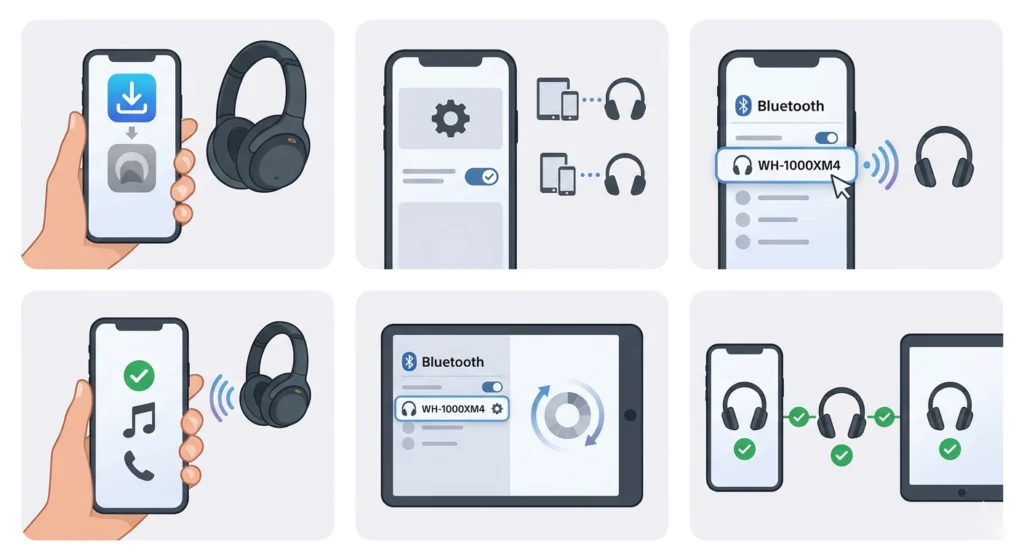
This is the core process, and once it’s done, the headphones remember both devices going forward. The setup only needs to happen once per pair of devices.
- Step 1: Install the Sony | Headphones Connect app on one of the two devices that need to connect. This app is required to switch the multipoint setting on, even though it isn’t needed for daily use afterward.
- Step 2: Open the app, tap Settings, then select General Settings, and turn on ‘Connect to 2 devices simultaneously.’
- Step 3: Pair the headphones with the first device through its Bluetooth settings menu, the same way any Bluetooth headset gets paired.
- Step 4: Play a song or make a call briefly on that first device. This step actually establishes the Bluetooth connection rather than just pairing it, which matters for multipoint to register the device correctly.
- Step 5: On the second device, open its Bluetooth settings and pair the WH-1000XM4 the same way.
- Step 6: Play audio or start a call on the second device to confirm the connection. Both devices should now show as connected in their respective Bluetooth menus.
Once both devices are linked, the headphones sit in standby with both connections active. Switching between a laptop and a phone, or two phones, no longer means re-pairing or digging through settings.
Pro-Tip: Always connect the device with the Sony | Headphones Connect app installed first. Starting with the second device tends to cause connection drops, especially on the first attempt.
Method 2: Use Multipoint Between an Android Phone and an iPhone
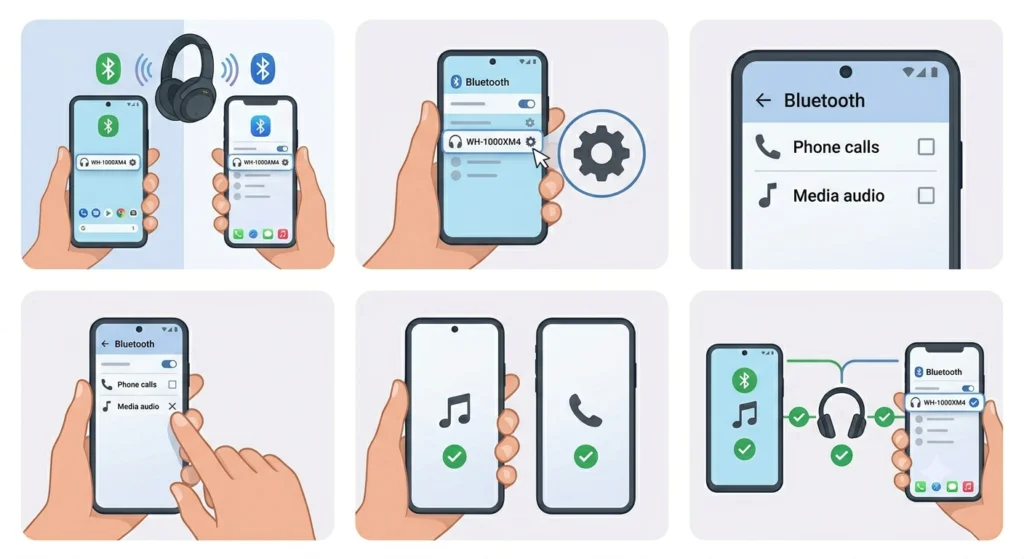
Mixing an Android device with an iPhone is one of the trickier combinations, since iPhones can’t be limited to a single audio function the way Android phones can. A small extra step keeps this combination stable.
- Step 1: Pair the headphones with both the Android phone and the iPhone using their normal Bluetooth pairing screens.
- Step 2: Connect the Android phone first by playing a song or placing a call on it.
- Step 3: Decide whether the Android phone will handle calls or media playback, since it needs to be limited to just one function when pairing with an iPhone.
- Step 4: On the Android phone, open its Bluetooth settings, tap the gear icon next to the WH-1000XM4 entry, and uncheck either ‘Phone calls’ or ‘Media audio’ depending on the role chosen in Step 3.
- Step 5: Connect the iPhone afterward through its Bluetooth settings. The iPhone will automatically take over whichever function the Android phone was unchecked from.
This setup means each phone handles one job. One takes calls, the other plays music, and switching between them happens automatically rather than manually.
Method 3: Switch Audio Between Two Already-Connected Devices
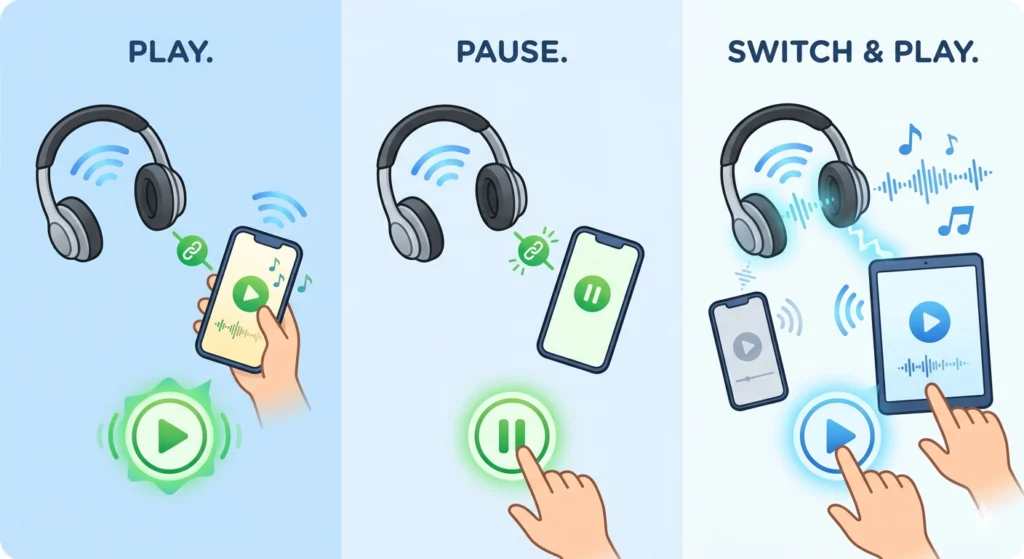
Once multipoint is active, daily use mostly takes care of itself. Still, knowing how the headphones decide which device to play from helps avoid confusion.
- Step 1: Start playback on the device currently providing audio.
- Step 2: Pause or stop playback on that device when switching is needed.
- Step 3: Start playback on the second device. The headphones will automatically shift audio output to it.
The headphones always favor whichever device played audio most recently. This means if music plays from a laptop and a phone call comes in on a connected smartphone, the call will interrupt automatically. Once the call ends, returning to the laptop’s audio usually means tapping play again.
Pro-Tip: A frequent point of confusion happens when a background app keeps streaming silently on the first device. Closing that app fully, not just minimizing it, prevents the second device’s audio from getting blocked.
Tips for a Smoother Multipoint Experience
- Keep the Sony | Headphones Connect app updated, since multipoint stability has improved through several firmware updates over time.
- Label devices clearly in Bluetooth settings if more than two are ever paired with the headphones, since only two can stay active at once.
- For desktop or laptop pairing, checking output settings can help when audio defaults to the wrong playback device after switching; adjusting audio output settings on Windows 11 covers this in more detail.
- Restart the headphones occasionally if switching starts to feel slower than usual, since this clears any lingering connection state without needing a full reset.
Common Problems and How to Fix Them
Fix 1: No Sound from the Second Connected Device
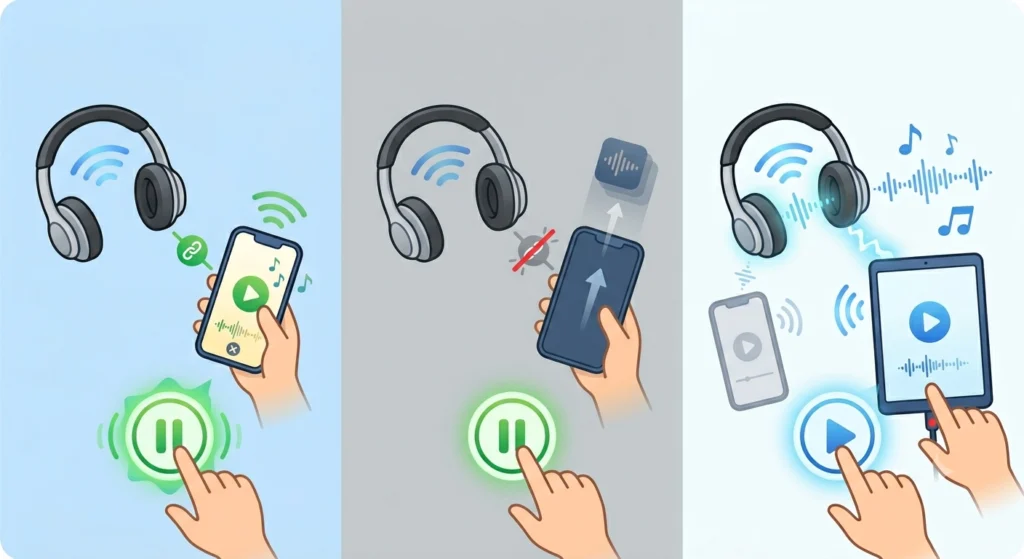
This usually means the first device is still silently streaming in the background. Stop playback and fully close the audio app on the first device, then try playing audio from the second one again.
Fix 2: Headphones Only Connect to One Device
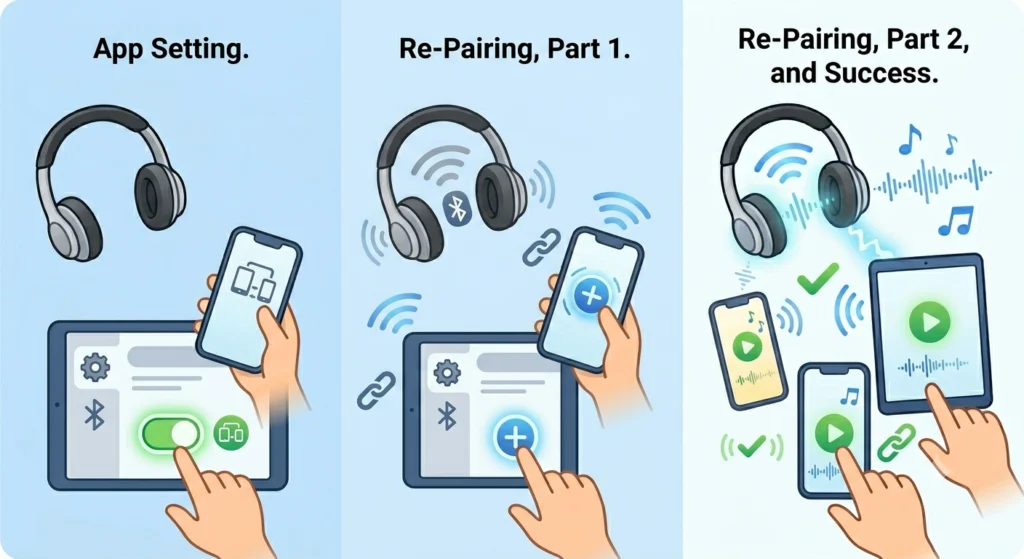
Double check that multipoint is switched on inside the Sony | Headphones Connect app, since this setting can sometimes reset after a firmware update. If the toggle looks correct but connection still fails, removing and re-pairing both devices often resolves it; this guide on re-pairing Bluetooth earbuds for stereo sound on Windows walks through that process clearly.
Fix 3: Microphone Not Working on One Device
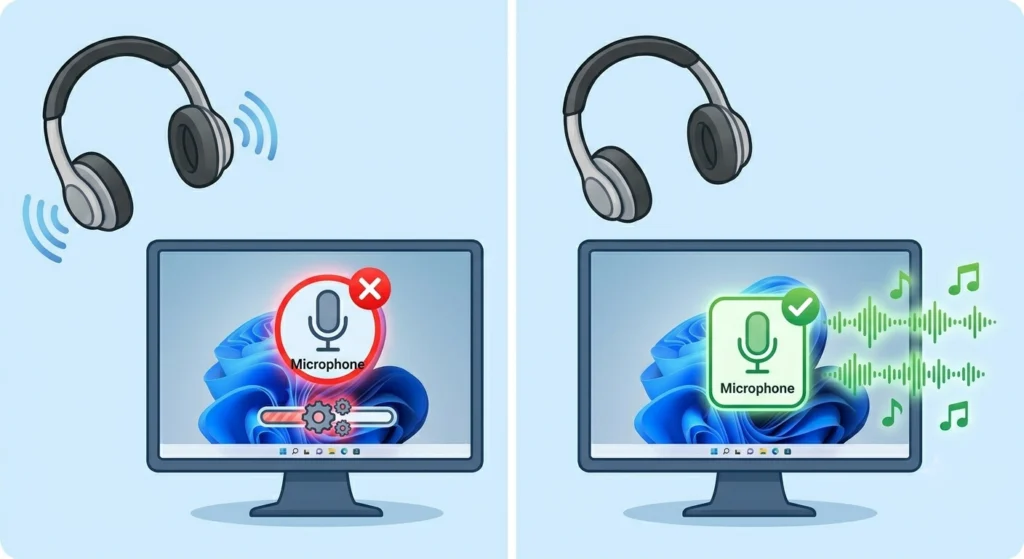
If calls connect but the other person can’t be heard, the connected device’s microphone settings may need adjusting rather than the headphones themselves. On Windows 11, resolving microphone detection problems usually clears this up within a few minutes.
Fix 4: Audio Cuts Out When Switching Devices
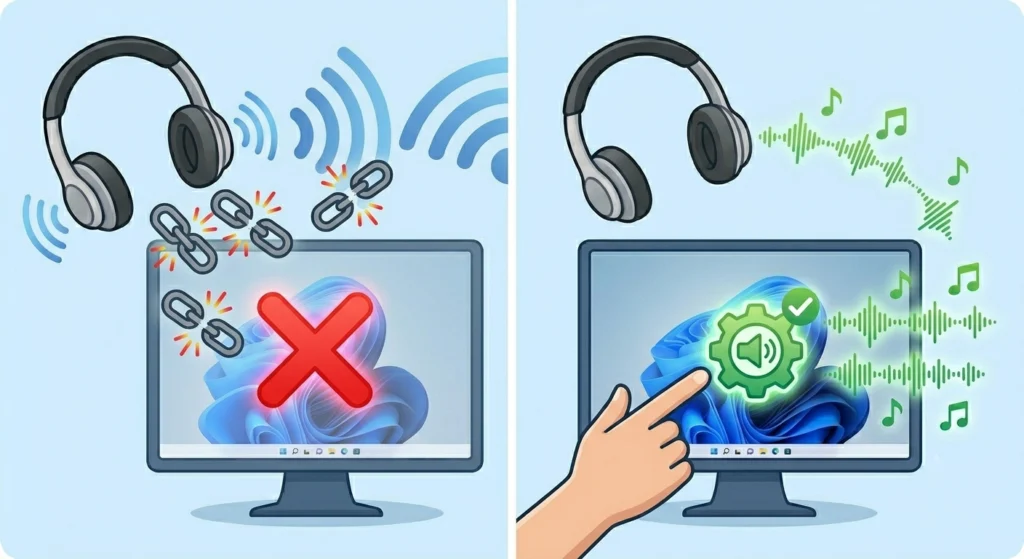
Brief cutouts are normal during the handoff between devices and usually last under a second. If cutting out lasts longer or happens repeatedly, resetting audio settings on Windows 11 often resolves driver-related interruptions.
Fix 5: One Device Disappears After Connecting a Third
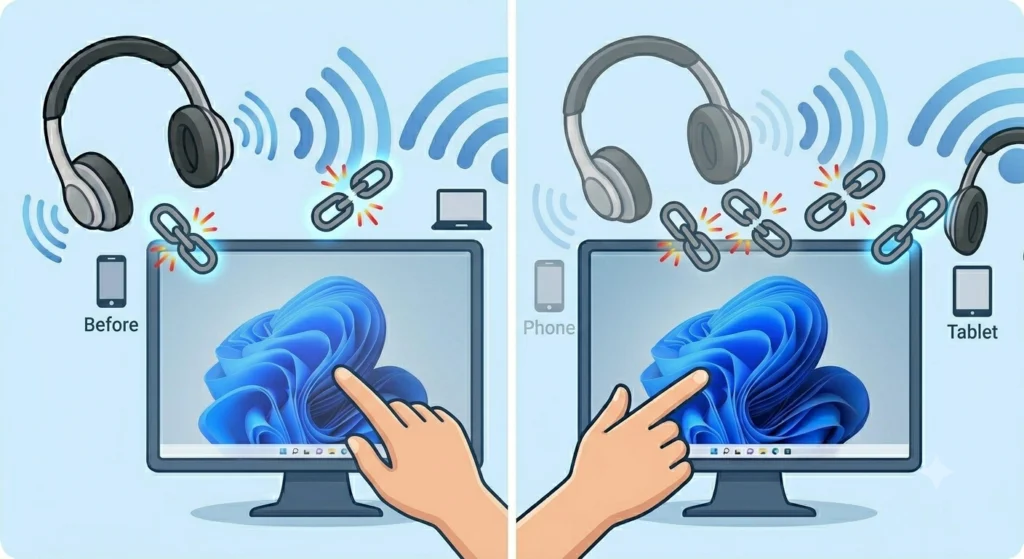
The WH-1000XM4 only keeps two active connections at a time. Connecting a third device will disconnect whichever of the original two wasn’t playing audio most recently. Reconnecting the dropped device brings it back without needing to re-pair.
Frequently Asked Questions
Can the Sony WH-1000XM4 connect to two devices at the same time?
Yes. The WH-1000XM4 supports multipoint connection, allowing two Bluetooth devices to stay linked simultaneously. Audio switches between them automatically based on which device is currently playing sound.
Do both devices need the Sony Headphones Connect app installed?
No. Only one of the two devices needs the app installed to turn multipoint on. After that setting is enabled, the second device can connect through its regular Bluetooth settings without needing the app at all.
Why does audio keep playing from the wrong device?
The headphones default to whichever device played audio most recently. If a background app is still streaming silently on the first device, it can block the second device from taking over playback.
Can an iPhone and an Android phone both connect through multipoint?
Yes, though the Android device needs to be limited to a single function, either calls or media, before connecting the iPhone. This is because iPhones cannot be restricted to one function the way Android phones can.
How many devices can be paired with the WH-1000XM4 in total?
The headphones can store pairing information for multiple devices, but only two can stay actively connected through multipoint at the same time.
Does using multipoint reduce battery life?
Maintaining two active Bluetooth connections does use slightly more power than a single connection, though the difference is generally small during normal daily use.
What happens if a third device tries to connect while two are already active?
The connection that wasn’t playing audio most recently gets disconnected to make room for the third device. The remaining active connection stays untouched.
Is multipoint connection turned on by default?
No, it needs to be enabled manually inside the Sony | Headphones Connect app before pairing the second device.
Can multipoint be used with a laptop and a smartphone together?
Yes, this is one of the most common combinations. Music or calls can stay connected to a laptop while a smartphone remains ready for incoming calls or notifications.
Why did multipoint stop working after a software update?
Firmware updates occasionally reset the multipoint toggle. Checking the setting inside the Sony | Headphones Connect app and re-enabling it usually fixes this without needing to fully re-pair either device.