

If you’ve recently noticed eerie, spooky sounds replacing your usual Discord notifications, you’re experiencing Discord’s Halloween Event Sound Pack. While many users enjoy these festive audio effects, others find them disruptive during gaming sessions, work calls, or regular conversations. This comprehensive guide will show you exactly how to turn off Halloween Discord sounds and restore your preferred notification settings.
Understanding Discord’s Halloween Sound Pack
Discord introduces seasonal sound packs during special events throughout the year, with the Halloween sound pack being one of the most popular—and controversial. The Halloween ringtone is available from October 20, 2025, through November 3, 2025, automatically replacing Discord’s standard notification sounds with spooky alternatives.
These seasonal audio changes include eerie ringtones for incoming calls, haunting notification sounds, and other Halloween-themed audio effects. The Halloween sound pack is available on desktop and browser clients only, as this event is not available for iOS and Android devices.
The automatic activation of these sounds has generated mixed reactions from Discord’s user base. While some appreciate the festive touch, many users prefer consistency in their audio experience, especially during important communications or gaming sessions.
Why Users Want to Disable Halloween Sounds
Several compelling reasons drive users to turn off Discord’s Halloween sound effects:
Professional settings often require maintaining a serious atmosphere during meetings and collaboration sessions. Halloween sound effects can seem inappropriate or unprofessional in business contexts, potentially disrupting important conversations or presentations.
Gaming communities frequently experience disruption when unexpected sound changes interfere with their established communication patterns. Many users have complained about their primary PC unexpectedly starting up a howling ruckus during gaming sessions, drowning out in-game communication with teammates.
Consistency preferences also play a significant role. Users who rely on familiar audio cues for notifications may find sudden changes jarring or confusing. Many users initially blamed Windows, audio drivers, or their sound hardware when hearing unfamiliar sound effects for the first time.
Some users have accessibility concerns or sensitivity to certain audio frequencies that make the Halloween sounds uncomfortable or problematic for regular use.
How to Turn Off Halloween Discord Sounds on Desktop
Disabling Discord’s Halloween sound pack on desktop applications is straightforward. Follow these detailed steps to restore your preferred notification sounds:
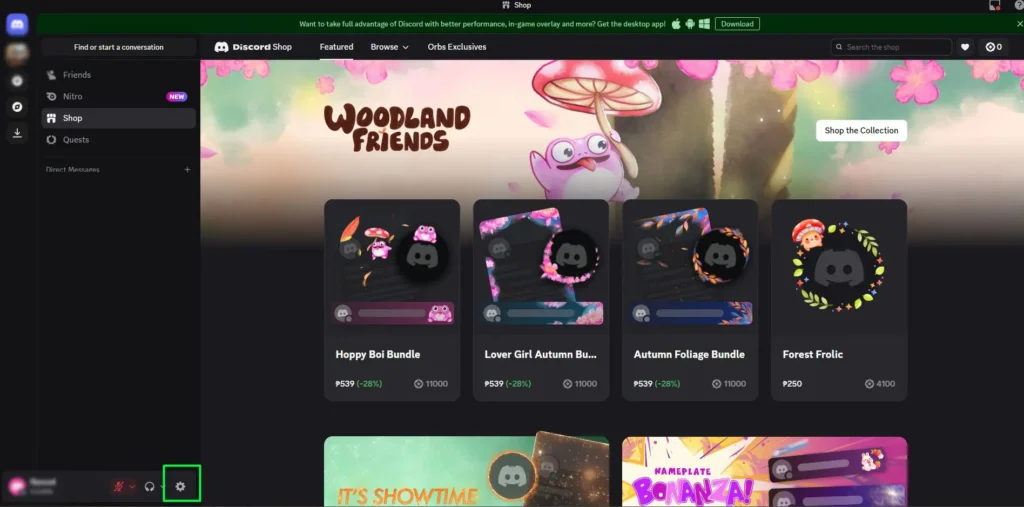
1. Begin by opening your Discord desktop application. Look for the gear icon located in the bottom-left corner of your Discord interface – this represents your User Settings. Click on this gear icon to access the settings menu.
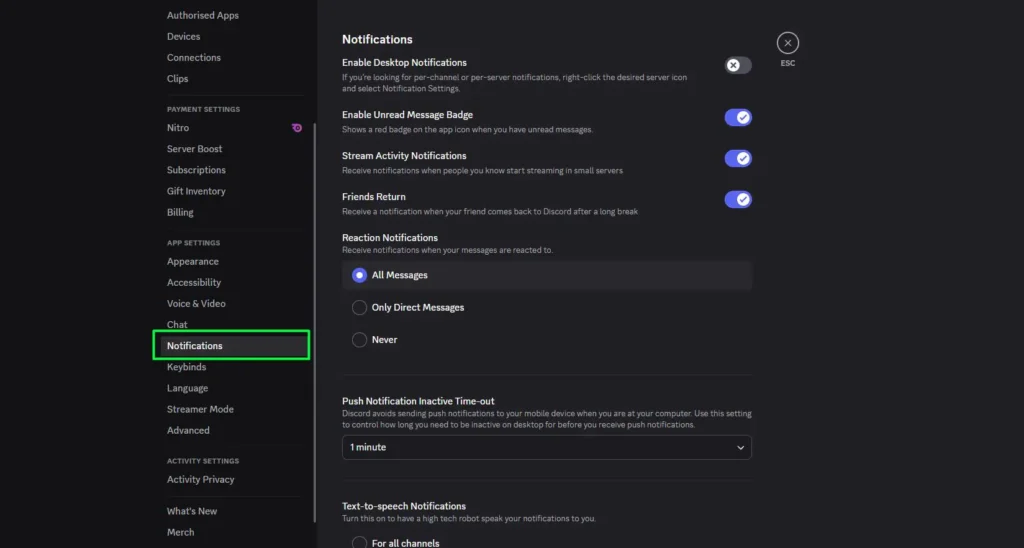
2. Once the settings window opens, navigate to the left sidebar and select “Notifications.” This section contains all audio-related settings for your Discord experience.
3. Scroll down within the Notifications settings until you find the “Event Sound Pack” section. In the Event Sound Pack section, click the dropdown menu and select “Discord Default” to bring back the original ringtone.
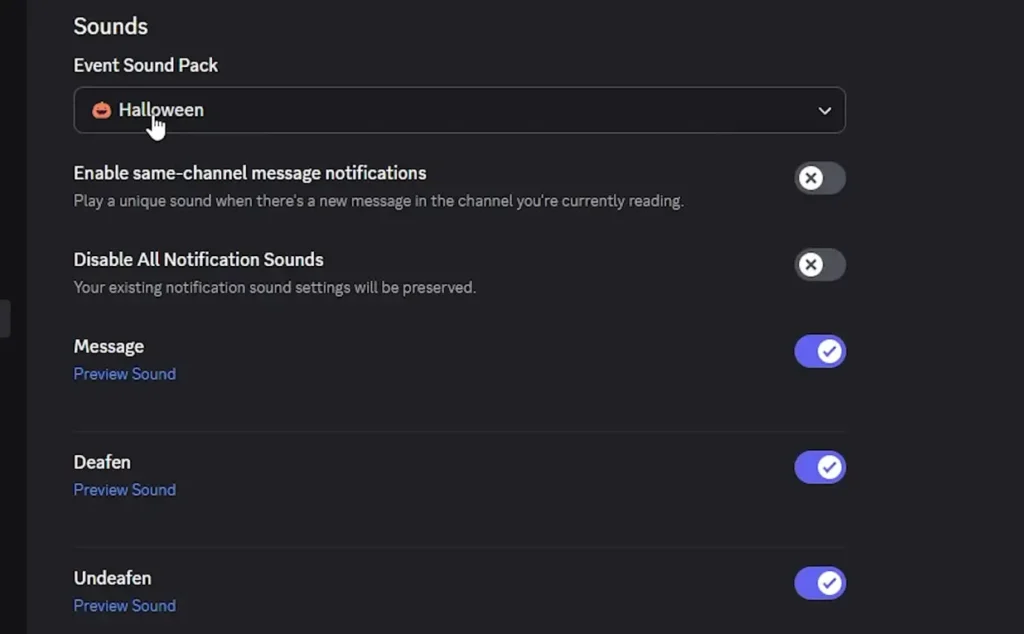
The change takes effect immediately, and you should notice that subsequent notifications use Discord’s standard sound effects instead of the Halloween-themed alternatives.
Alternative Method: Disabling Incoming Ring
If you’ve turned off the “Incoming Ring” setting, the Halloween sound pack will be automatically disabled. This method provides an alternative approach for users who prefer to disable all incoming call sounds entirely.
To use this method, navigate to the same Notifications settings and locate the “Incoming Ring” toggle. Disabling this setting will silence both Halloween sounds and regular Discord ringtones.
Turning Off Halloween Sounds in Discord Browser
Discord’s browser version requires separate configuration from the desktop application. You’ll have to configure this separately for the dedicated Windows app and in your browser if you bounce between the two methods of login.
Access Discord through your preferred web browser and log into your account. The interface appears similar to the desktop version, but settings are managed independently.
Click the gear icon for User Settings, typically located in the same bottom-left position as the desktop version. Navigate to “Notifications” in the left sidebar menu.
Find the “Event Sound Pack” dropdown menu and change the selection from “Halloween” back to “Discord Default.” This change only affects your browser-based Discord sessions and doesn’t sync with your desktop application settings.
Mobile Device Considerations
Mobile Discord users have a simpler experience regarding Halloween sounds. The Halloween sound pack is not available for iOS and Android devices, as notifications run through the operating system rather than Discord’s internal sound system.
This means iPhone and Android users automatically maintain their standard notification sounds without needing to adjust any settings. The Halloween sound pack exclusively affects desktop and browser versions of Discord.
However, if you encounter Halloween-related audio on mobile devices, it likely originates from other apps or system-level changes rather than Discord’s seasonal sound pack.
Troubleshooting Common Issues
Some users experience persistent problems with Halloween sounds even after following the standard disable procedures. Some users report the Halloween pack re-enables itself between sessions or across accounts, which suggests either a sync bug or an issue with user preference storage.
If Halloween sounds continue after changing your settings, try completely restarting your Discord application. Some users have reported success with this simple solution when settings changes don’t immediately take effect.
Clear your browser cache if using Discord in a web browser, as cached settings might override your recent changes. Log out completely and log back into your Discord account to ensure settings synchronize properly across your devices.
Check your operating system’s audio settings to ensure no Halloween-themed sounds are configured at the system level, which could affect Discord’s audio output.
Account Synchronization Issues
Discord manages desktop and browser settings independently, which can create confusion when sounds persist on one platform but not another. Always verify your settings on each platform you use Discord regularly.
Some users report that changing settings on one device doesn’t immediately reflect on other devices, requiring manual configuration for each Discord client you use.
Optimizing Your Discord Audio Experience
Beyond disabling Halloween sounds, consider customizing other notification settings to enhance your Discord experience. Individual server settings allow you to customize notification preferences for specific communities you’ve joined.
Review your notification volume levels to ensure they’re appropriate for your environment. Discord offers granular control over different types of notifications, from direct messages to server-wide announcements.
Consider creating different notification profiles for various activities, such as gaming sessions versus professional meetings. This approach helps maintain appropriate audio levels for different contexts.
For users who frequently switch between different headphones or audio devices, test your notification settings across different output devices to ensure consistency.
Future Discord Events and Sound Packs
Discord regularly introduces seasonal sound packs throughout the year. Understanding how to manage these events helps you maintain control over your audio experience during future celebrations.
Winter holidays, summer events, and other special occasions often trigger similar sound pack activations. Discord’s Winter sound pack, for example, typically runs from mid-December through early January and is also available only on desktop and browser clients.
Bookmark the location of your Event Sound Pack settings to quickly disable future seasonal sounds when they activate. Discord typically provides advance notice through their official support documentation when new sound packs become available.
Consider following Discord’s official announcements or support channels to stay informed about upcoming events that might affect your audio experience.
Professional Discord Usage Tips
Business and professional Discord users should establish consistent audio policies to maintain appropriate communication standards. Create standardized settings configurations for team members to ensure uniform notification behavior during meetings.
Document your preferred Discord settings for quick reference when seasonal events activate. This preparation helps maintain professional audio standards without scrambling to adjust settings during important communications.
Consider creating separate Discord accounts for personal and professional use if you want different notification preferences for different contexts.
Impact on Gaming Communities
Gaming communities often rely on consistent audio cues for effective communication during competitive play. Halloween sound effects can disrupt established communication patterns and potentially interfere with game audio.
Team leaders should consider establishing server-wide policies regarding seasonal sound settings to maintain consistency across team members. Some gaming organizations proactively communicate about seasonal changes to help members adjust their settings appropriately.
Streaming content creators need to be particularly aware of Halloween sounds, as unexpected audio changes can affect their broadcast quality and viewer experience.
Alternative Solutions and Workarounds
Beyond the standard settings adjustments, several alternative approaches can help manage Halloween sounds:
Some users prefer to completely disable Discord notifications during gaming sessions, relying instead on visual indicators or teammate communication for important alerts.
Advanced users can explore third-party Discord clients or modifications that offer enhanced control over notification sounds, though these options should be used carefully to avoid violating Discord’s terms of service.
Creating custom notification schedules can help automatically manage sound settings based on your daily activities, ensuring appropriate audio behavior without manual intervention.
Community Response and Feedback
Discord’s Halloween sound pack generates significant community discussion each year. User feedback has led to improvements in how Discord implements seasonal changes, including better notifications about upcoming sound pack activations.
The introduction of popup notifications in recent years represents Discord’s response to user confusion about sudden audio changes. These improvements help users understand when seasonal events are active and how to adjust their preferences.
Community forums and Discord servers often share tips and tricks for managing seasonal sounds, creating valuable resources for users who prefer customized audio experiences.
Frequently Asked Questions
How long do Discord Halloween sounds last?
Discord’s Halloween sound pack typically runs from October 20 through November 3 each year. The exact dates may vary slightly, but the event generally lasts about two weeks around the Halloween holiday.
Will Halloween sounds affect my mobile Discord app?
No, Halloween sounds only affect desktop and browser versions of Discord. Mobile apps on iOS and Android use system-level notifications and are not affected by Discord’s seasonal sound packs.
Do I need to disable Halloween sounds separately on desktop and browser?
Yes, Discord treats desktop and browser clients as separate platforms. You’ll need to adjust the Event Sound Pack settings individually for each platform you use.
Can I download Discord’s Halloween sounds for personal use?
No, Discord does not provide downloadable files for seasonal sound packs. These sounds are only available within the Discord client during the active event period.
Why do Halloween sounds sometimes re-enable themselves?
This appears to be related to synchronization issues between Discord sessions or updates to the Discord client. Always verify your settings after updating Discord or logging in from new devices.
Is there a way to permanently opt out of all seasonal sound packs?
Currently, Discord doesn’t offer a permanent opt-out option for all seasonal events. You’ll need to manually disable each seasonal sound pack as it becomes active throughout the year.
Do Halloween sounds affect voice chat quality?
Halloween sounds only replace notification and ringtone audio. They don’t affect voice chat quality, microphone input, or other communication audio during conversations.
Can Discord server administrators control Halloween sounds for their members?
No, Halloween sound settings are controlled individually by each user through their personal notification preferences. Server administrators cannot override these settings for their members.