
Get visual alerts instead of sounds in Windows 11 to enhance accessibility and improve your computing experience. Whether you’re in a noise-sensitive environment, have hearing difficulties, or simply prefer visual notifications, Windows 11 offers built-in features that flash your screen when system sounds would normally play. This comprehensive guide will walk you through the exact steps to enable visual alerts on your Windows 11 PC.
Why Use Visual Alerts in Windows 11
Visual alerts provide an excellent alternative to audio notifications for various scenarios. They help users who are deaf or hard of hearing stay informed about system events. Additionally, visual notifications are ideal when working in quiet environments like libraries or offices where sound would be disruptive. Many users also find visual cues less jarring than sudden audio alerts, making for a more comfortable computing experience.
How to Enable Visual Alerts in Windows 11
Windows 11 includes accessibility features that allow you to replace system sounds with visual notifications. Follow these straightforward steps to set up visual alerts on your computer.
Using Windows Settings
Step 1: Open the Settings app by pressing Windows key + I on your keyboard, or click the Start button and select Settings from the menu.
Step 2: Click on “Accessibility” in the left sidebar of the Settings window.
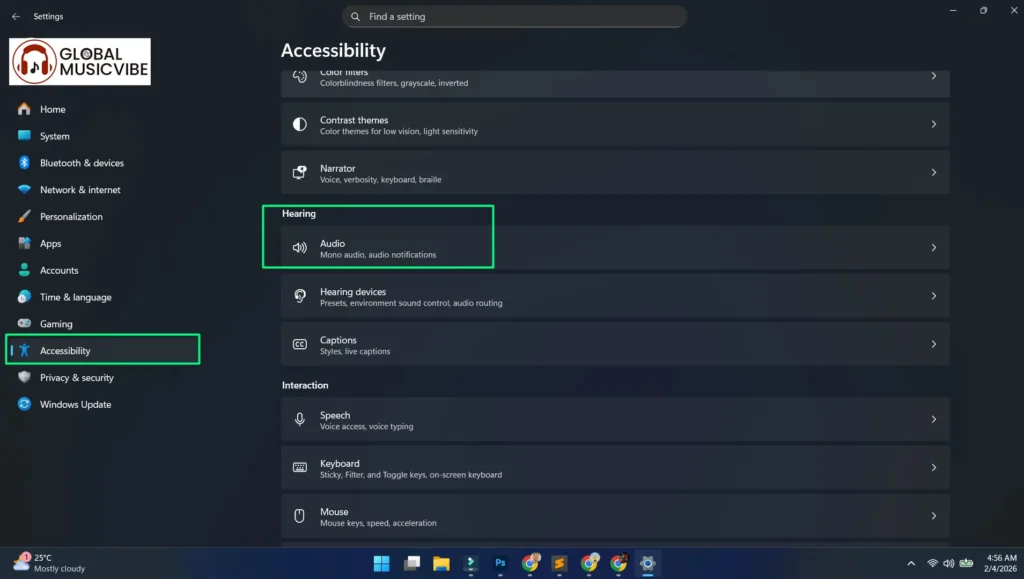
Step 3: Scroll down and select “Audio” under the Hearing section.
Step 4: Locate the “Flash my screen during audio notifications” option and click on the dropdown menu next to it.
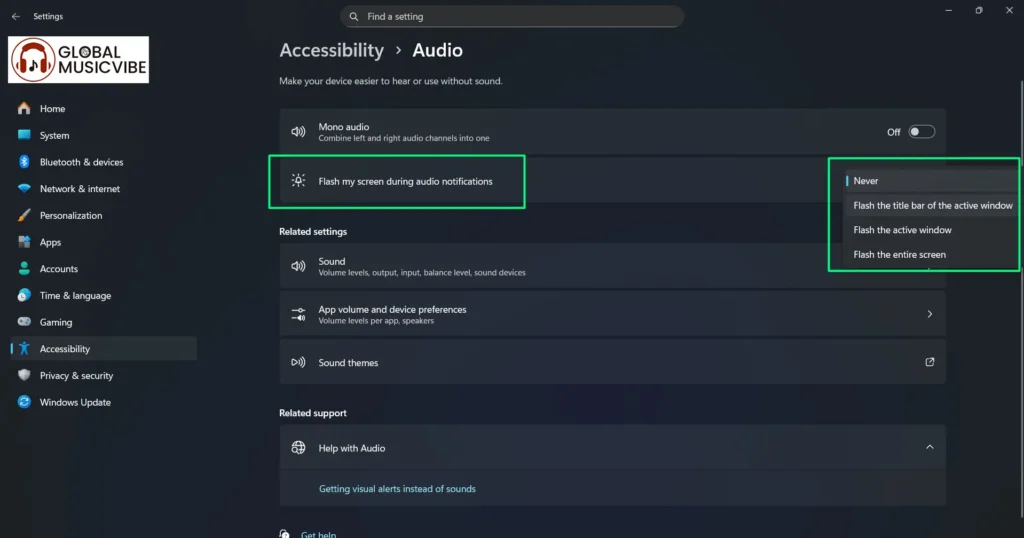
Step 5: Choose your preferred visual alert style from the available options: Never, Flash the title bar of the active window, Flash the active window, or Flash the entire screen.
Step 6: Once you select an option, the setting is automatically applied. Your visual alerts are now active and will flash whenever a system sound occurs.
Alternative Method Through Control Panel
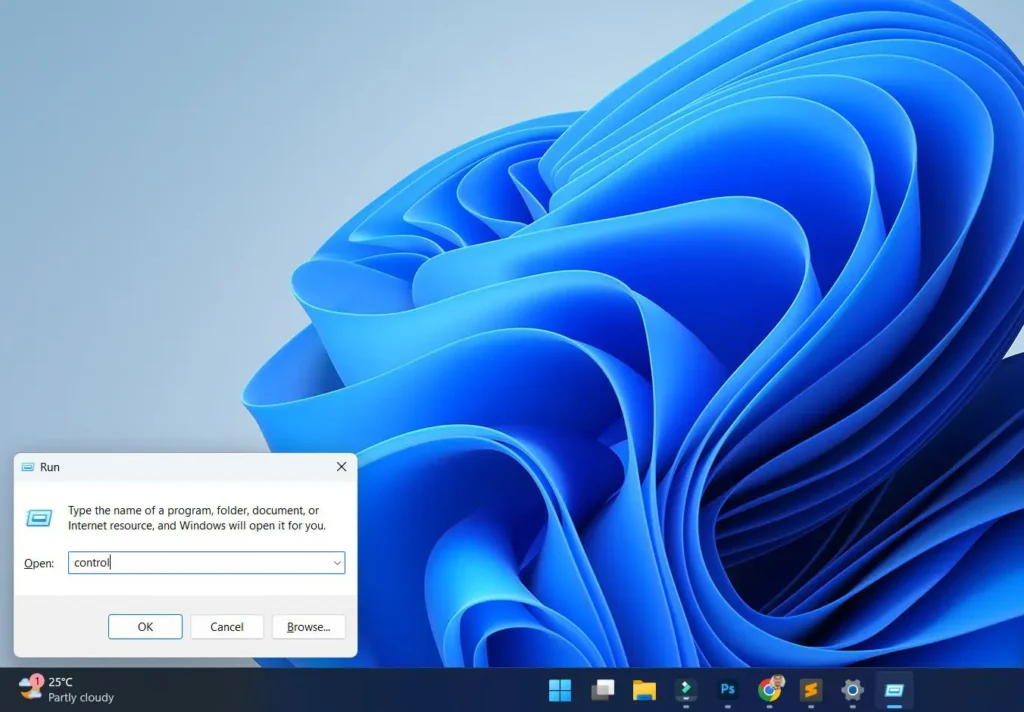
Step 1: Press Windows key + R to open the Run dialog box.
Step 2: Type “control” and press Enter to open the Control Panel.
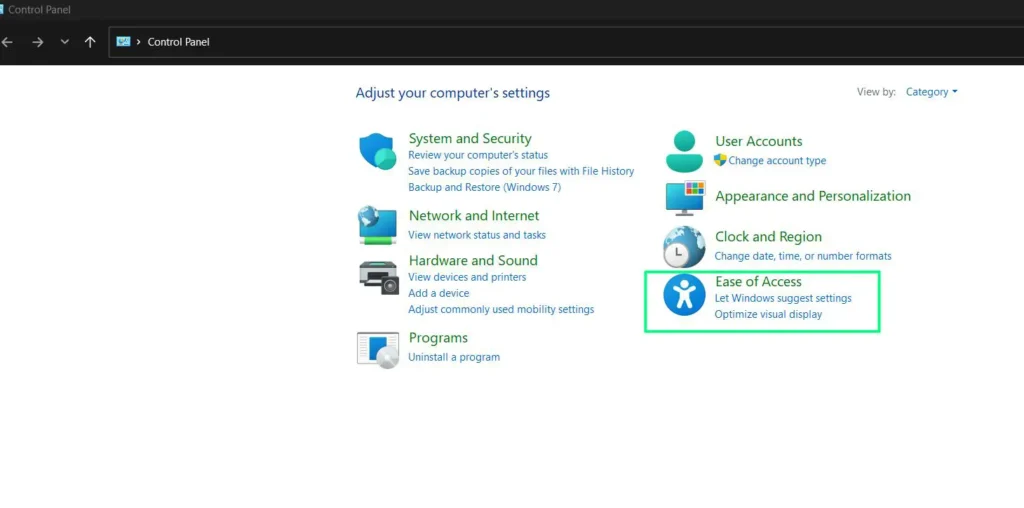
Step 3: Click on “Ease of Access”
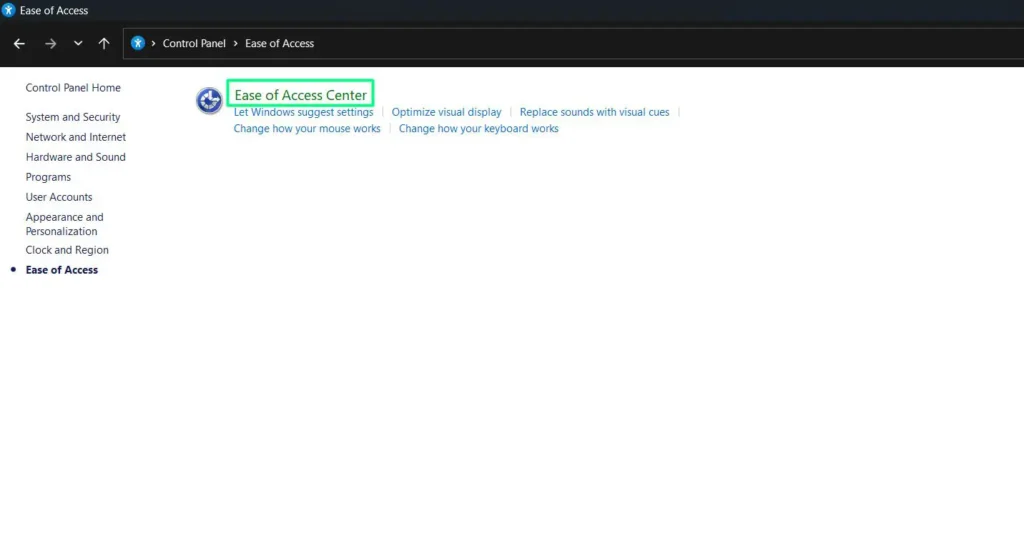
Step 4: Select “Ease of Access Center.”
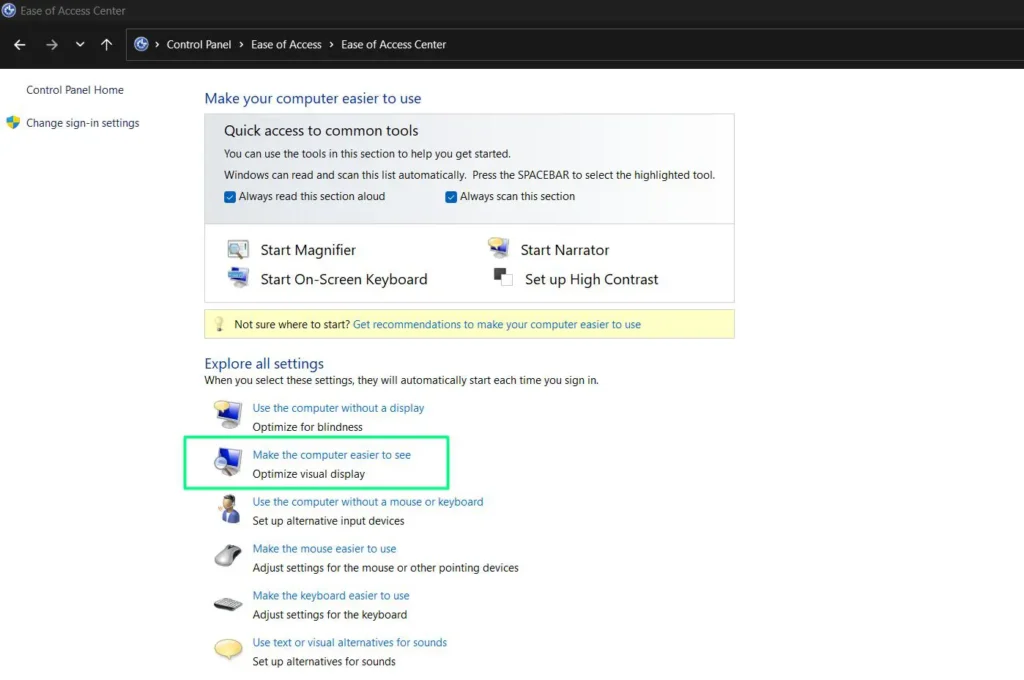
Step 5: Click on “Make the computer easier to see” from the available options.
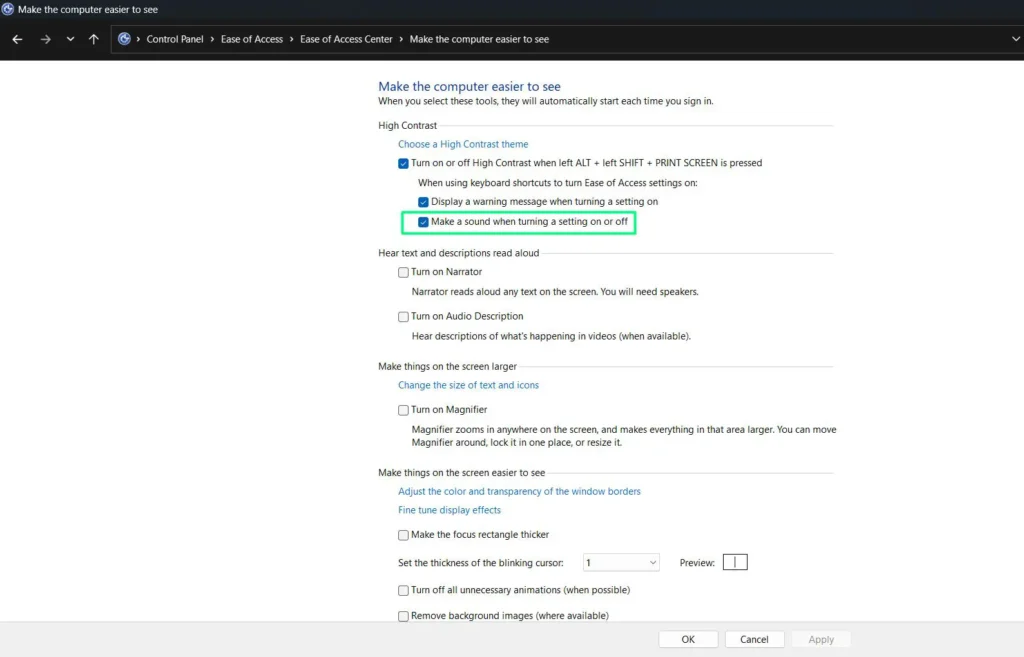
Step 6: Under the section “When using keyboard shortcuts to turn Ease of Access settings on,” check the box next to “Make a sound when turning a setting on or off.” This option works in conjunction with other accessibility features to provide audio feedback.
Step 7: For visual notifications, the primary control is through the modern Settings app as described above. The Control Panel provides legacy accessibility options but visual alerts are best configured through Settings.
Step 8: Click Apply and then OK to save any changes made in the Control Panel.
Understanding Visual Alert Options
Windows 11 provides four distinct customization options to tailor visual alerts to your preferences. You can choose different flash patterns and areas of the screen to ensure notifications are noticeable without being overwhelming.
Never
This option disables all visual alerts. Select this if you prefer to rely solely on audio notifications or want to turn off the visual alert feature completely.
Flash the Title Bar of the Active Window
This option flashes only the title bar of the window you’re currently using. It’s the most subtle option and ideal when you want minimal distraction. The title bar briefly flashes when a system sound occurs, providing a gentle visual cue without disrupting your workflow.
Flash the Active Window
This setting flashes the entire active window, making notifications more noticeable than just the title bar. The entire window you’re working in will briefly flash white when a system sound occurs, ensuring you don’t miss important alerts while staying focused on your current application.
Flash the Entire Screen
This is the most noticeable option, making your entire screen flash when notifications occur. This setting ensures you never miss an alert and works well for users who need maximum visibility for notifications, especially those with hearing difficulties.
Testing Your Visual Alerts
After enabling visual alerts, it’s important to test them to ensure they’re working correctly. You can trigger a test notification by adjusting your system volume, which typically produces a sound. Watch for the visual flash on your screen to confirm the feature is active.
Another effective test is to open the notification settings and send yourself a test notification. Navigate to Settings, then System, and select Notifications. From here, you can manage app notifications and trigger test alerts to verify your visual notification settings are functioning properly.
Additional Accessibility Features in Windows 11
Windows 11 offers numerous accessibility features beyond visual alerts. You can explore options like mono audio, closed captions, and text-to-speech through the Accessibility settings. The mono audio feature, visible in the same Audio settings page, combines left and right audio channels into one, which is helpful for users with hearing in only one ear.
Other useful accessibility options available through the Control Panel’s “Make the computer easier to see” section include high contrast themes, narrator for text-to-speech, audio descriptions, magnifier for enlarging screen content, and options to adjust text size and cursor thickness. For more helpful tips and tutorials, visit our guides section where you’ll find comprehensive resources for optimizing your Windows experience.
Troubleshooting Visual Alerts
If your visual alerts aren’t working as expected, there are several solutions you can try. First, verify that the feature is enabled in the Settings app and that you’ve selected an option other than “Never” from the dropdown menu. Restart your computer to ensure all settings are properly applied.
Check your graphics drivers and ensure they’re up to date. Outdated drivers can sometimes interfere with visual notification features. Visit your graphics card manufacturer’s website to download the latest drivers for your system.
If you’re using multiple monitors, test the visual alerts on each display separately. Some configurations may require additional adjustments to ensure notifications appear on all screens. You may also want to disable any unnecessary animations through the Control Panel’s accessibility settings, as these can sometimes conflict with visual alert functionality.
Benefits of Visual Notifications for Productivity
Visual alerts can significantly enhance productivity by providing non-intrusive notifications that don’t disrupt your audio environment. This is particularly valuable when listening to music, participating in video calls, or working with audio editing software. If you frequently work with audio files, check out our MP3 converter tool for additional audio management capabilities.
Many professionals prefer visual alerts because they can maintain focus while still staying aware of system notifications. Unlike audio alerts that can startle or interrupt concentration, visual cues provide information without demanding immediate attention.
Frequently Asked Questions
Can I use both visual and audio alerts simultaneously in Windows 11?
Yes, Windows 11 allows you to use both visual and audio alerts at the same time. Enabling visual alerts does not disable system sounds unless you separately mute your audio. This dual-notification approach ensures you receive alerts through multiple channels, which can be helpful in various situations.
Do visual alerts work with all applications in Windows 11?
Visual alerts work with system notifications and most applications that use Windows standard notification methods. However, some third-party applications with custom notification systems may not trigger visual alerts. Most mainstream apps and all Windows native notifications will properly activate the visual alert feature.
Will visual alerts affect my computer’s performance?
No, visual alerts have minimal impact on system performance. The feature uses negligible system resources since it only briefly flashes the screen when notifications occur. You can safely enable this accessibility feature without worrying about slowdowns or performance issues on your Windows 11 PC.
Can I change the color of the visual alert flash?
Currently, Windows 11 does not offer built-in options to customize the color of visual alerts. The flash is standardized as a white flash to ensure maximum visibility across different screen types and lighting conditions. However, third-party accessibility tools may provide additional customization options if needed.
How do I disable visual alerts if I no longer need them?
To disable visual alerts, return to Settings, select Accessibility, then Audio, and change the “Flash my screen during audio notifications” dropdown to “Never.” The feature will immediately deactivate, and your system will return to audio-only notifications for system events.
What is the difference between the Settings app and Control Panel methods?
The Settings app provides the primary and most up-to-date method for configuring visual alerts in Windows 11 with direct access to flash options. The Control Panel offers legacy accessibility settings that complement the modern Settings app but has limited visual alert configuration. For the best experience and full control over visual notifications, use the Settings app method.